
A. Managing Companies

Create a new organization

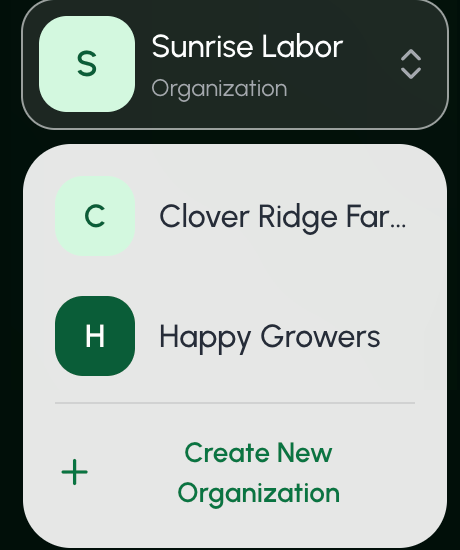
  1. Select the organization that you currently have open in the sidebar.
  2. From the dropdown menu, select + Create New Organization.
Clean Shot 2026 10 14 At 3 02 05 Pm@2x
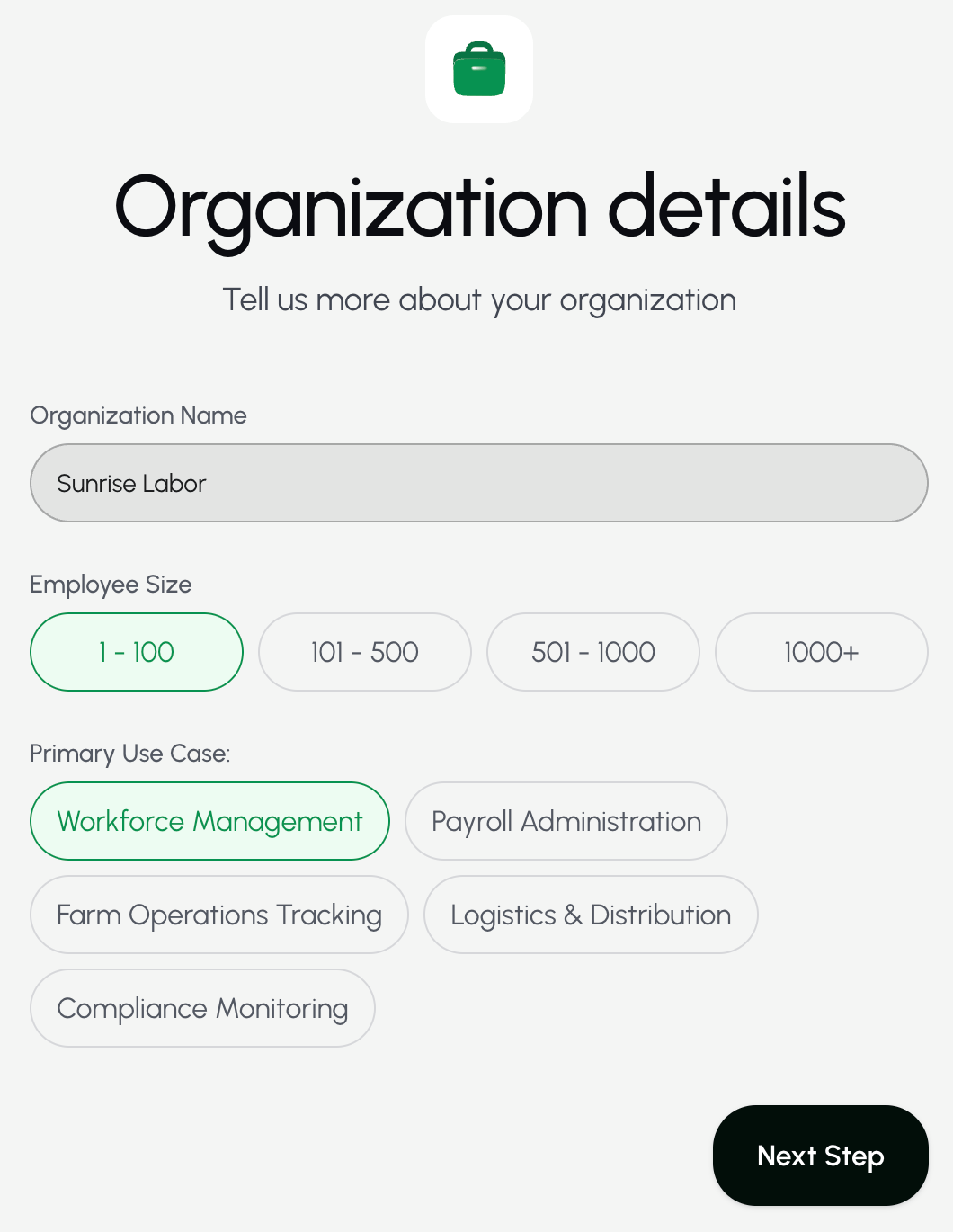
  1. Enter the new organization’s name , employee size, and primary use case. Then select Next Step.
Clean Shot 2026 09 27 At 2 07 17 Pm@2x
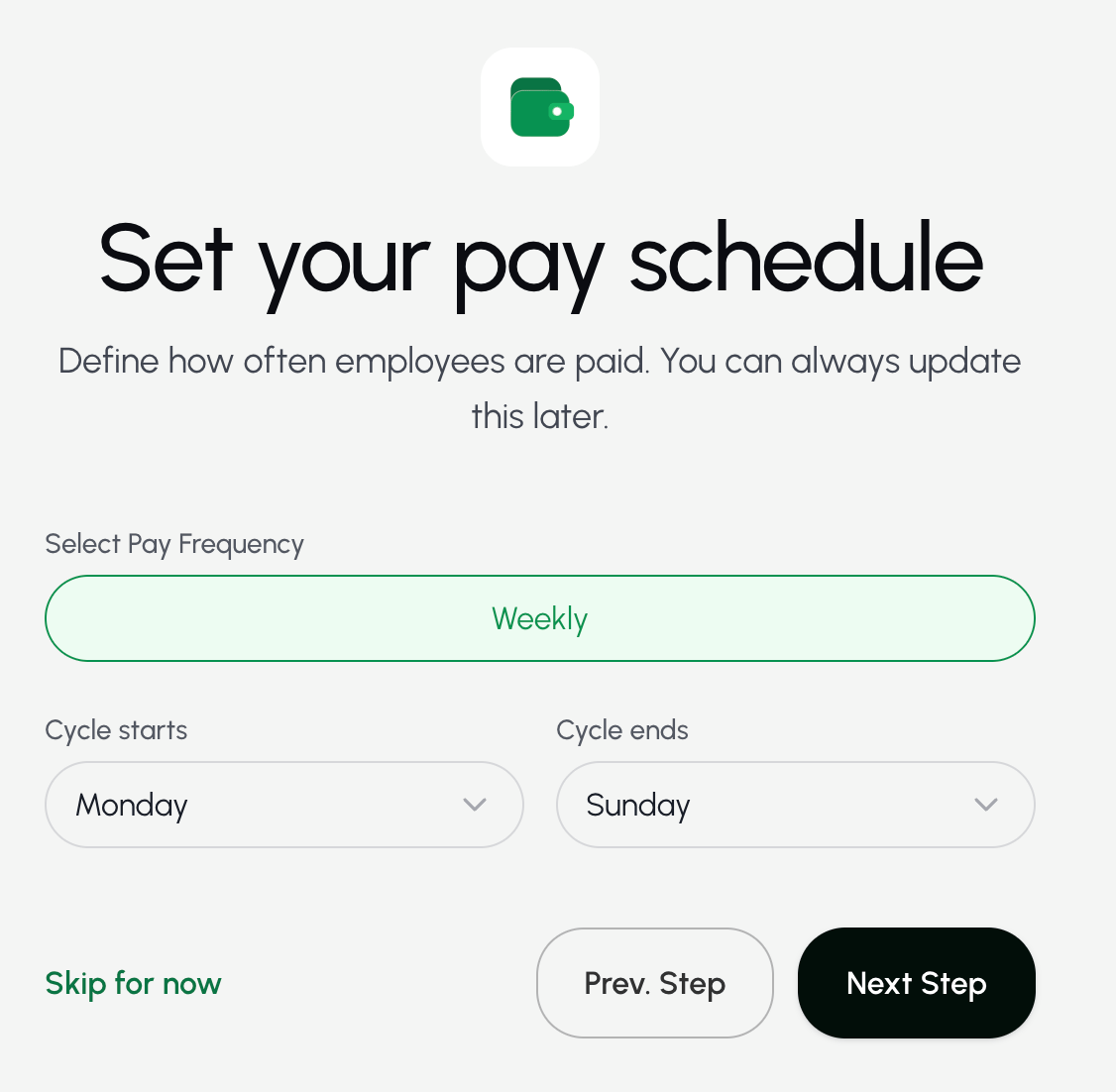
  1. Select the organization’s pay frequency, cycle start day, and cycle end day. Then select Next Step.
    • This step is optional. You may also select Skip for now.
Clean Shot 2026 09 27 At 2 08 57 Pm@2x
  1. Create a crew. Then select Proceed.
    • This step is optional. You may also select Skip for now.
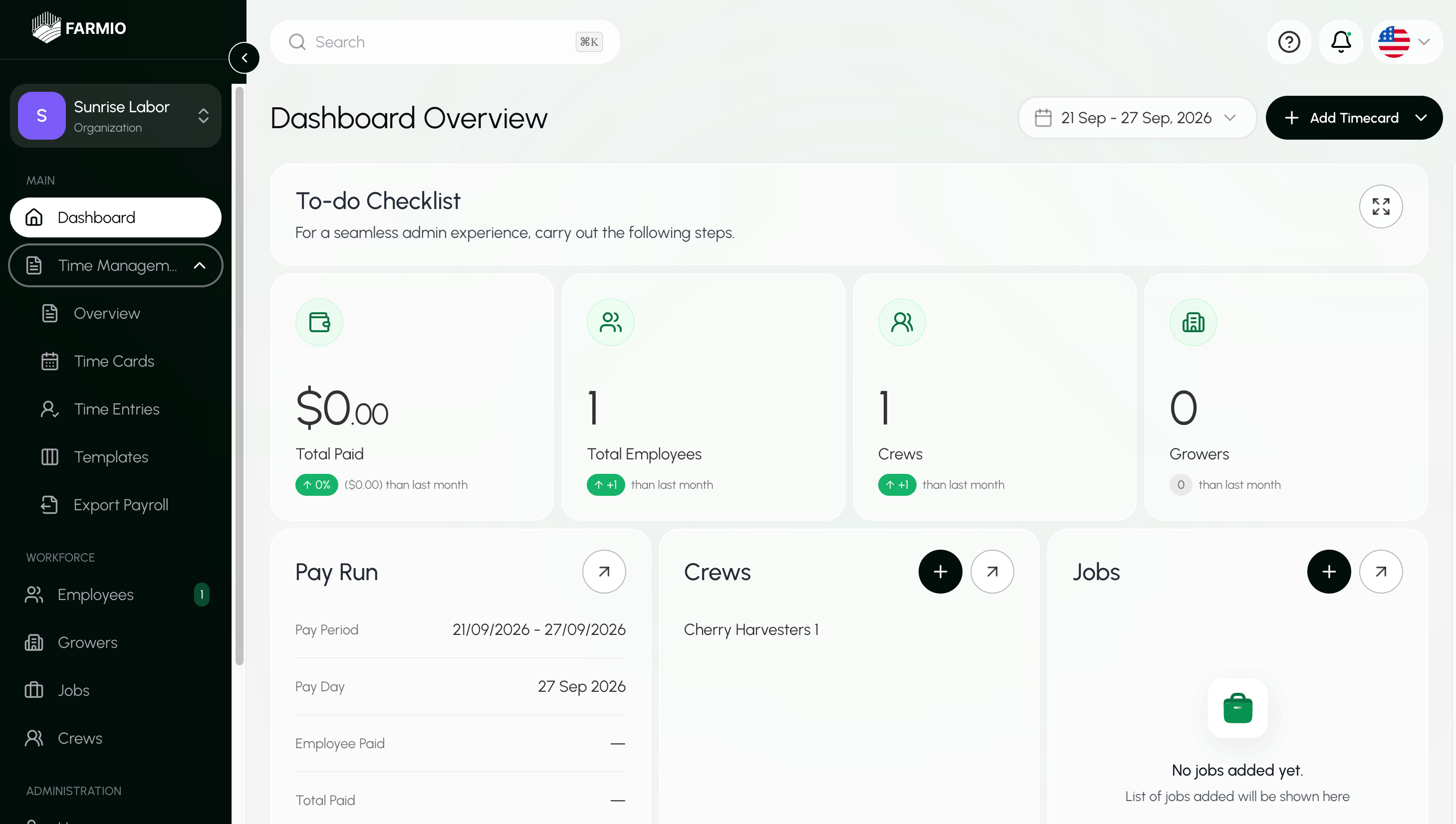
Your organization is now created. You will then be taken to your organization dashboard. Clean Shot 2026 09 27 At 2 26 33 Pm@2x

View all organizations

  1. Select the organization that you currently have open in the sidebar.
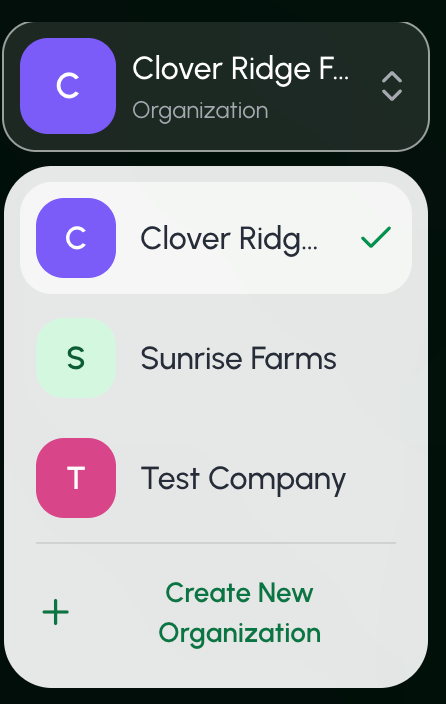
All organizations are listed in the dropdown menu. Clean Shot 2026 09 17 At 9 46 39 Am@2x

Find an organization

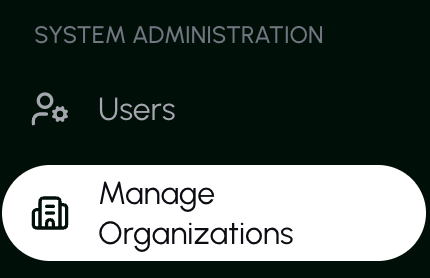
  1. Under System Administration, select Manage Organizations.
Clean Shot 2026 10 14 At 2 28 33 Pm@2x
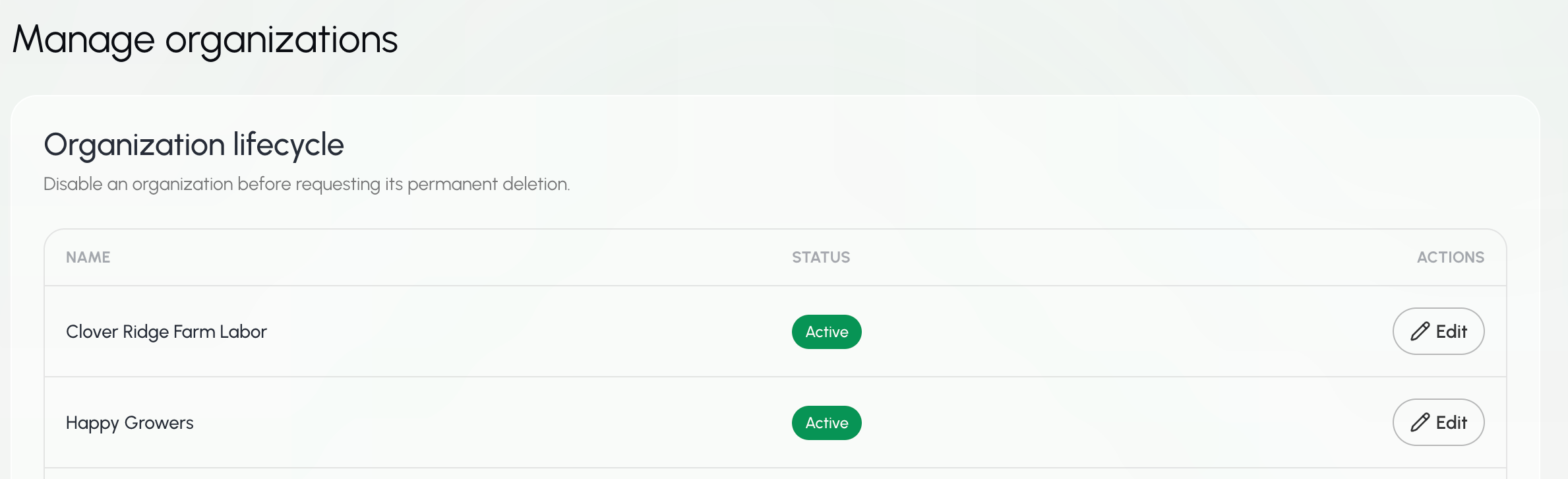
  1. All organizations that the user is connected to are listed.
Clean Shot 2026 10 14 At 2 28 59 Pm@2x

View organization details

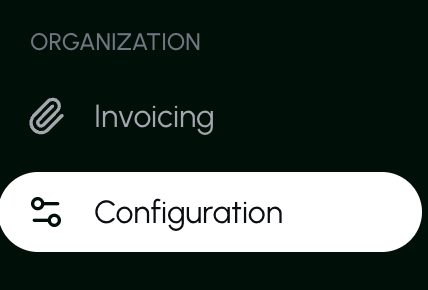
  1. Under Organization, select Configuration.
Clean Shot 2026 10 14 At 3 10 05 Pm@2x Here you can view the organization’s name, employee size, primary use case, and pay schedule. Clean Shot 2026 10 14 At 3 10 49 Pm@2x

Update organization details

  1. Under Organization, select Configuration.
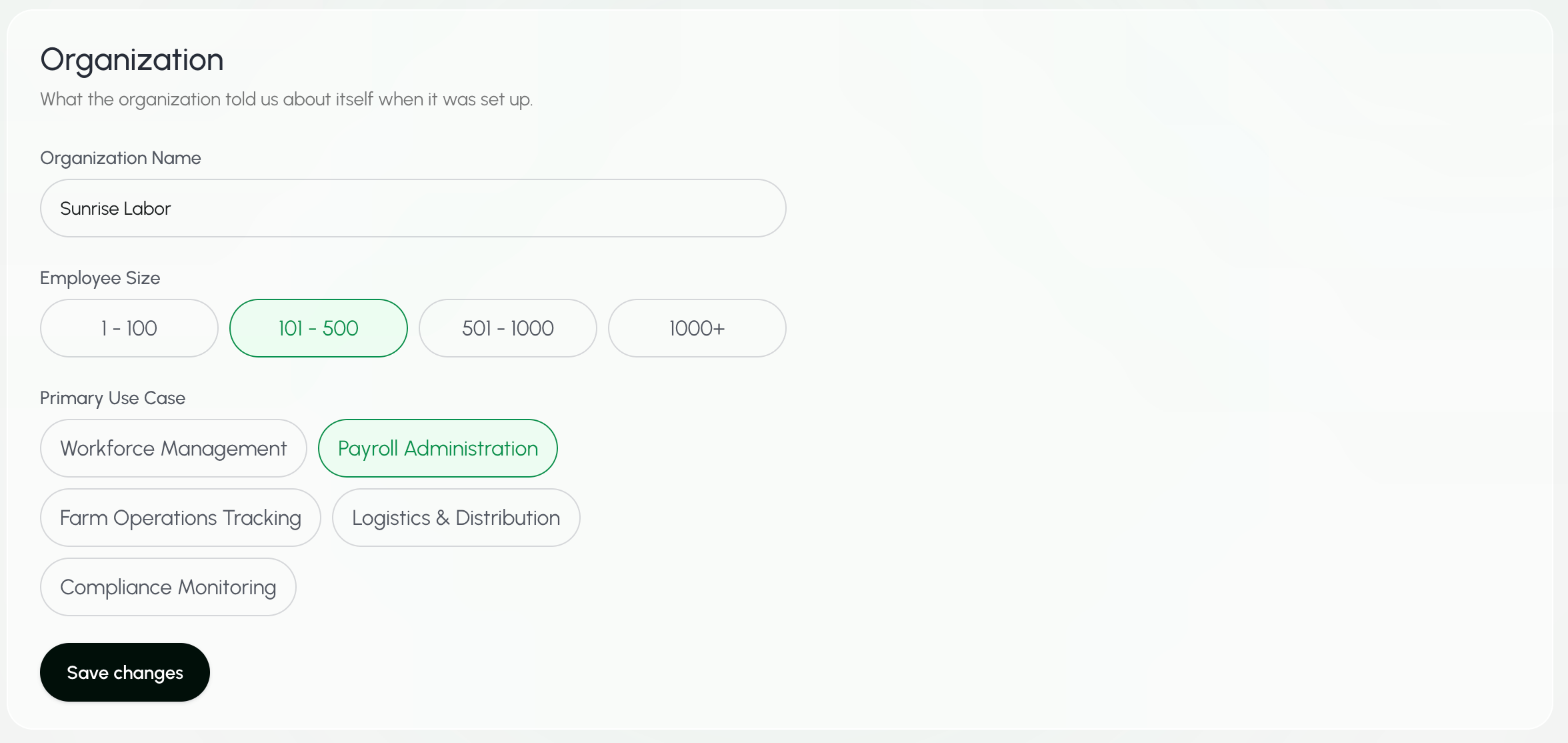
Clean Shot 2026 10 14 At 3 10 05 Pm@2x Here you can edit the organization’s name, employee size, primary use case, and pay schedule. Clean Shot 2026 10 14 At 3 10 49 Pm@2x
  1. Select Save changes.

B. Organization Settings

View organization settings

Update organization details

  1. Under Organization, select Configuration.
Clean Shot 2026 10 14 At 3 10 05 Pm@2x On this page you can view the following information for the organization:
  1. Organization details
Clean Shot 2026 10 14 At 3 10 49 Pm@2x
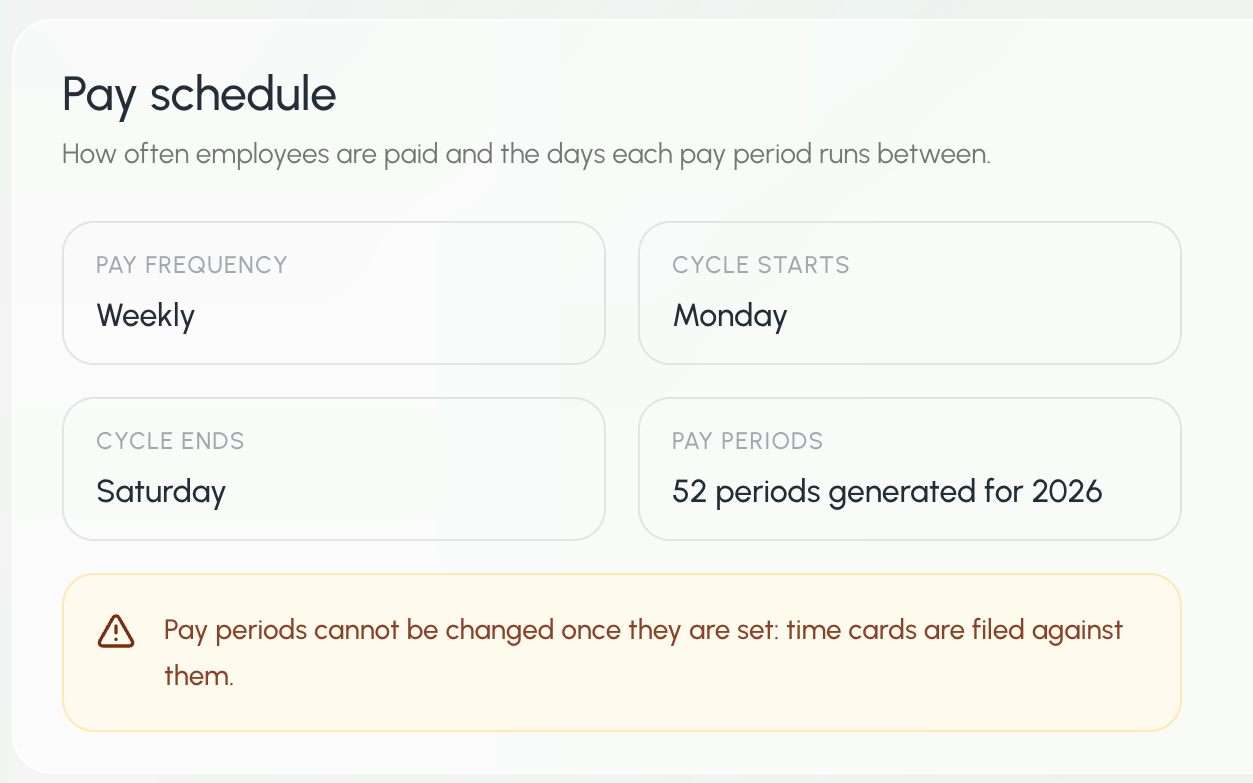
  1. Pay schedule
Clean Shot 2026 10 14 At 3 15 18 Pm@2x
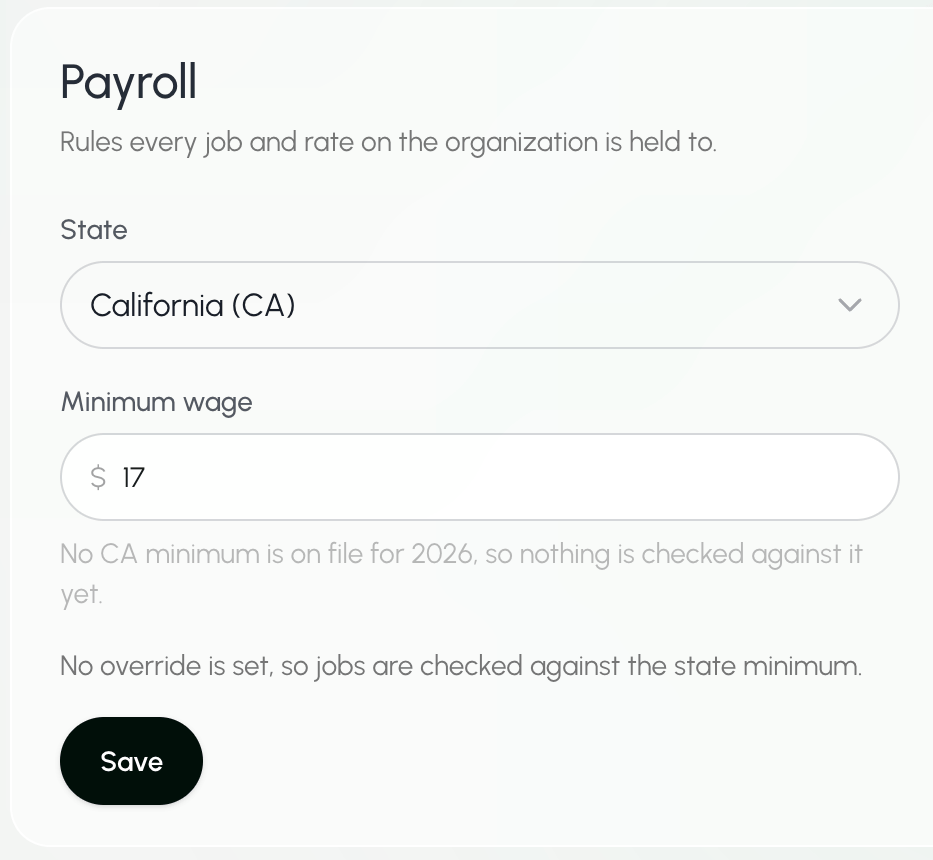
  1. Payroll (minimum wage)
Clean Shot 2026 10 14 At 3 16 12 Pm@2x
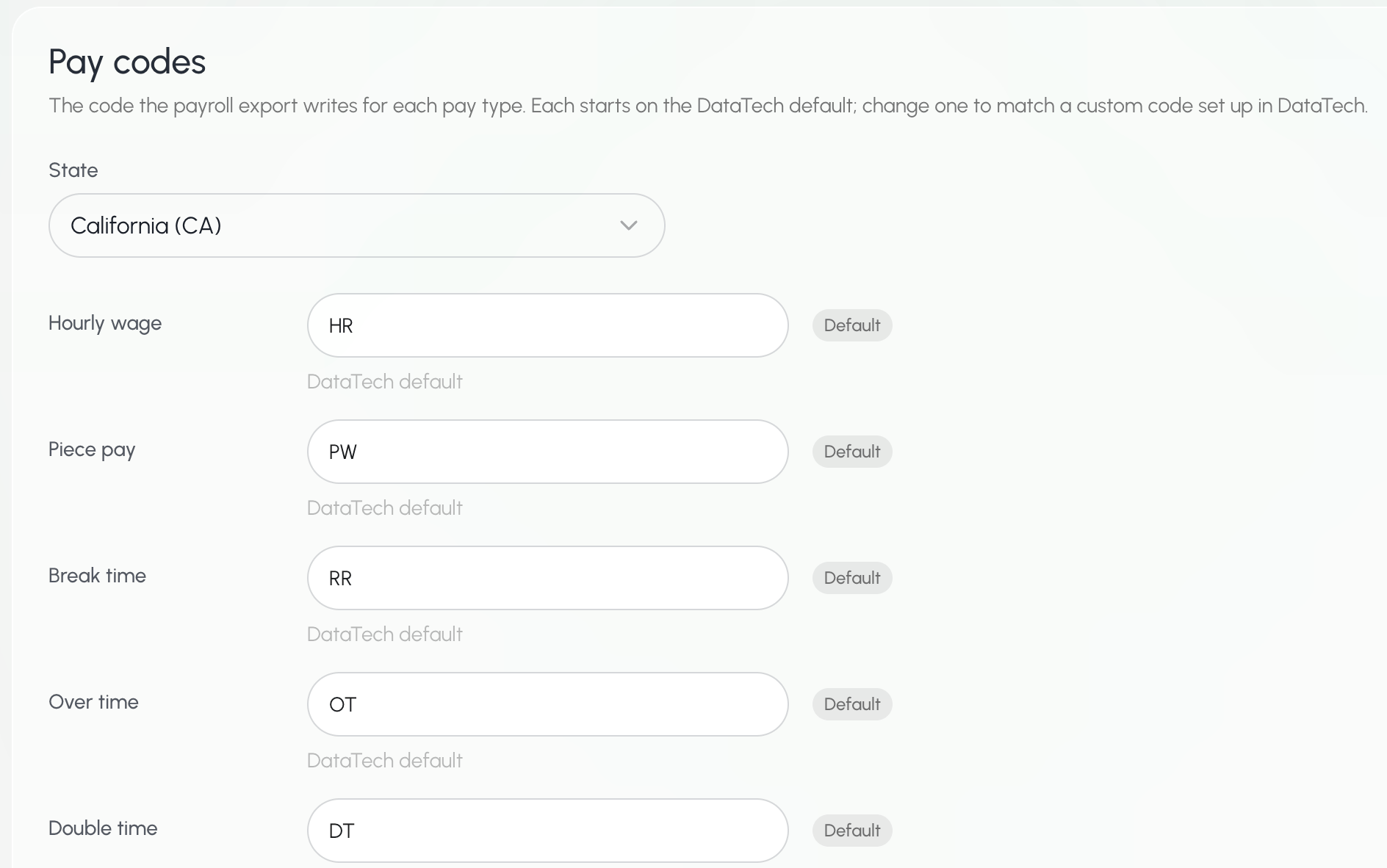
  1. Pay codes
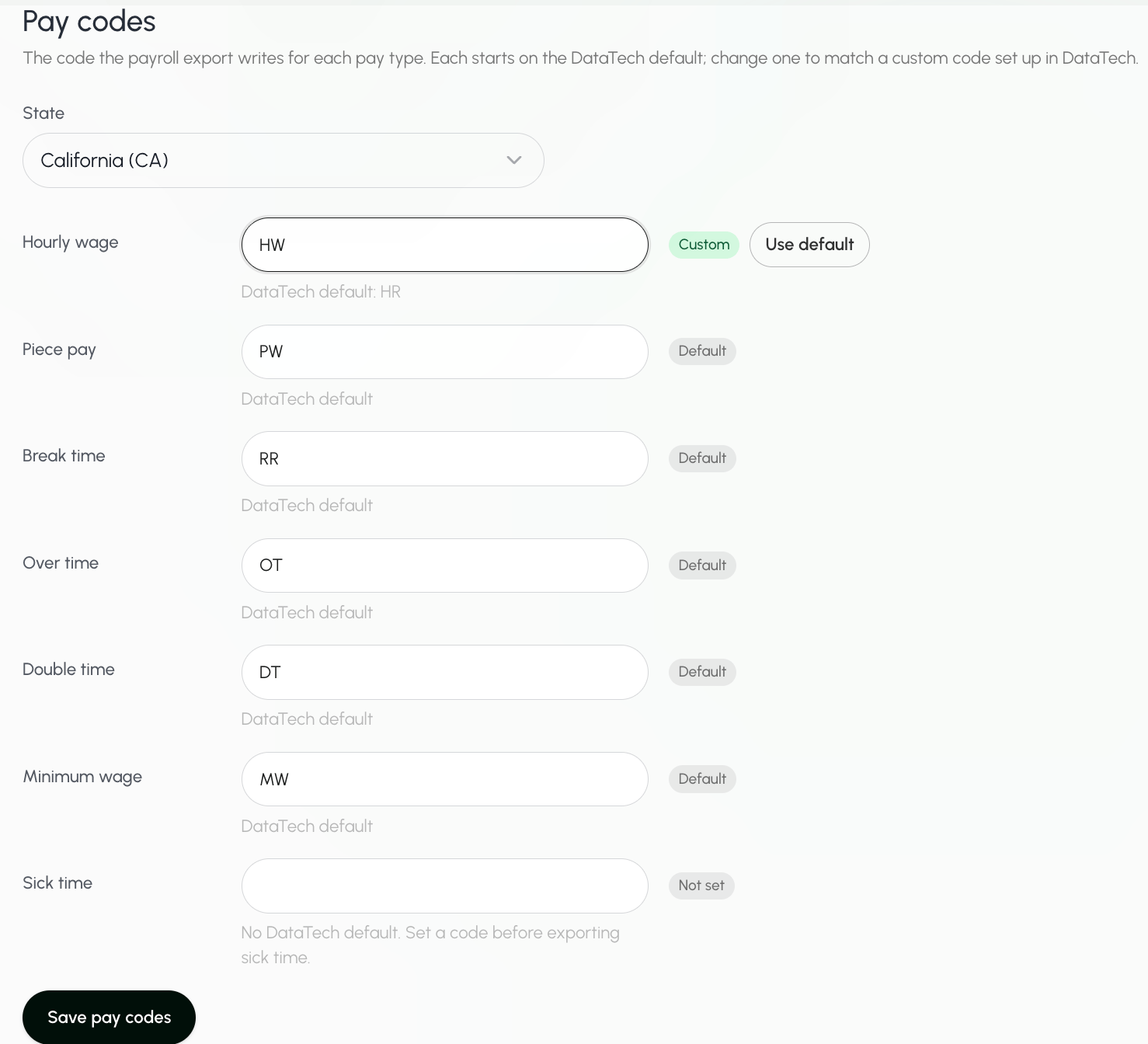
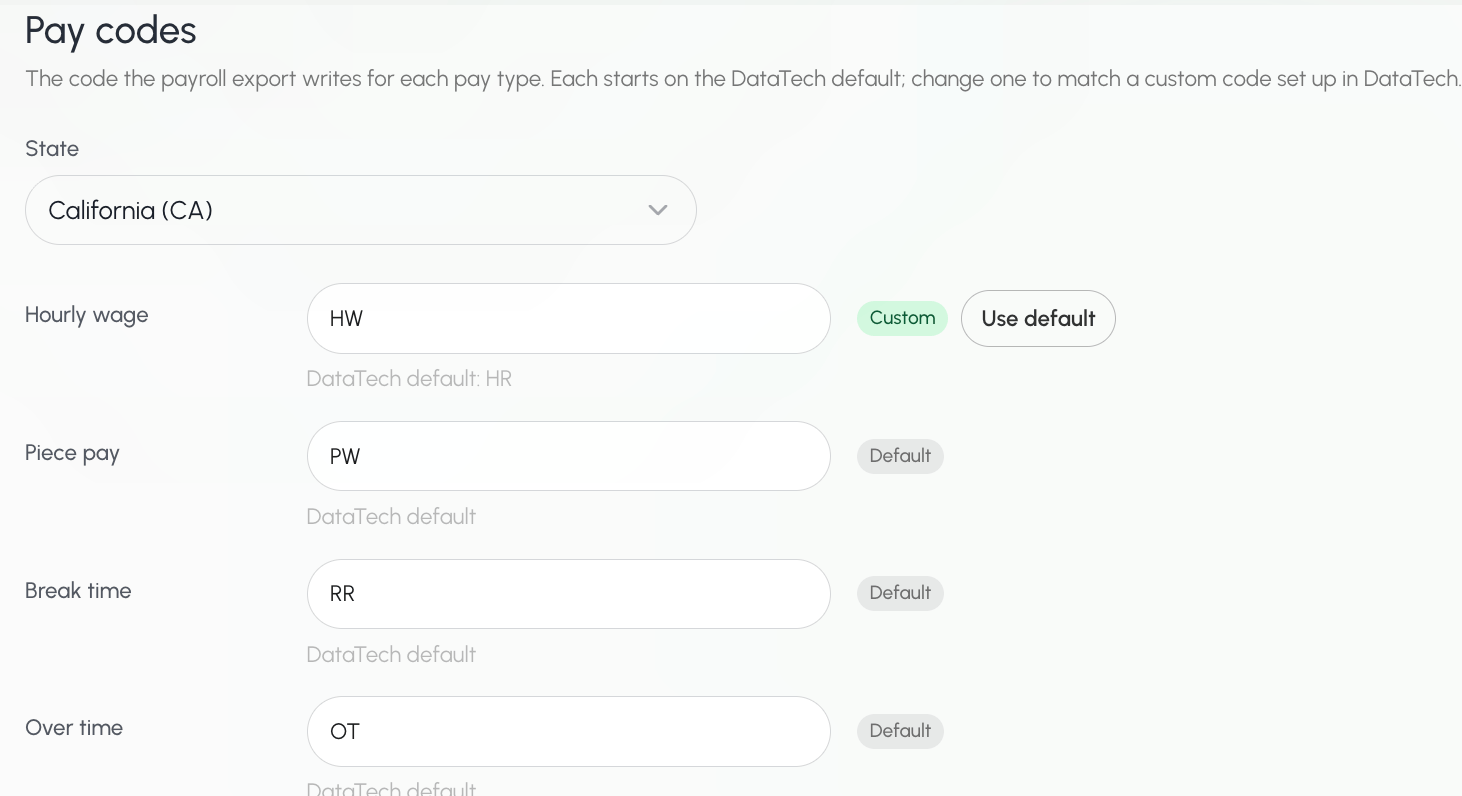
Pay codes are automatically set to the DataTech default. Clean Shot 2026 10 14 At 3 17 58 Pm@2x
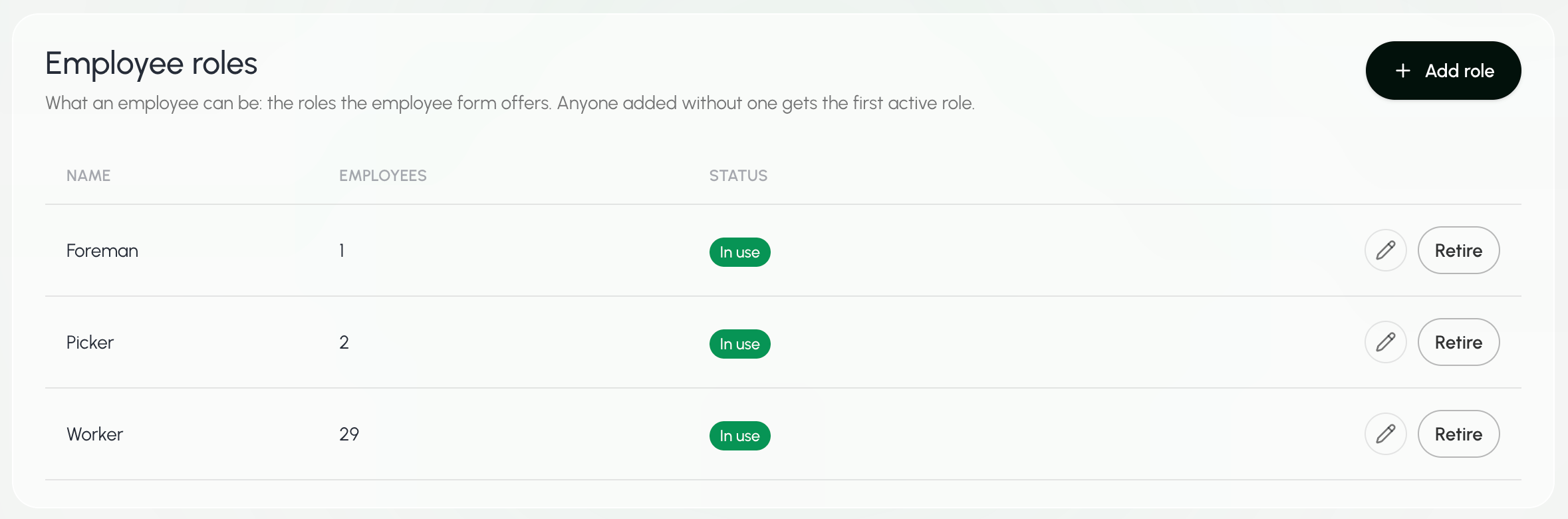
  1. Employee roles
Clean Shot 2026 10 14 At 3 18 54 Pm@2x
  1. Units
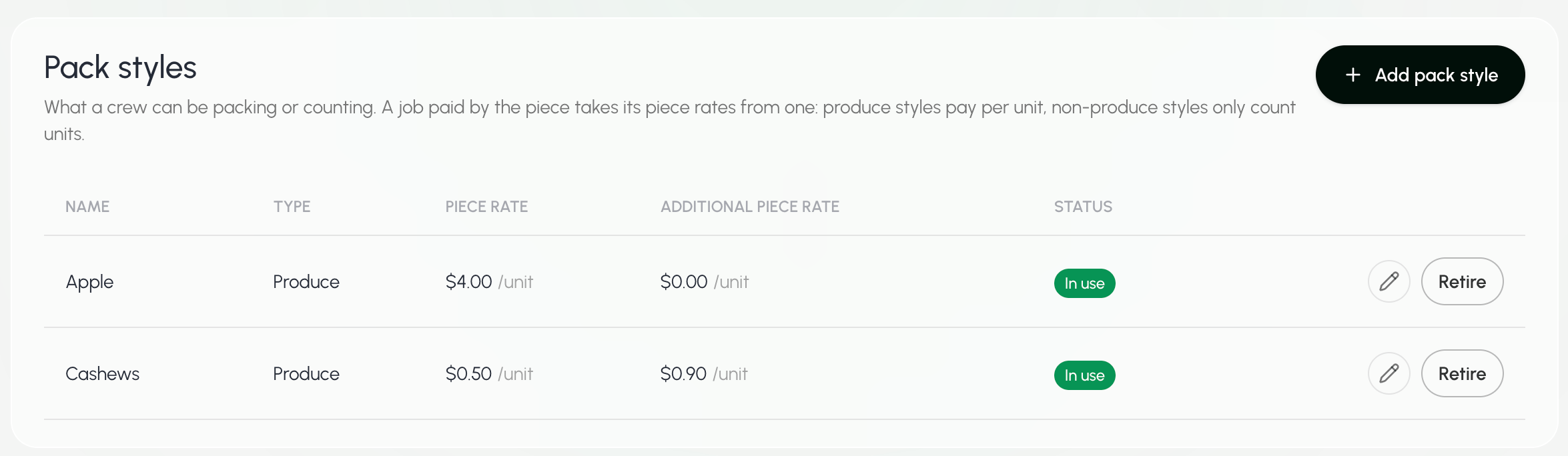
Clean Shot 2026 10 14 At 3 20 01 Pm@2x

Update organization pay codes

  1. Under Organization, select Configuration.
Clean Shot 2026 10 14 At 3 10 05 Pm@2x
  1. Scroll down to Pay codes.
Clean Shot 2026 10 14 At 3 17 58 Pm@2x
  1. Update the pay code.
  2. Select Save changes.
Clean Shot 2026 10 14 At 3 24 34 Pm@2x You can go back to the system default at any time by selecting Use default. Clean Shot 2026 10 14 At 3 26 31 Pm@2x