

A. Creating & Managing Users
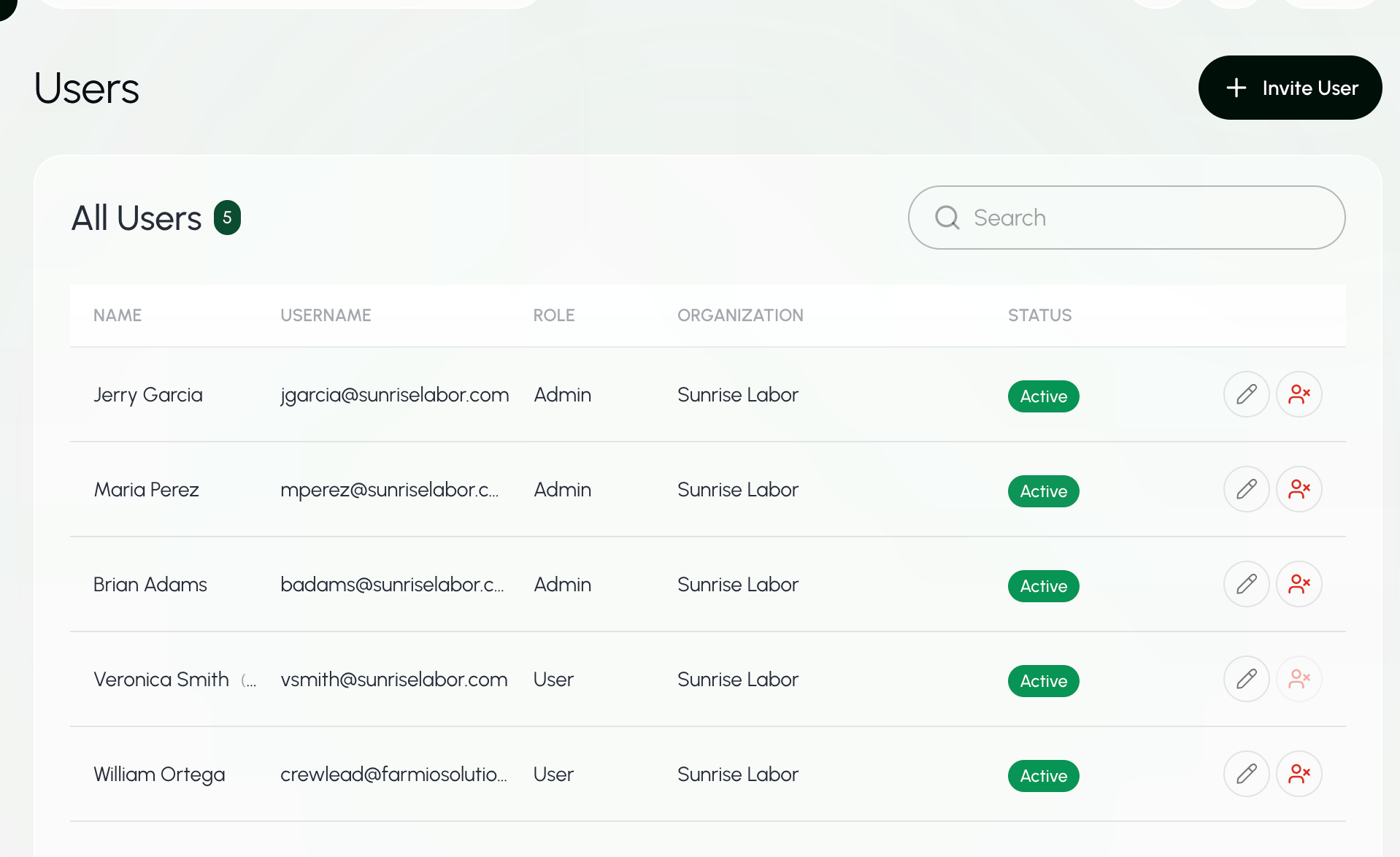
Get all users
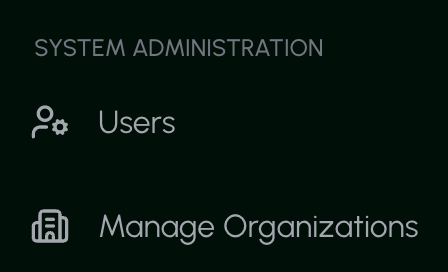
- Under System Administration, select Users.
Find a User
- Under System Administration, select Users.
- Select the Search box above the user list.
- Enter the user’s name, email, or organization.
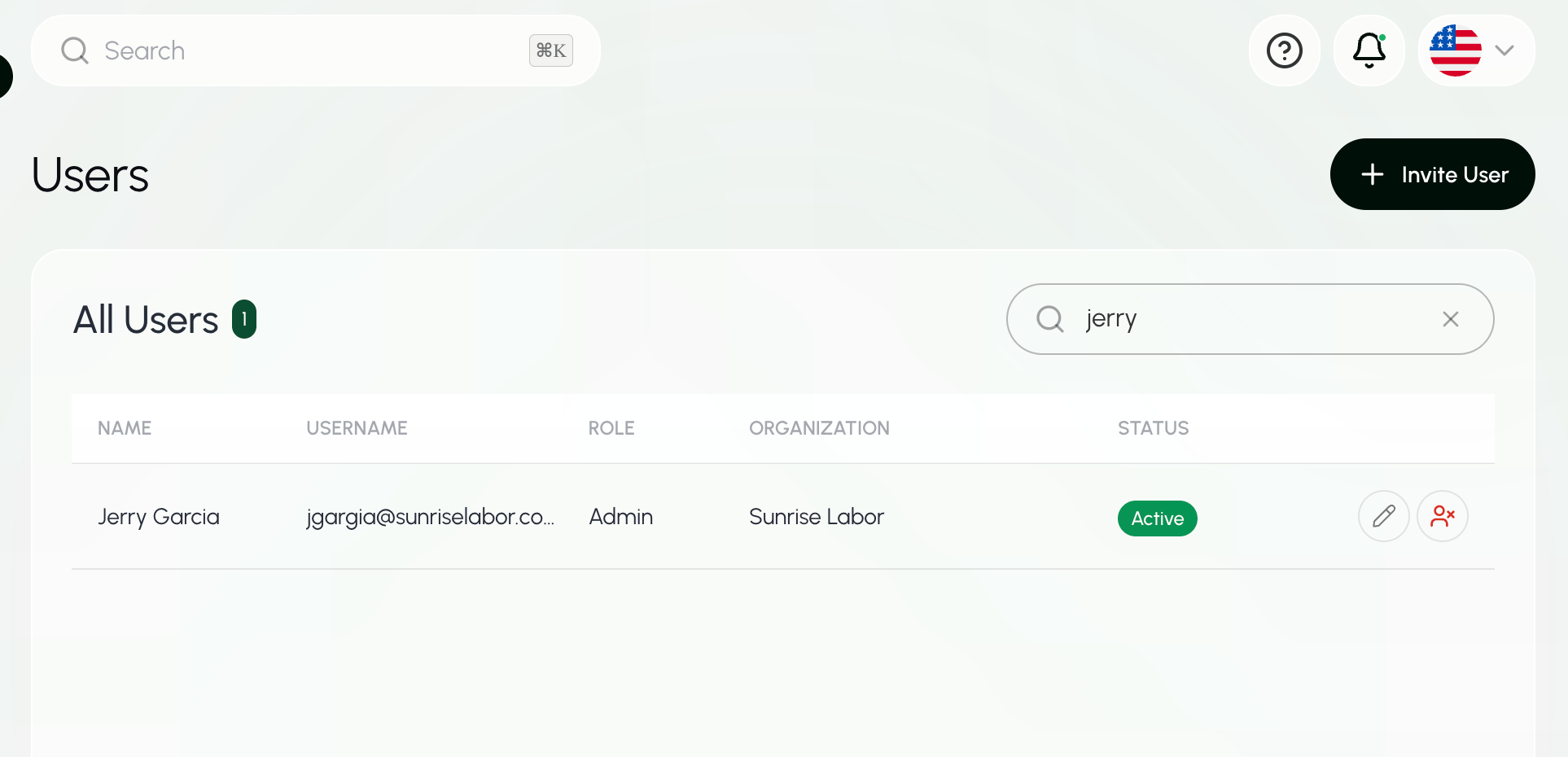
The Search bar at the top of every page searches across Farmio. To search only for users, use the Search box on the Users page.
Create a new user
- Under System Administration, select Users.
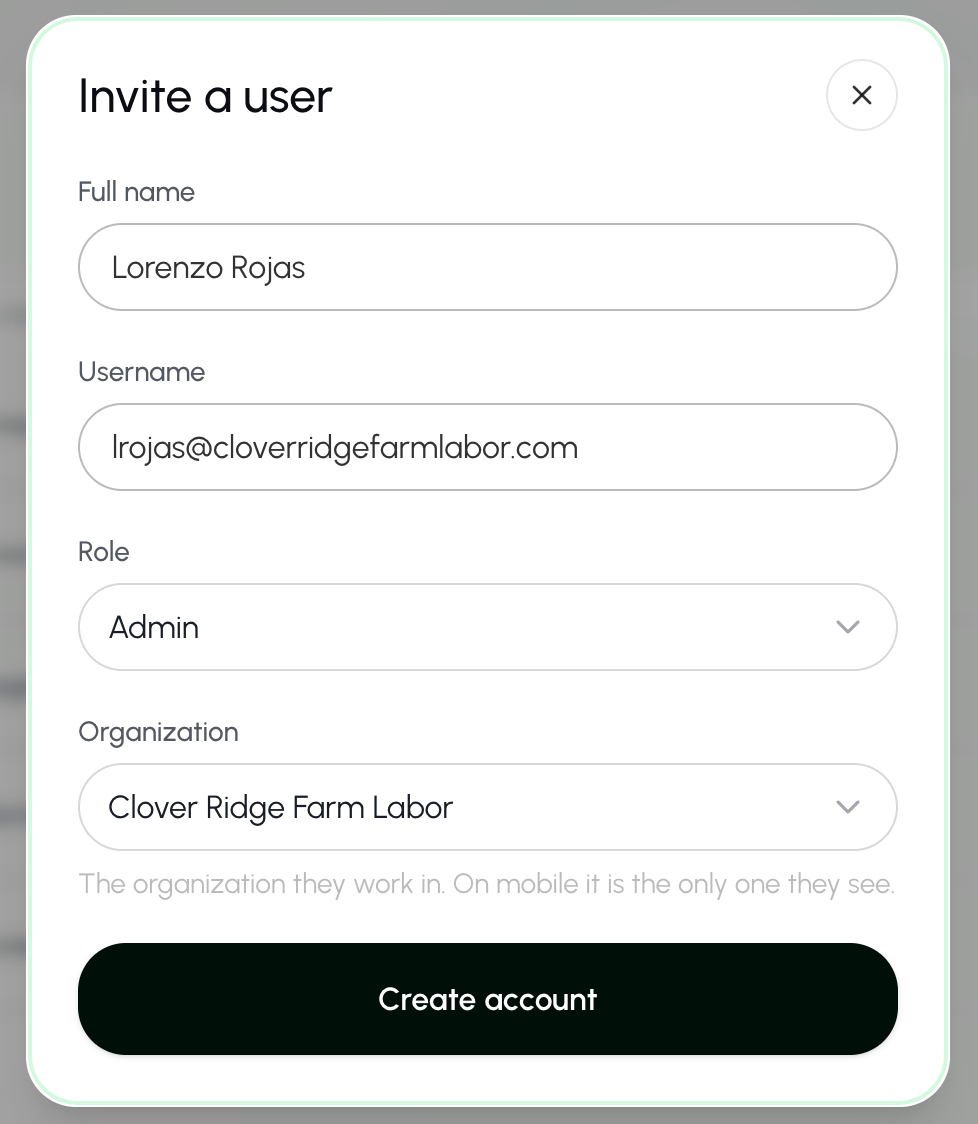
- Select + Invite User at the top right of the page.
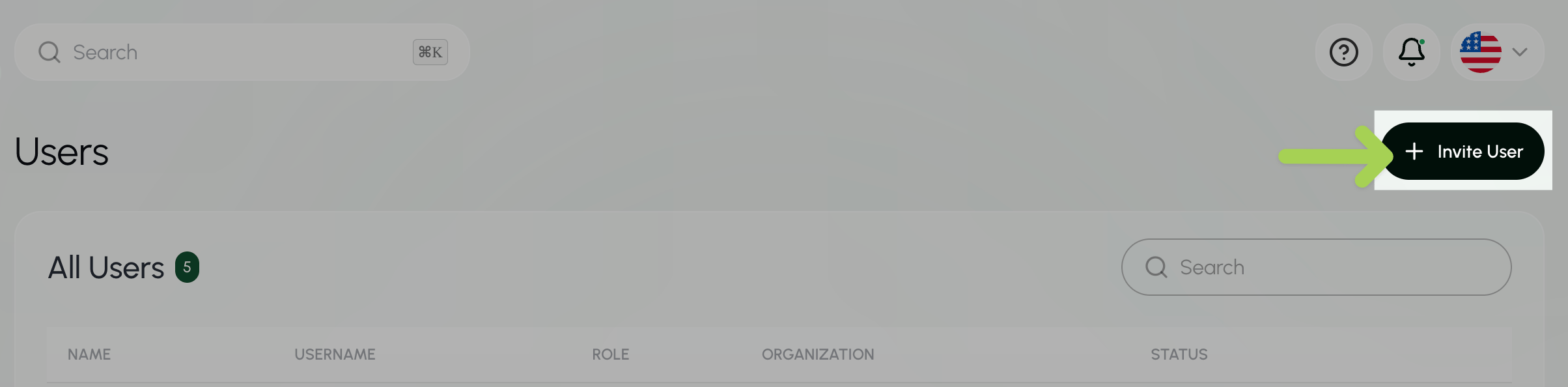
- Enter the new user’s full name, email, role, and organization.
- Select Create Account to save this user.
Users can only update their own details. Admin can update any user details, org details, and configurations.
- Share the temporary password with the new user.
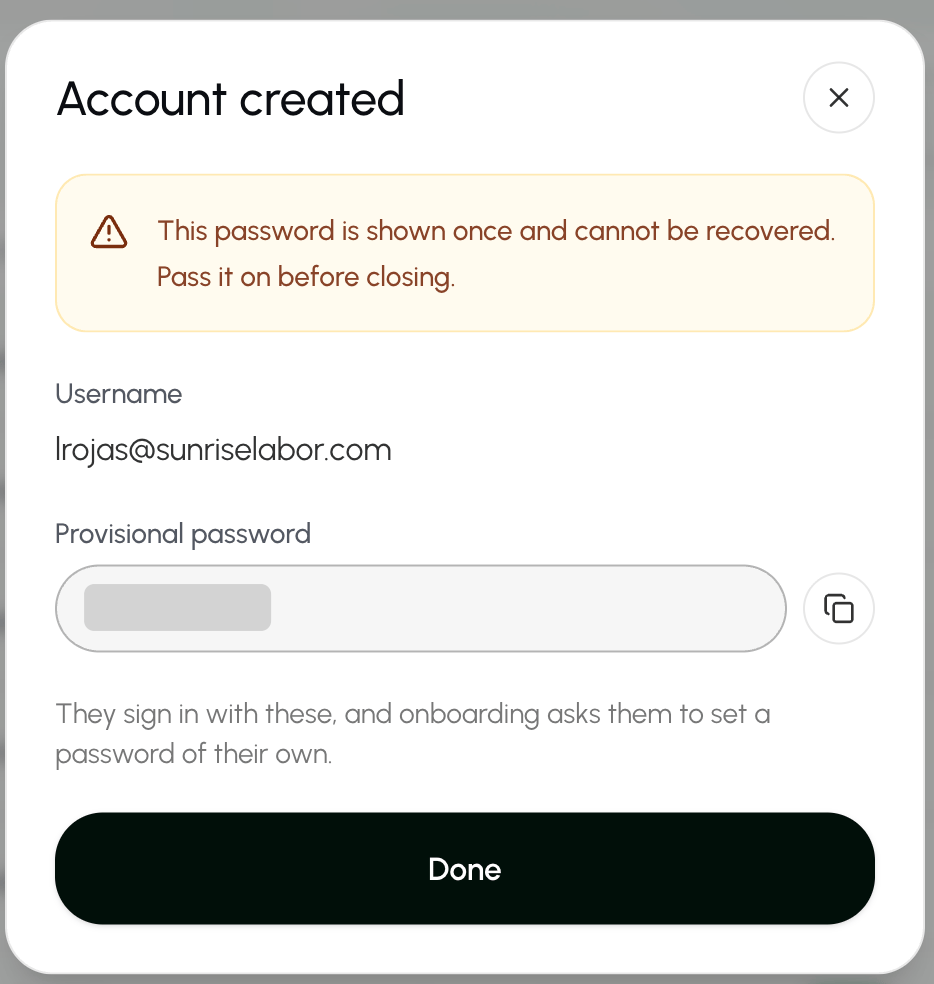
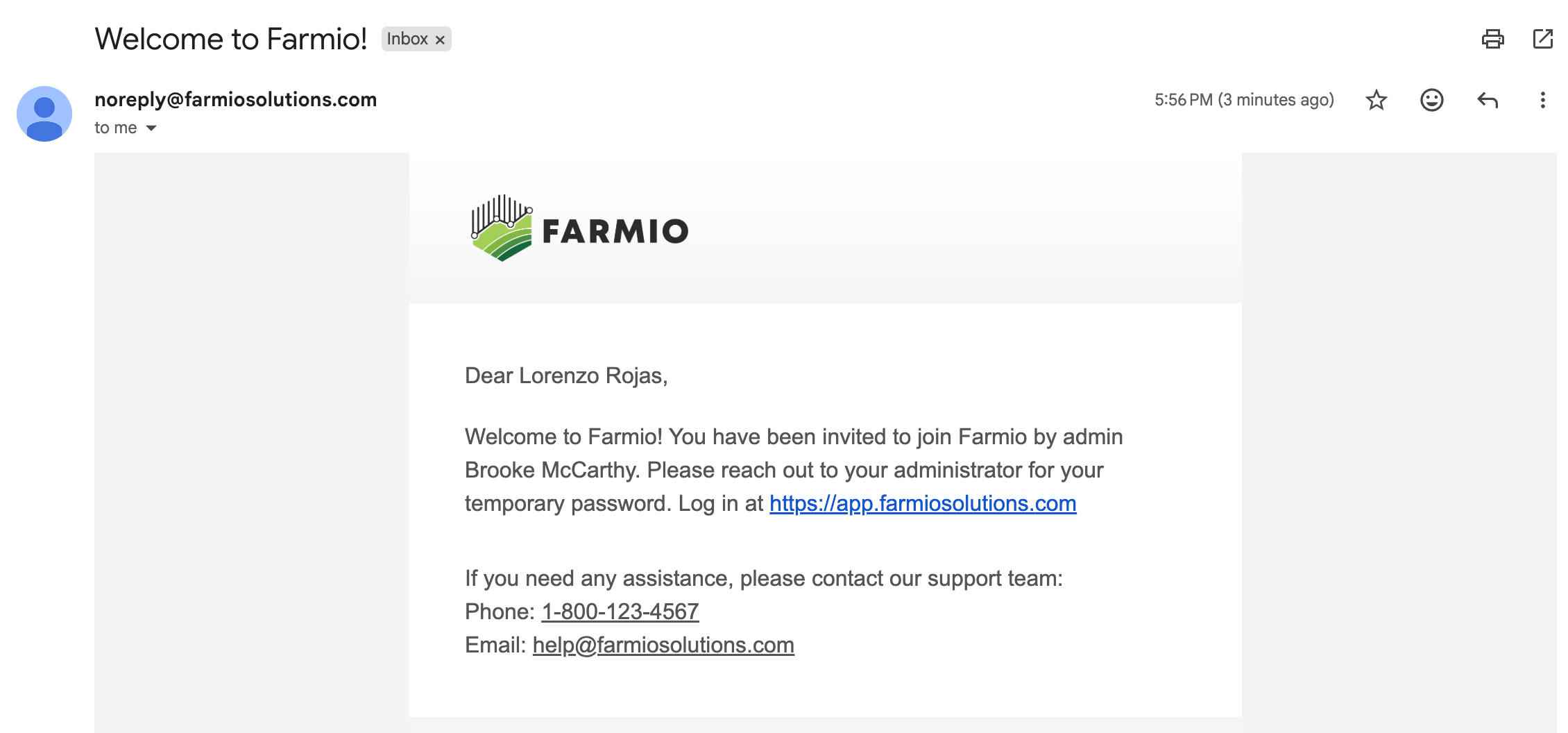
- The new user will receive a confirmation message to the email provided. The user will then enter the temporary password and create a new password.
Update user details
- Under System Administration, select Users.
- Select the Search box above the user list.
- Enter the user’s name, email, or organization.
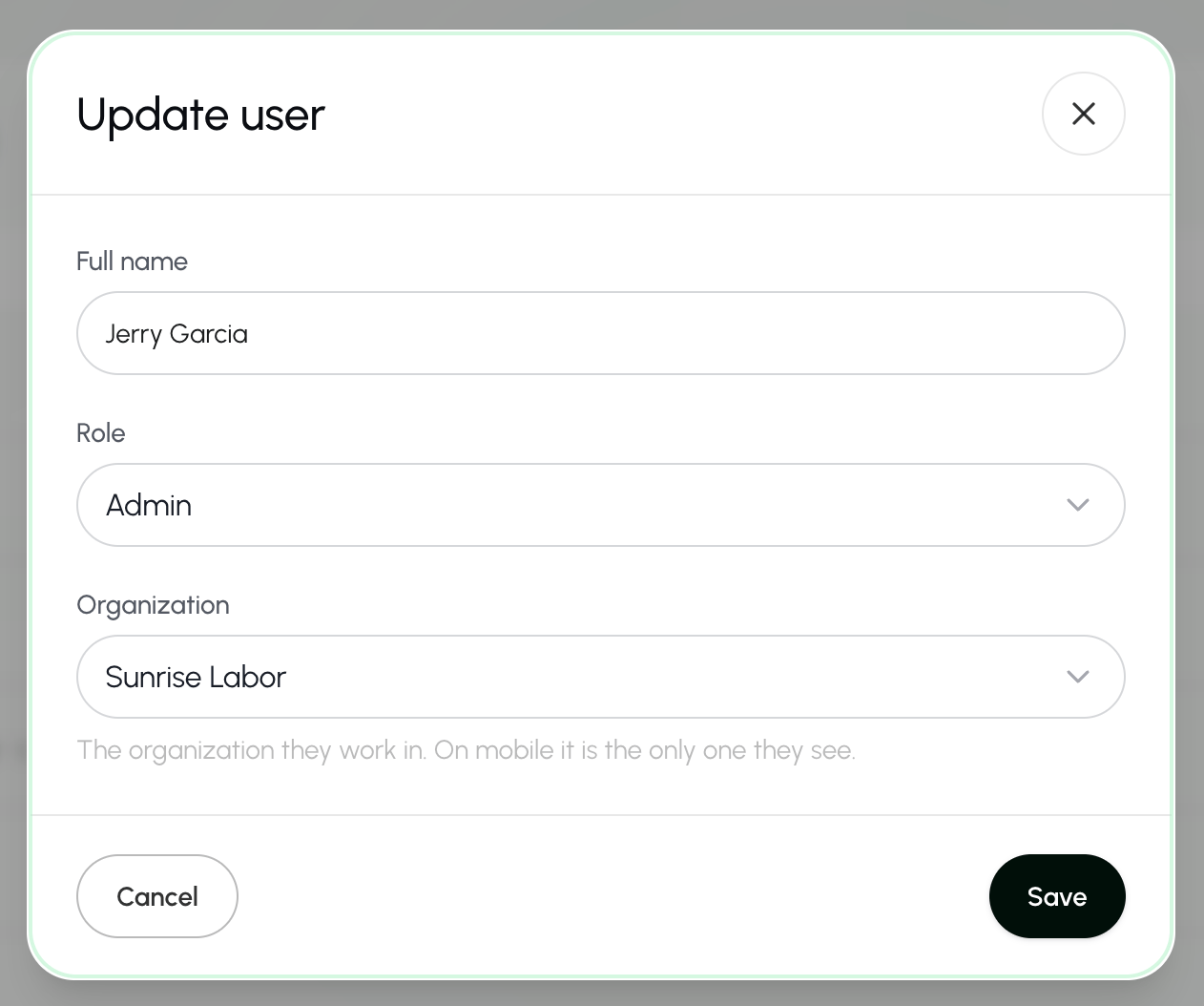
- Select the edit button
 next to the user that you want to edit.
- Enter the user’s full name, role, or organization.
- Select Save.
Change user language
- Select the Change Language button
 at the top right of the screen.

- Select your preferred language.
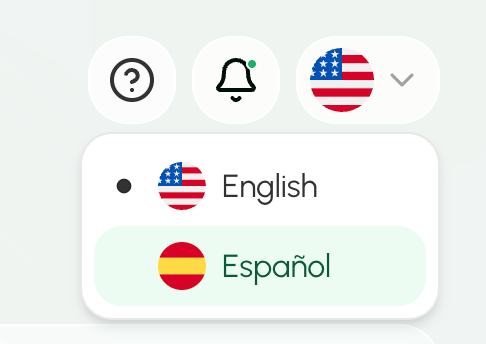
- Your preferred language should now appear as the language button.