
A. Creating & Viewing Time Cards
Create a new time card (add a time card for a past date)
To create a time card for future work, see Schedule a time card.- From the dashboard, elect + Add Timecard.
- Select Create timecard from the menu.

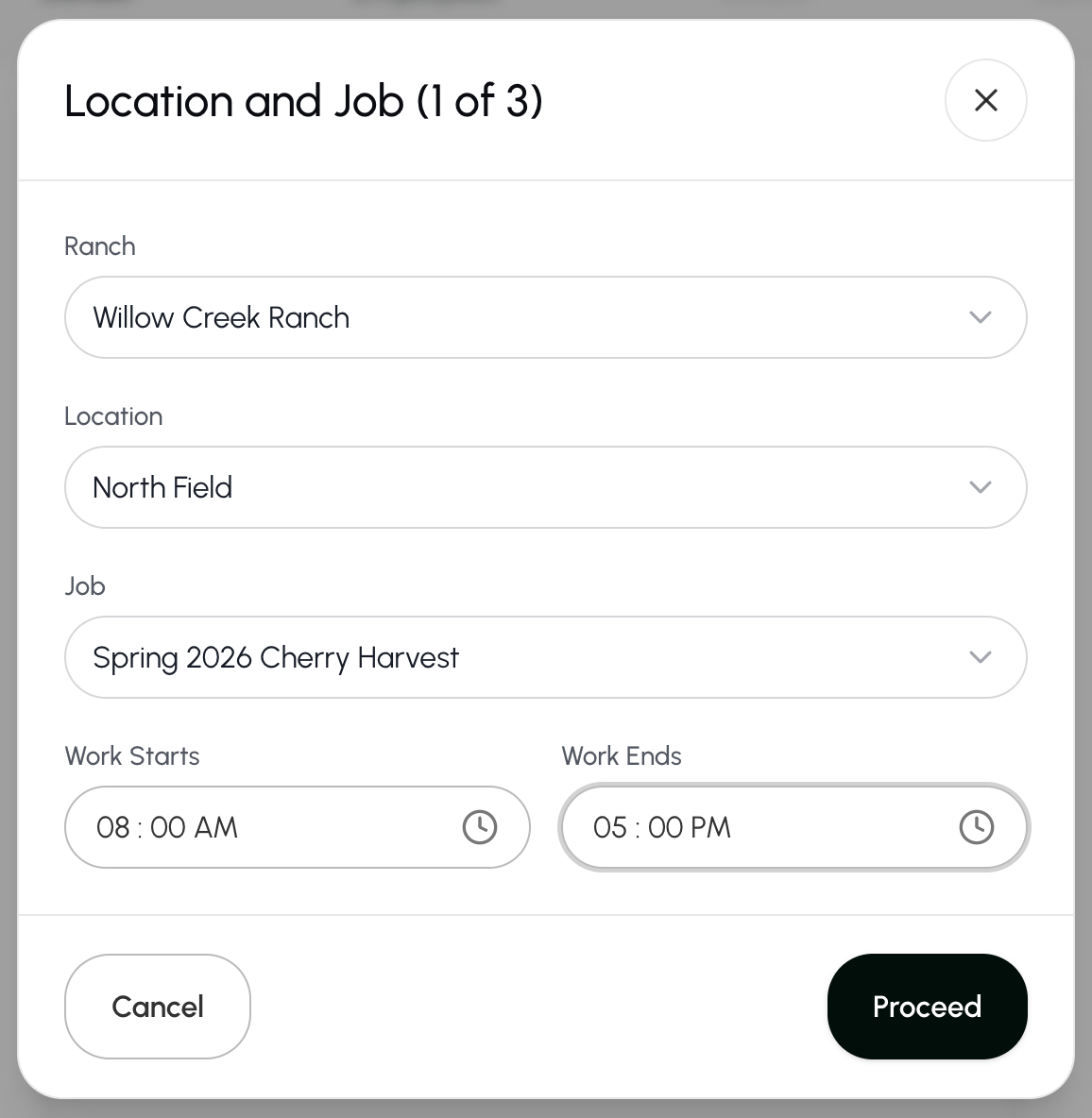
- Enter the ranch, location, job title, start time, and end time.*
- Select Proceed to continue**.**
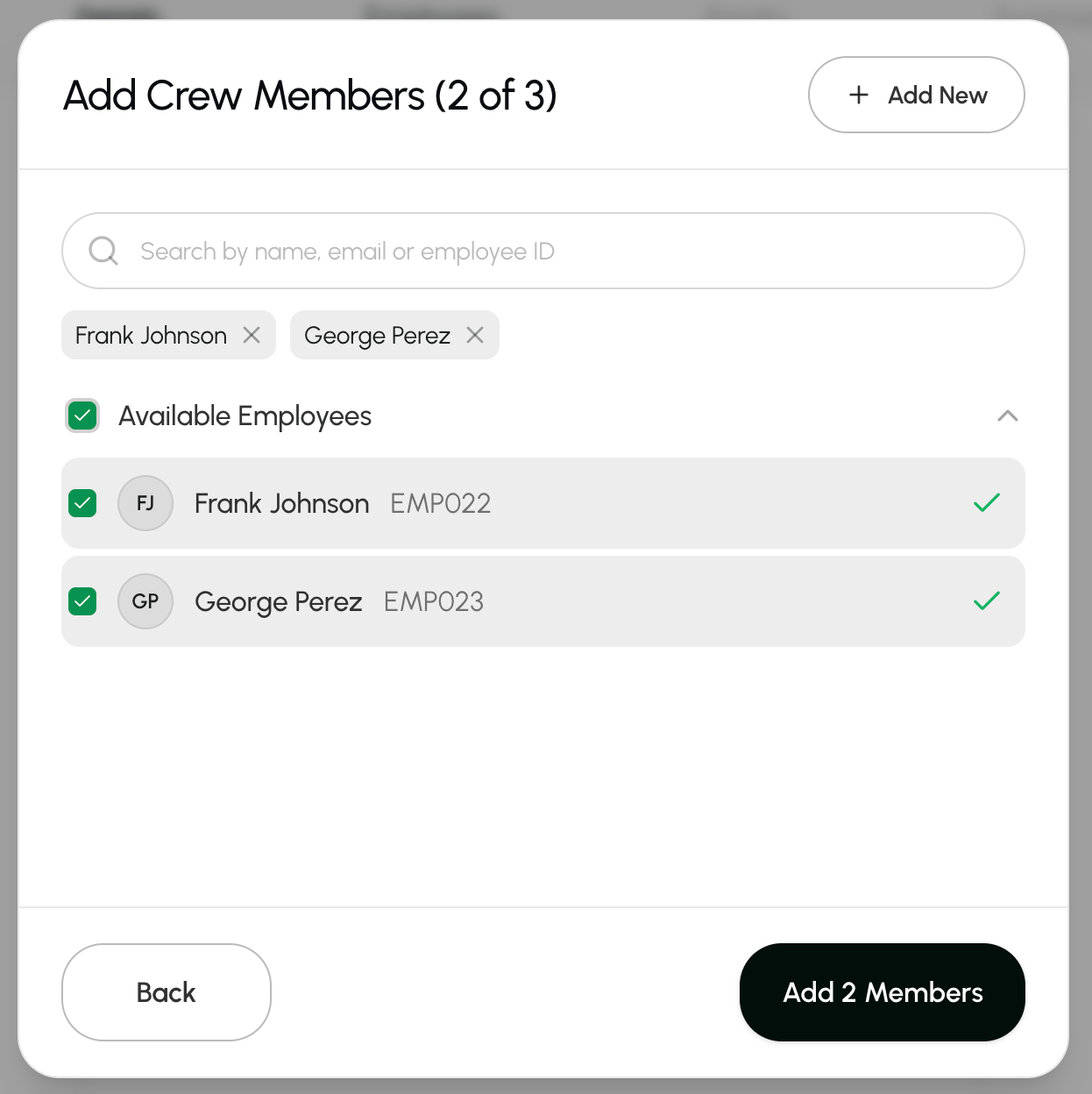
- Select the crew members who worked on this job.
- Select Available Employees if all crew members worked on this job.
- Select Add Members to save your continue.
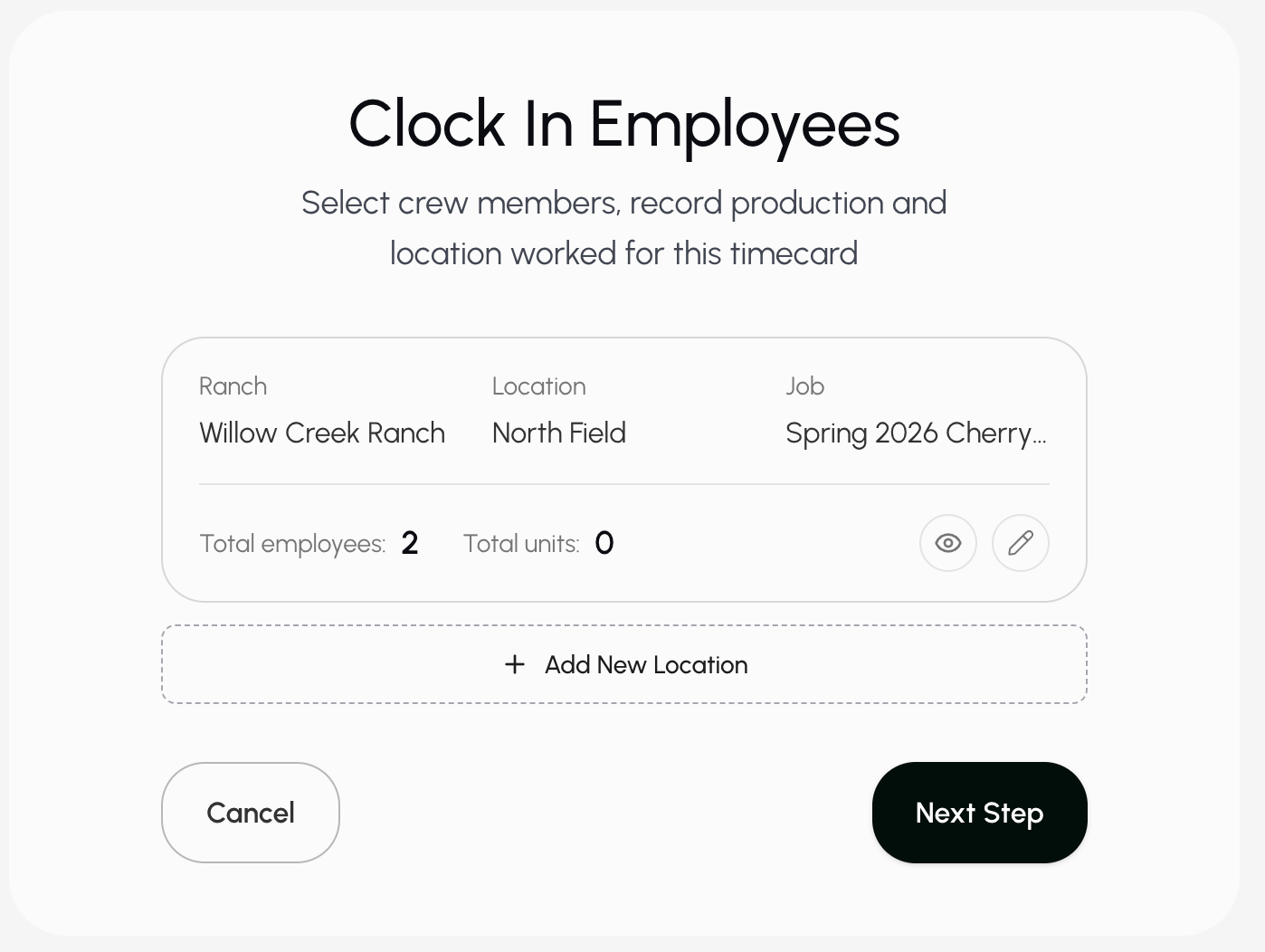
- Select the edit button
 to fill on how many units the crew members collected.*
- Select Add New Location and go through the process again if the crew worked in more than one location for this time card.
- Select Next Step to continue.
- Enter the morning, lunch, and afternoon break times for your crew. These times will apply to everyone.
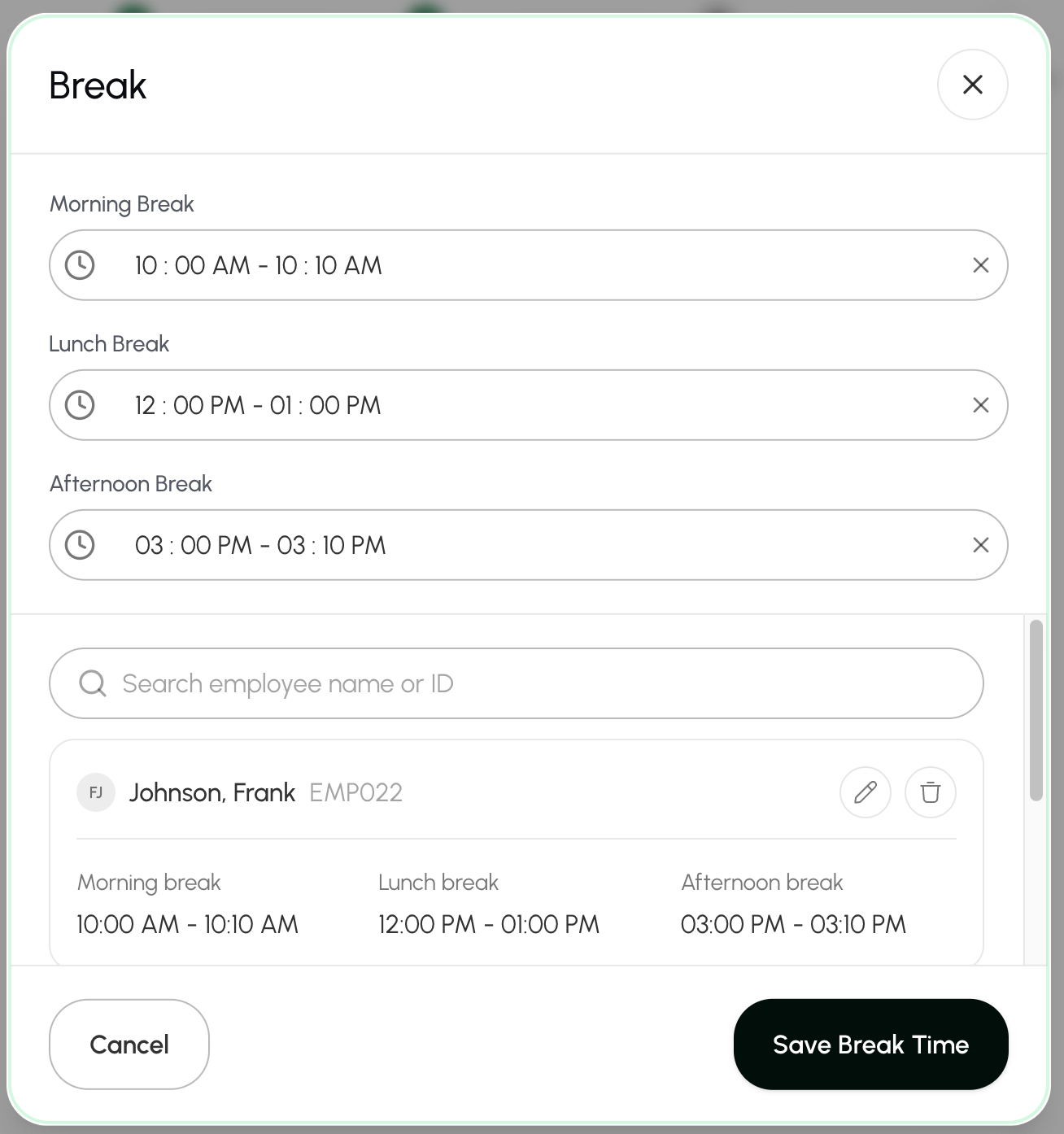
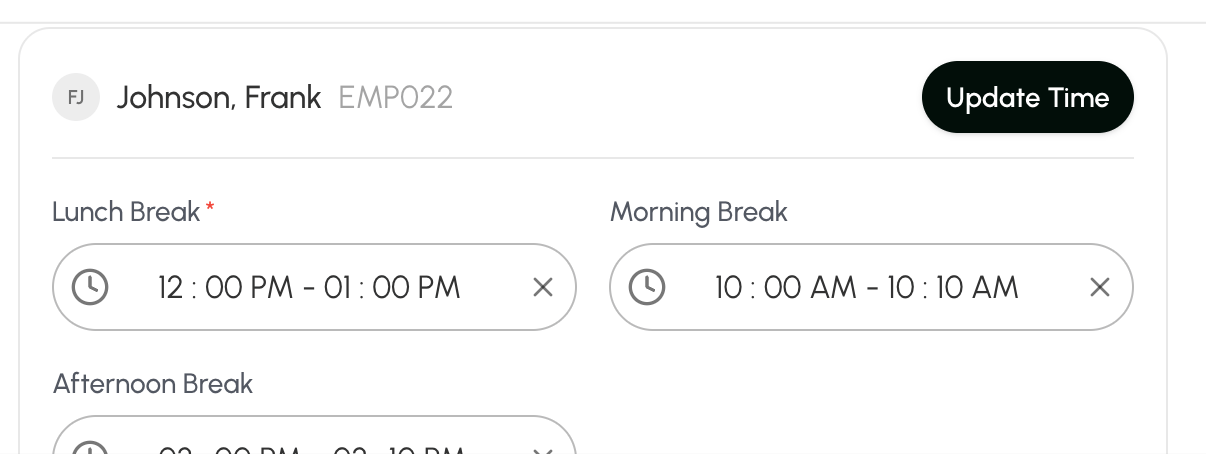
- If someone took different breaks, select the edit button next to their name to change their break times.
- Select Update Time to save the employee’s breaks.
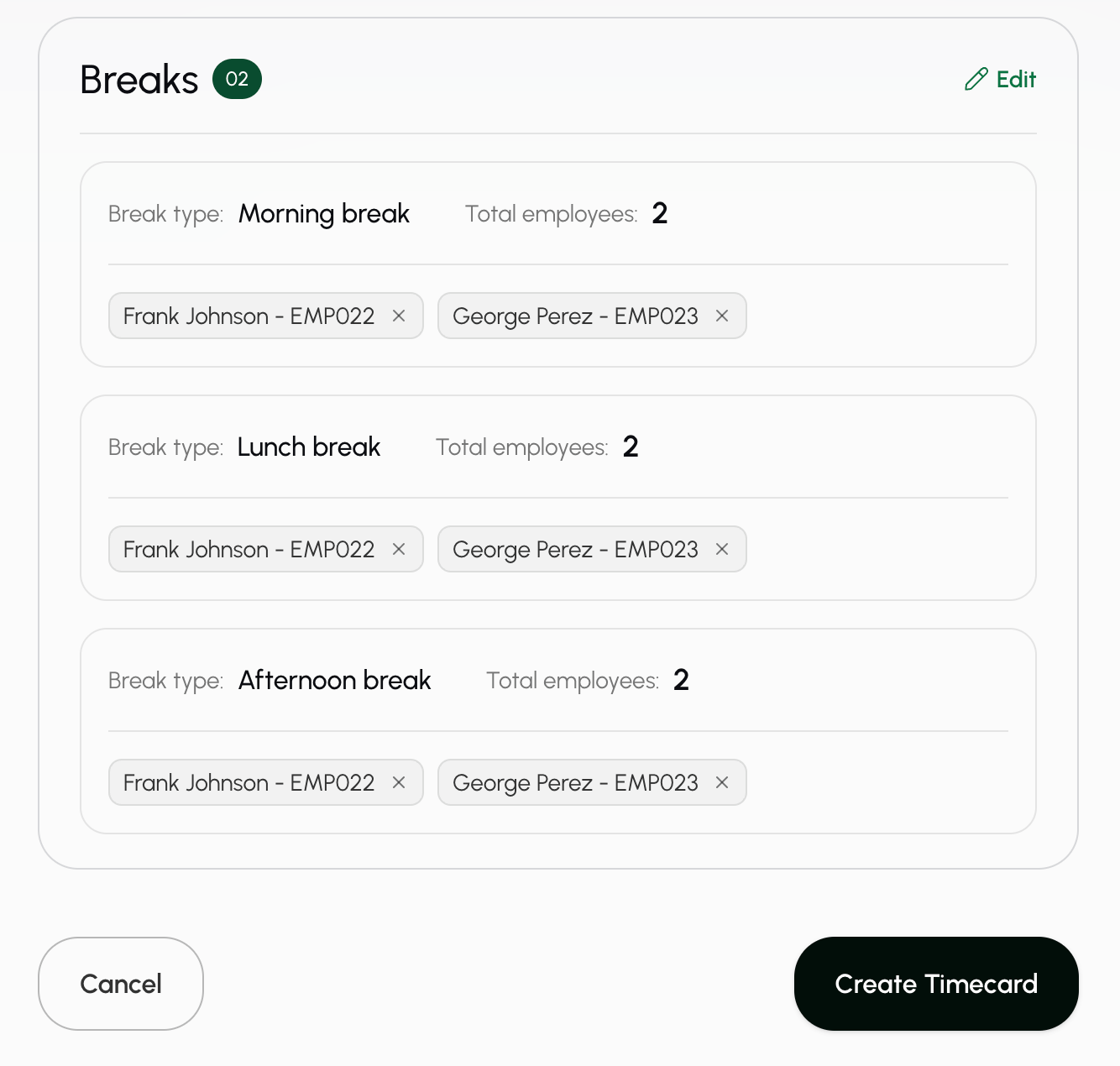
- Once all breaks are correct, select Create Timecard to save the timecard.
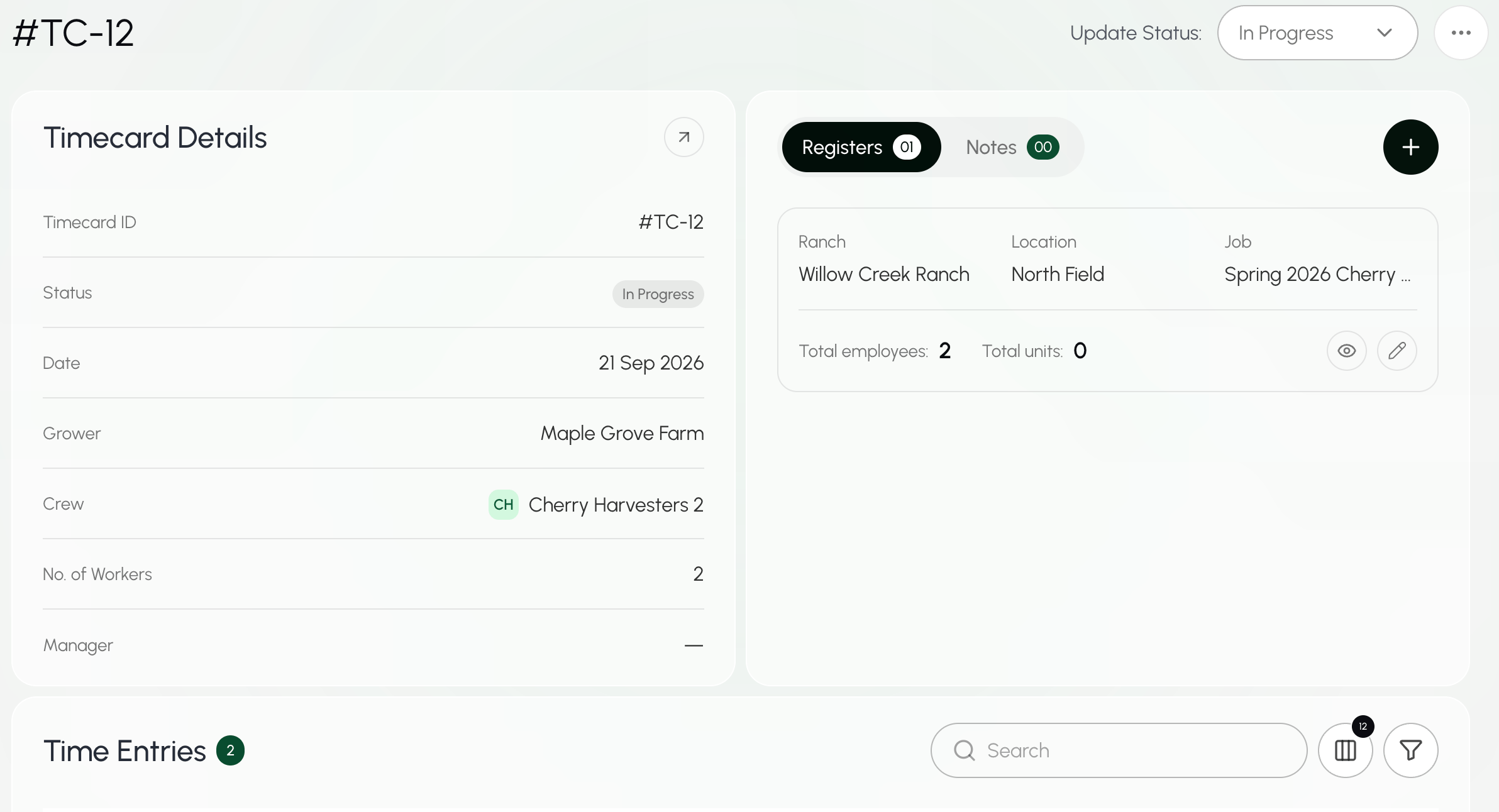
Schedule a timecard (for future work)
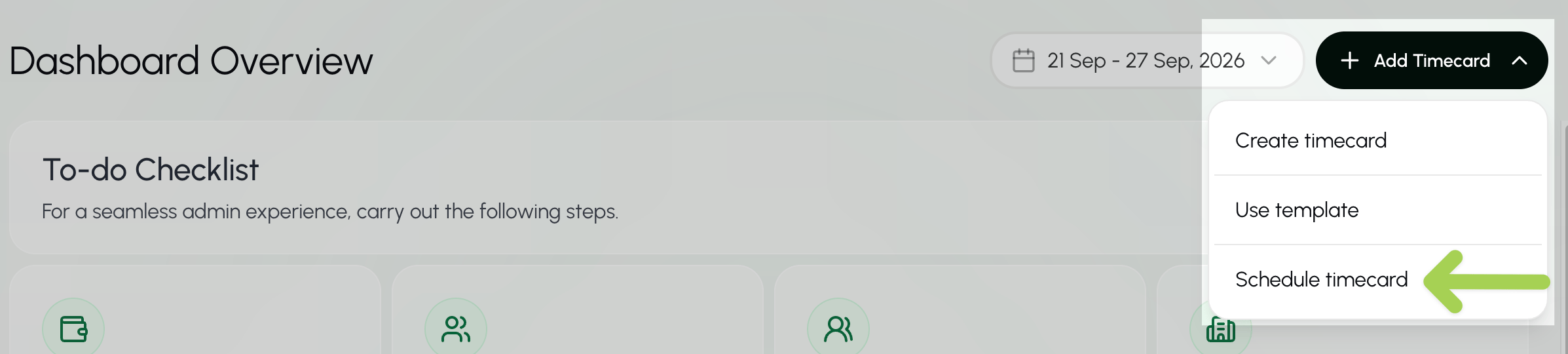
To create a time card for a past date, see Create a time card.- From the dashboard, elect + Add Timecard.
- Select Schedule timecard from the menu.
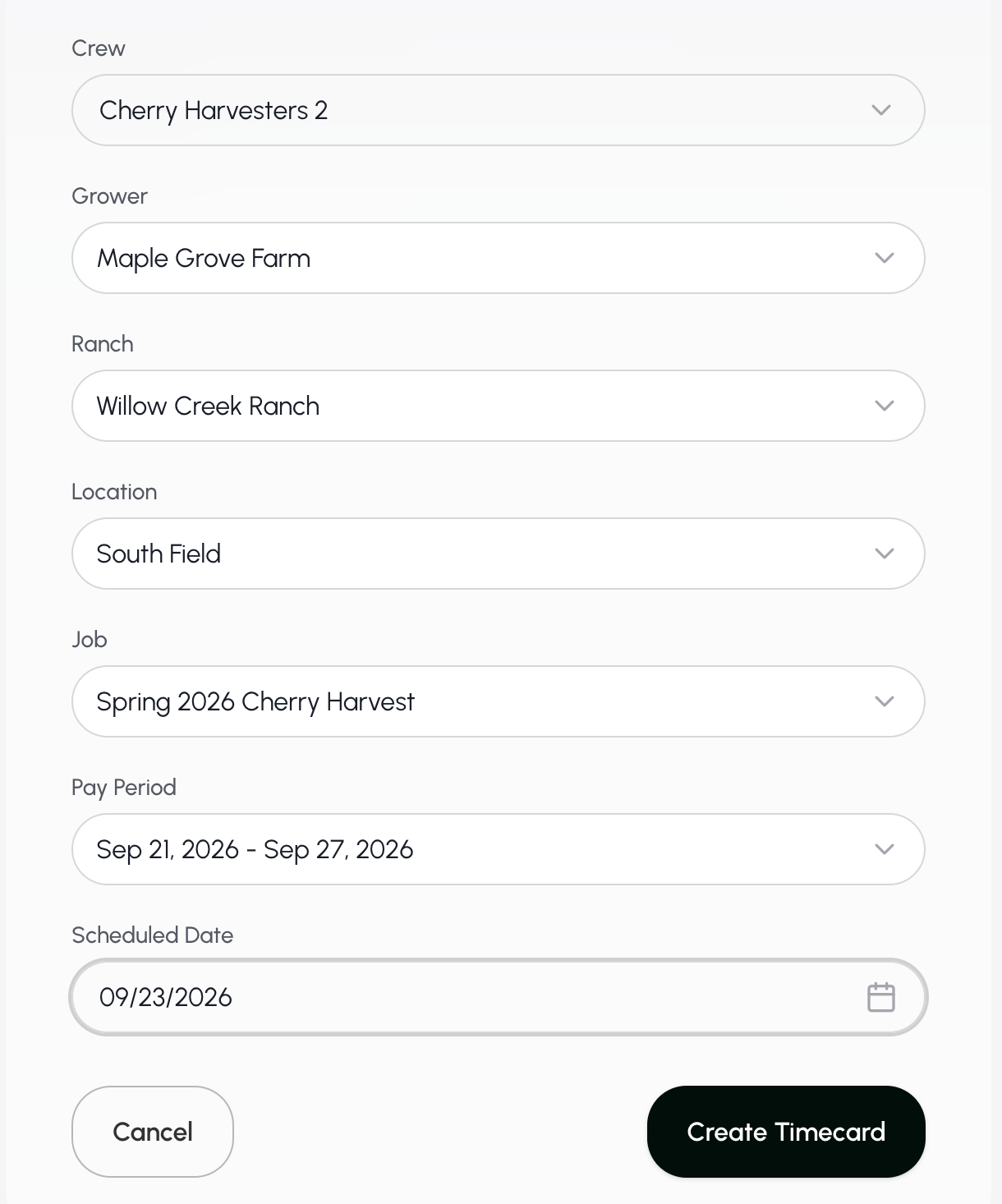
- Enter the crew, grower, ranch, location, job title, pay period, and scheduled date.* *Remember that this is the process for creating a time card for future work.
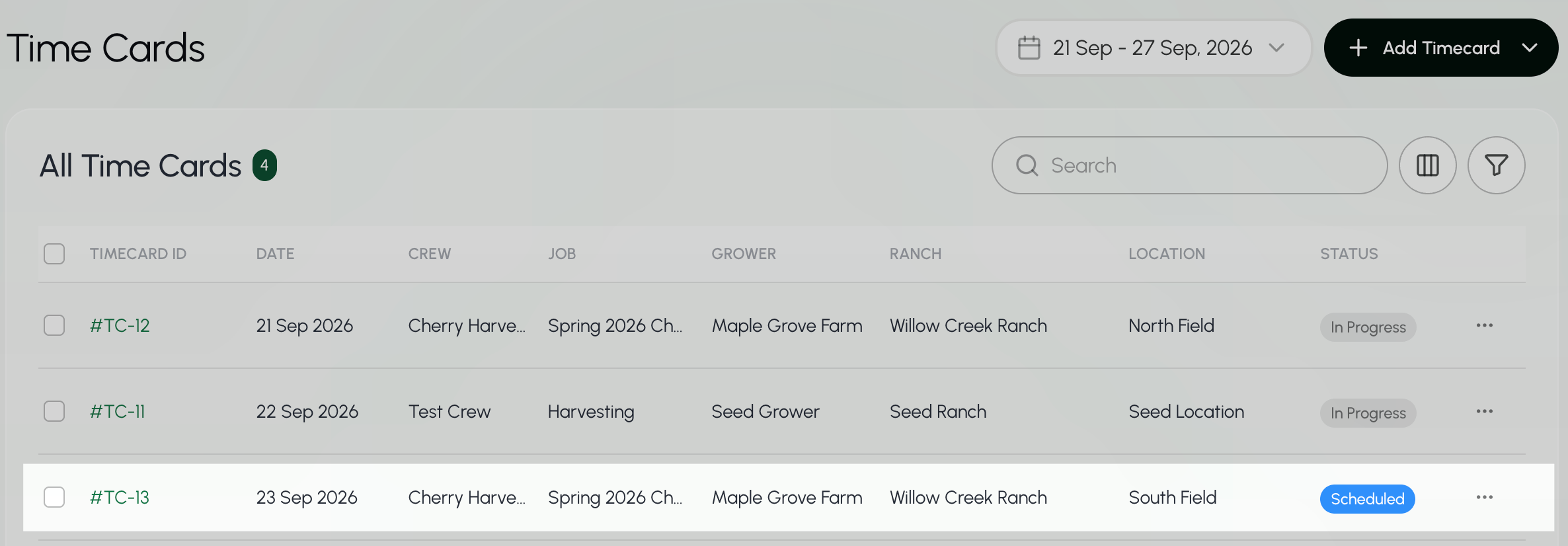
- Select Create Timecard to schedule this timecard**.**
Get all timecards for an organization in a pay period
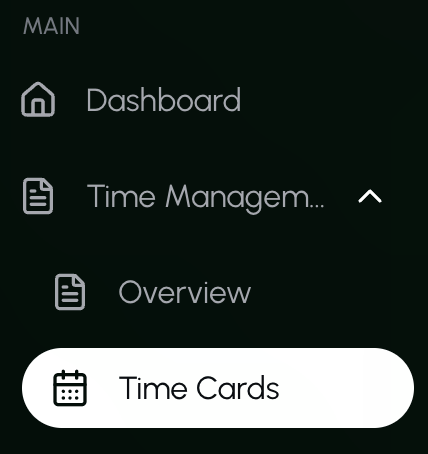
- Go to the Time Cards page under Time Management.
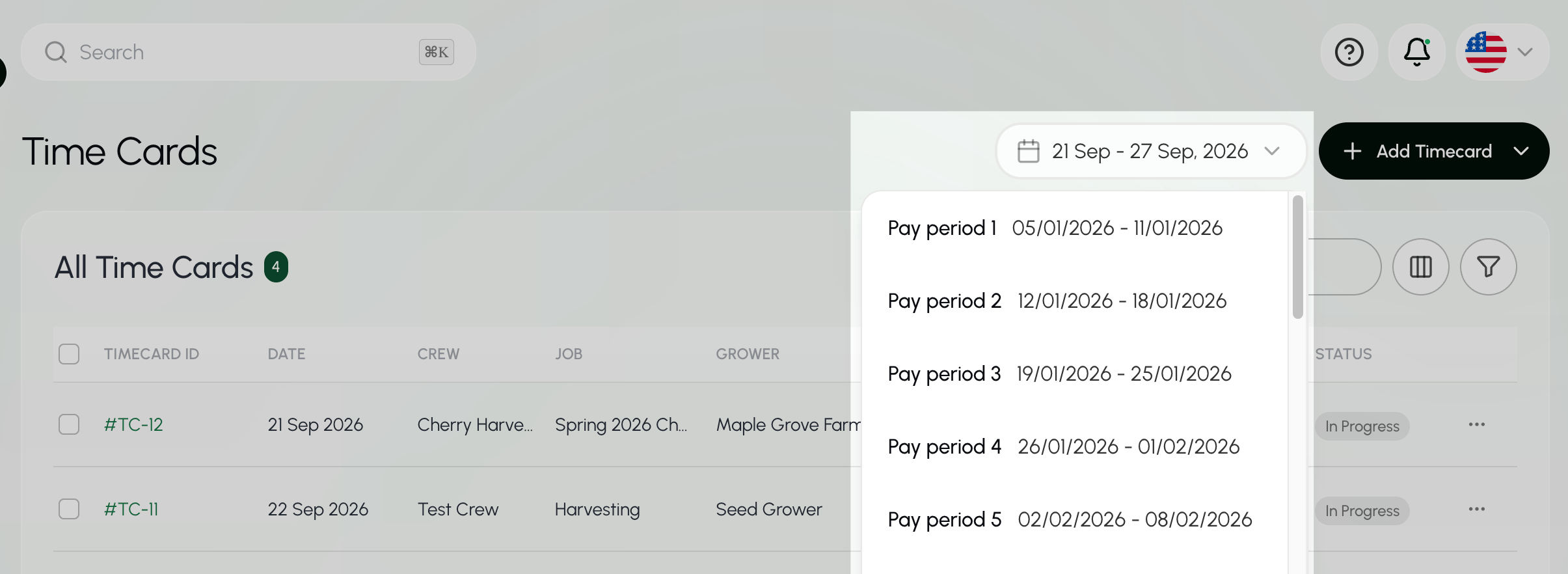
- Select the pay period that you want to view.
- The current pay period will already be filled in.
Find a timecard
- Go to the Time Cards page under Time Management.
- Select the pay period that you want to view.
- The current pay period will already be filled in.
- Select the Search box above the Time Card list.
- Enter the timecard ID, date, crew, job, grower, ranch, or location.
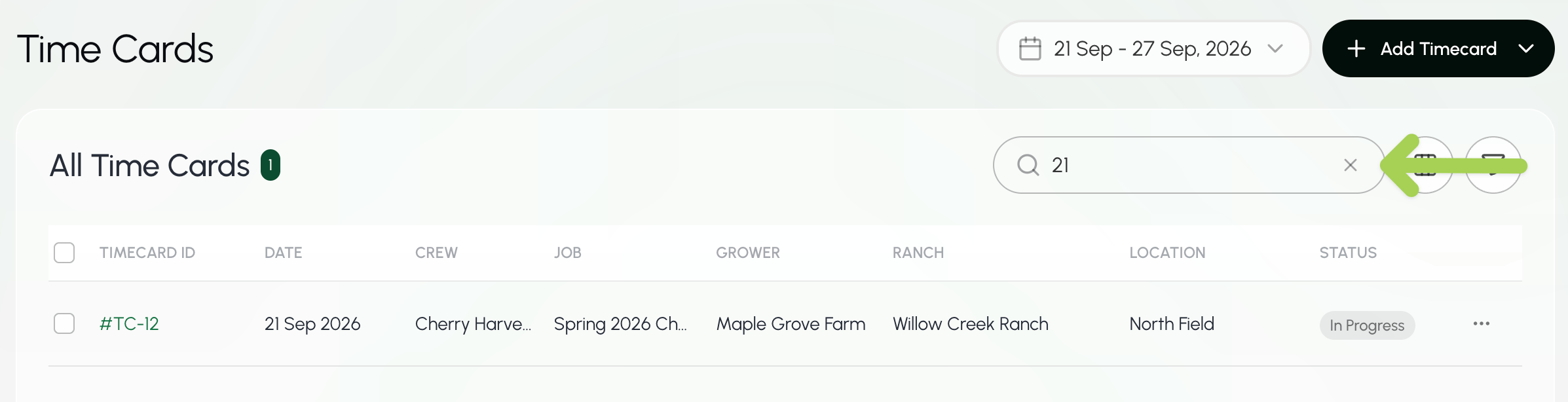
The Search bar at the top of every page searches across Farmio. To search only for timecards, use the Search box on the Time Cards page.
Find an employee’s timecards
- Go to the Employees page.
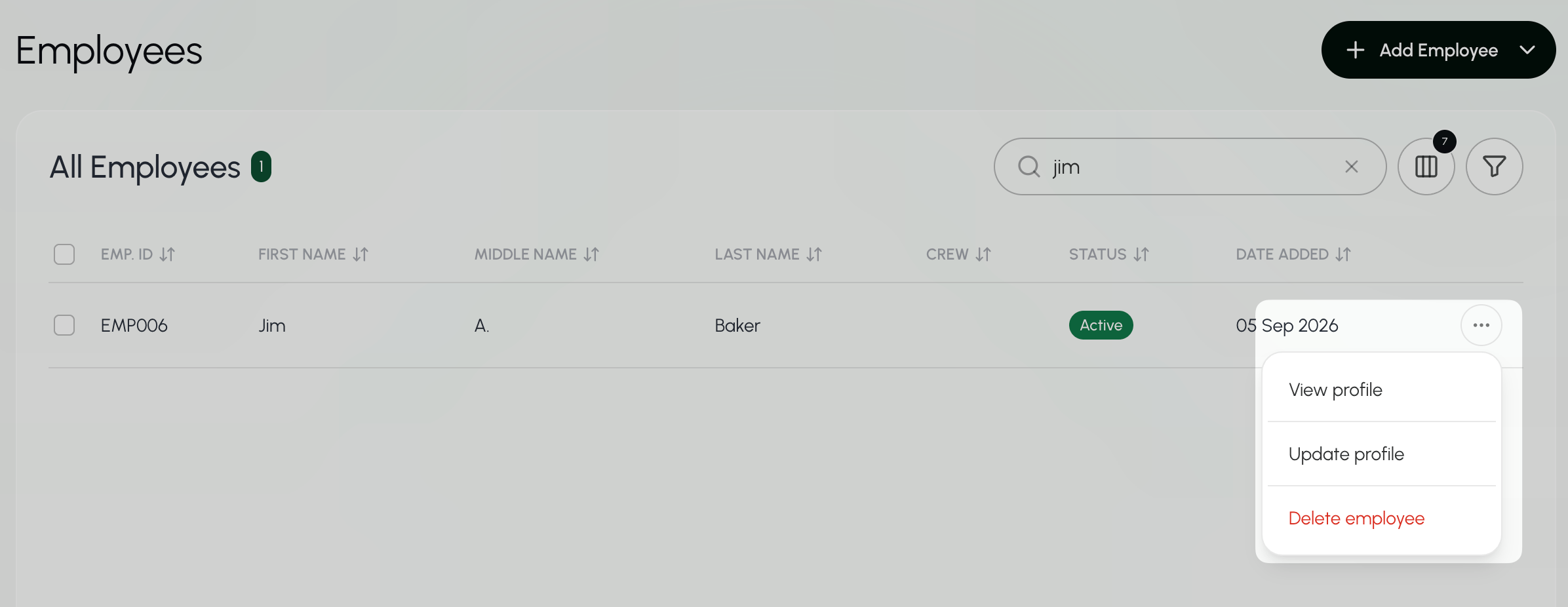
- Select the Search box above the employee list.
- Enter the employee’s first name, last name, or Employee ID.
- Select the three dots
 next to the employee and choose View Profile.
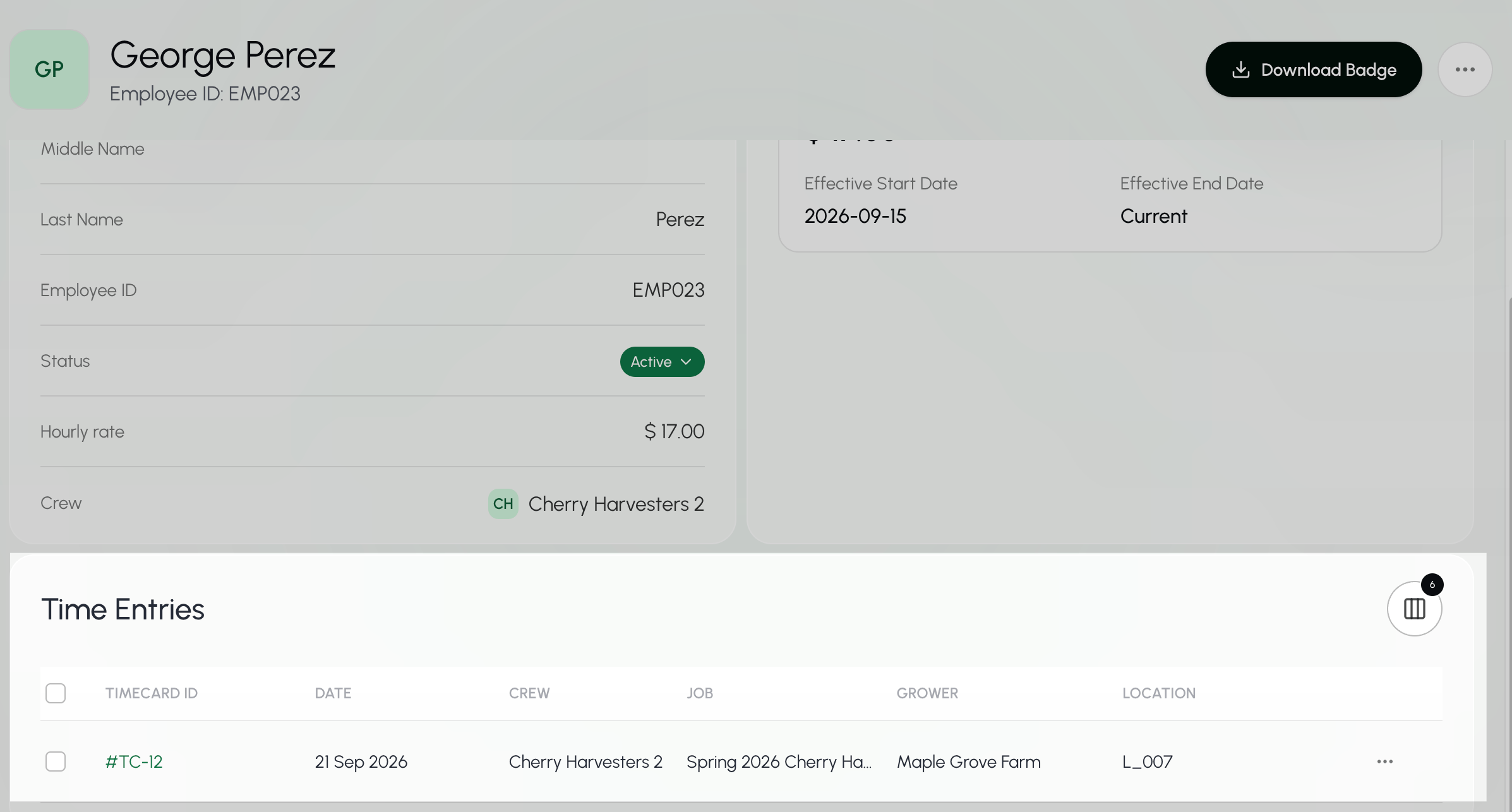
- Scroll to the bottom of the employee profile.
B. Managing Employees on a Time Card
View all employees on a time card
Employees are only on a timecard once they have clocked in. You will not find employees on a scheduled time card.- Go to the Time Cards page under Time Management.
- Select the pay period that you want to view.
- The current pay period will already be filled in.
- Select the Search box above the Time Card list.
- Enter the timecard ID, date, crew, job, grower, ranch, or location.
The Search bar at the top of every page searches across Farmio. To search only for timecards, use the Search box on the Time Cards page.
- Scroll to the bottom of the timecard page.
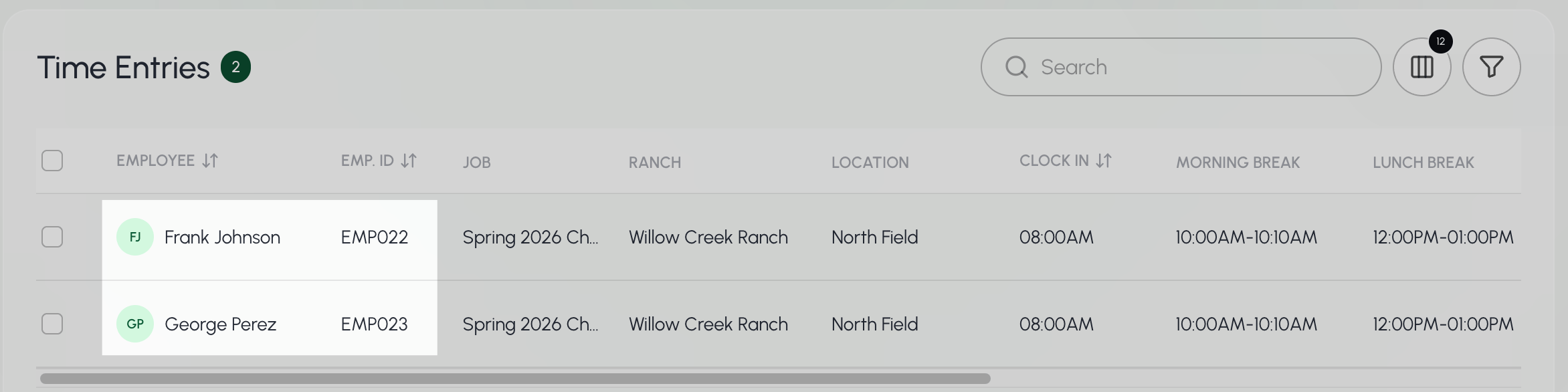
Add employees to a time card
- Go to the Time Cards page under Time Management.
- Select the pay period that you want to view.
- The current pay period will already be filled in.
- Select the Search box above the Time Card list.
- Enter the timecard ID, date, crew, job, grower, ranch, or location.
The Search bar at the top of every page searches across Farmio. To search only for timecards, use the Search box on the Time Cards page.
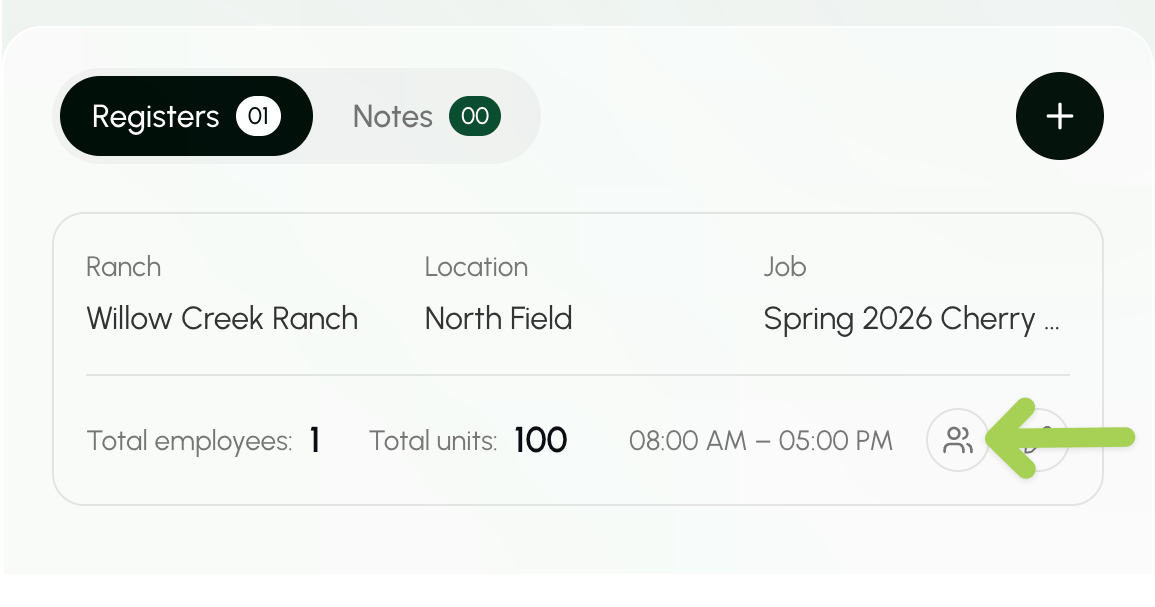
- Under Registers, select the people button
 .
.
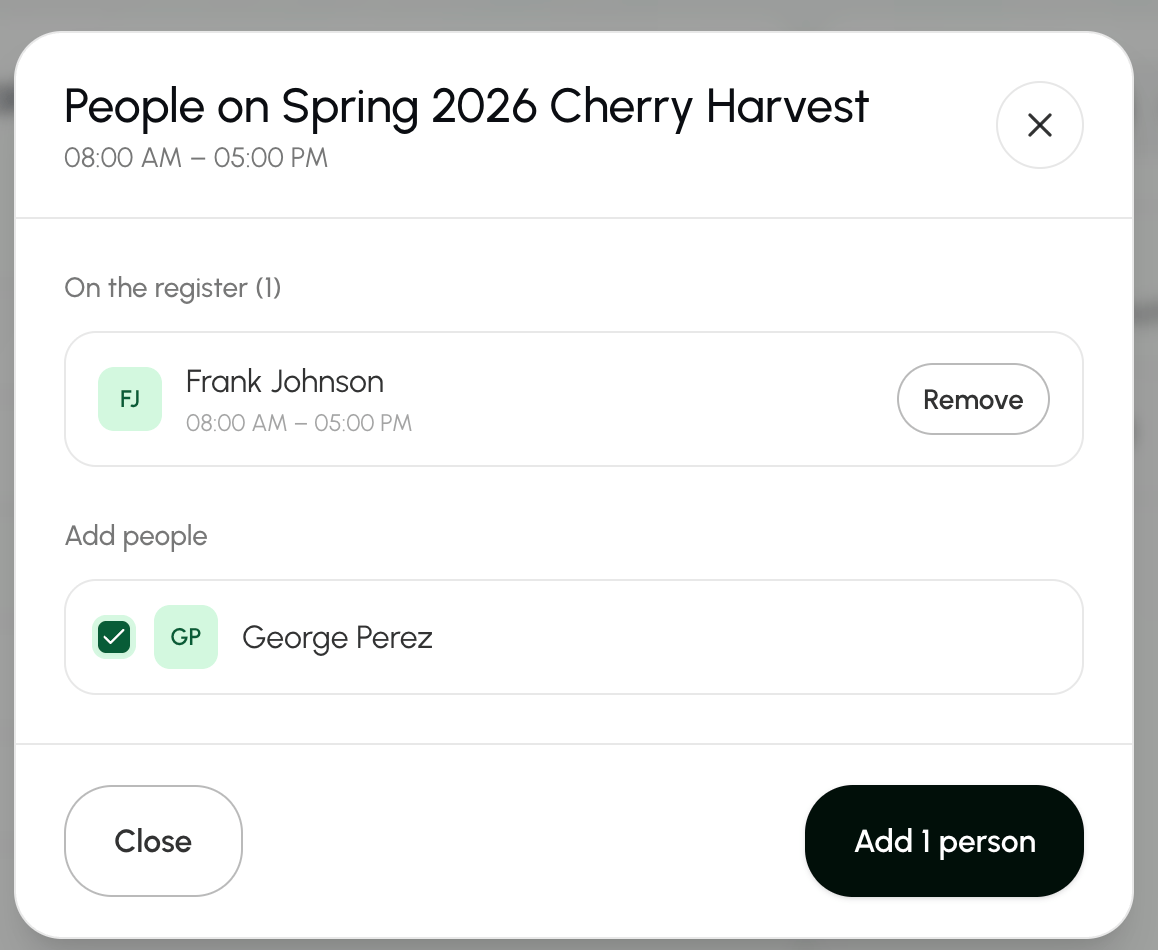
- Under Add people, select the employees you want to add to the time card.
- Select Add person at he bottom of the section to save your changes.
Remove employees from a time card
- Go to the Time Cards page under Time Management.
- Select the pay period that you want to view.
- The current pay period will already be filled in.
- Select the Search box above the Time Card list.
- Enter the timecard ID, date, crew, job, grower, ranch, or location.
The Search bar at the top of every page searches across Farmio. To search only for timecards, use the Search box on the Time Cards page.
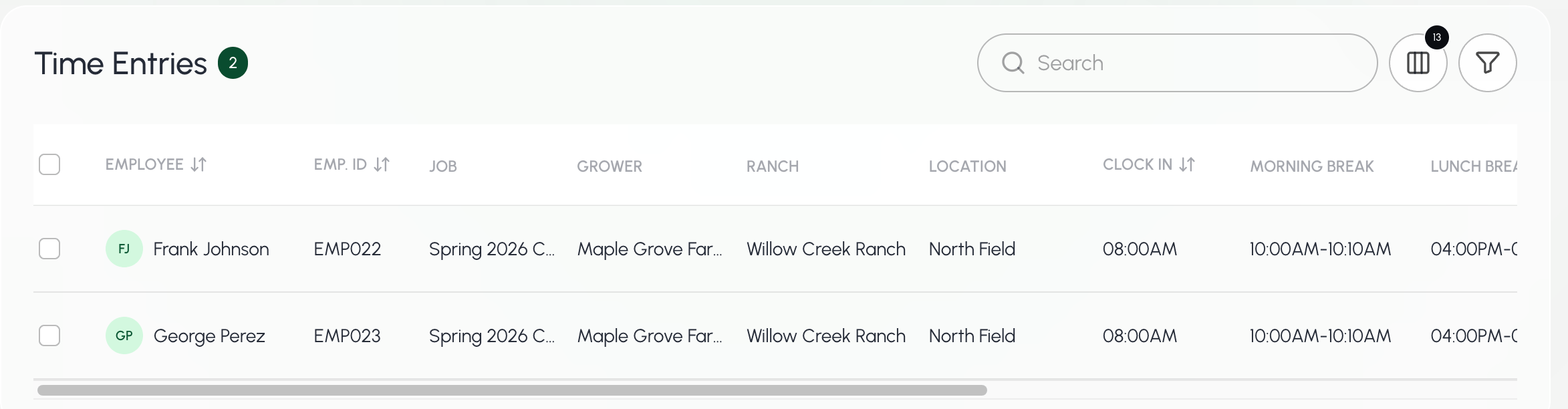
- Select the employee you want to remove.
 will appear under Bulk Actions.
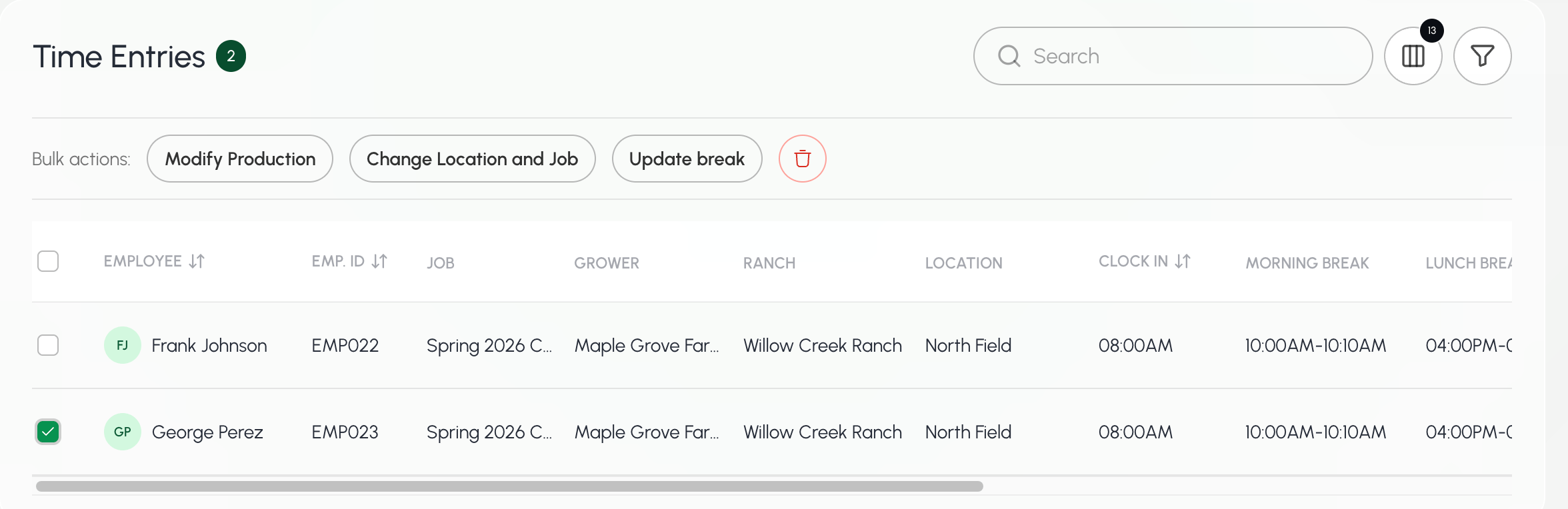
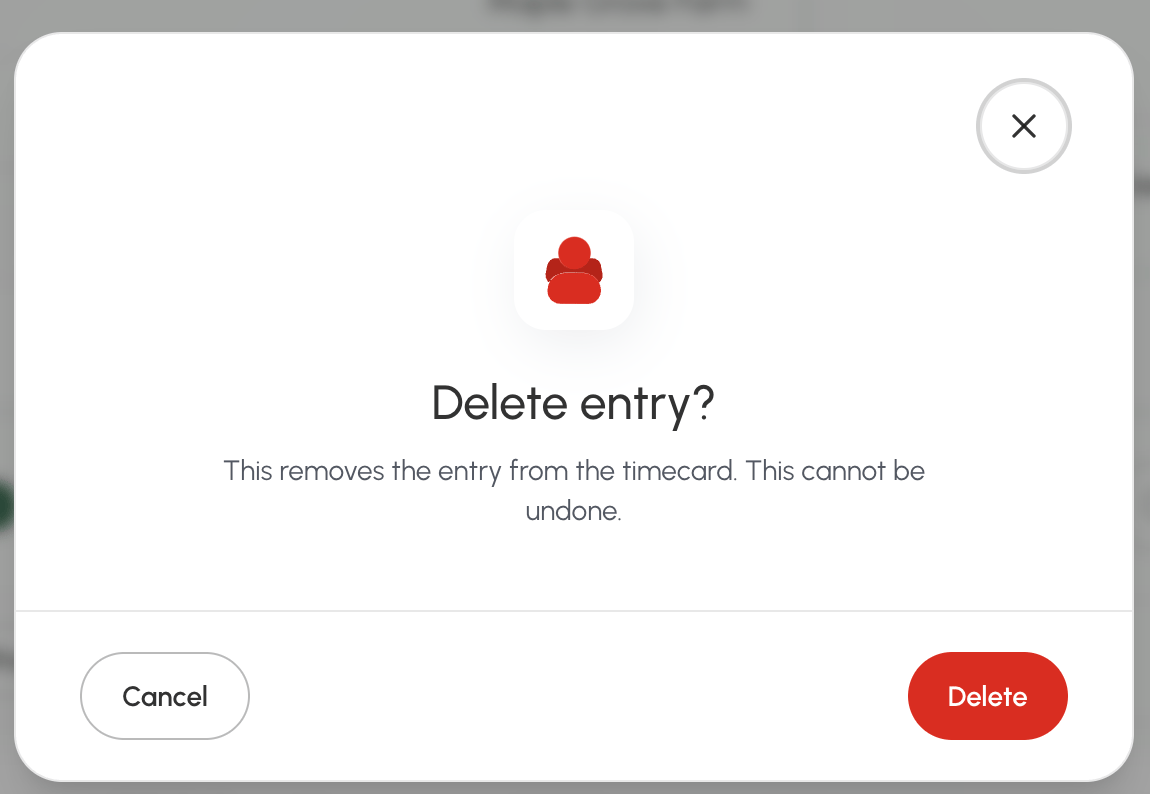
- Select the delete button .
- Select Delete to save your changes.
View eligible employees for a time card
- Go to the Time Cards page under Time Management.
- Select the pay period that you want to view.
- The current pay period will already be filled in.
- Select the Search box above the Time Card list.
- Enter the timecard ID, date, crew, job, grower, ranch, or location.
The Search bar at the top of every page searches across Farmio. To search only for timecards, use the Search box on the Time Cards page.
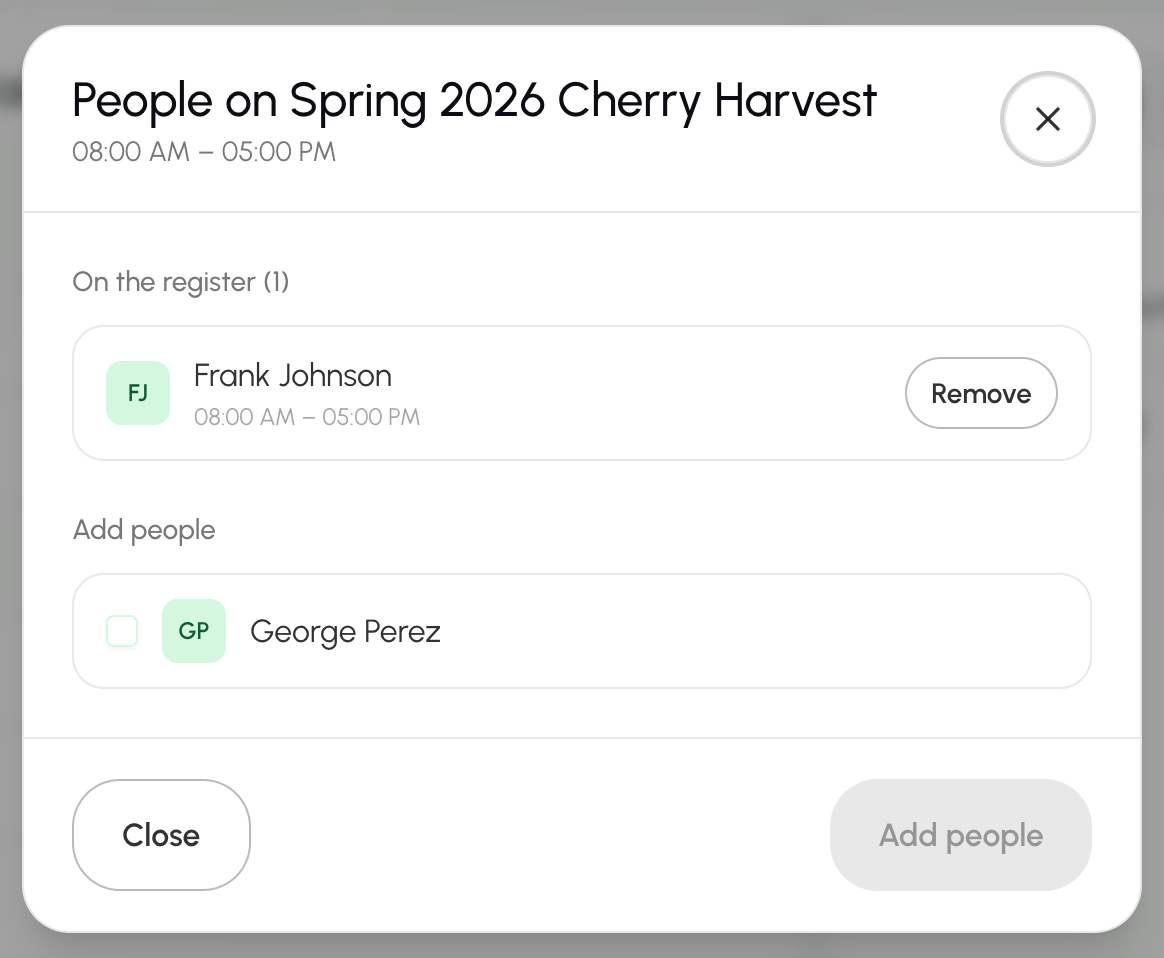
- Under Registers, select the people button .
C. Editing & Managing Time Cards
Update time card details
- Go to the Time Cards page under Time Management.
- Select the pay period that you want to view.
- The current pay period will already be filled in.
- Select the Search box above the Time Card list.
- Enter the timecard ID, date, crew, job, grower, ranch, or location.
The Search bar at the top of every page searches across Farmio. To search only for timecards, use the Search box on the Time Cards page.
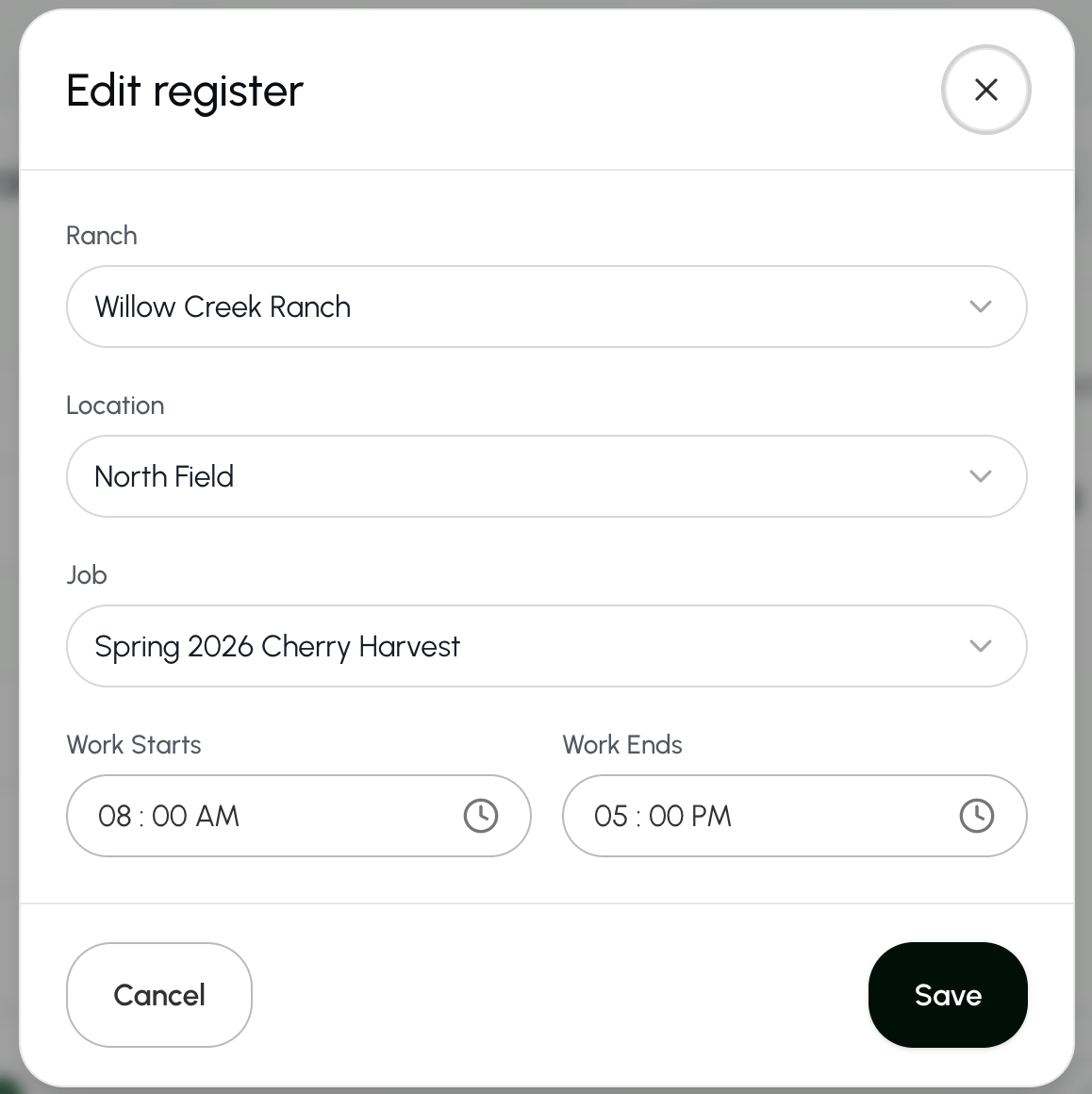
- Under Registers, select the edit button to edit this register.
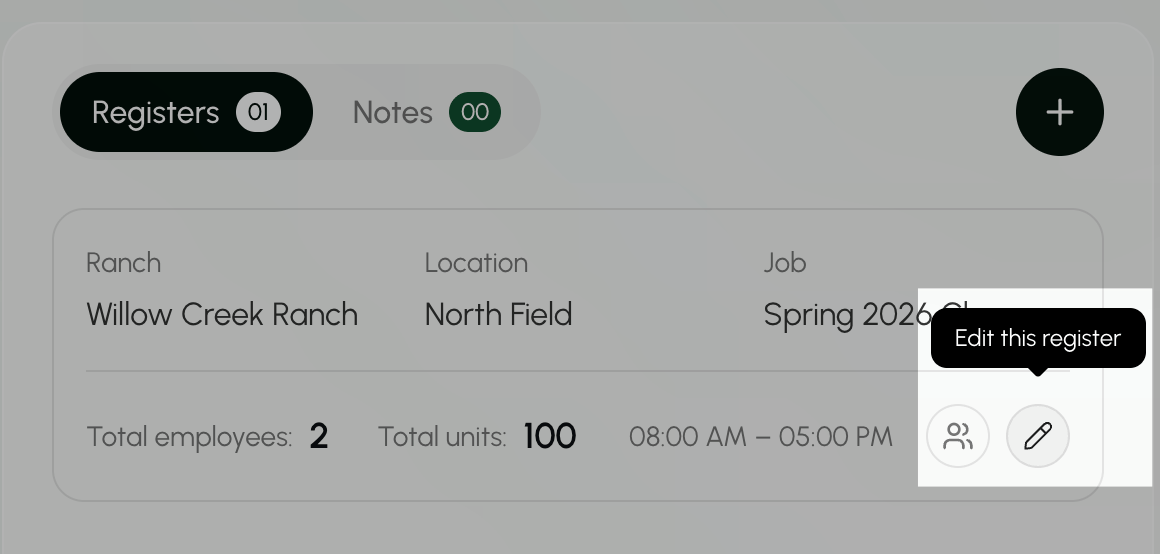
- Update the ranch, location, job, work start time, or work end time.
- Select Save.
Add notes to a time card
- Go to the Time Cards page under Time Management.
- Select the pay period that you want to view.
- The current pay period will already be filled in.
- Select the Search box above the Time Card list.
- Enter the timecard ID, date, crew, job, grower, ranch, or location.
The Search bar at the top of every page searches across Farmio. To search only for timecards, use the Search box on the Time Cards page.
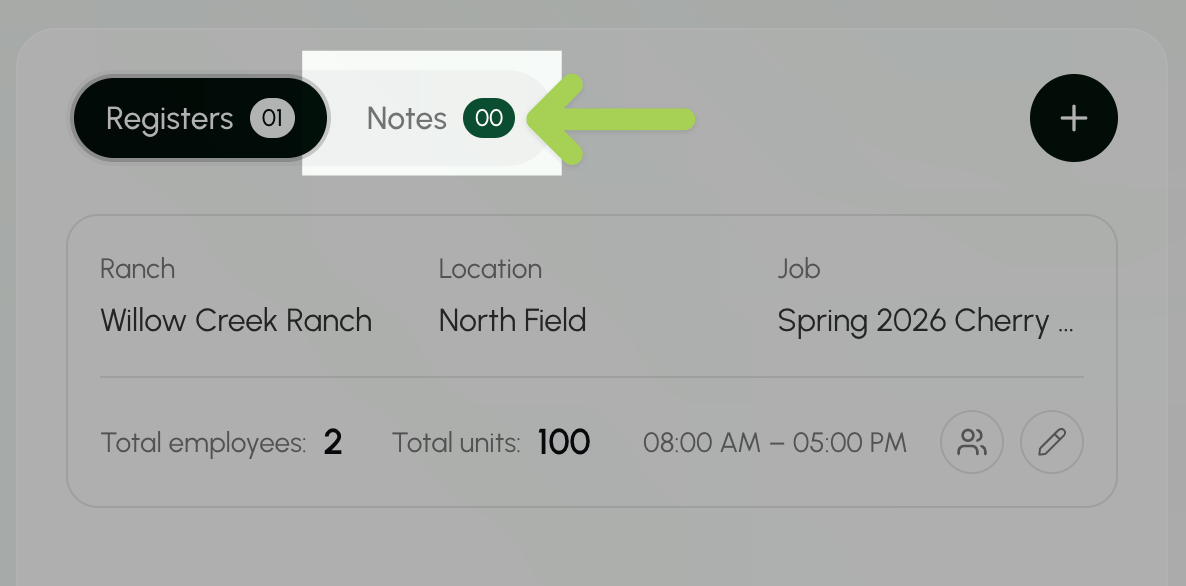
- Select Notes.
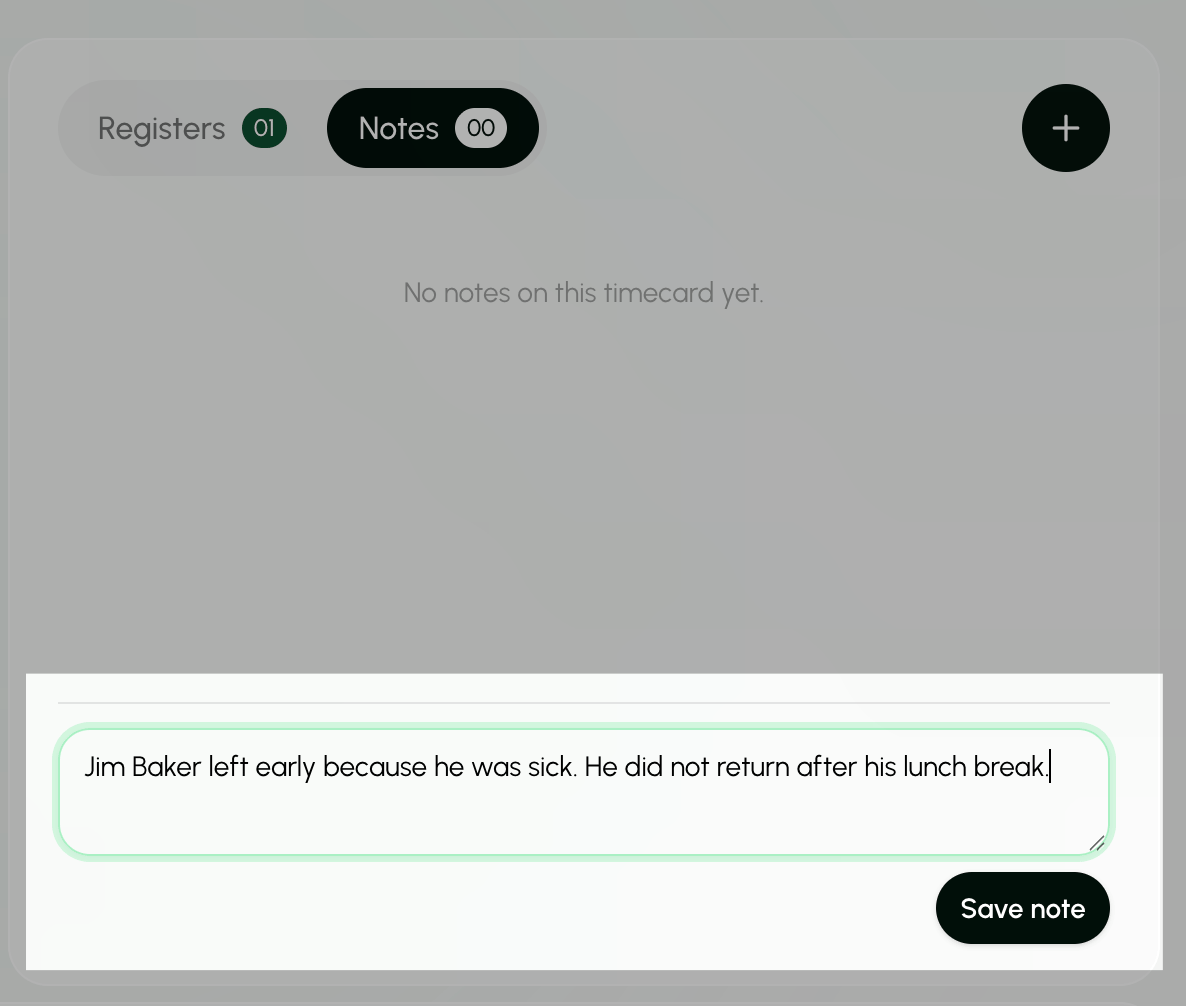
- Write your note in the text box.
- Select Save note.
Add a new clocking event to a time card (create a time card register)
Use this process when a crew works at a different ranch, location, or job on the same day.- Go to the Time Cards page under Time Management.
- Select the pay period that you want to view.
- The current pay period will already be filled in.
- Select the Search box above the Time Card list.
- Enter the timecard ID, date, crew, job, grower, ranch, or location.
The Search bar at the top of every page searches across Farmio. To search only for timecards, use the Search box on the Time Cards page.
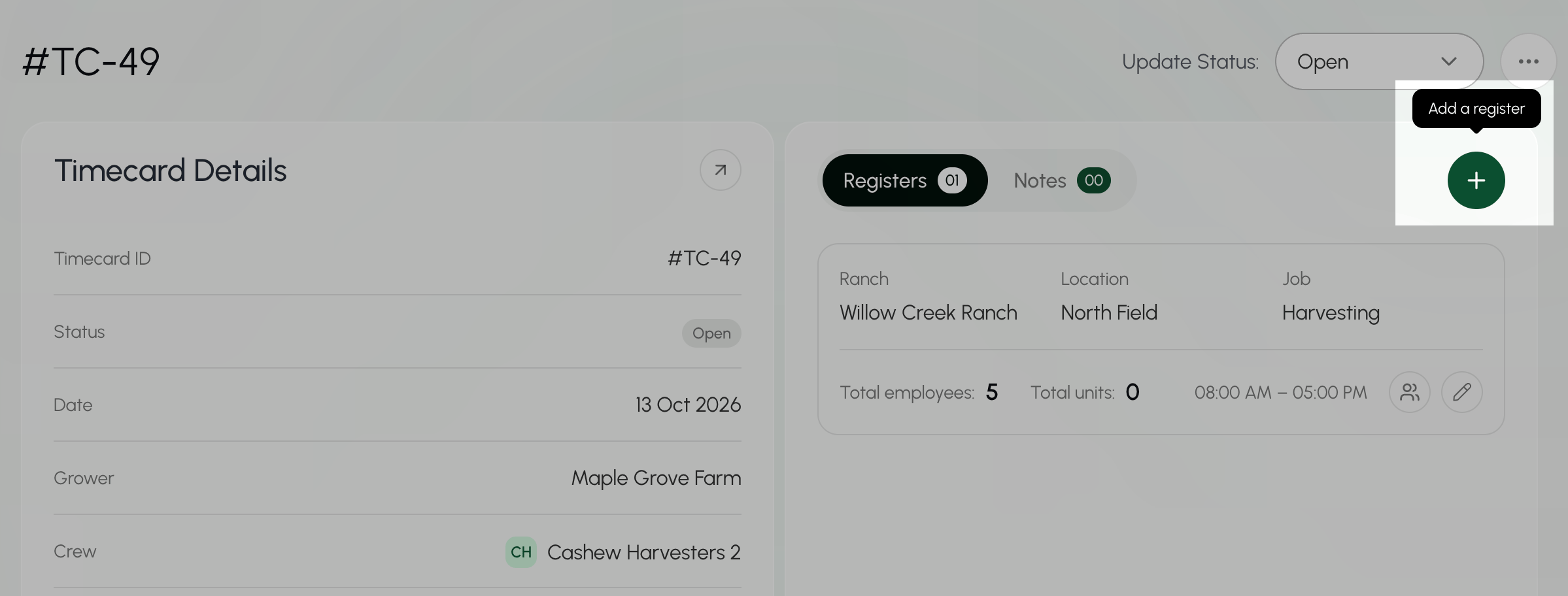
- Select the + button to Add a register.
- Enter the new ranch, location, job, work start time and work end time for this event.
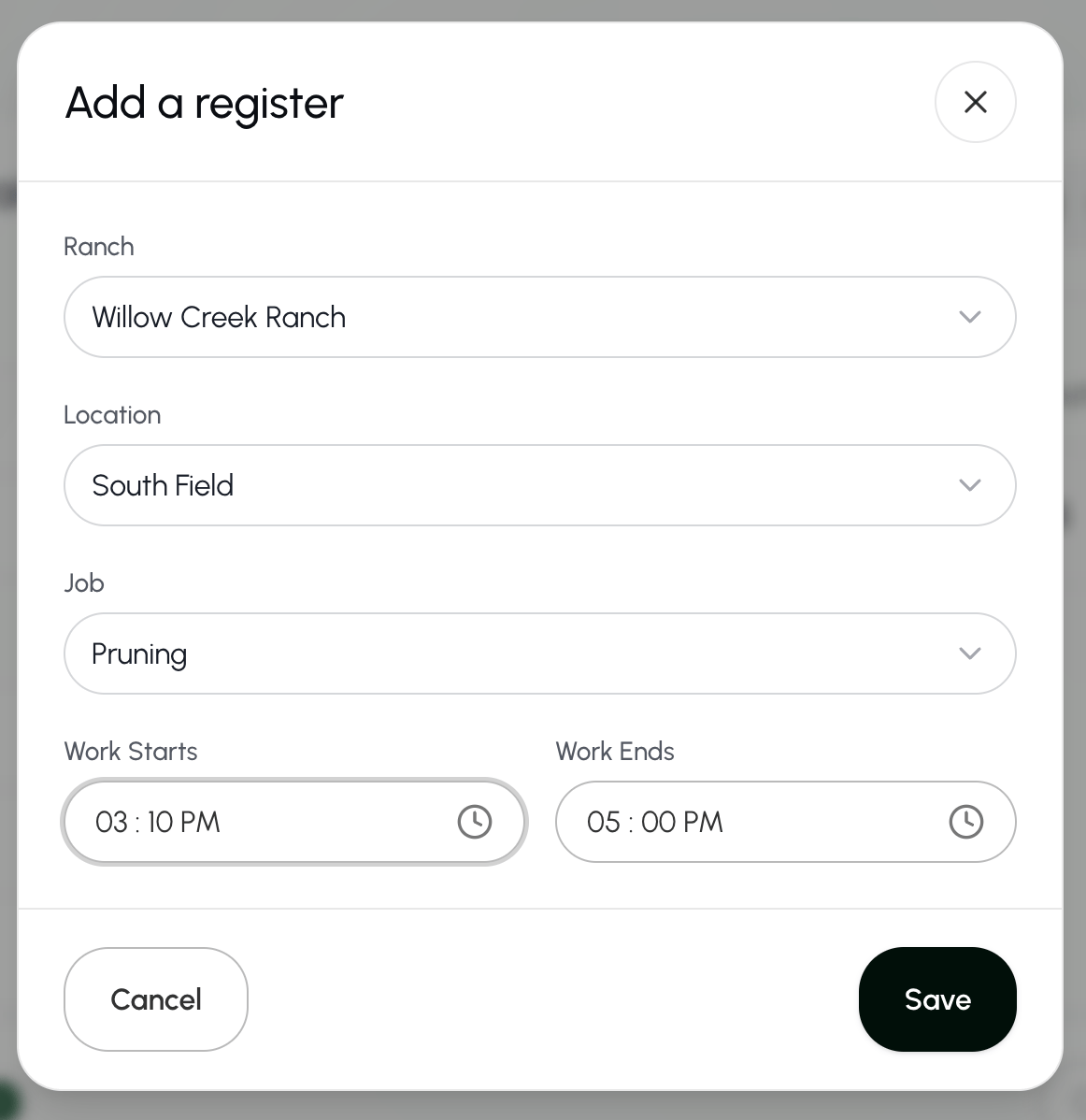
- Select Save to save this clocking event.
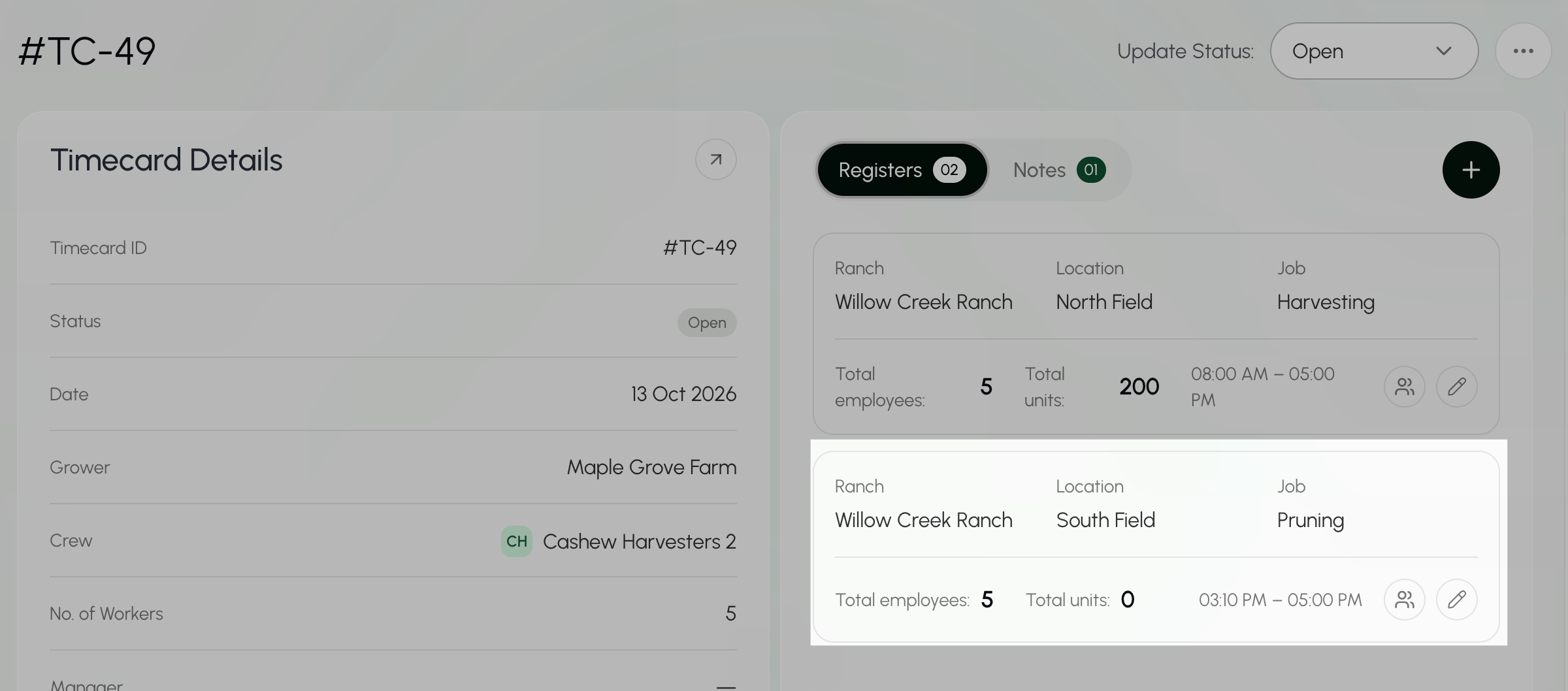
- The timecard now includes two clocking events (registers): the original event and the new event. The new event records the crew’s work at a different ranch, location, or job on the same day.
Update time card status
- Go to the Time Cards page under Time Management.
- Select the pay period that you want to view.
- The current pay period will already be filled in.
- Select the Search box above the Time Card list.
- Enter the timecard ID, date, crew, job, grower, ranch, or location.
The Search bar at the top of every page searches across Farmio. To search only for timecards, use the Search box on the Time Cards page.
- Select the dropdown menu to the right of Update Status, where the current status shows.
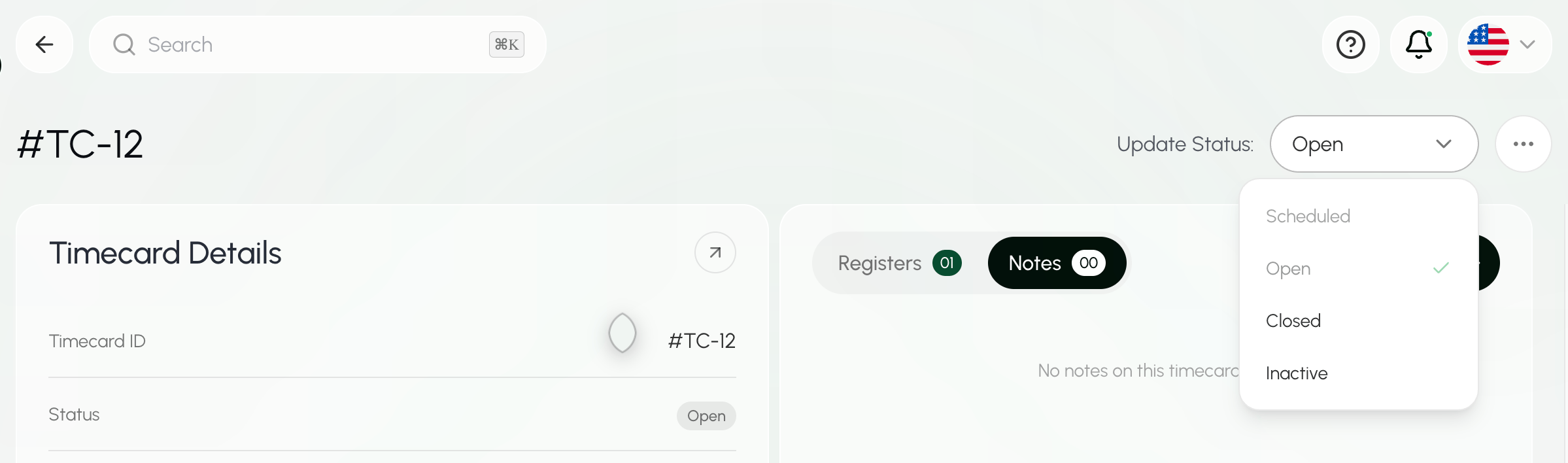
- Select the new status for the time card.
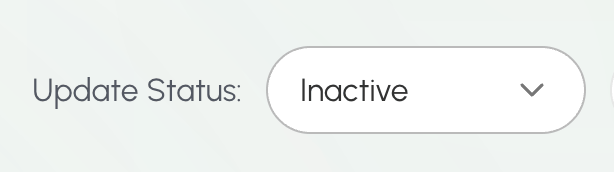
- The new status should now show.
D. Managing Time Card Status & Breaks
View Breaks in a Time Card
- Go to the Time Cards page under Time Management.
- Select the pay period that you want to view.
- The current pay period will already be filled in.
- Select the Search box above the Time Card list.
- Enter the timecard ID, date, crew, job, grower, ranch, or location.
The Search bar at the top of every page searches across Farmio. To search only for timecards, use the Search box on the Time Cards page.
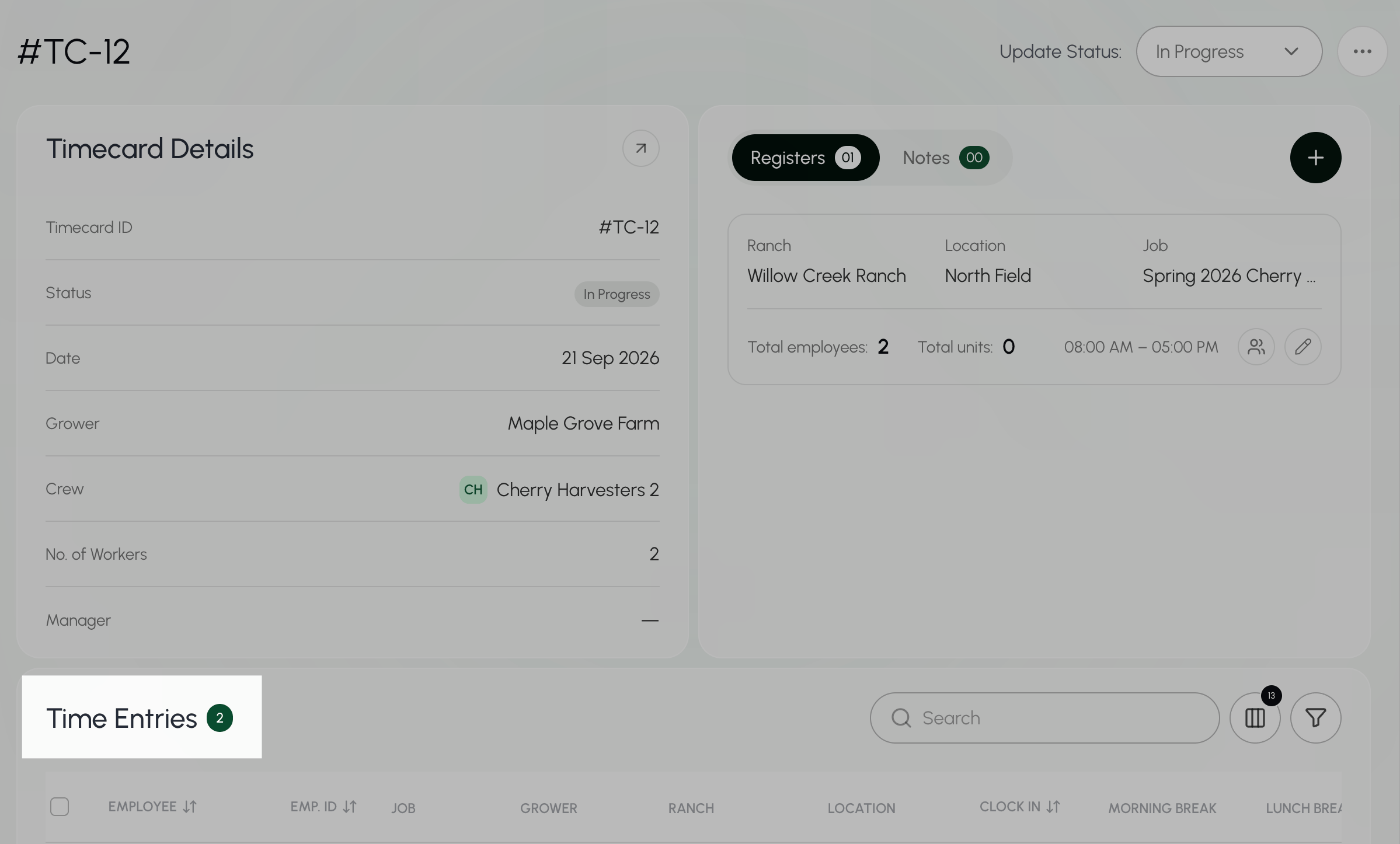
- Scroll down the time card page to Time Entries.
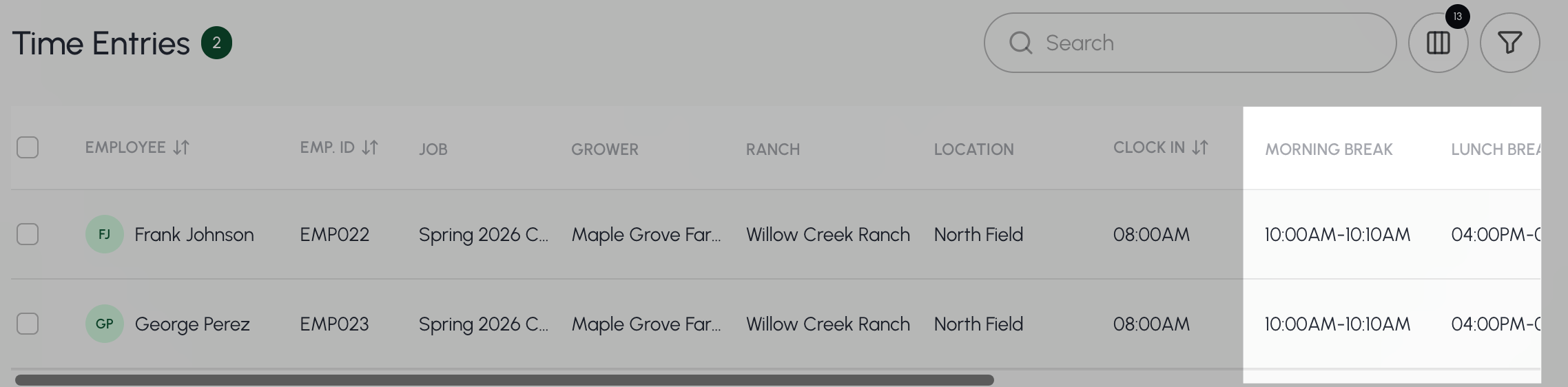
- Scroll right to view all time card breaks by employee.
Add breaks to a time card
- Go to the Time Cards page under Time Management.
- Select the pay period that you want to view.
- The current pay period will already be filled in.
- Select the Search box above the Time Card list.
- Enter the timecard ID, date, crew, job, grower, ranch, or location.
The Search bar at the top of every page searches across Farmio. To search only for timecards, use the Search box on the Time Cards page.
- Scroll down the time card page to Time Entries.
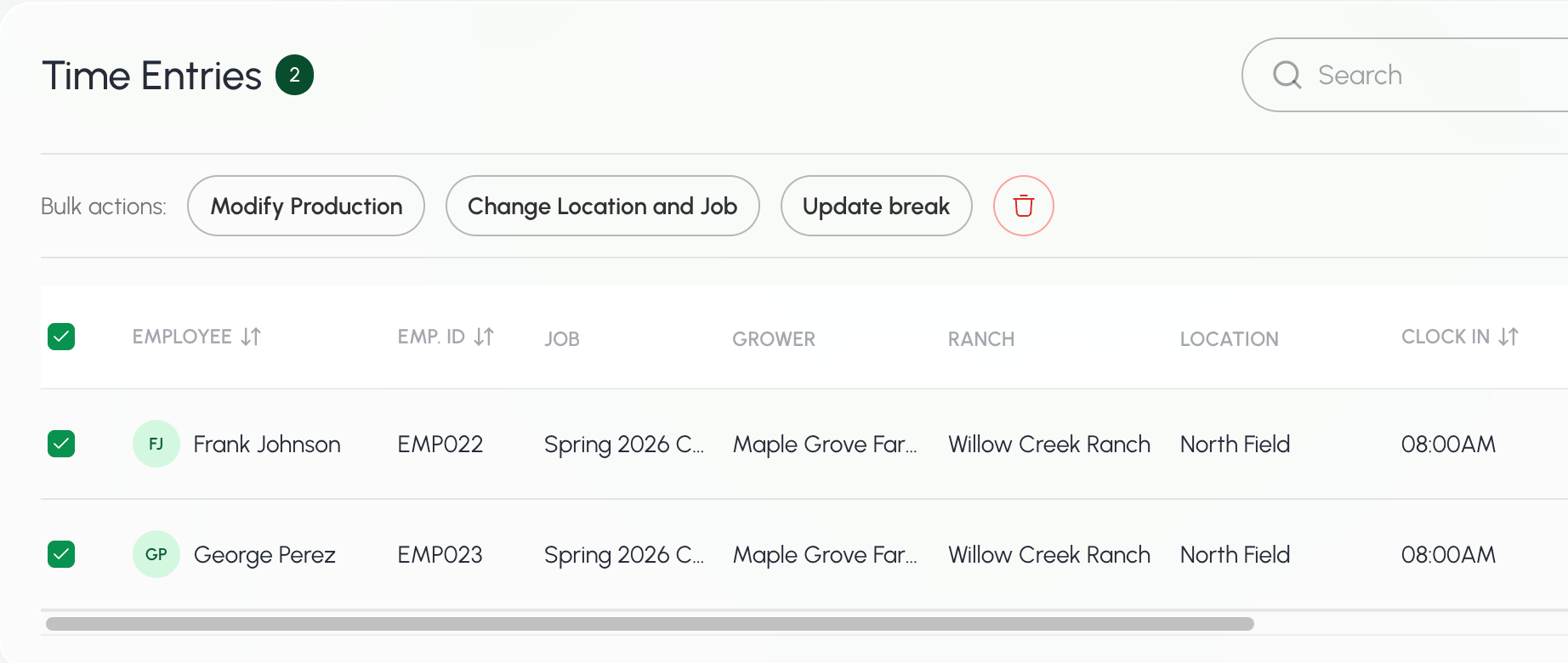
- Check the boxes next to the employees that you want to add breaks for.
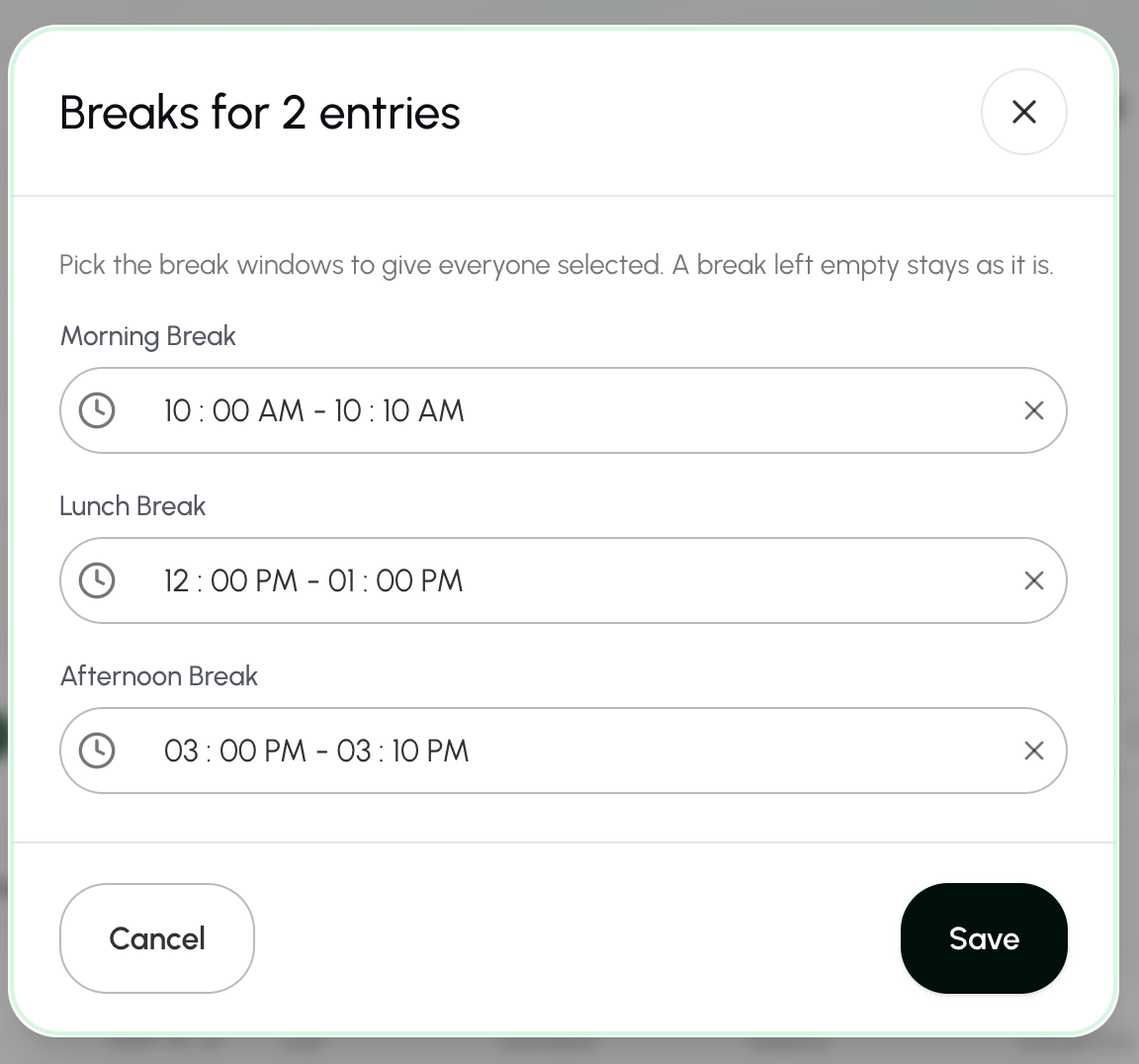
- Add the break start and end times.
- Select Save to save your changes.
Remove breaks from a time card
- Go to the Time Cards page under Time Management.
- Select the pay period that you want to view.
- The current pay period will already be filled in.
- Select the Search box above the Time Card list.
- Enter the timecard ID, date, crew, job, grower, ranch, or location.
The Search bar at the top of every page searches across Farmio. To search only for timecards, use the Search box on the Time Cards page.
- Scroll down the time card page to Time Entries.
- Check the boxes next to the employees that you want to add breaks for.
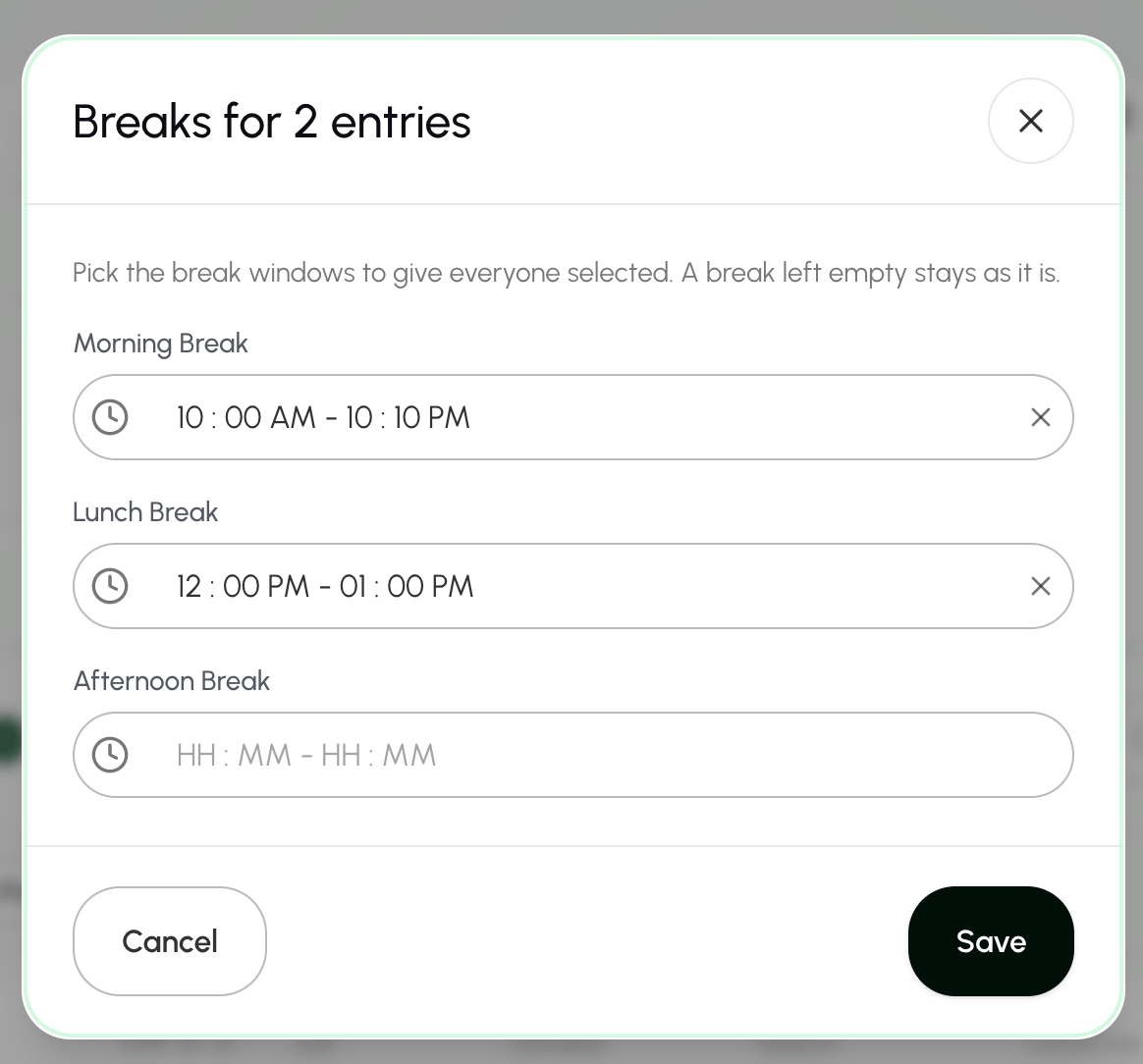
- Select the X next to the breaks you want to remove.
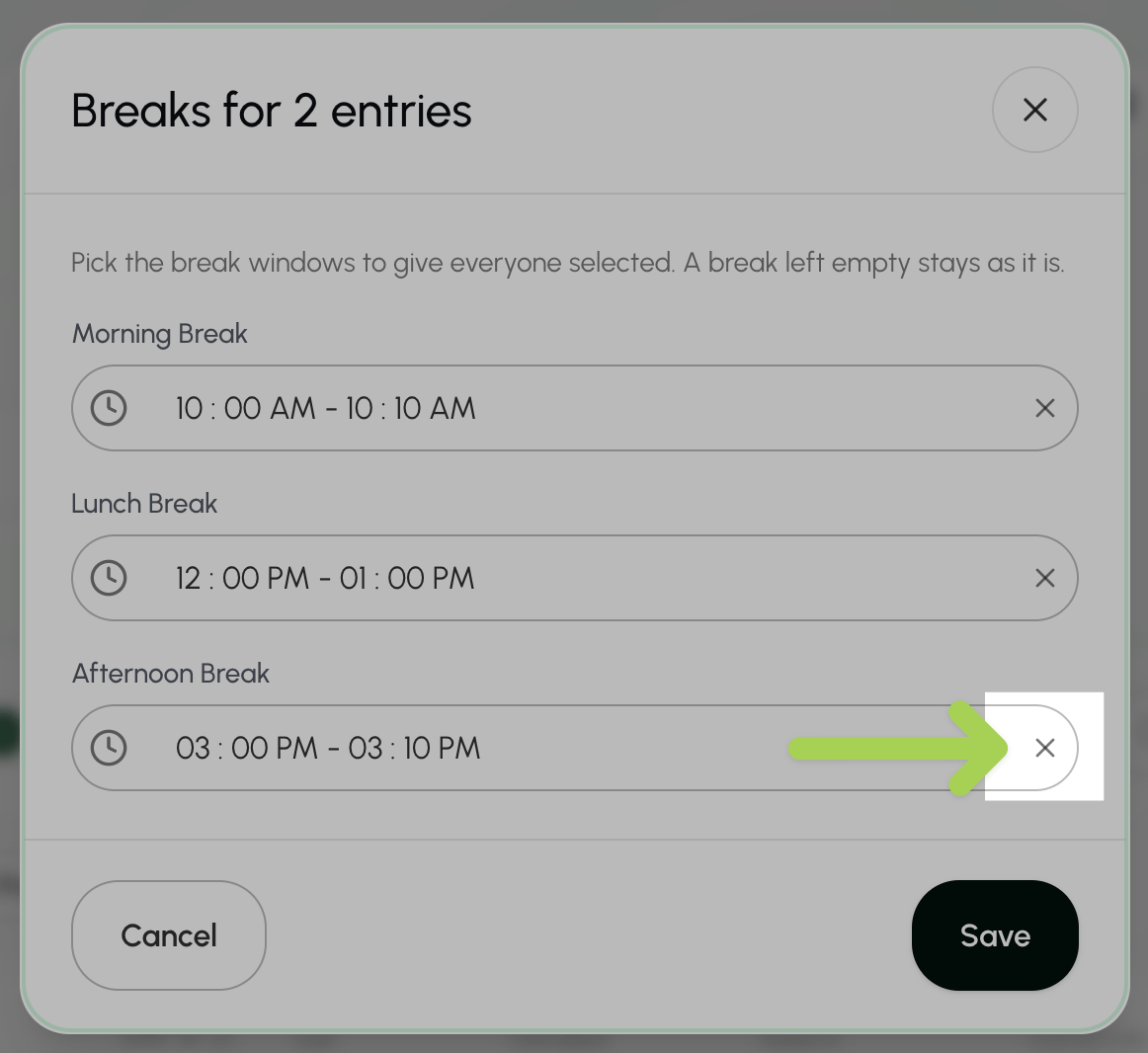
- Select Save to save your changes.
E. Creating & Managing Time Card Templates
Create a timecard template
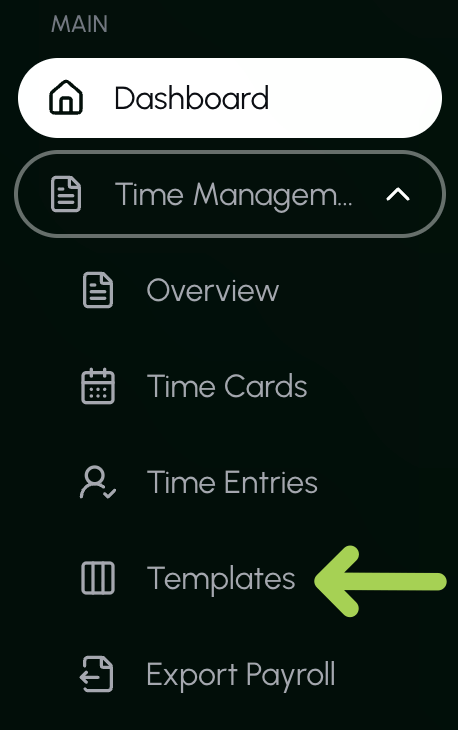
- Go to the Templates page under Time Management from the Main Menu.
- Select + Add Template.

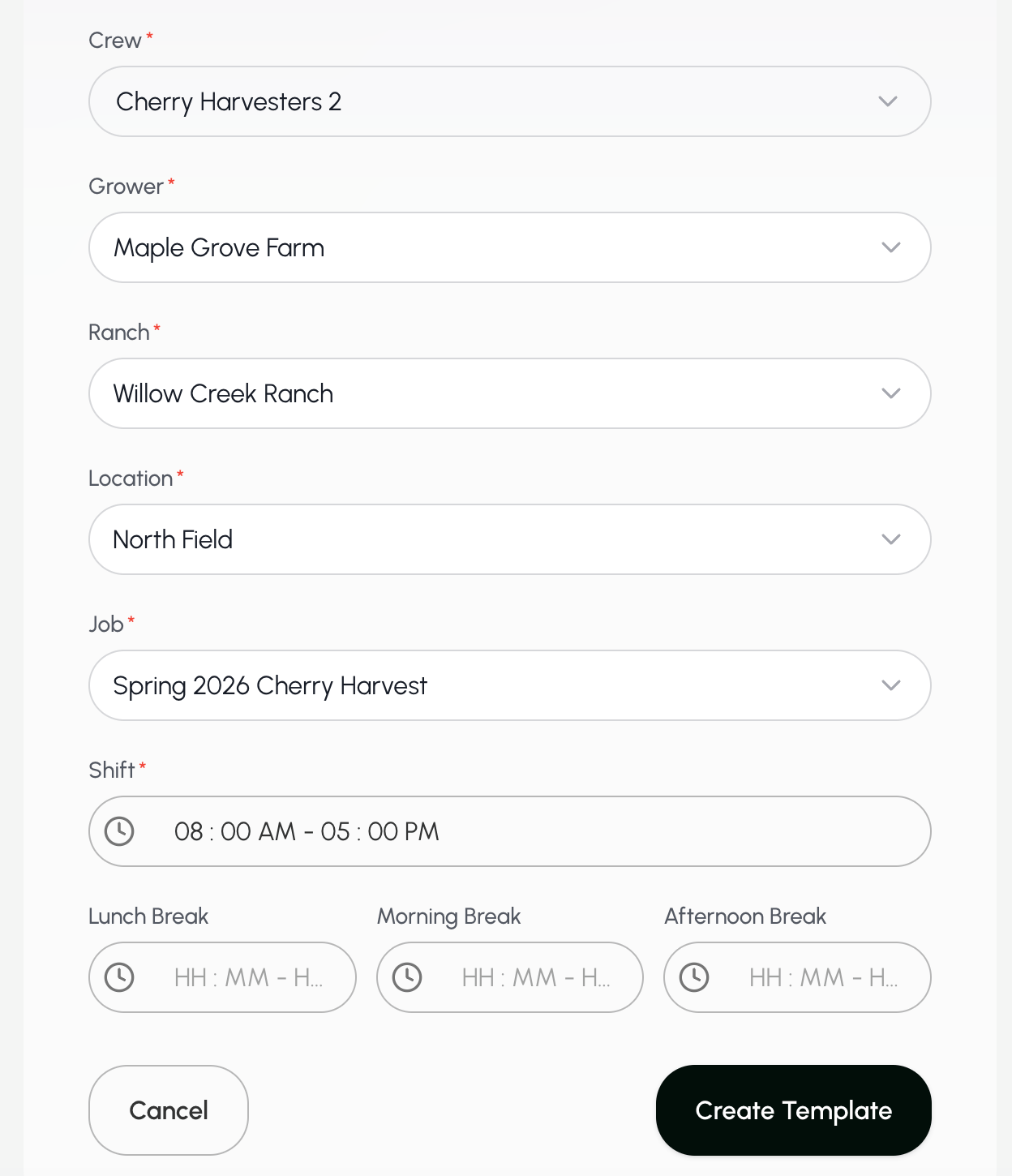
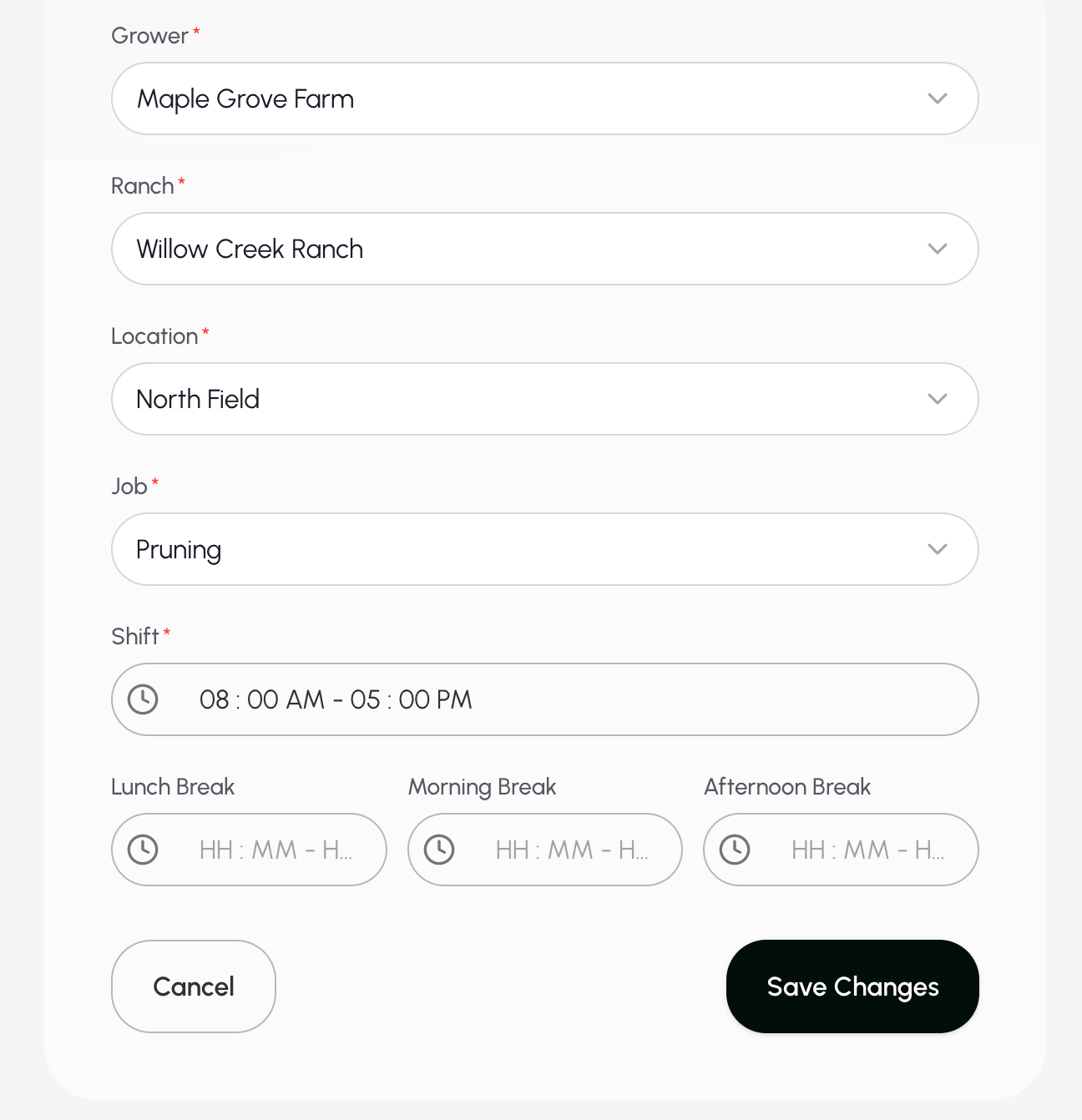
- Enter the template name, crew, grower, ranch, location, job title, and shift (optional: add breaks).*
- Select Create Template to save your template.
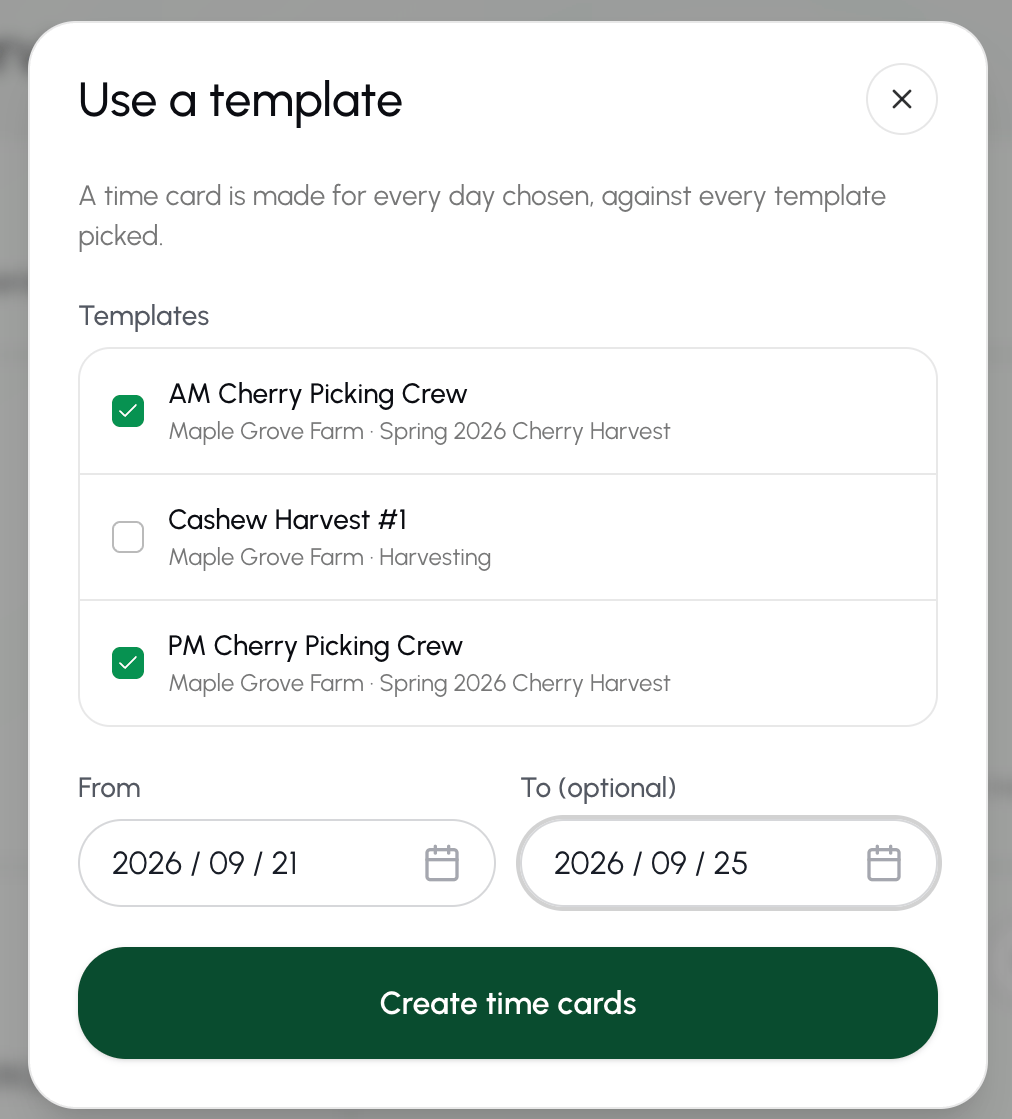
Create a timecard from a template
- From the dashboard, elect + Add Timecard.
- Select Use Template from the menu.

- Select all templates you want to create a timecards for.
- Enter the dates that you want to create the timecards for.
- Select Create Timecards to save the timecards.
View all timecard templates
- Go to the Templates page under Time Management from the Main Menu.
Find a timecard template
- Go to the Templates page under Time Management from the Main Menu.
- Select the Search box above the All Templates list.
- Enter the template’s name, grower, or job.
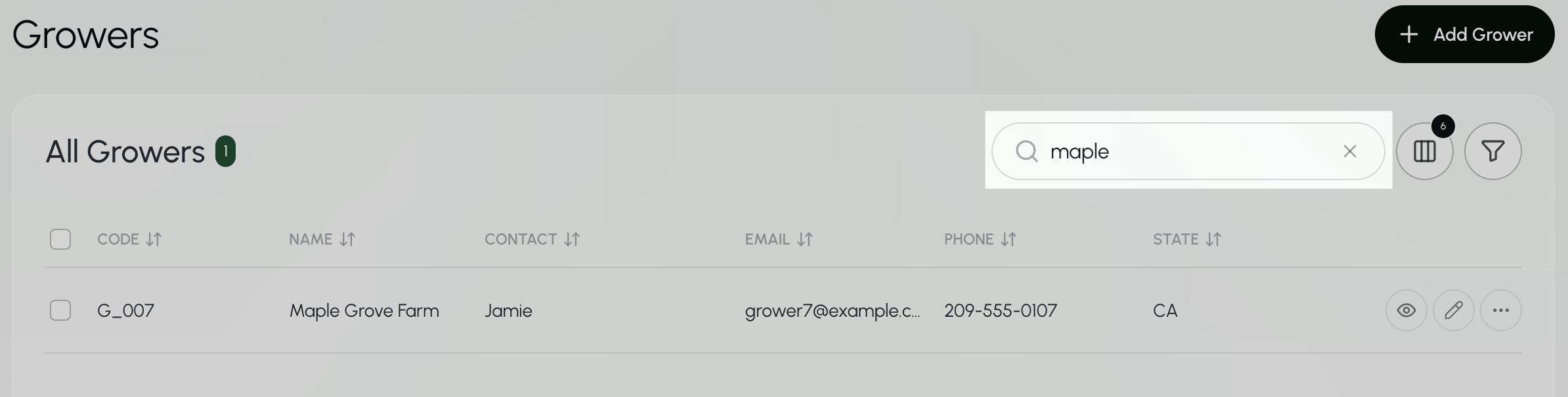
The Search bar at the top of every page searches across Farmio. This search bar will not search for timecard templates. To search only for timecard templates, use the Search box on the Templates page.
Edit timecard template details
- Go to the Templates page under Time Management from the Main Menu.
- Select the Search box above the All Templates list.
- Enter the template’s name, grower, or job.
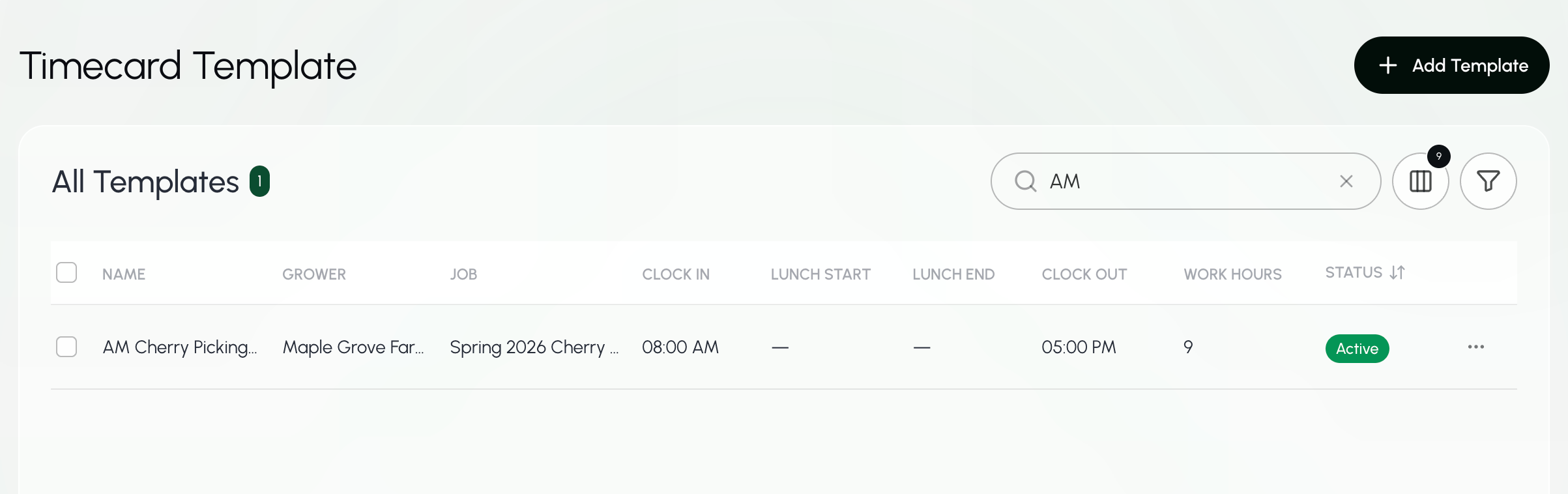
The Search bar at the top of every page searches across Farmio. This search bar will not search for timecard templates. To search only for timecard templates, use the Search box on the Templates page.
- Select the three dots next to the template and choose Edit template.
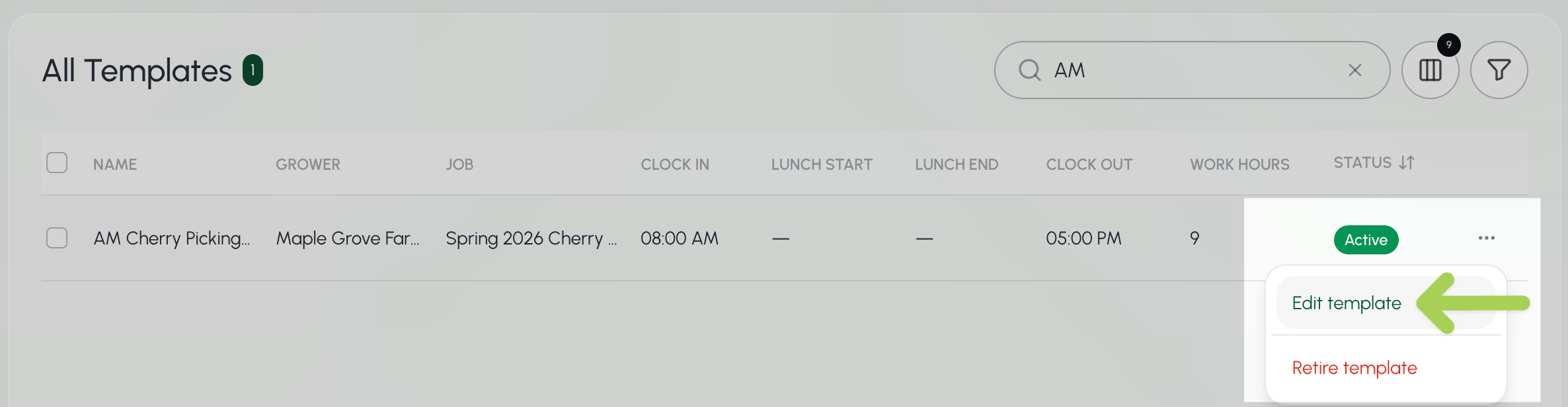
- Edit the template name, crew, grower, ranch, location, job title, and shift (optional: add/change/remove breaks).*
- *Remember that this is the process for creating a time card for future work.
- Select Save Changes.
F. Managing Employees in Templates
Get employees in a template
Documentation coming soon.Get eligible employees to add to a template
Documentation coming soon.Add an employee to a template
Documentation coming soon.Remove an employee from a template
Documentation coming soon.G. Creating & Managing Template Breaks
Create a template break
Documentation coming soon.Get existing template breaks
Documentation coming soon.Remove a template break
Documentation coming soon.H. Creating & Managing Time Entries
View time entries in a time card
- Go to the Time Cards page under Time Management.
- Select the pay period that you want to view.
- The current pay period will already be filled in.
- Select the Search box above the Time Card list.
- Enter the timecard ID, date, crew, job, grower, ranch, or location.
The Search bar at the top of every page searches across Farmio. To search only for timecards, use the Search box on the Time Cards page.
- Select the time card that you want to view.
View all time entries for a pay period
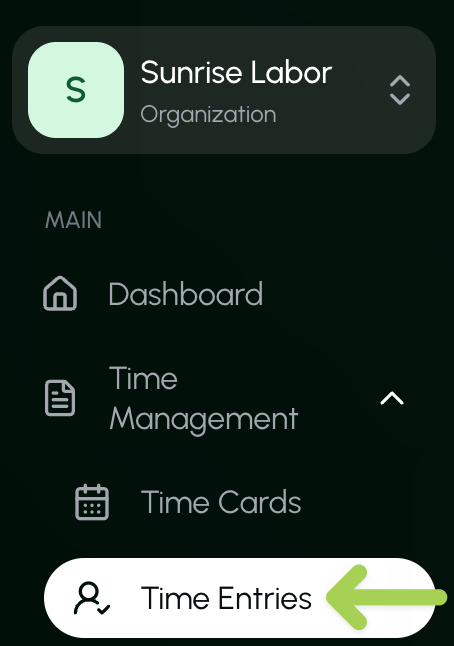
- Go to the Time Cards page under Time Management.
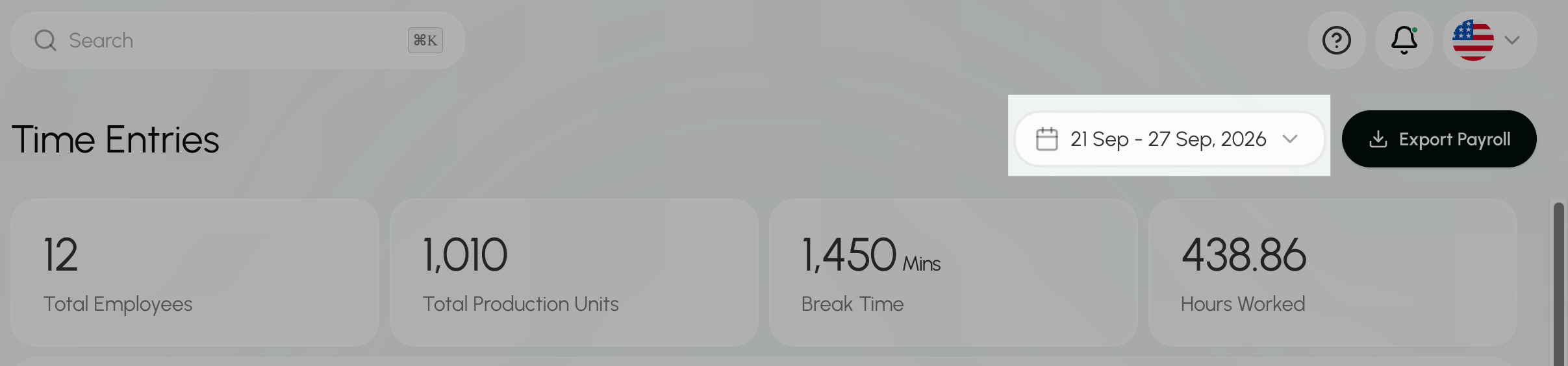
- Select the pay period you want to view.
-
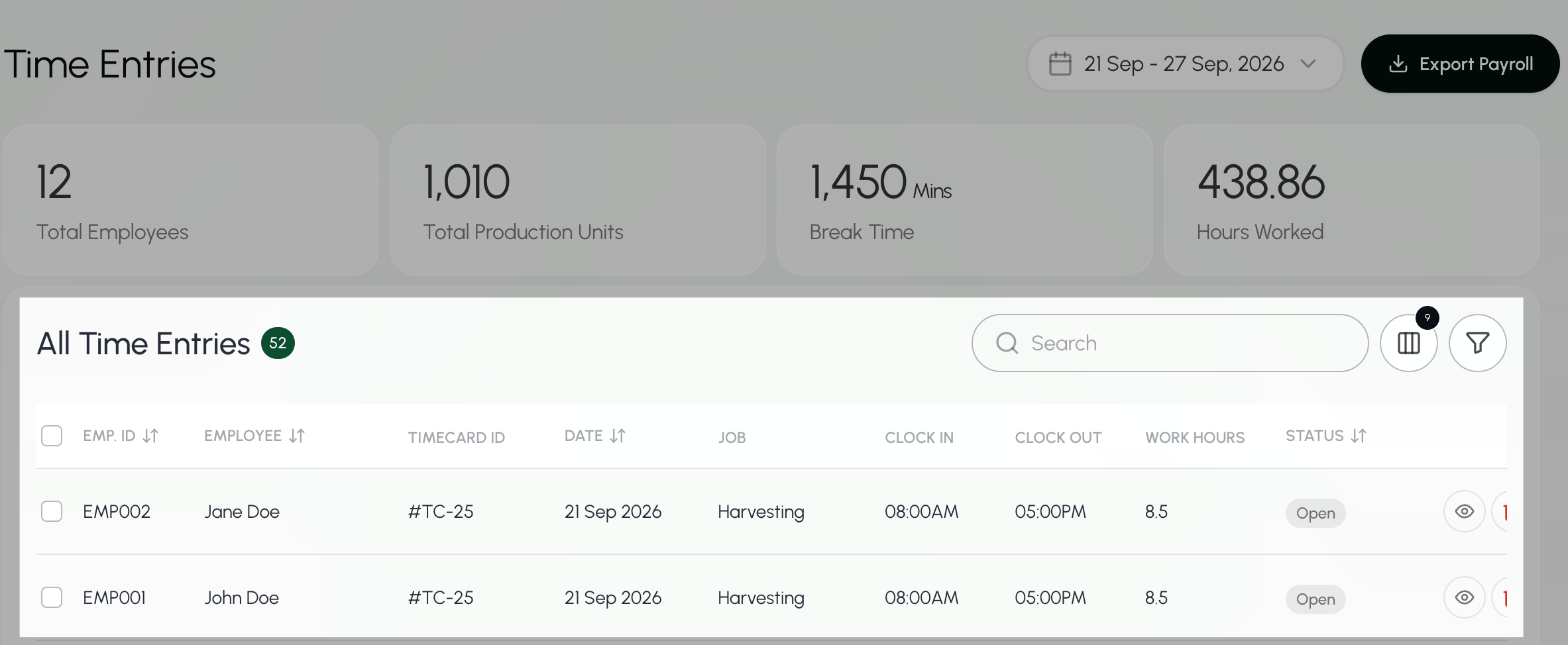
Select the eye icon
 next to the time entry to view all of the time entry details within the time card.
-
Scroll to the bottom of the time card page to the Time Entries section.
Update a time entry
- Find the time entry you want to update by time card or by pay period.
- Select the time entries that you would like to update.
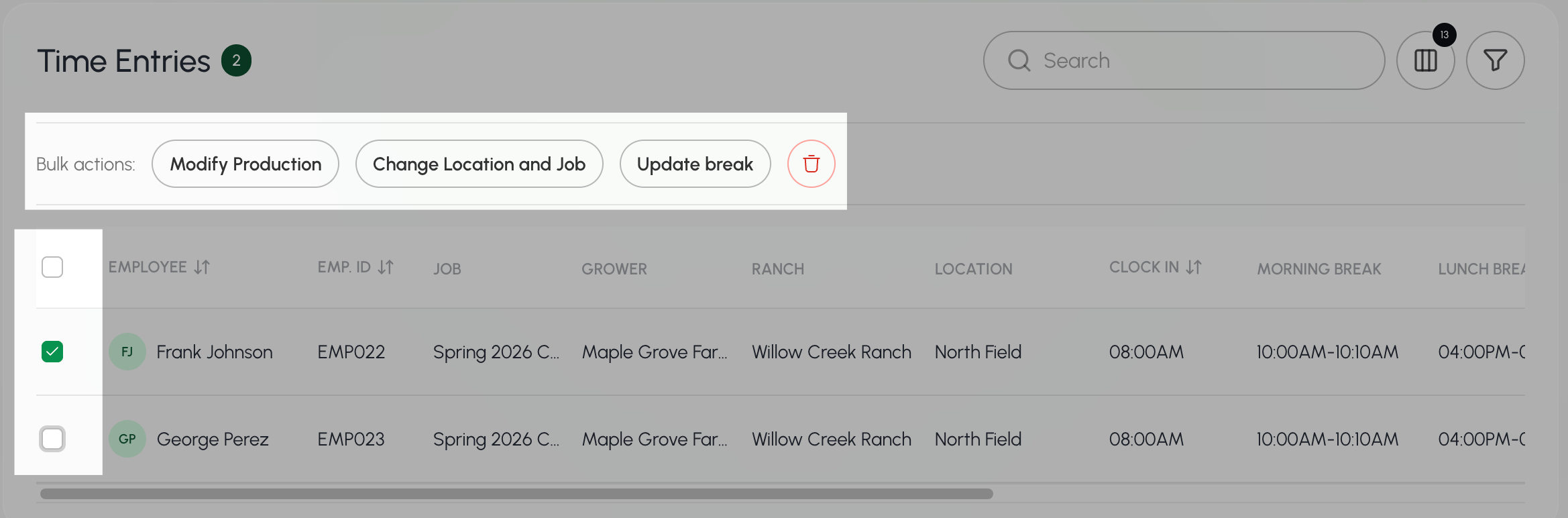
- Select the information you want to update.
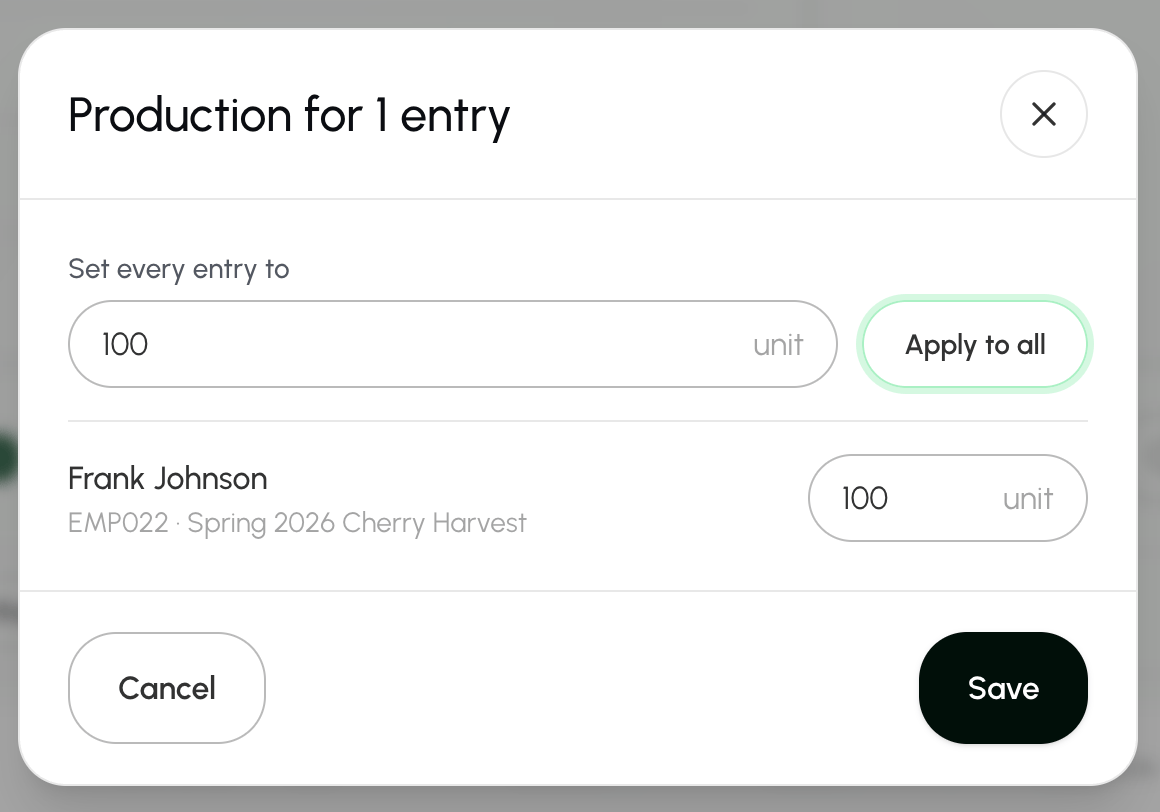
- If you select Modify Production:
- Enter the production that the employees had for this time entry.
- Select Save to save your changes.
- If you select Modify Production:
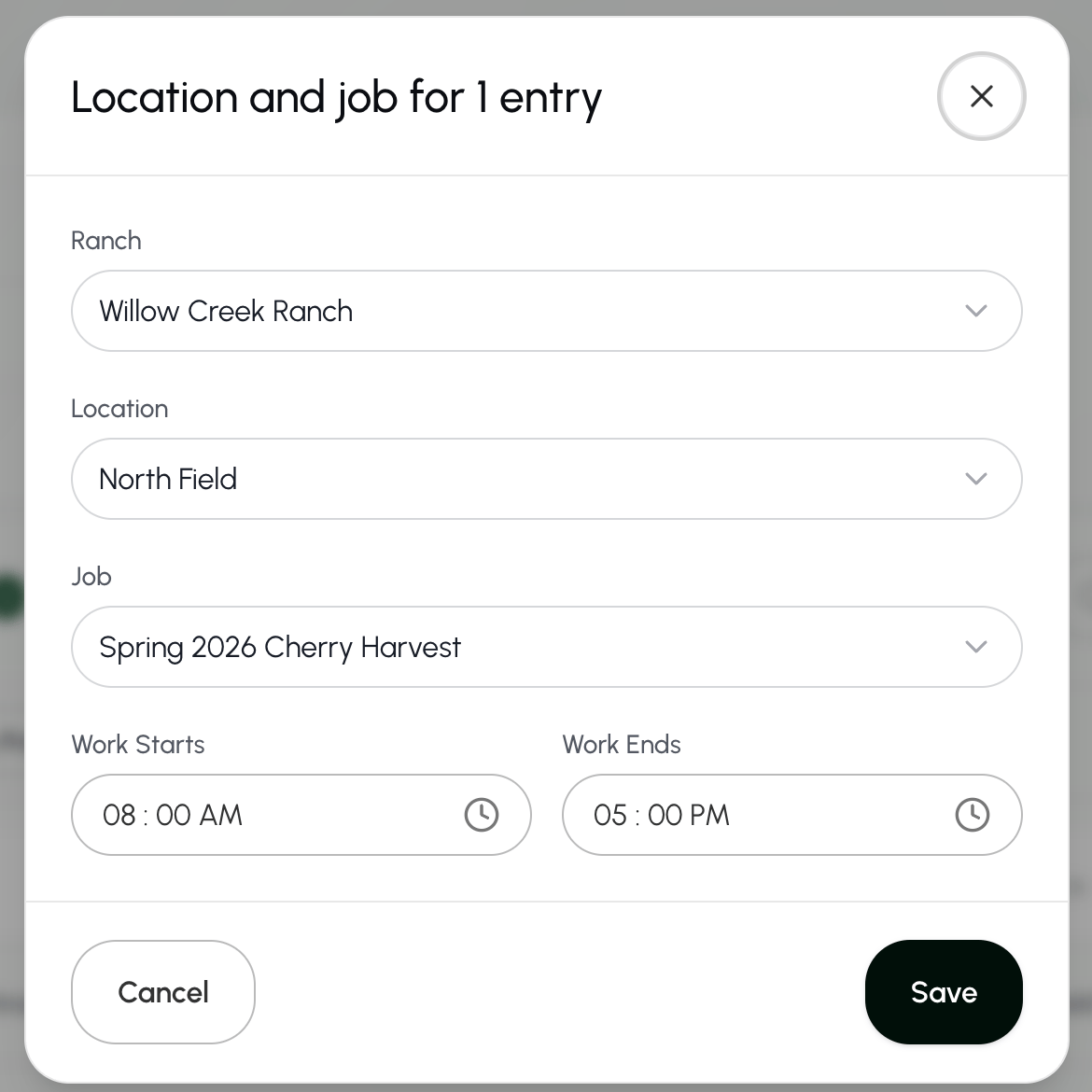
- If you select Change Location and Job:
- Enter the new ranch, location, job, work start time, or work end time.
- Select Save to save your changes.
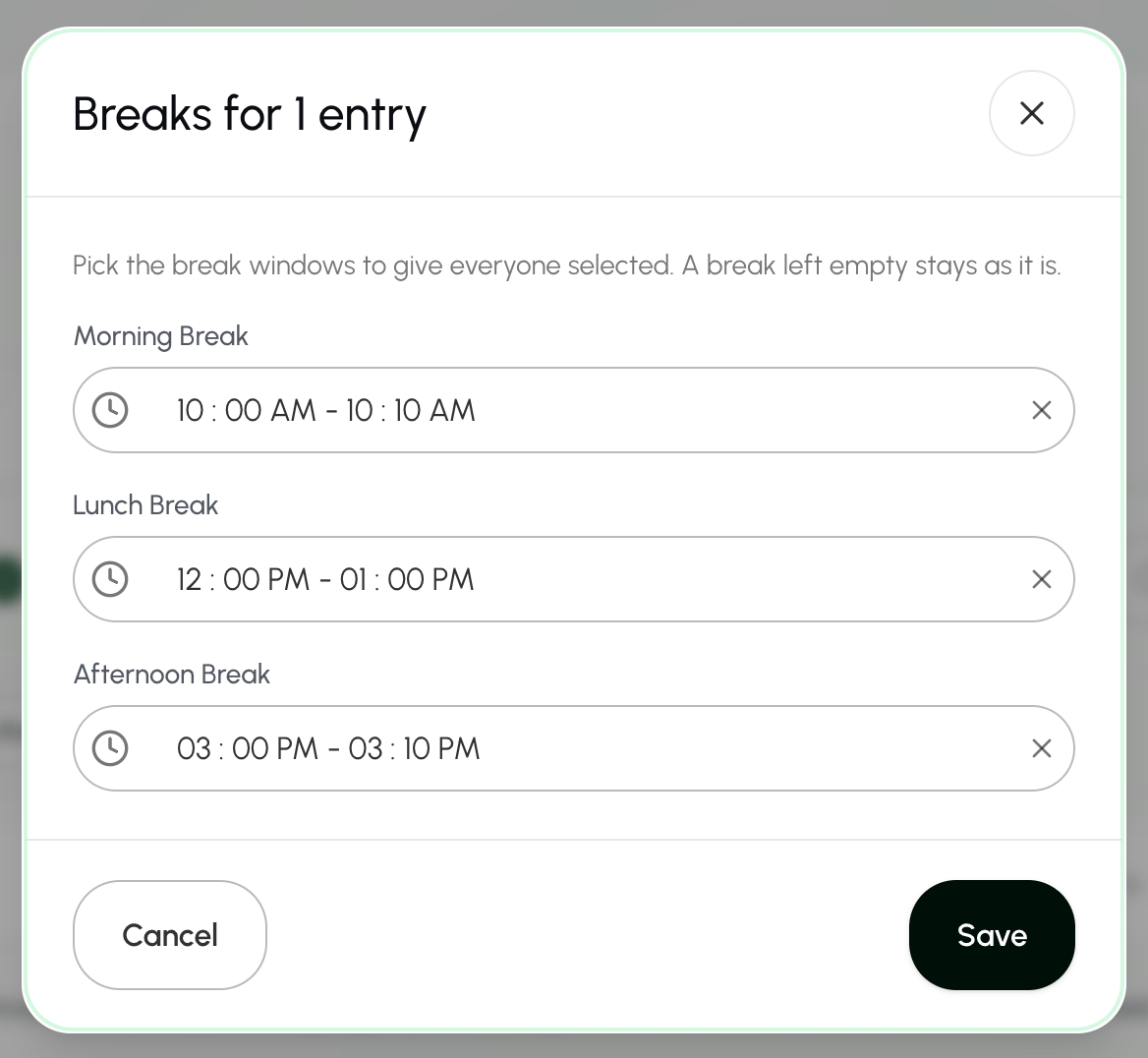
- If you select Update Break:
- Enter the new morning, lunch, or afternoon break.
- Select Save to save your changes.
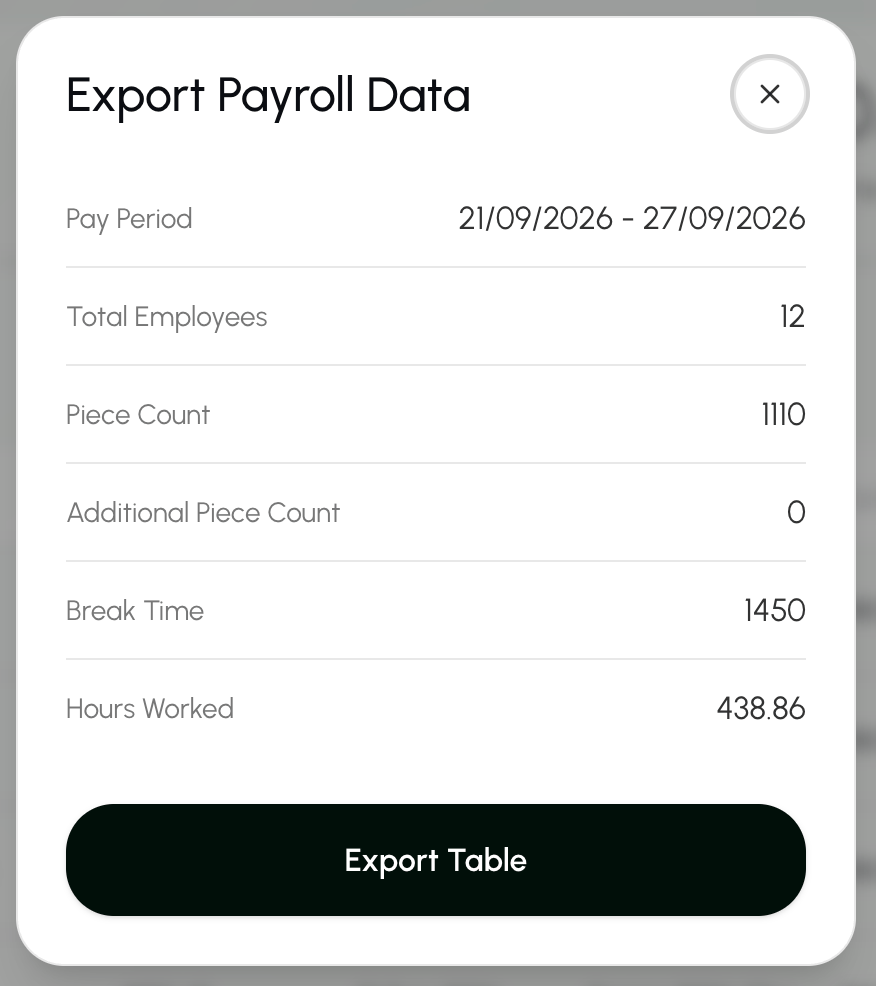
Export time entries
- Go to the Time Cards page under Time Management.
- Select the pay period you want to view.
- Select Export Payroll.
- If you select Export all:
- All time entries will show on the table.
- If you select Export all:

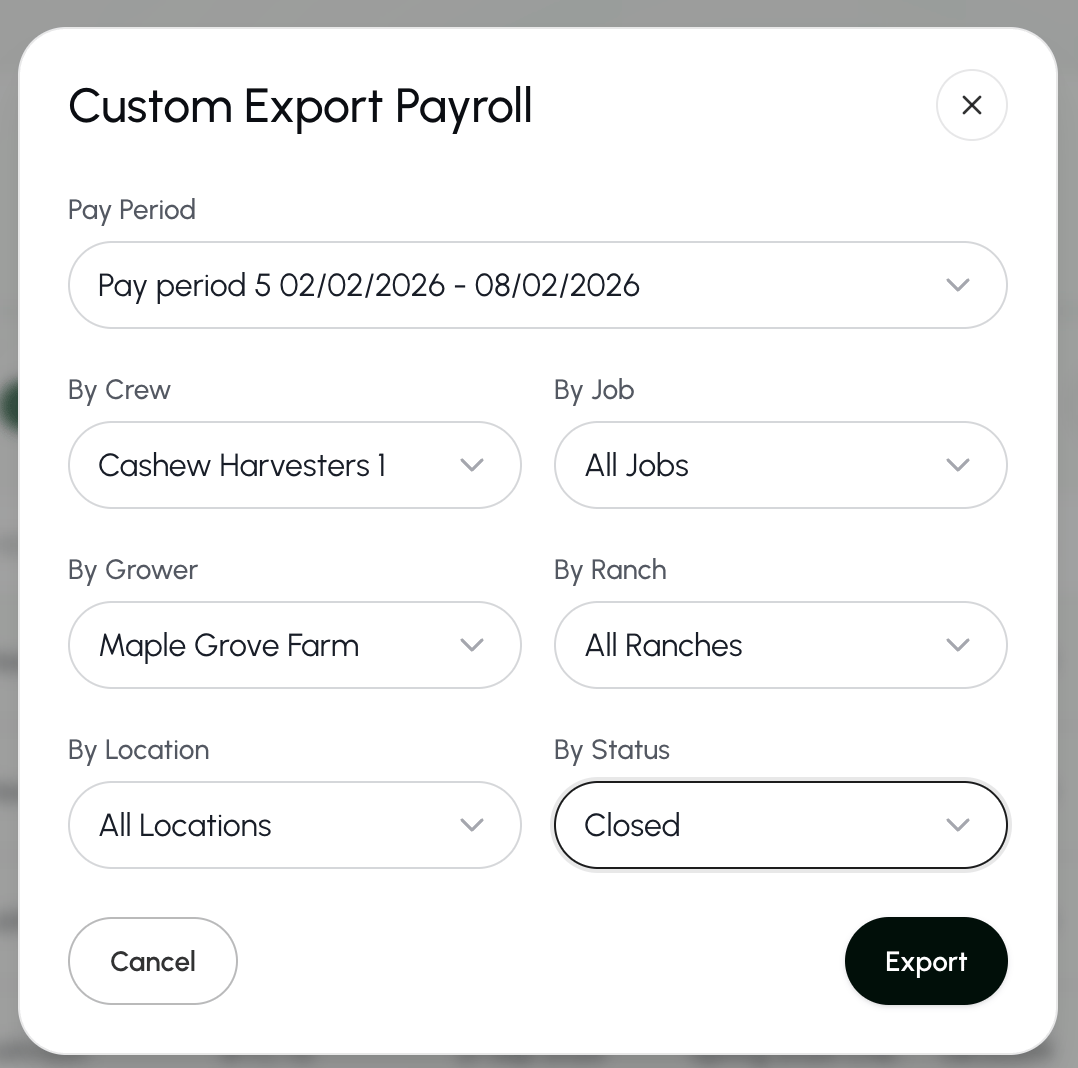
- If you select Custom export:
You can choose one or more filters to customize the table.
- Pay period
- Crew
- Job
- Grower
- Ranch
- Location
- Time card status