
A. Quickstart Guide
Create a new organization
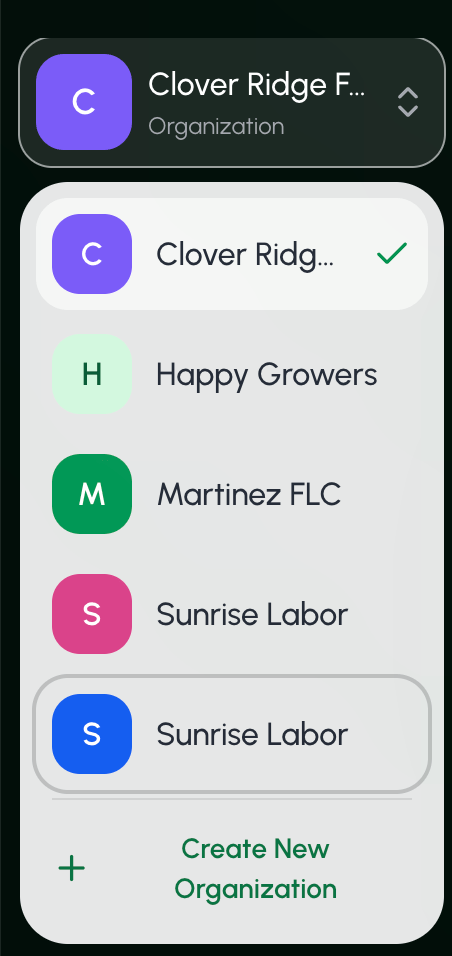
- Select the organization that you currently have open in the sidebar.
- From the dropdown menu, select + Create New Organization.
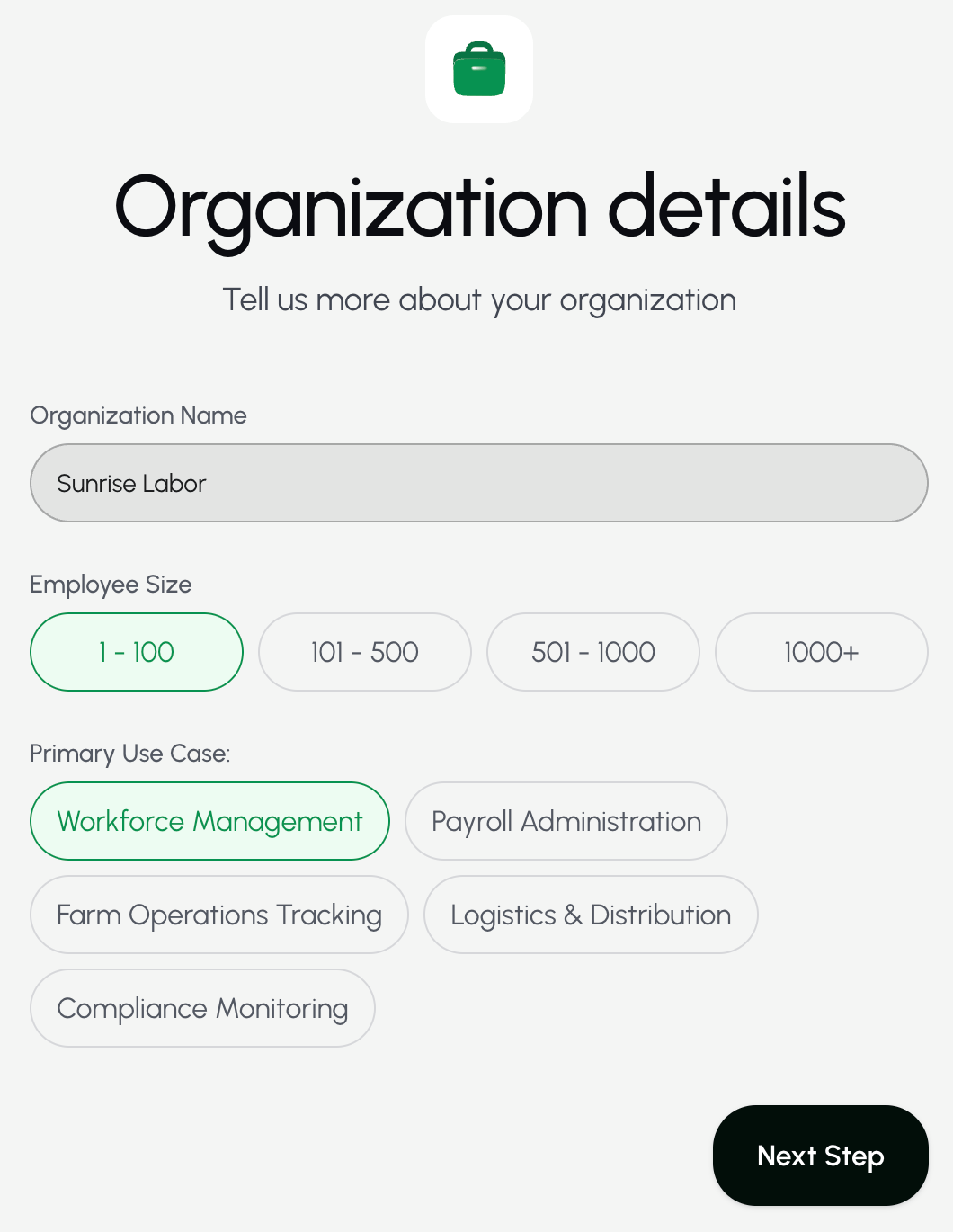
- Enter the new organization’s name , employee size, and primary use case. Then select Next Step.
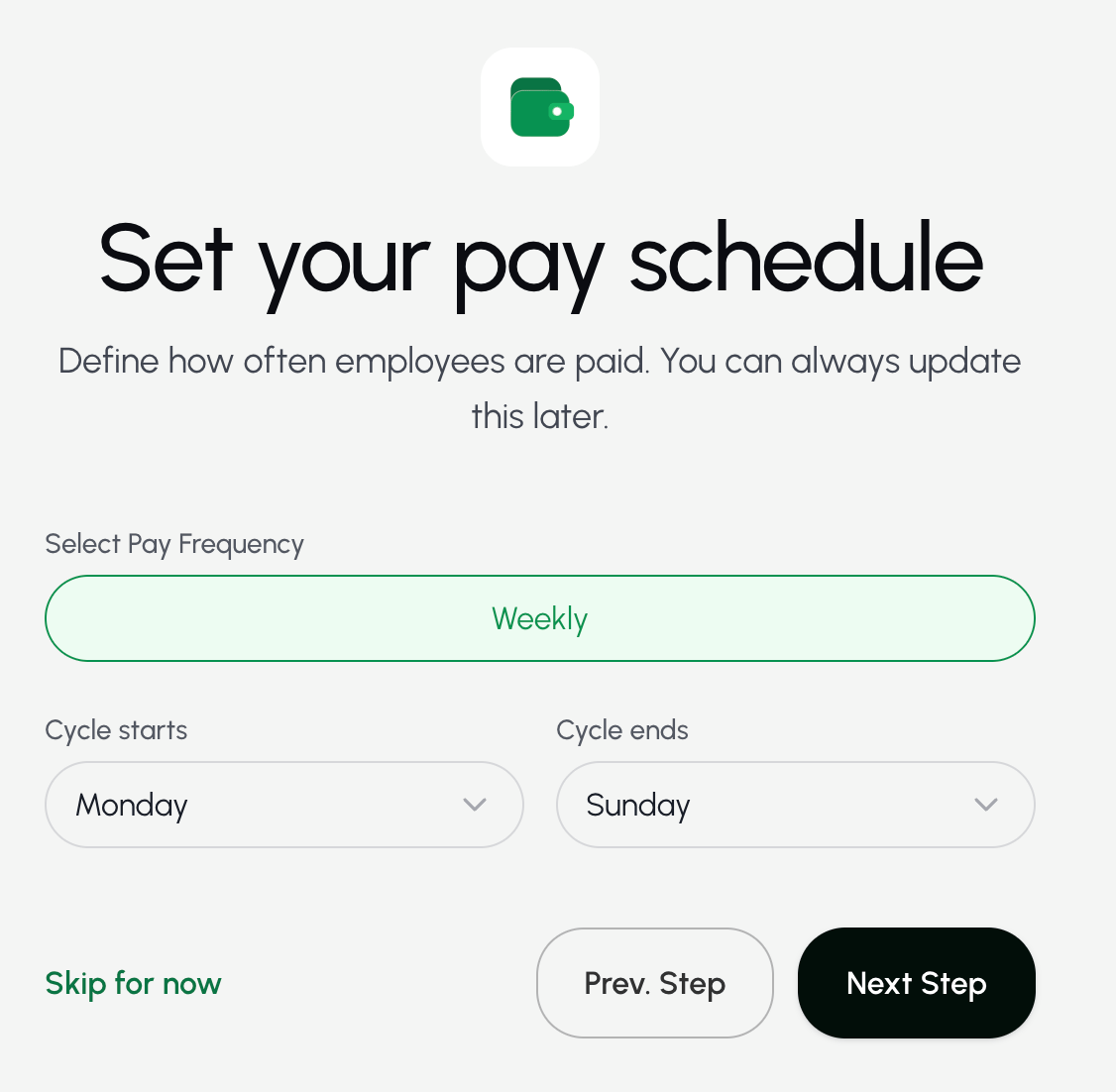
- Select the organization’s pay frequency, cycle start day, and cycle end day. Then select Next Step.
- This step is optional. You may also select Skip for now.
- Create a crew. Then select Proceed.
- This step is optional. You may also select Skip for now.
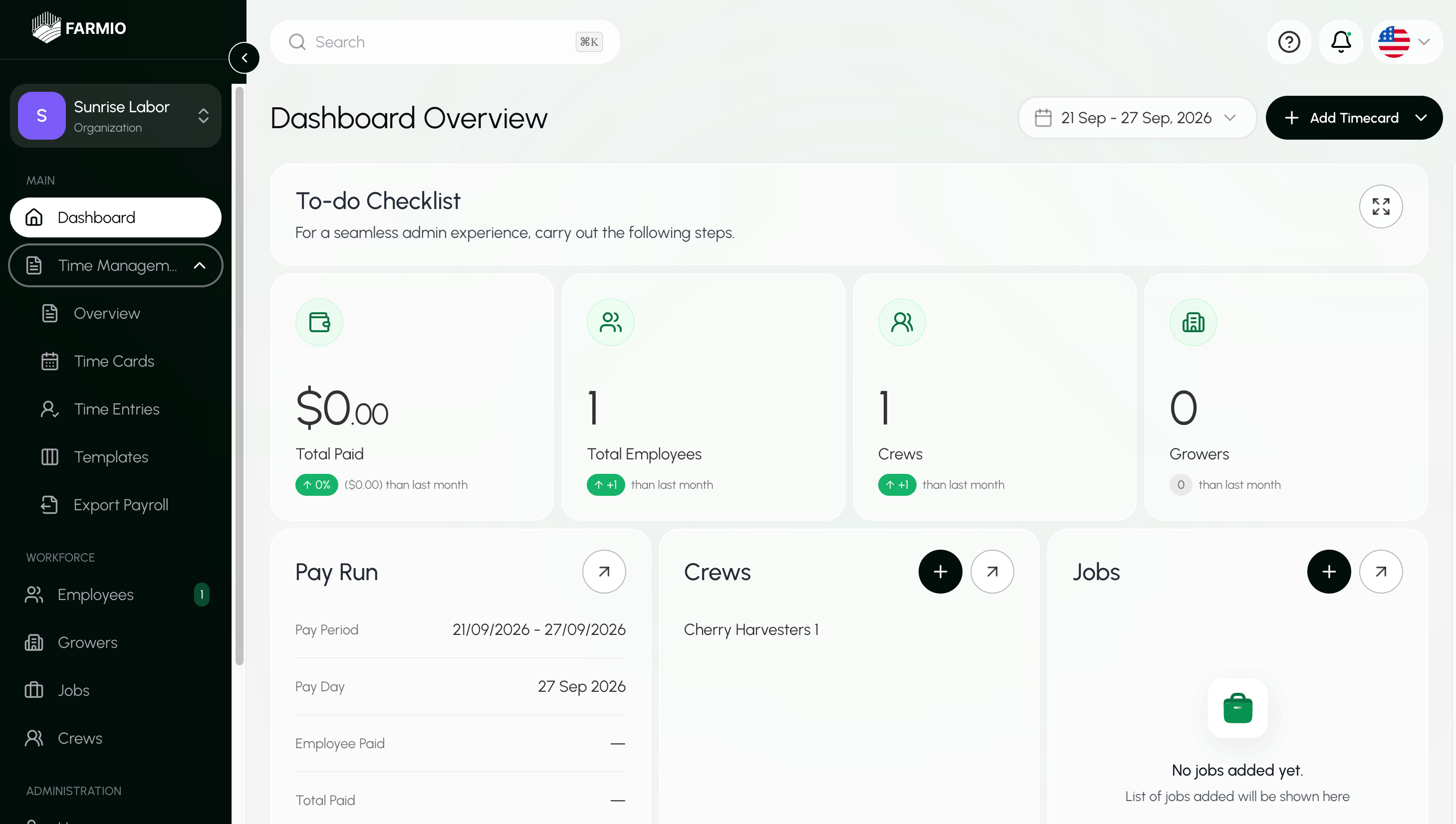
Add multiple employees
Upload a CSV file to add several employees at once. To add just one employee, see Add an employee.- Go to the Employees page.
- Select + Add Employee.
- Select Bulk Upload Employees from the menu.

- Download the Farmio Members Template.
- Open the file.
- Delete the sample employee information. Keep the column headings.
- Enter the information for each employee you want to add.
- Leave the Hourly rate column blank to use the system’s hourly rate.
- Save the file in CSV format.
- Upload the saved file back into Farmio.
- The file must be 10 MB or smaller.
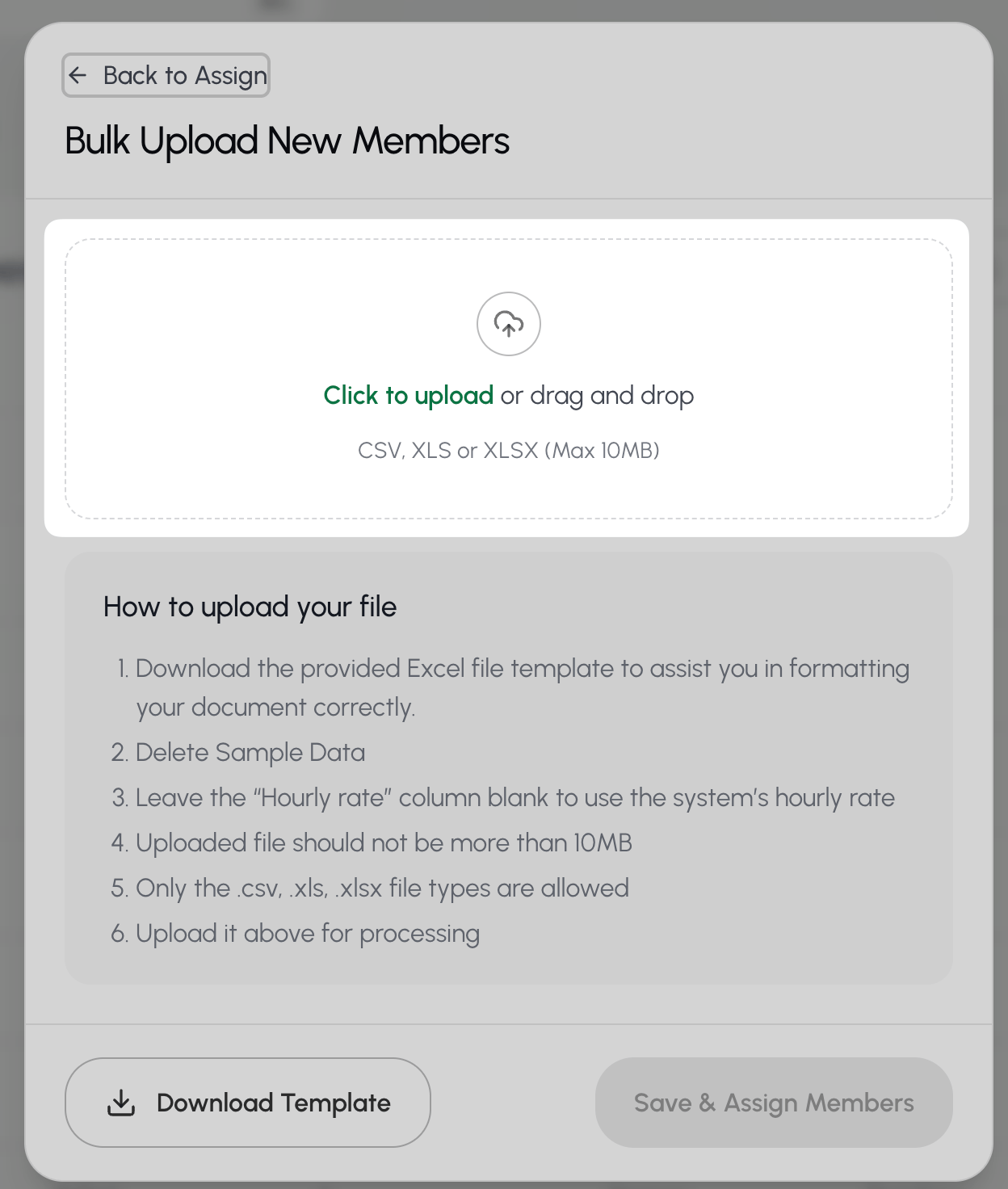
- Wait for the file to finish uploading. Then select Save & Assign Members.
Add a crew
- Go to the Crews page.
- Select + Add Crew.
- Select Add employee from the menu.

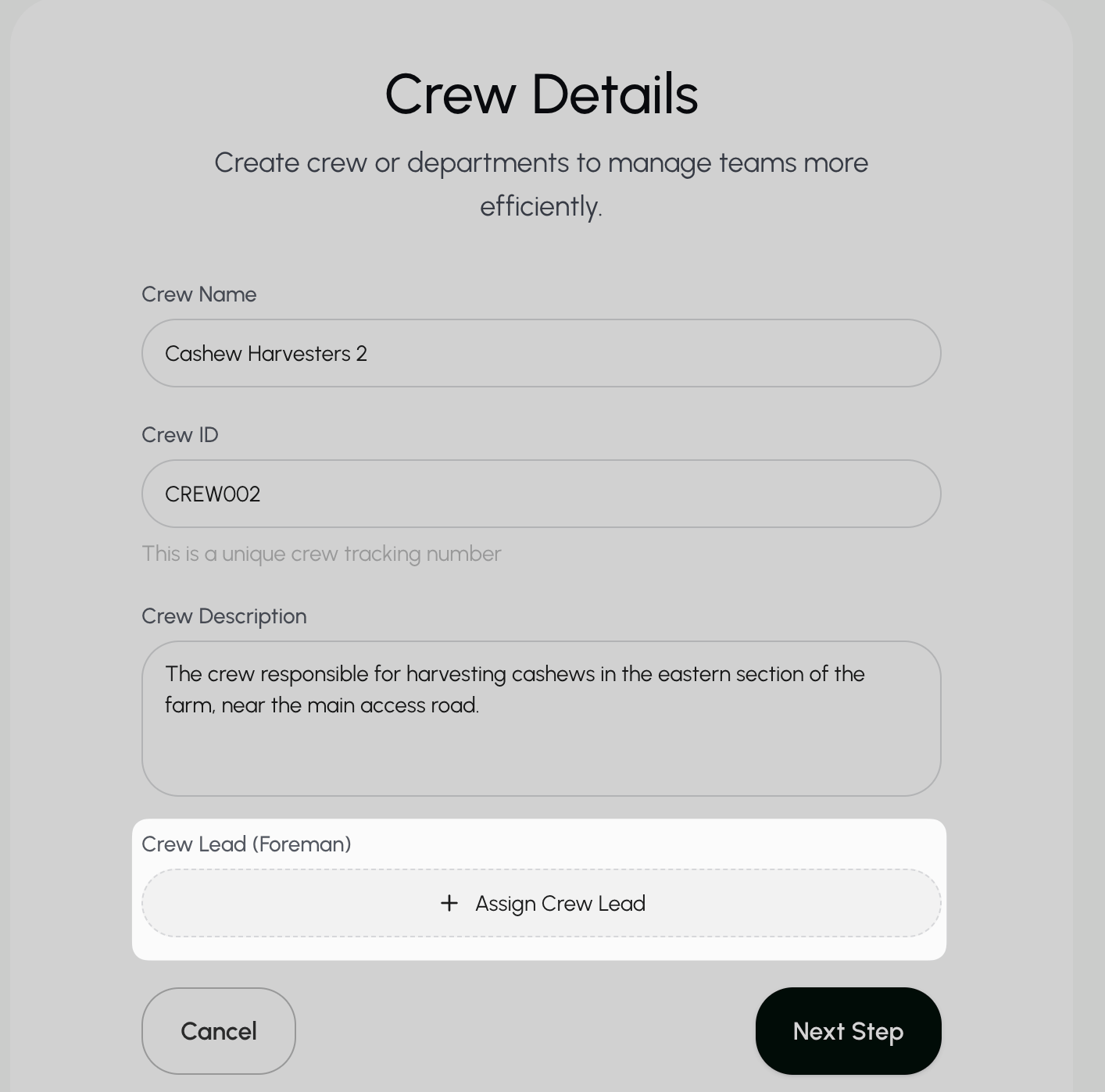
- Give the crew a name, ID, and description.
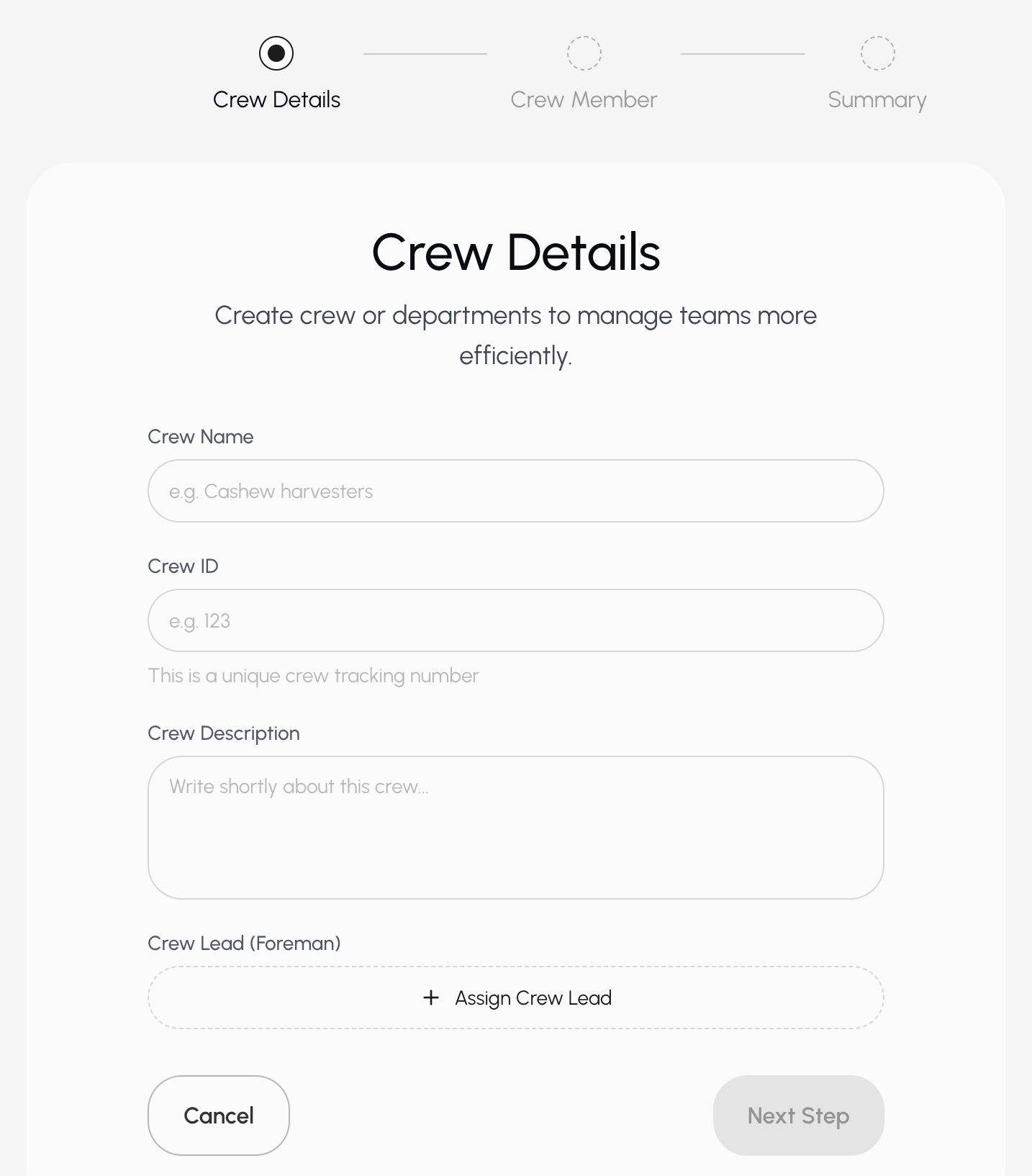
- Assign a crew lead if this crew has one.
To assign a crew lead:
-
Select Assign Crew Lead.
- Choose an existing crew lead or add a new one.
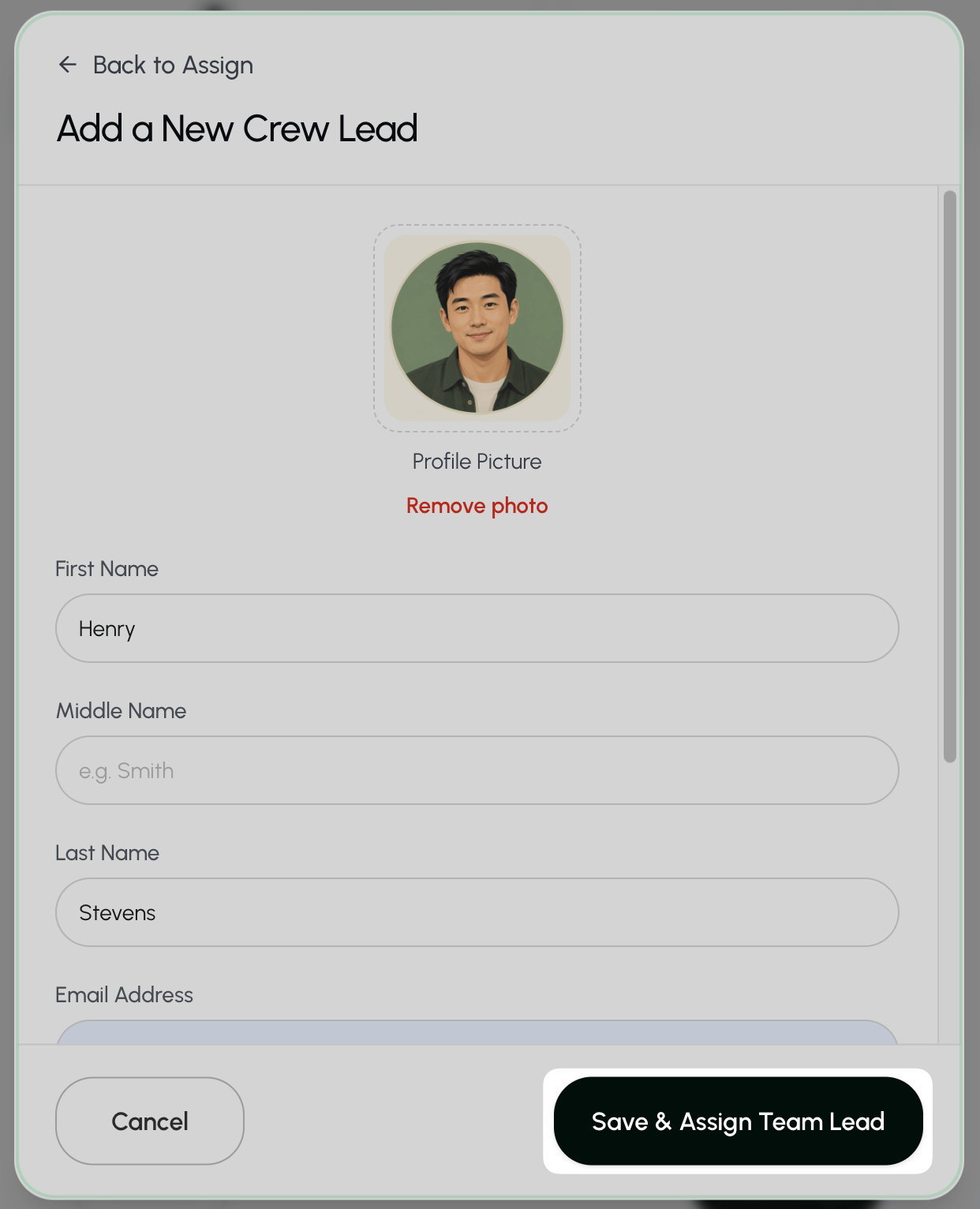
- If creating a new employee, add your employee’s information.
-
Select Save & Assign Team Lead.
- You can add members to your crew in 3 ways:
- Bulk upload new employees: see Add multiple employees.
- Add a single new employee: see Add an employee.
- Select your crew from existing employees:
- Search for an employee by name, email, or ID.
- Check the box next to the employees you want to add to the crew.
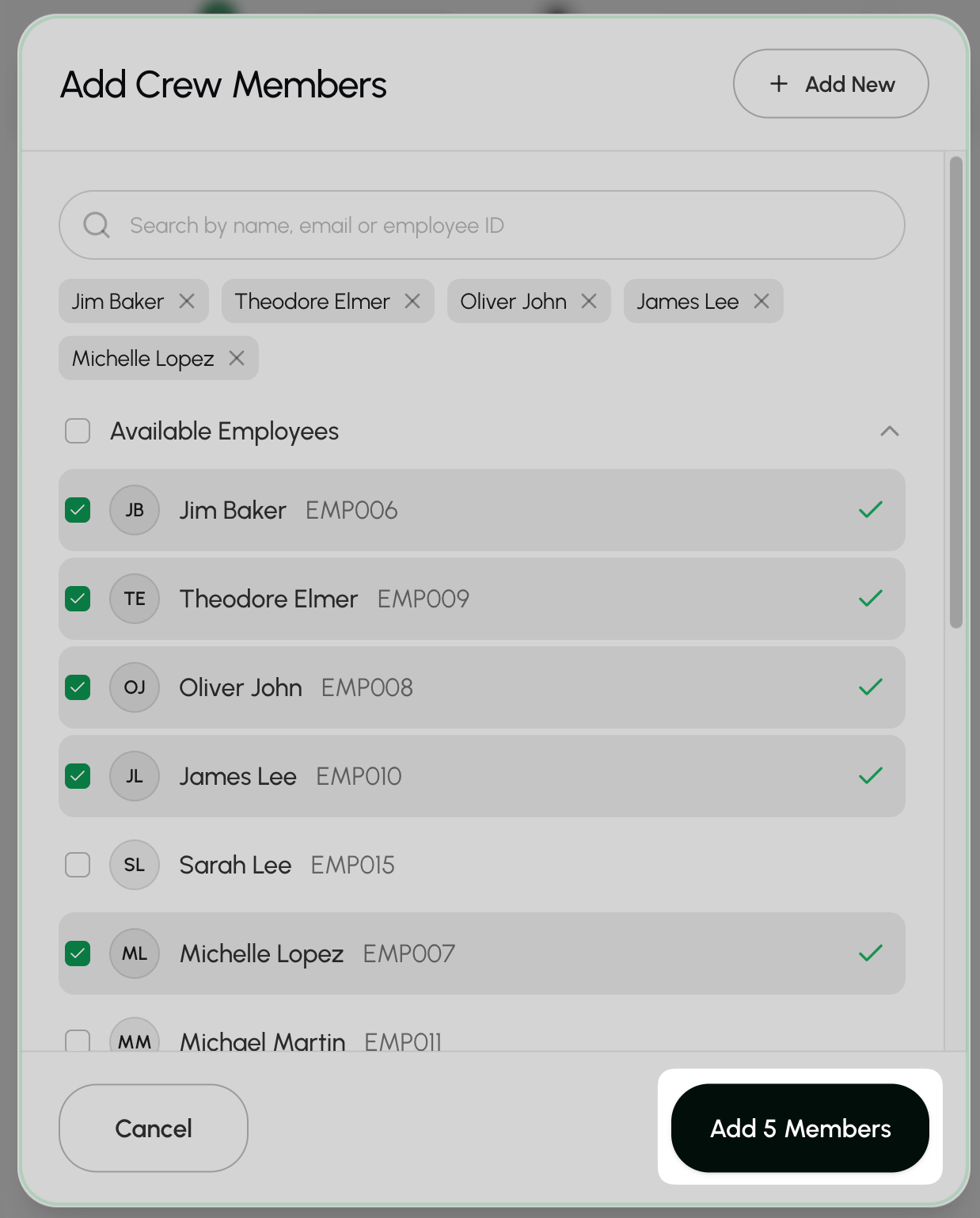
- Select Add members.
- Confirm that all of the information is correct and select Create Crew.
Add a job
- Go to the Jobs page under Workforce.
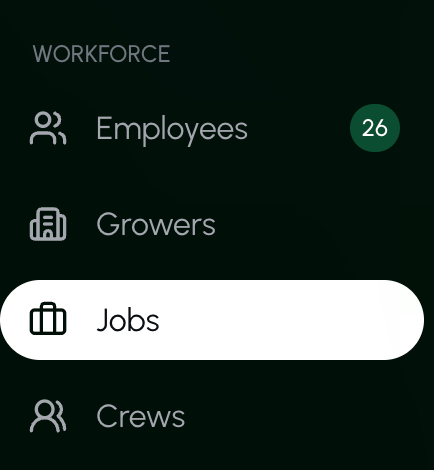
- Select +Add Job.

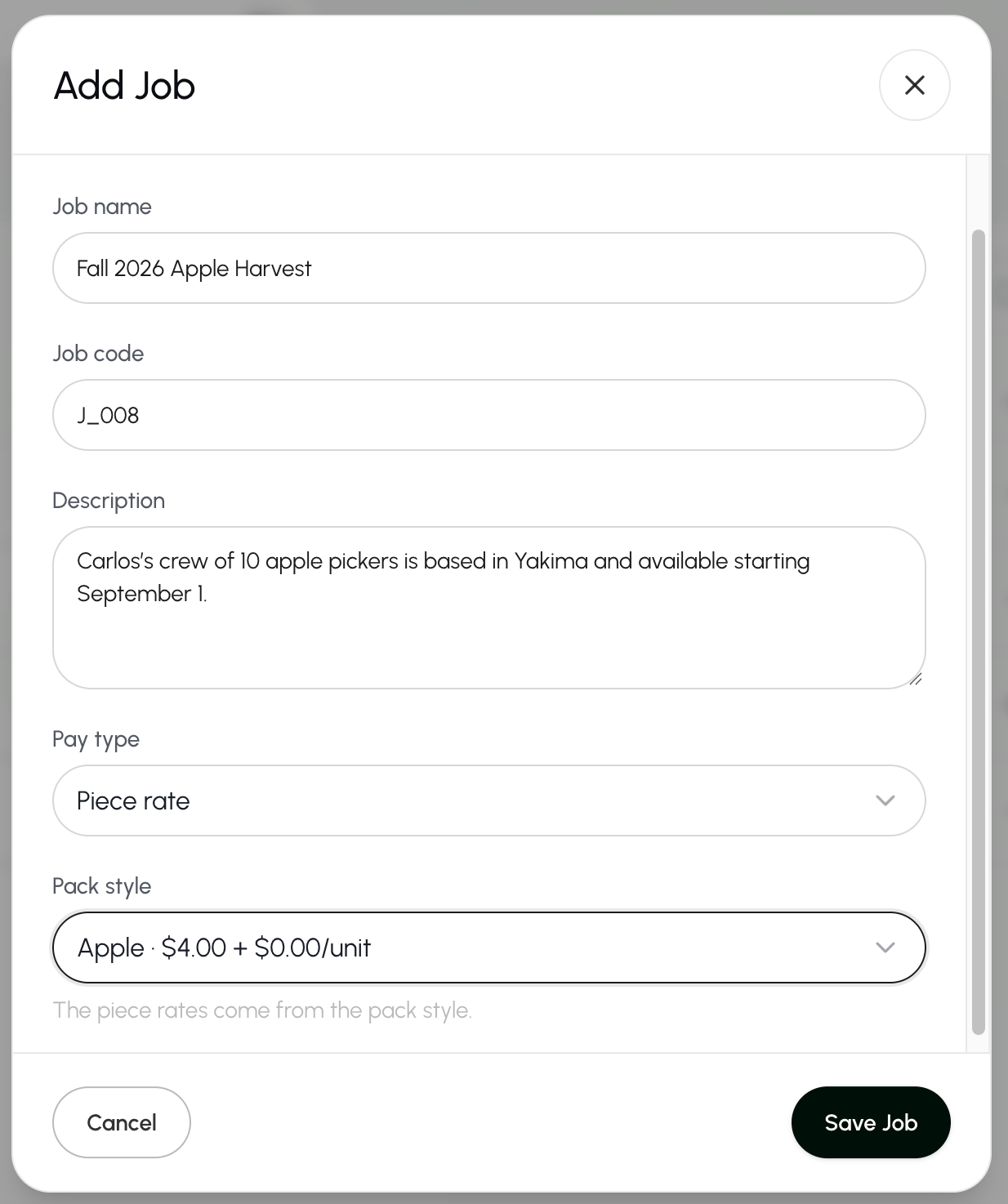
- Add the job details:
- Job name
- Job code
- Job description
- Pay type (hourly or piece rate)
- If you chose piece rate as the pay type, you will also choose the unit for the job.
- If you choose hourly as the pay type, you will also enter the hourly rate.
- Select Save Job.
Create a new time card (for a past date)
To create a time card for future work, see Schedule a time card.- From the dashboard, elect + Add Timecard.
- Select Create timecard from the menu.

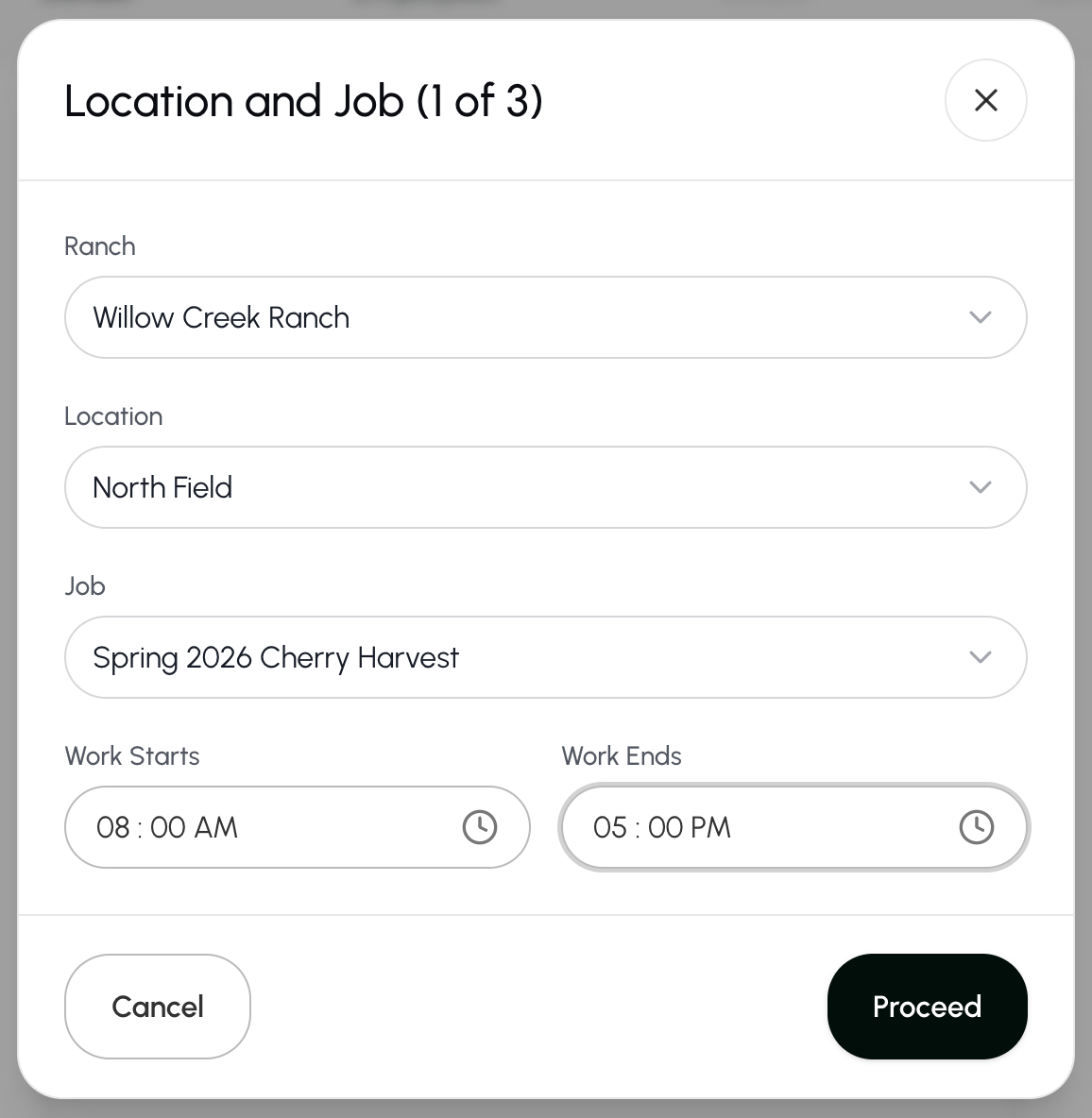
- Enter the ranch, location, job title, start time, and end time.*
- Select Proceed to continue**.**
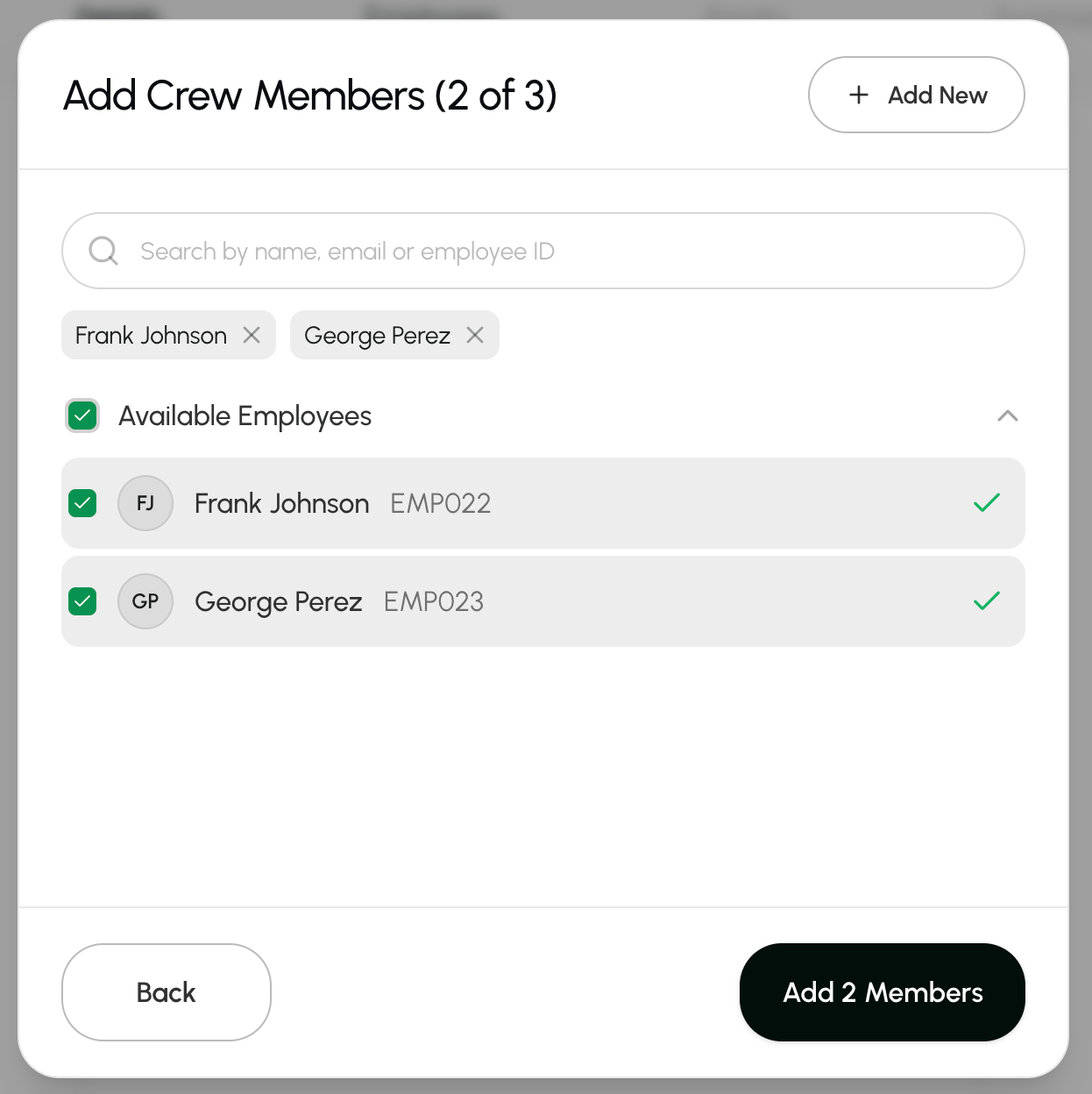
- Select the crew members who worked on this job.
- Select Available Employees if all crew members worked on this job.
- Select Add Members to save your continue.
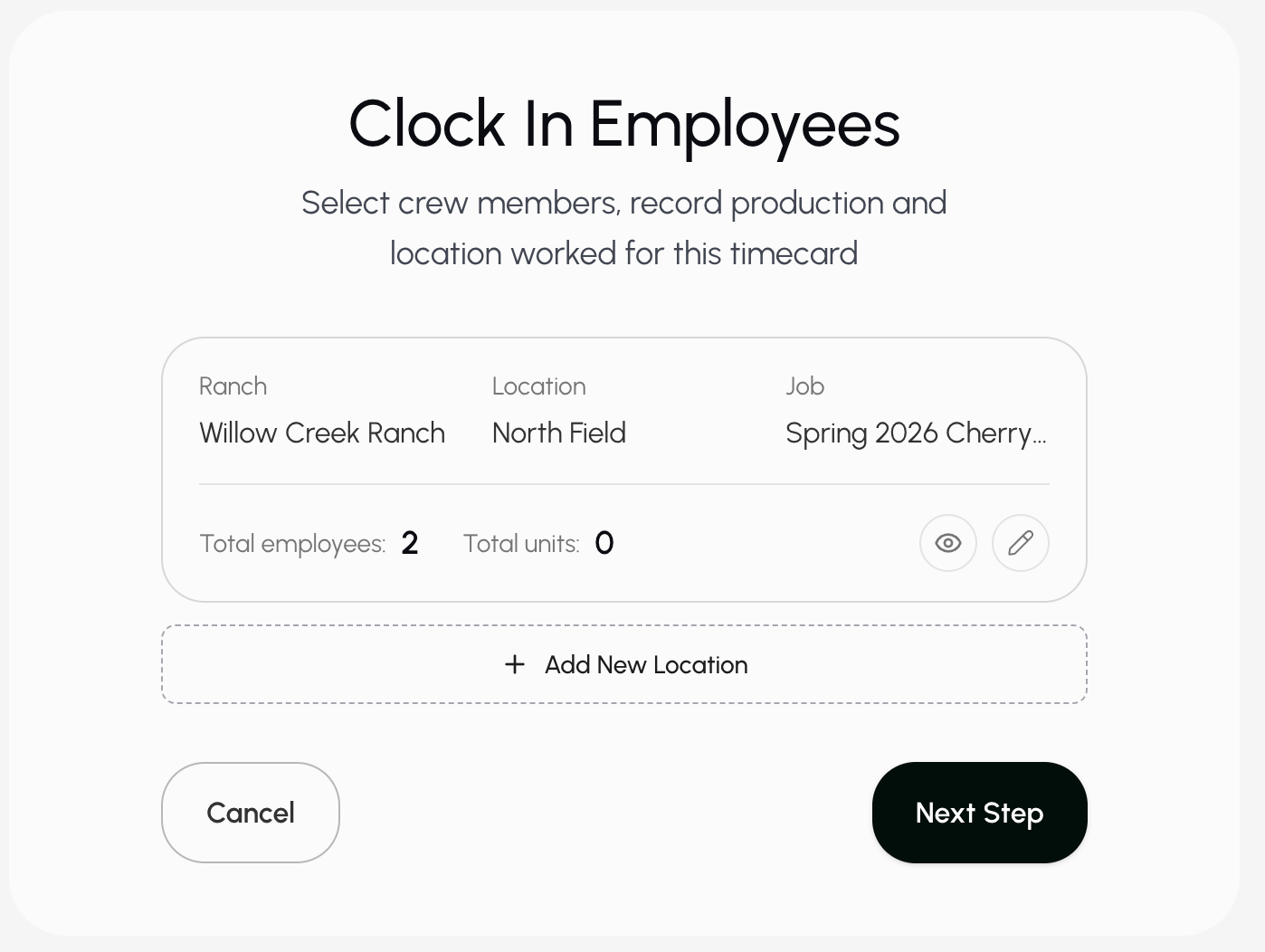
- Select the edit button
 to fill on how many units the crew members collected.*
- Select Add New Location and go through the process again if the crew worked in more than one location for this time card.
- Select Next Step to continue.
- Enter the morning, lunch, and afternoon break times for your crew. These times will apply to everyone.
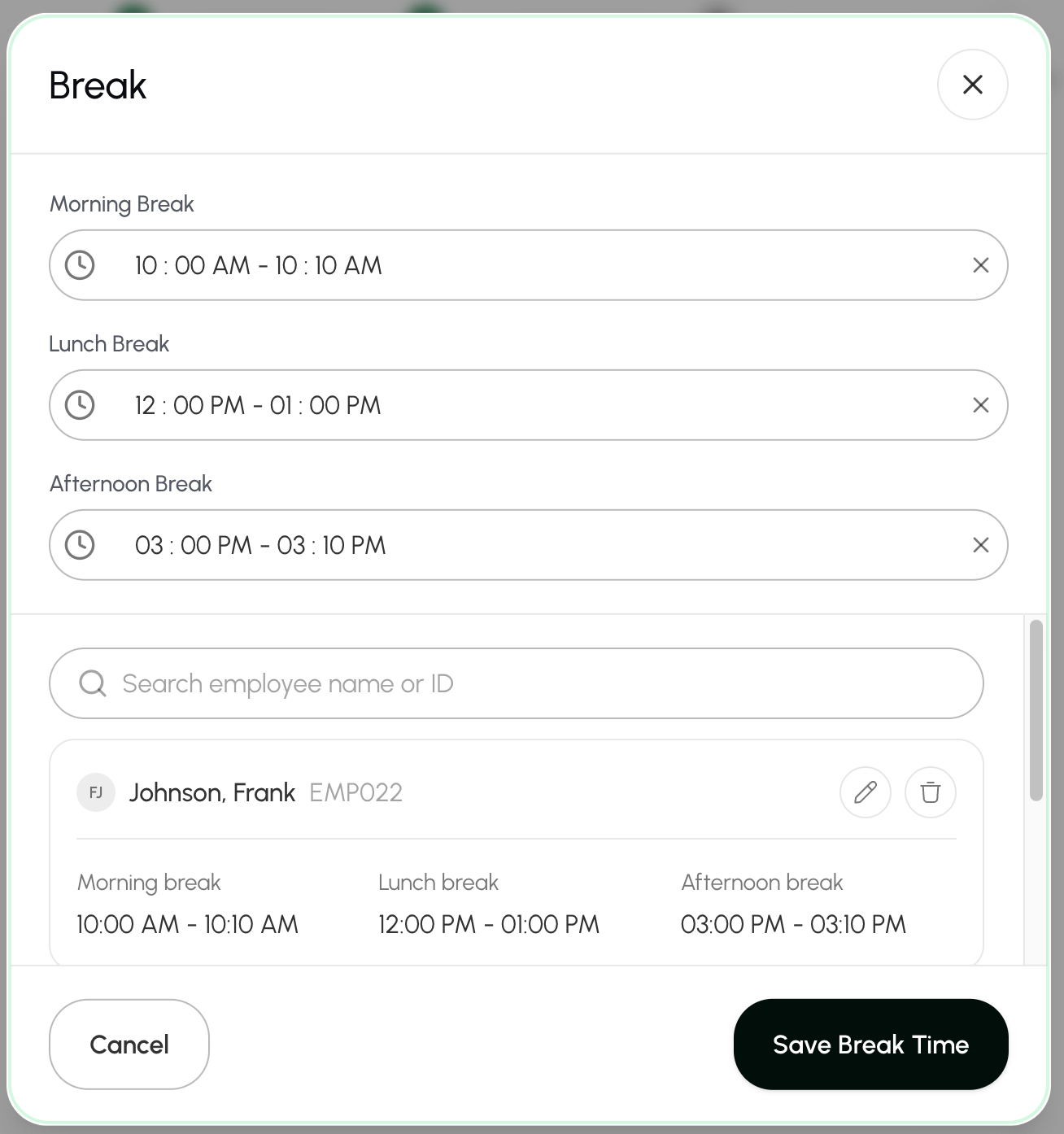
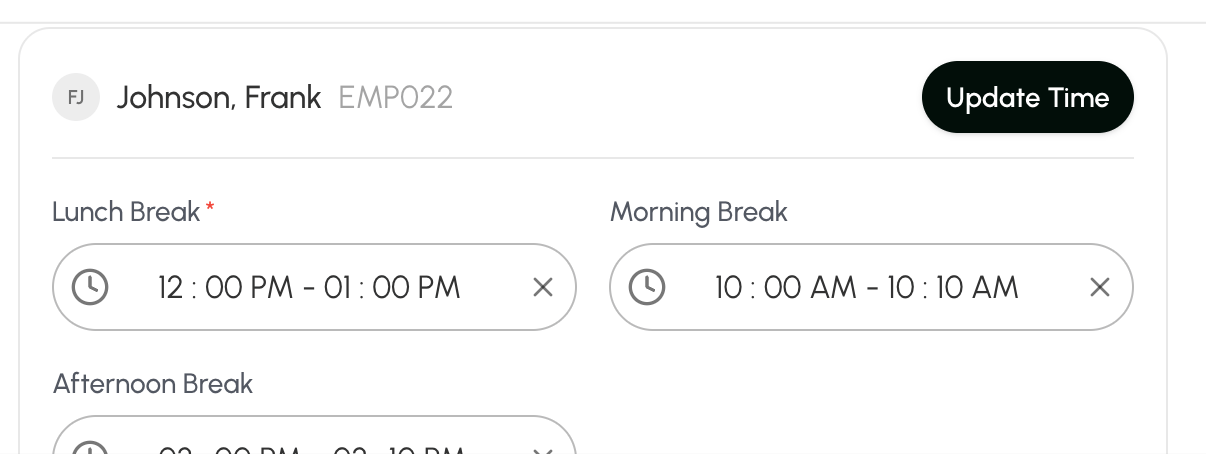
- If someone took different breaks, select the edit button next to their name to change their break times.
- Select Update Time to save the employee’s breaks.
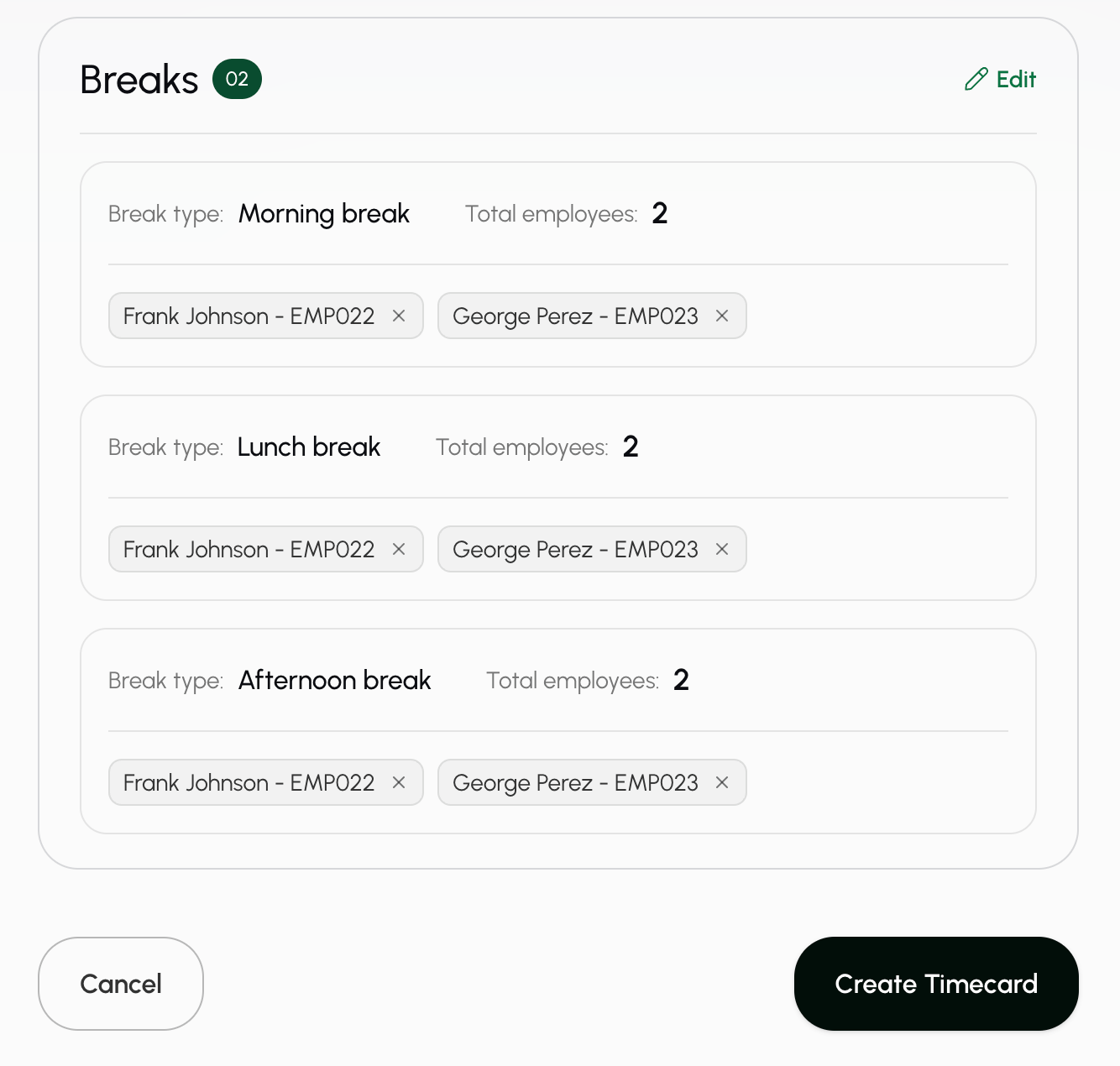
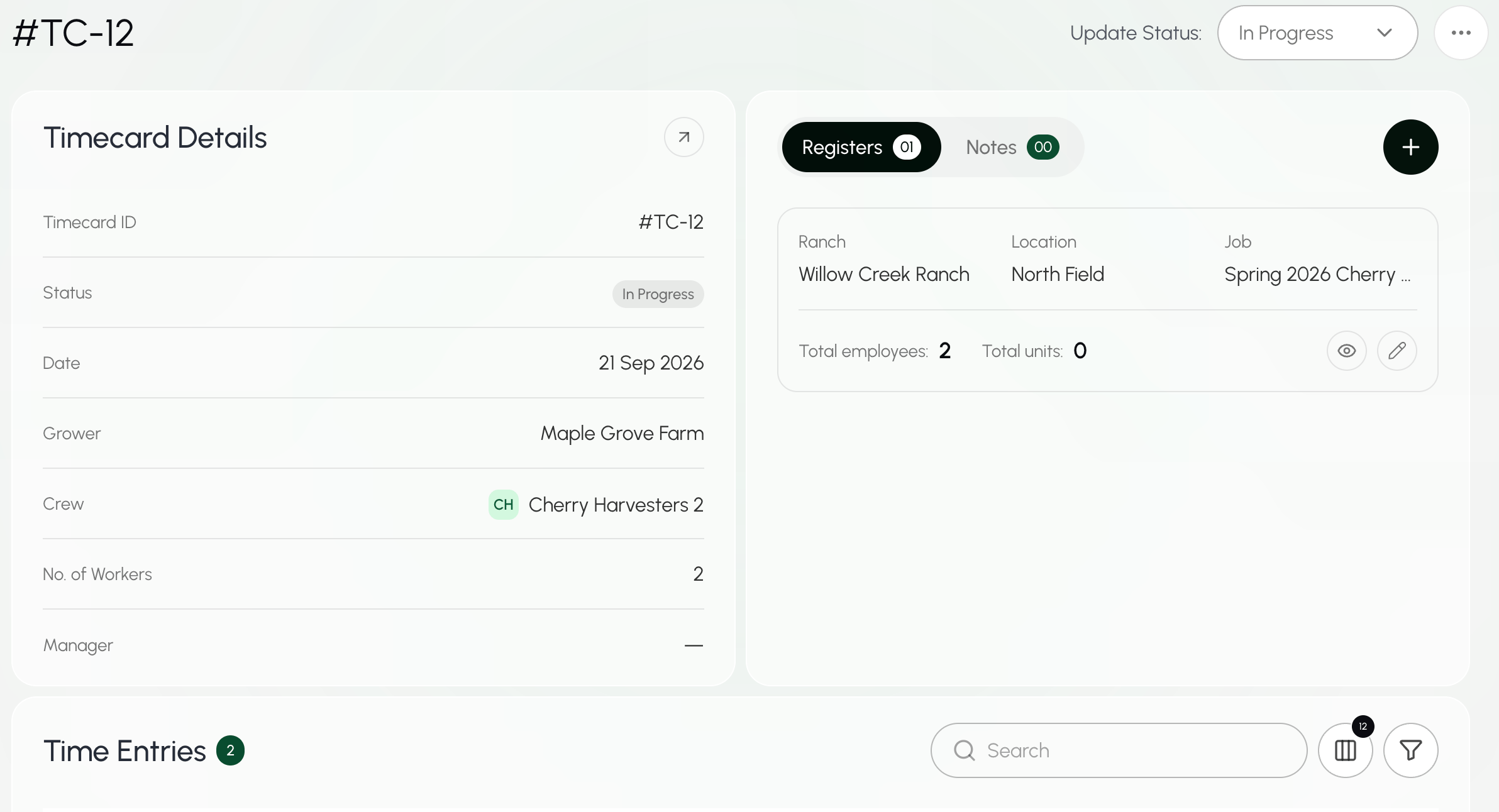
- Once all breaks are correct, select Create Timecard to save the timecard.
Schedule a timecard (for future work)
To create a time card for a past date, see Create a time card.- From the dashboard, elect + Add Timecard.
- Select Schedule timecard from the menu.
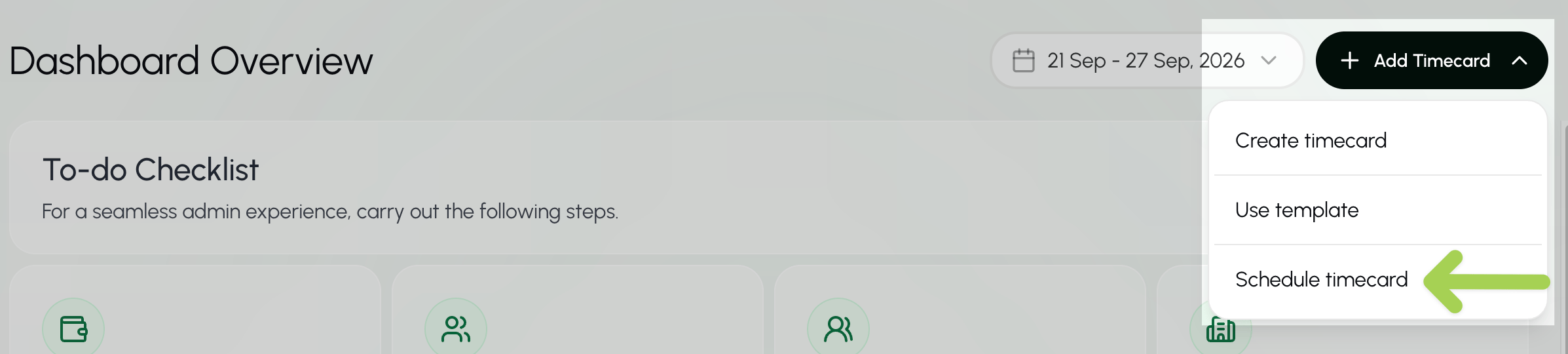
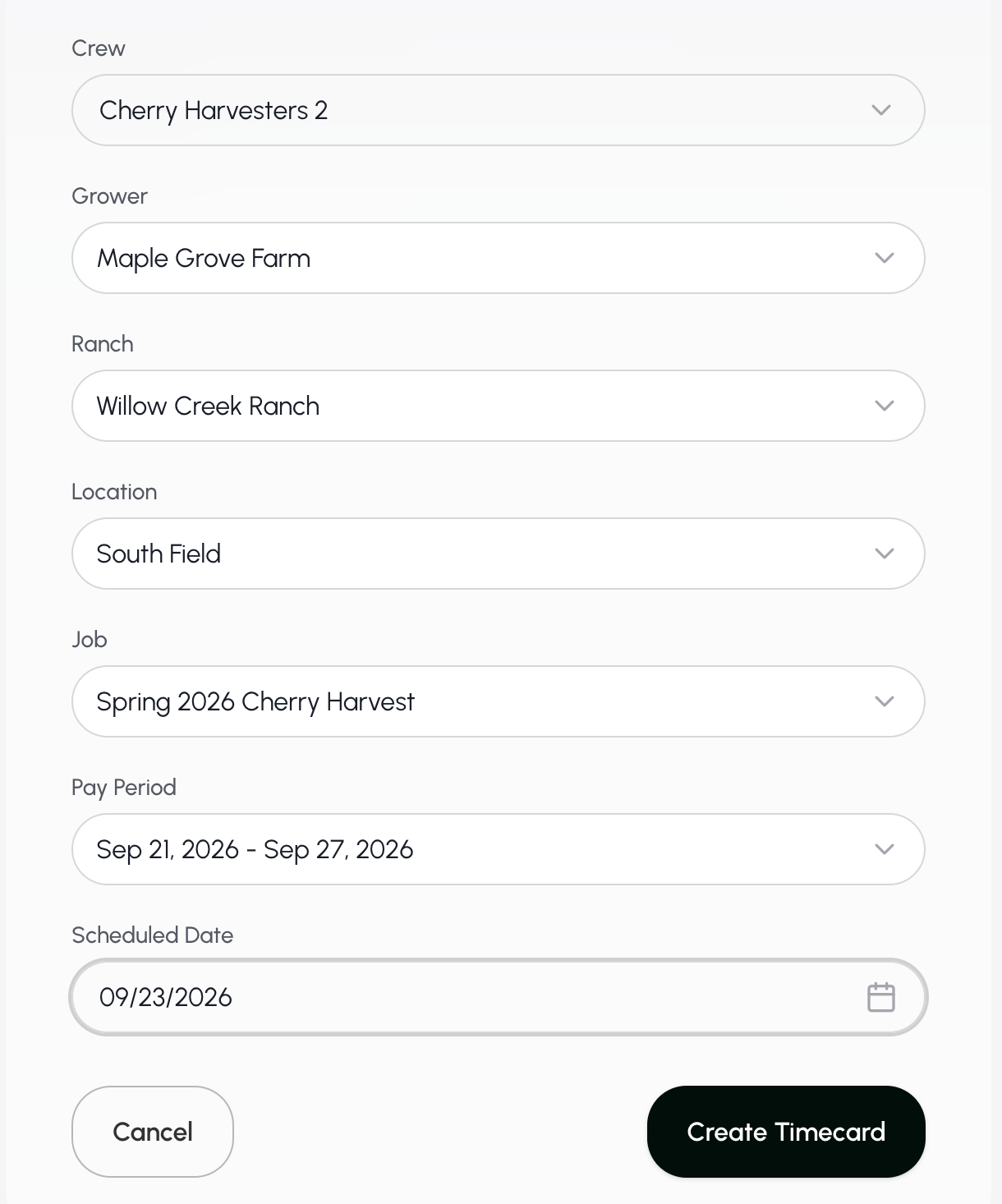
- Enter the crew, grower, ranch, location, job title, pay period, and scheduled date.* *Remember that this is the process for creating a time card for future work.
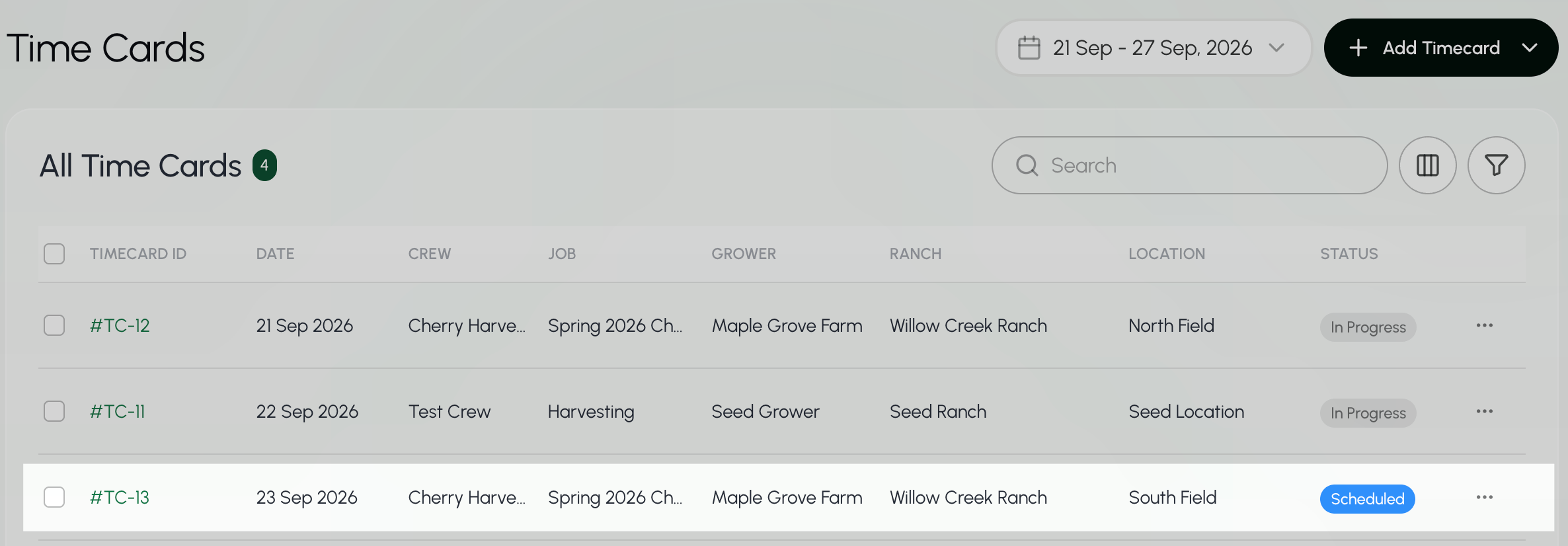
- Select Create Timecard to schedule this timecard**.**