
A. Growers
Create a new grower
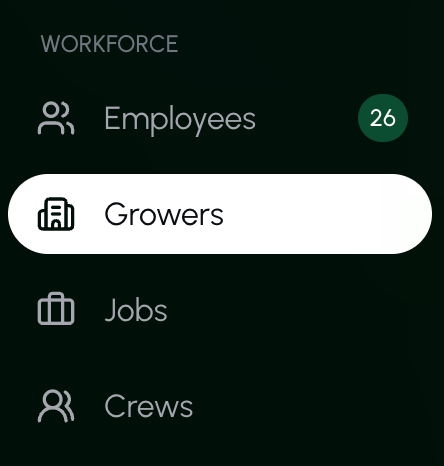
- Under Workforce, go to the Growers page.
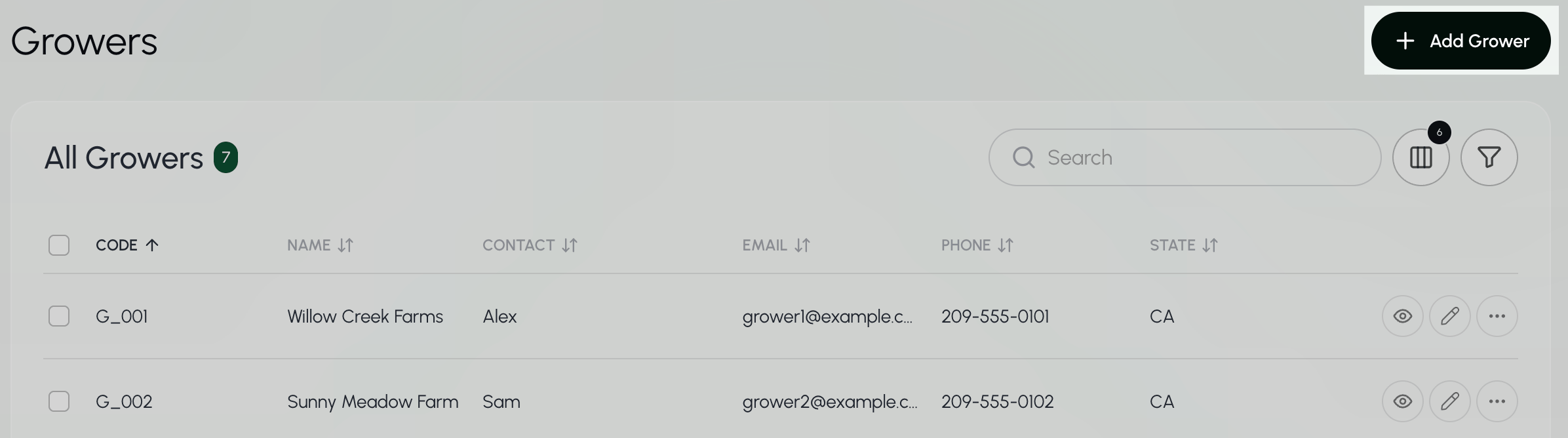
- Select + Add Grower.
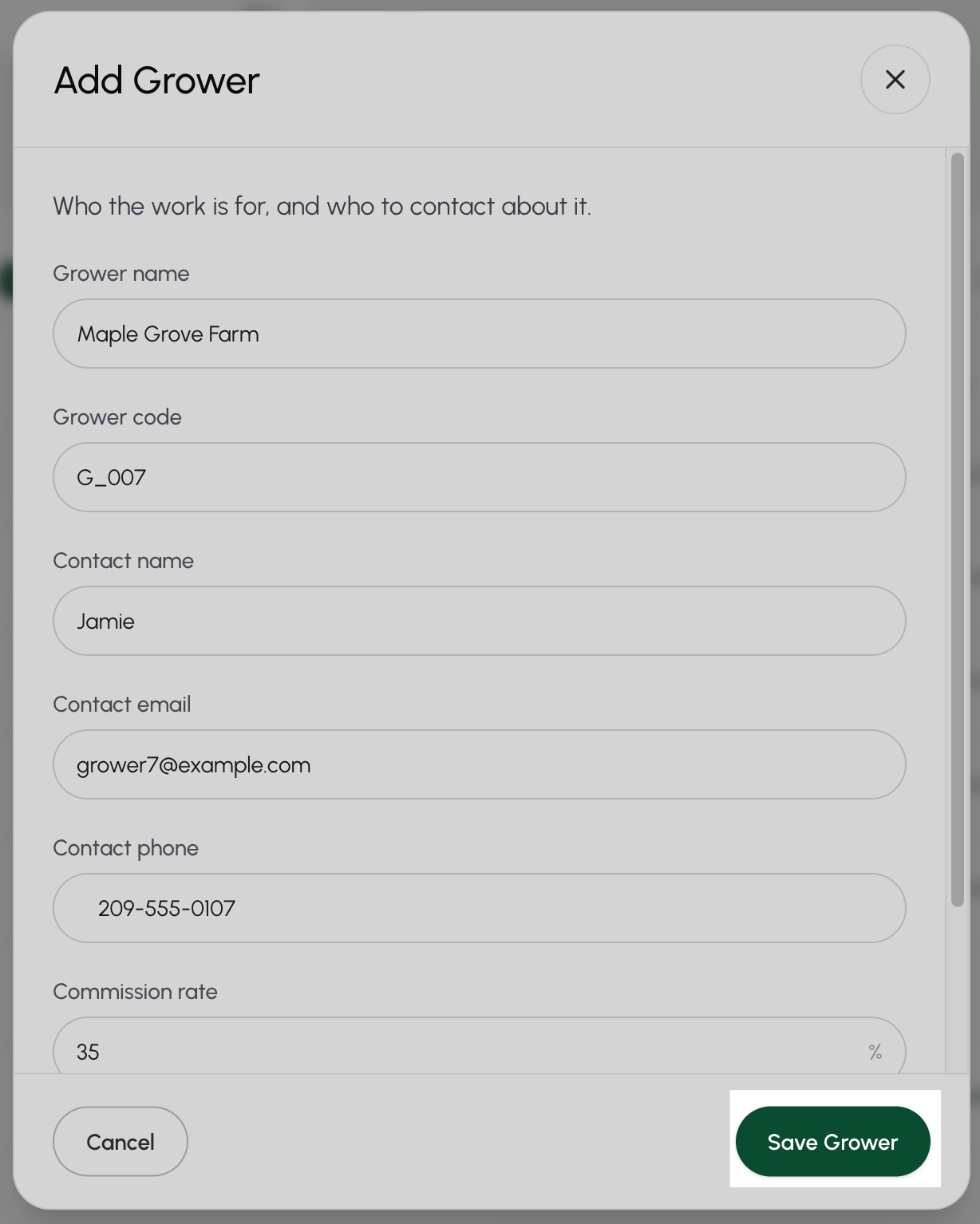
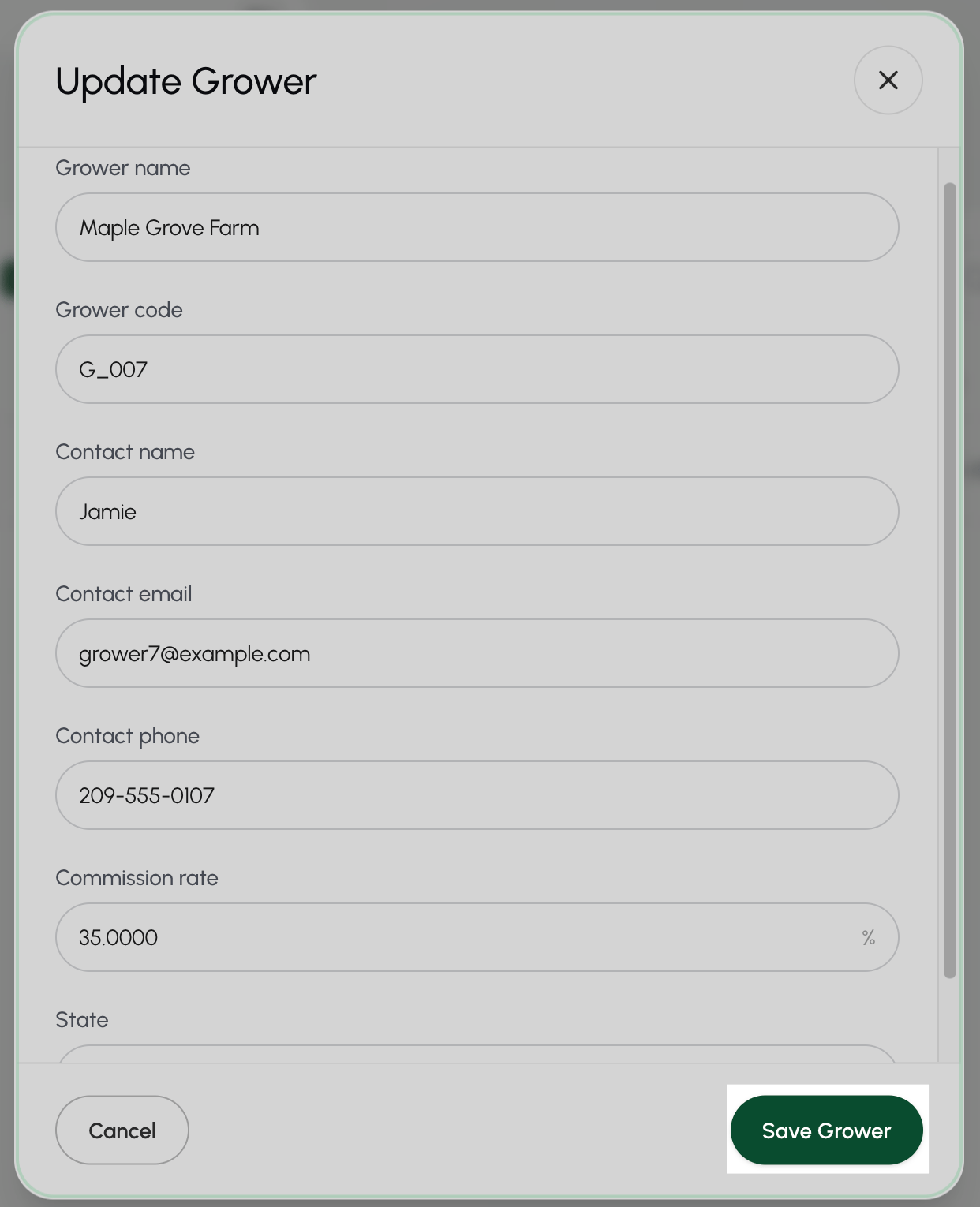
- Add the grower’s information:
- Grower name
- Grower code
- Contact name
- Contact email
- Contact phone
- Commission rate
- State
- Select Save Grower.
Find a grower
- Go to the Growers page.
- Select the Search box above the growers list.
- Enter the growers’s name, contact information, or grower ID.
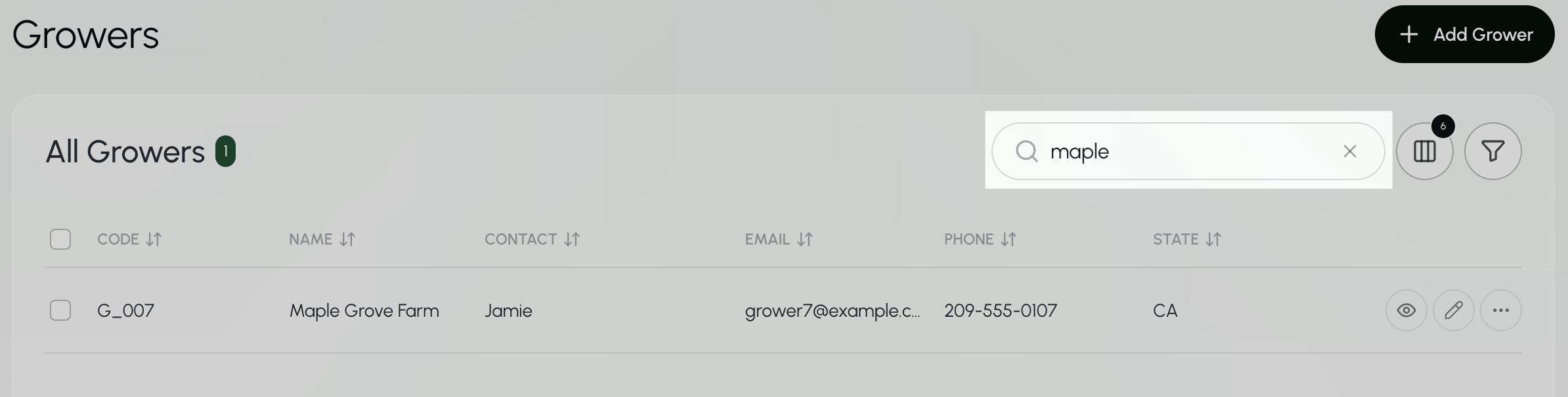
The Search bar at the top of every page searches across Farmio. To search only for growers, use the Search box on the Growers page.
Delete a grower
- Go to the Growers page.
- Select the Search box above the growers list.
- Enter the growers’s name, contact information, or grower ID.
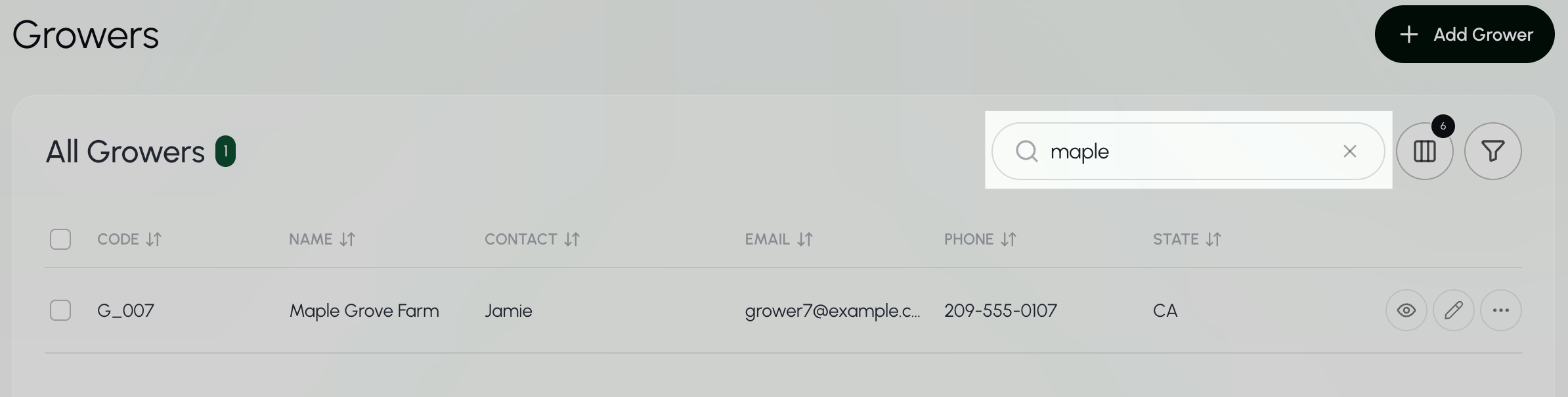
The Search bar at the top of every page searches across Farmio. To search only for growers, use the Search box on the Growers page.
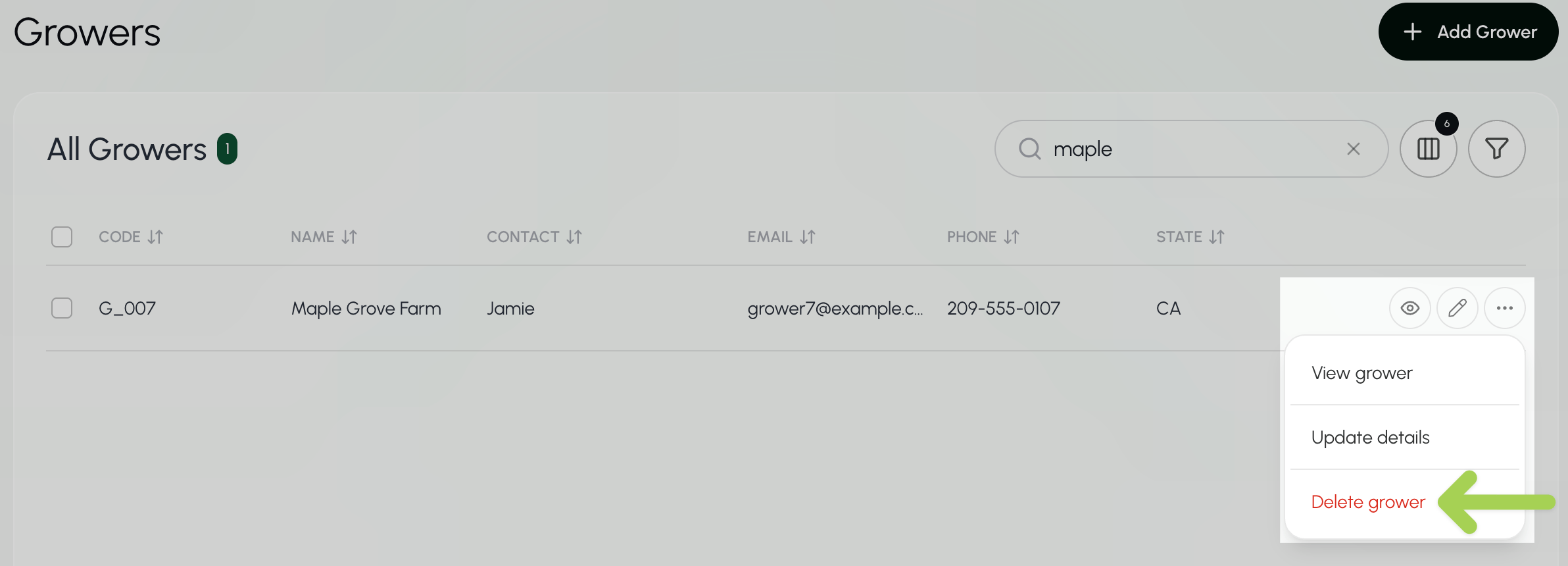
- Select the three dots
 next to the grower and choose Delete grower.
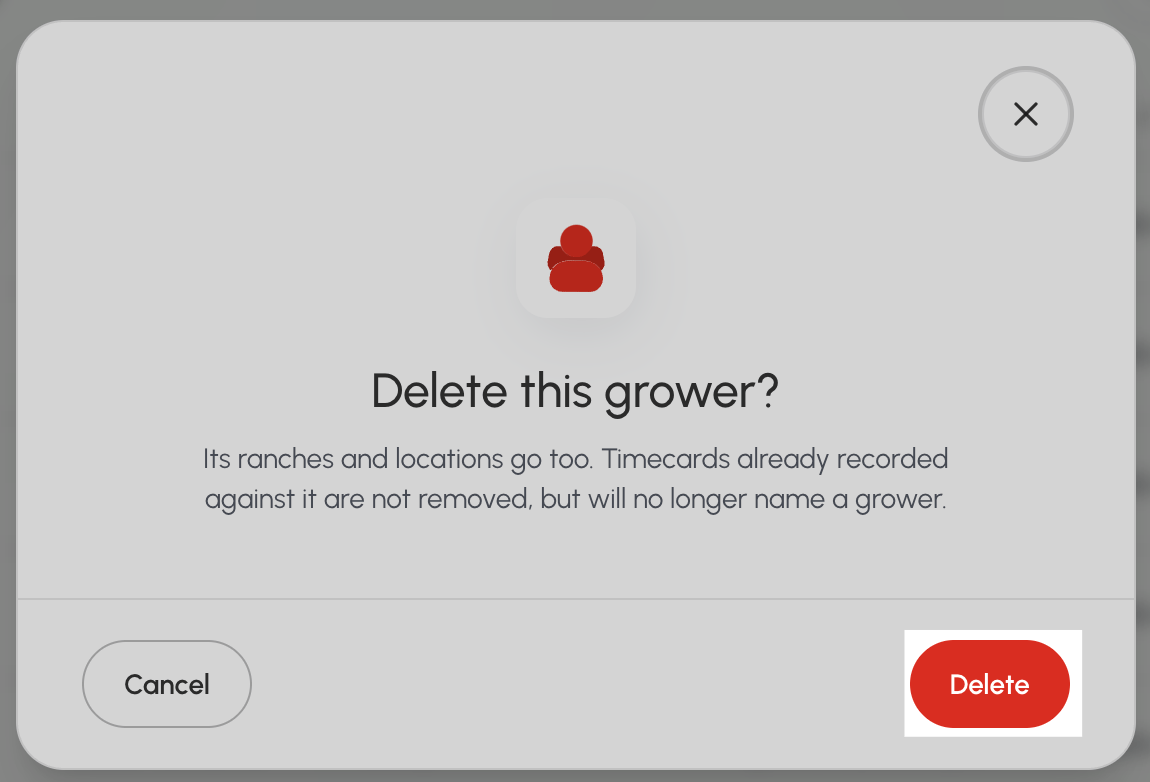
- Select Delete to save your changes.
Update grower details
- Go to the Growers page.
- Select the Search box above the growers list.
- Enter the growers’s name, contact information, or grower ID.
The Search bar at the top of every page searches across Farmio. To search only for growers, use the Search box on the Growers page.
- Select the three dots next to the grower and choose Update Details.
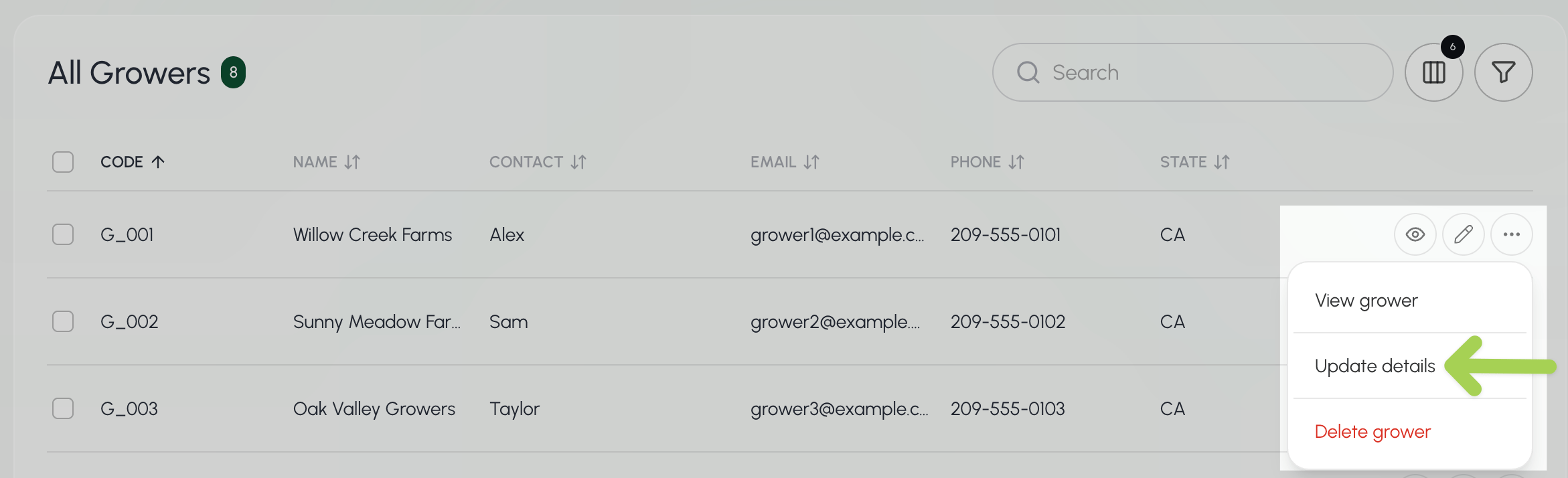
- Make your changes, then select Save Grower to save.
Export a grower invoice
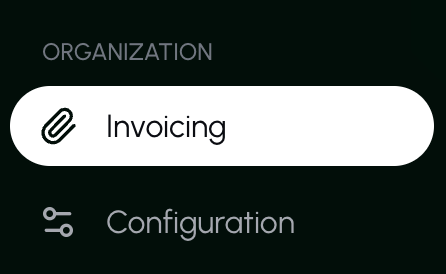
- Go to the Invoicing page under Organization.
- Select the Search box above the invoices list.
- Enter the growers’s name or the invoice ID.
The Search bar at the top of every page searches across Farmio. To search only for invoices, use the Search box on the Invoices page.
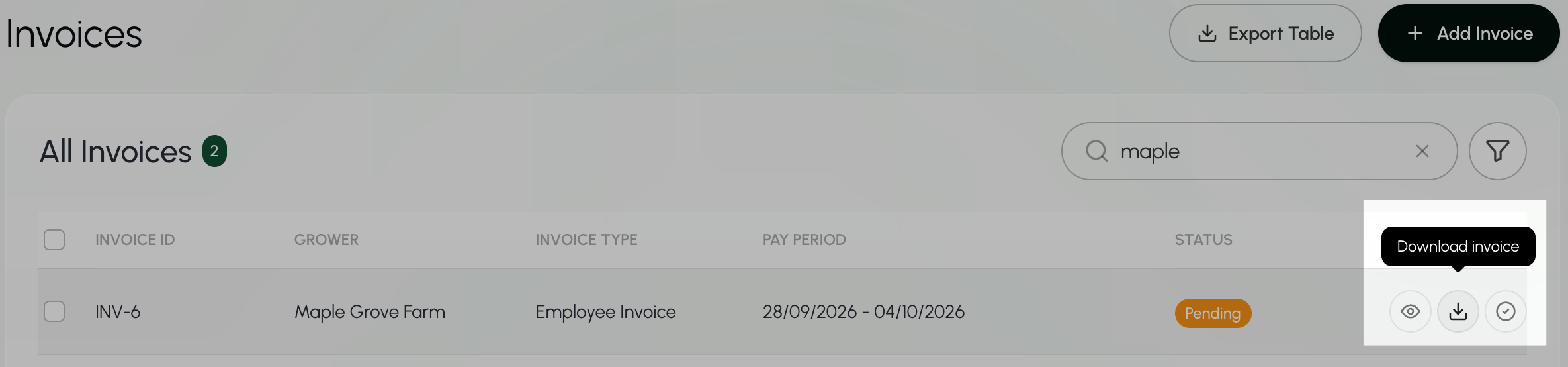
- Select the export icon
 next to the invoice and choose Download invoice
B. Ranches
Create a new ranch
- Go to the Growers page.
- Select the Search box above the growers list.
- Enter the growers’s name, contact information, or grower ID.
The Search bar at the top of every page searches across Farmio. To search only for growers, use the Search box on the Growers page.
- Select the eye icon
 next to the grower to view.
 - Under Ranches, select + Add Ranch.
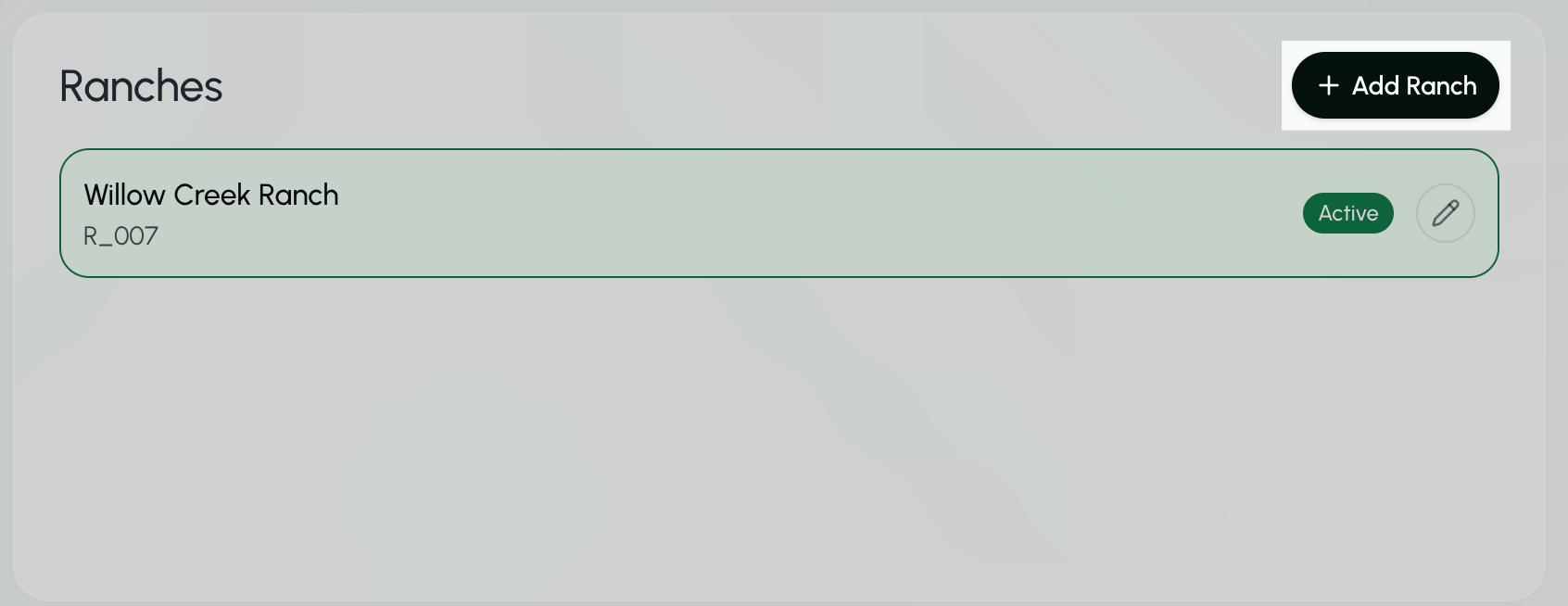
- Add the ranch name and ID.
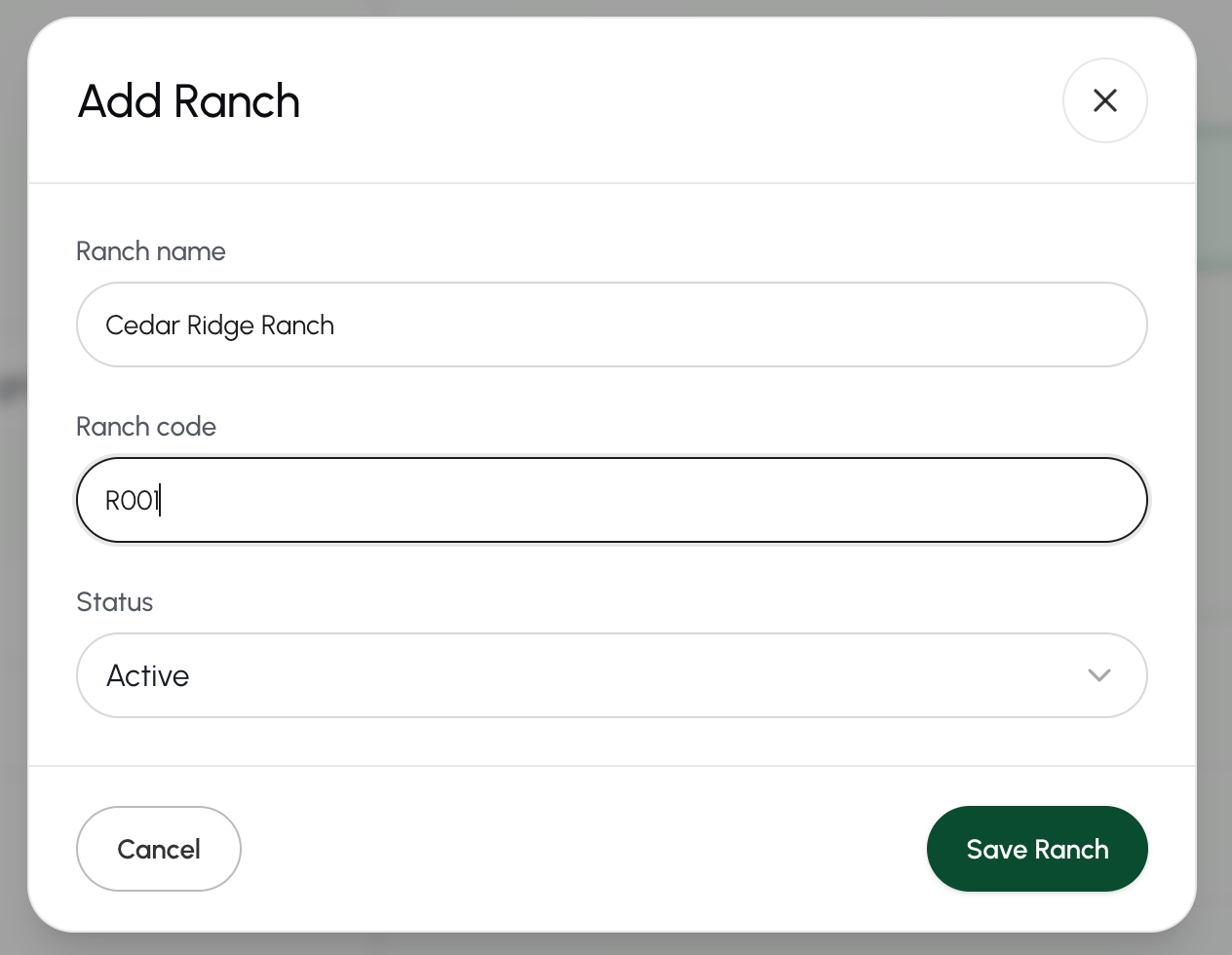
- Select Save Ranch to save your changes.
View all ranches by grower
- Go to the Growers page.
- Select the Search box above the growers list.
- Enter the growers’s name, contact information, or grower ID.
The Search bar at the top of every page searches across Farmio. To search only for growers, use the Search box on the Growers page.
- Select the eye icon next to the grower to view.
- Under Ranches, you will see all active ranches under the grower.
Find a ranch
- Use the search bar at the top of the page to search all data types across Farmio.
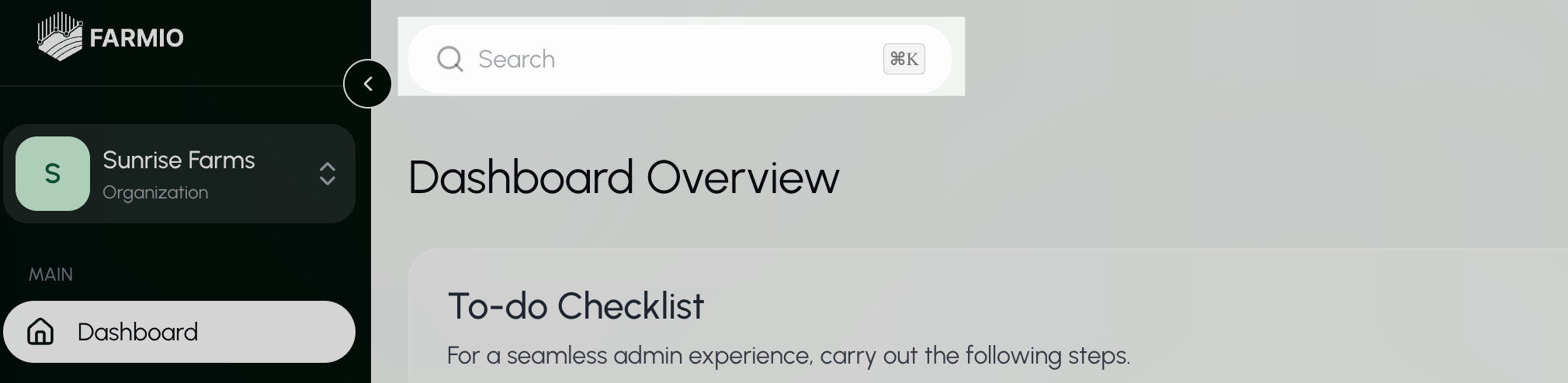
- Enter the ranch name or ID.
- Select the ranch you are looking for to view ranch within the Grower Profile.
Update ranch details
- Go to the Growers page.
- Select the Search box above the growers list.
- Enter the growers’s name, contact information, or grower ID.
The Search bar at the top of every page searches across Farmio. To search only for growers, use the Search box on the Growers page.
- Select the eye icon next to the grower to view.
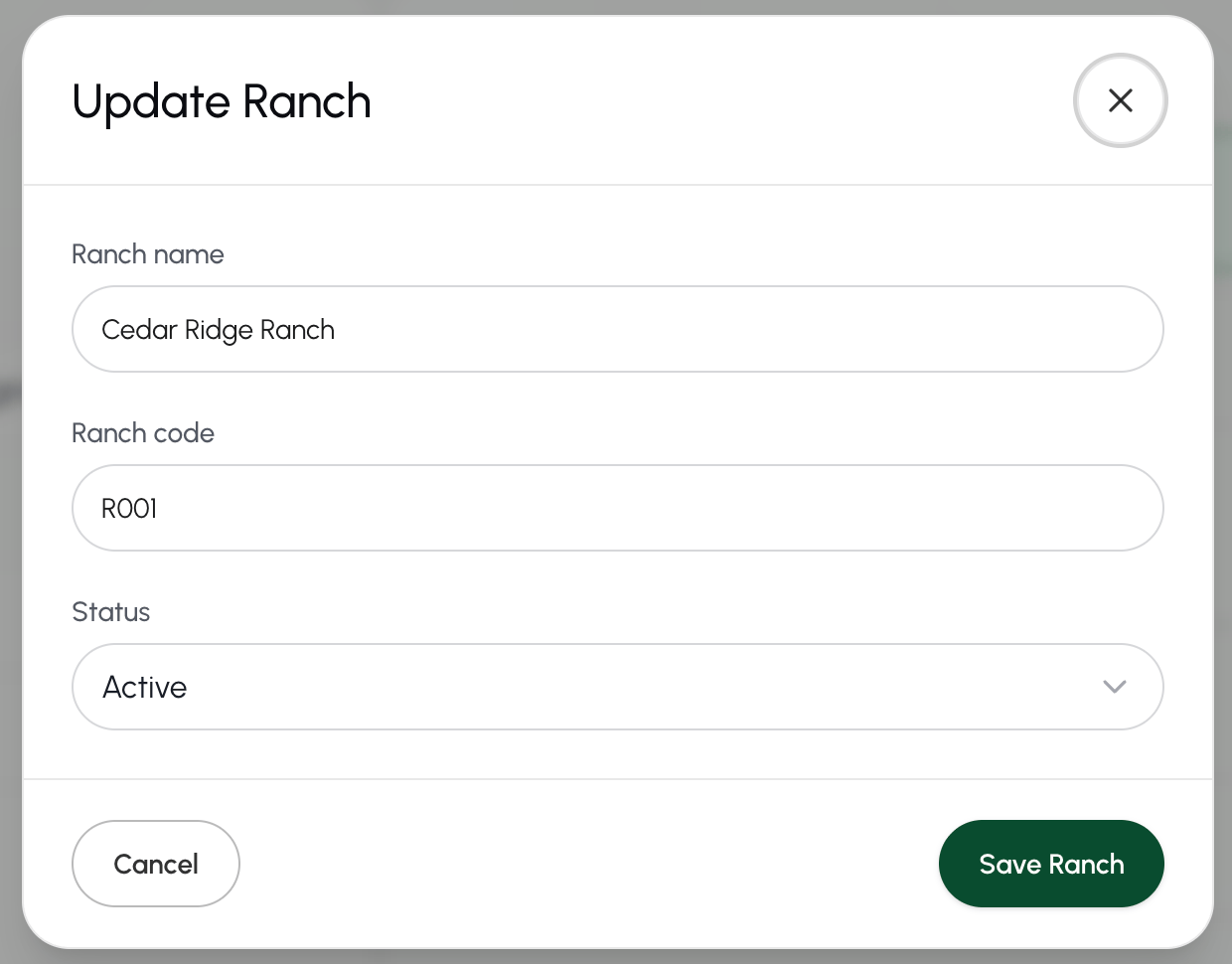
- Under Ranches, select the edit button
 next to the ranch that you want to edit.
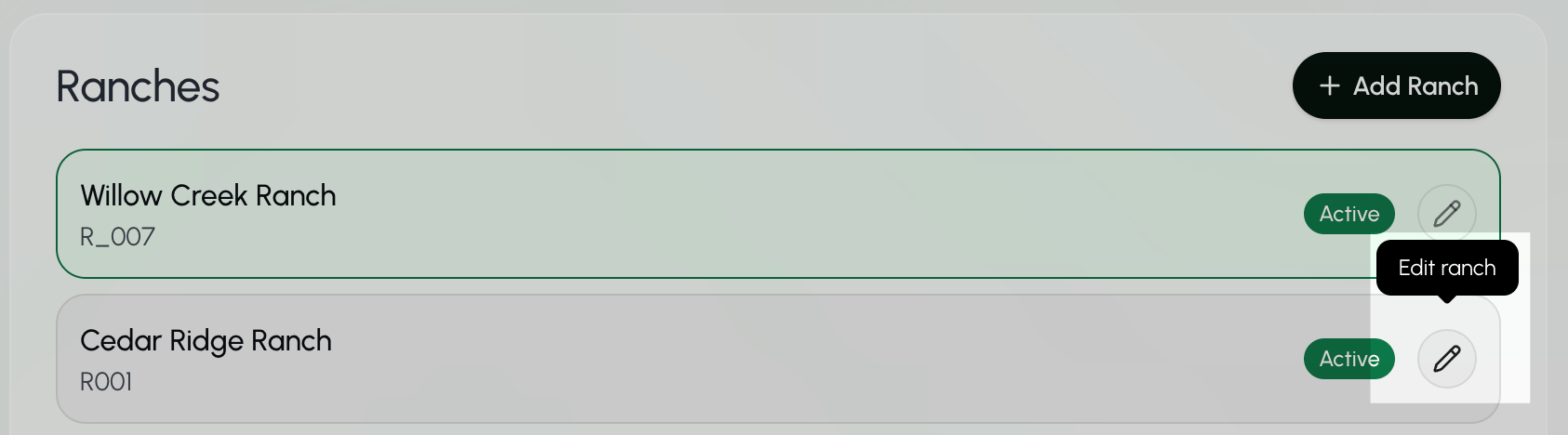
- Make your changes, then select Save Ranch to save.
C. Locations
Create a new location
- Go to the Growers page.
- Select the Search box above the growers list.
- Enter the growers’s name, contact information, or grower ID.
The Search bar at the top of every page searches across Farmio. To search only for growers, use the Search box on the Growers page.
- Select the eye icon next to the grower to view.
- Under Ranches, select the ranch you want to add a location for. This will bring up all locations within this ranch under Locations.
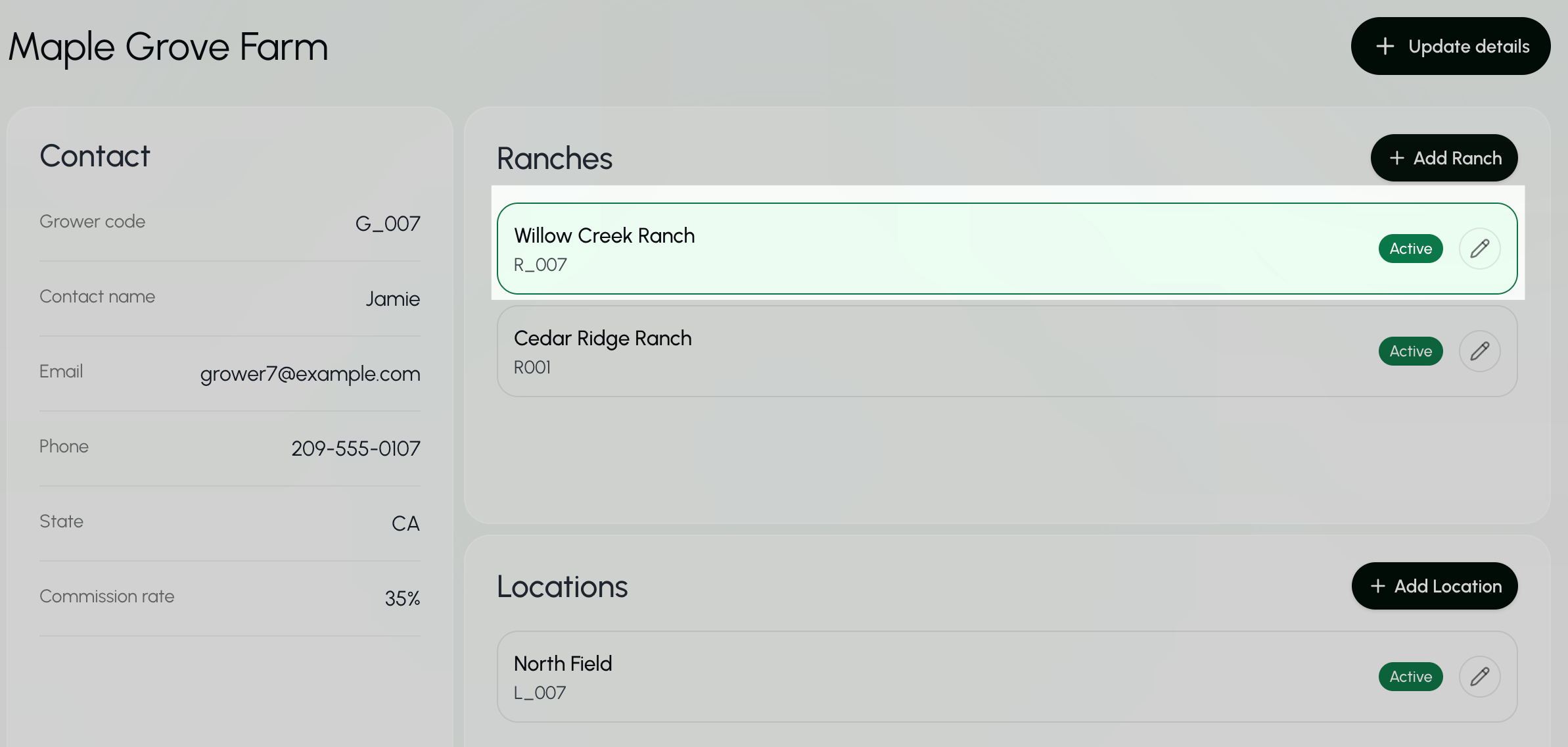
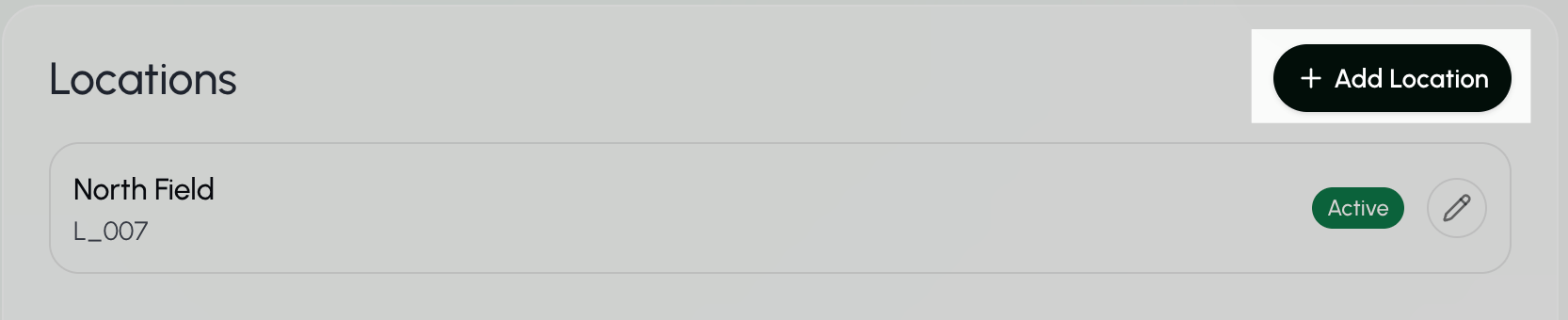
- Under Locations, select + Add Location.
- Add the location name and ID.
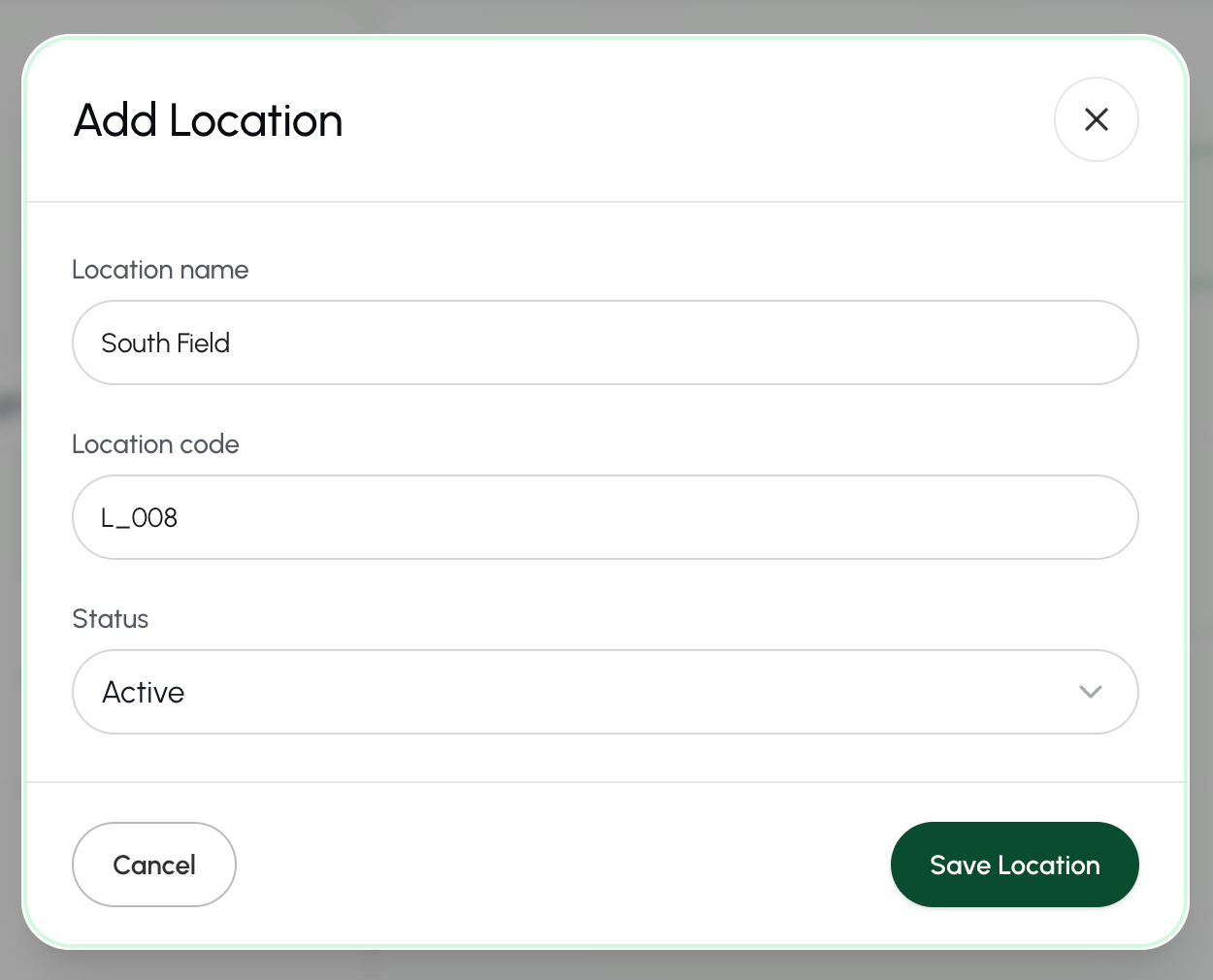
- Select Save Location to save your changes.
View locations by ranch
- Go to the Growers page.
- Select the Search box above the growers list.
- Enter the growers’s name, contact information, or grower ID.
The Search bar at the top of every page searches across Farmio. To search only for growers, use the Search box on the Growers page.
- Select the eye icon next to the grower to view.
- Under Ranches, select the ranch you want to add a location for. This will bring up all locations within this ranch under Locations.
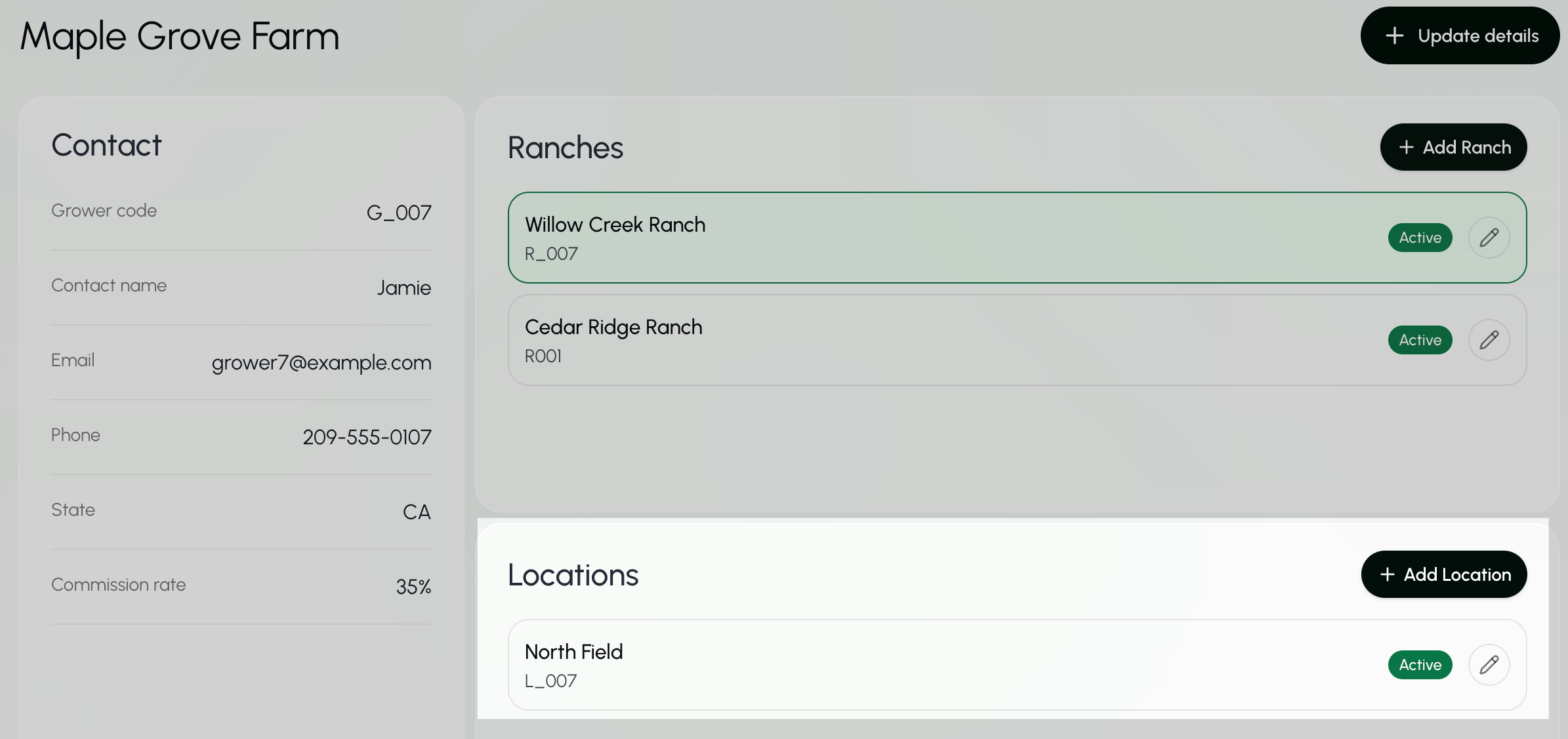
Find a location
- Use the search bar at the top of the page to search all data types across Farmio.
- Enter the location name or ID.
- Select the location you are looking for to view the location within the Grower Profile.
Update location details
- Go to the Growers page.
- Select the Search box above the growers list.
- Enter the growers’s name, contact information, or grower ID.
The Search bar at the top of every page searches across Farmio. To search only for growers, use the Search box on the Growers page.
- Select the eye icon next to the grower to view the Grower Profile.
- Under Ranches, select the ranch you want to add a location for. This will bring up all locations within this ranch under Locations.
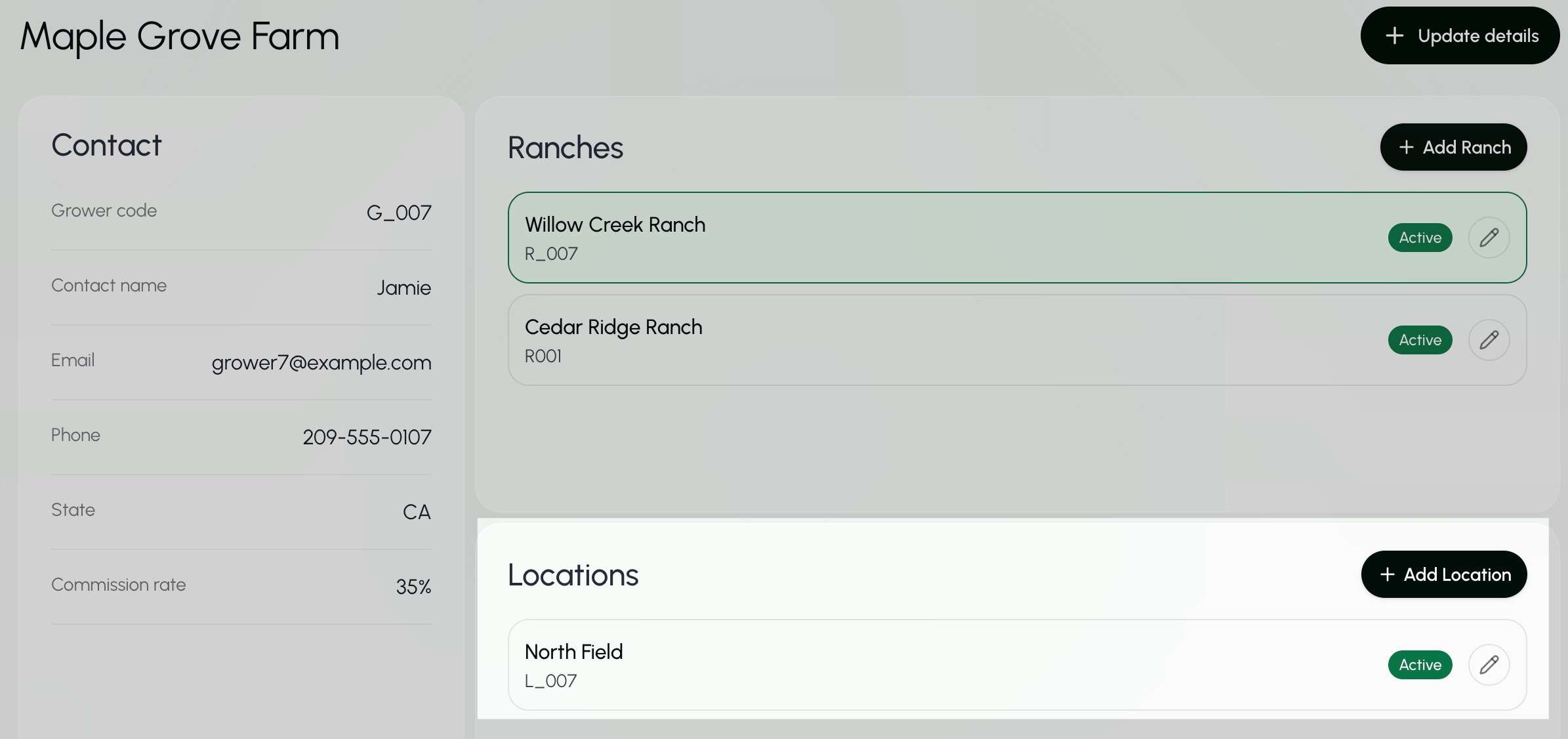
- Under Locations, select the edit button next to the location that you want to edit.
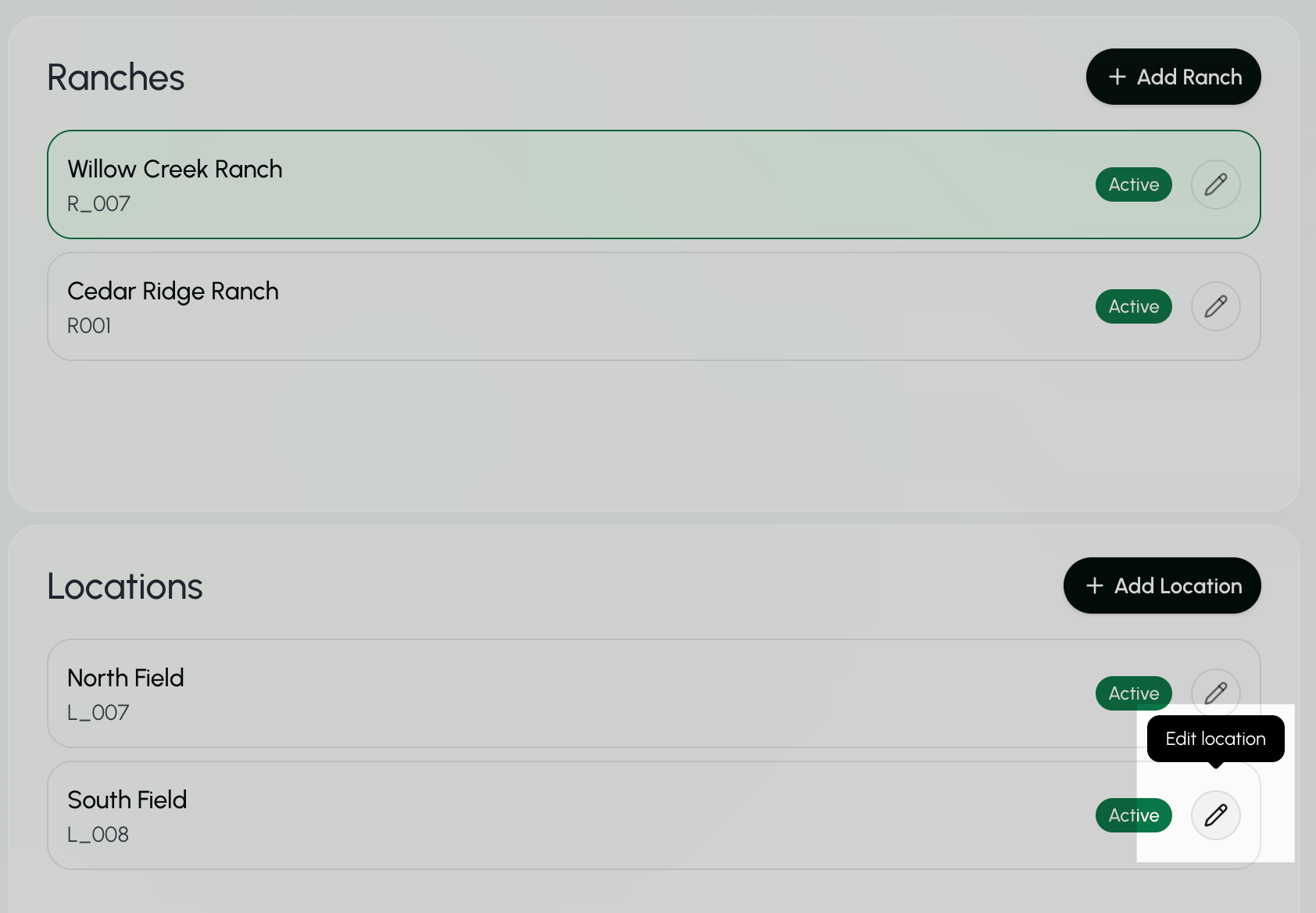
- Make your changes, then select Save Location to save.