
A. Creating Invoices
Create a new client invoice
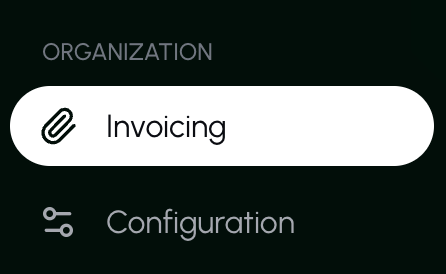
- Go to the Invoicing page under Organization.
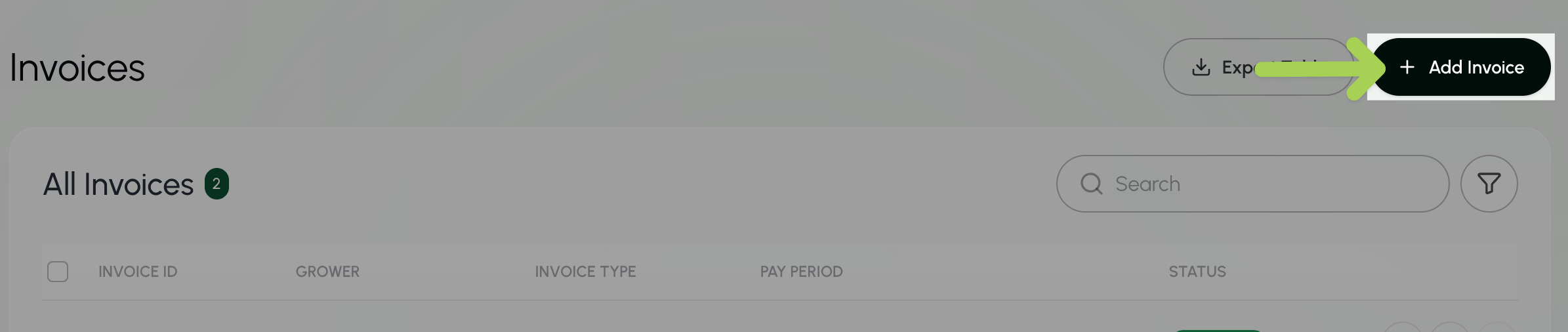
- Select + Add Invoice.
- Select the pay period and grower you are creating the invoice for.
- Select Client Invoice for the invoice type. Optional: Choose a crew, employee, or date range to include only those workers or dates in the invoice.
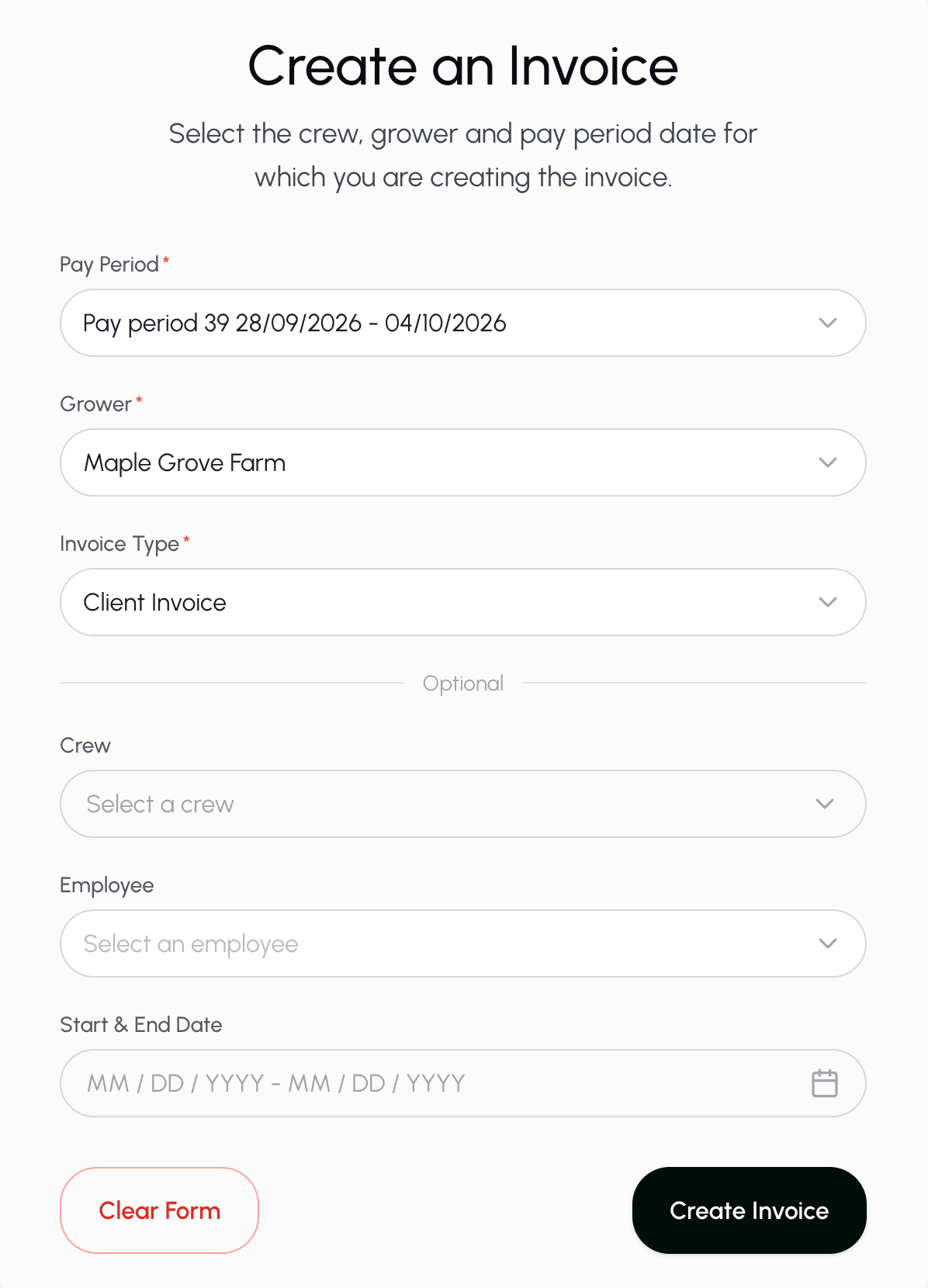
- Select Create Invoice.
- To export, click the export button
 next to the invoice you want to download.
Create a new employee invoice
- Go to the Invoicing page under Organization.
- Select + Add Invoice.
- Select the pay period and grower you are creating the invoice for.
- Select Employee Invoice for the invoice type. Optional: Choose a crew, employee, or date range to include only those workers or dates in the invoice.
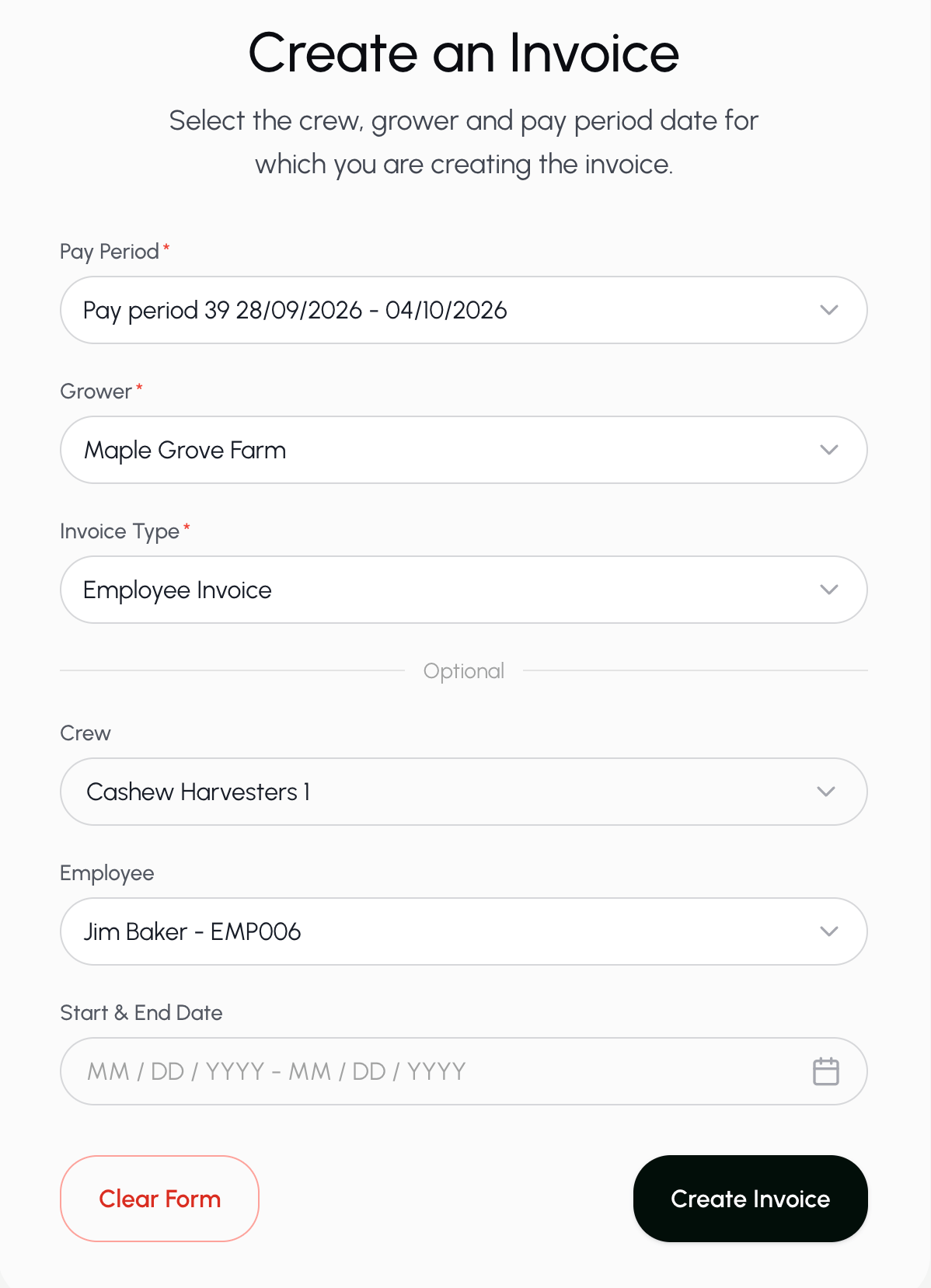
- Select Create Invoice.
- To export, click the export button next to the invoice you want to download.
B. Managing Jobs
Create a new job
- Go to the Jobs page under Workforce.
- Select +Add Job.

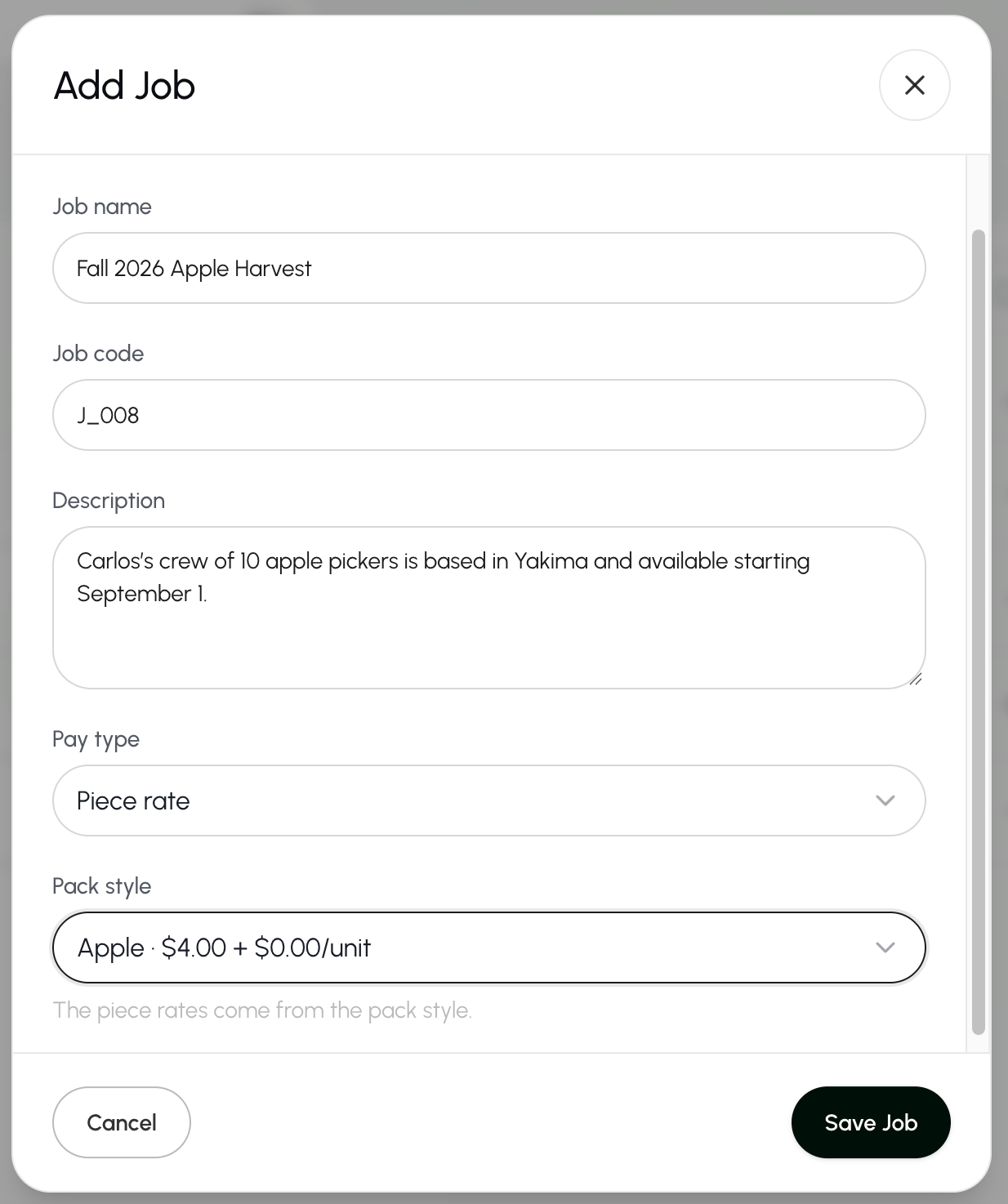
- Add the job details:
- Job name
- Job code
- Job description
- Pay type (hourly or piece rate)
- If you chose piece rate as the pay type, you will also choose the unit for the job.
- If you choose hourly as the pay type, you will also enter the hourly rate.
- Select Save Job.
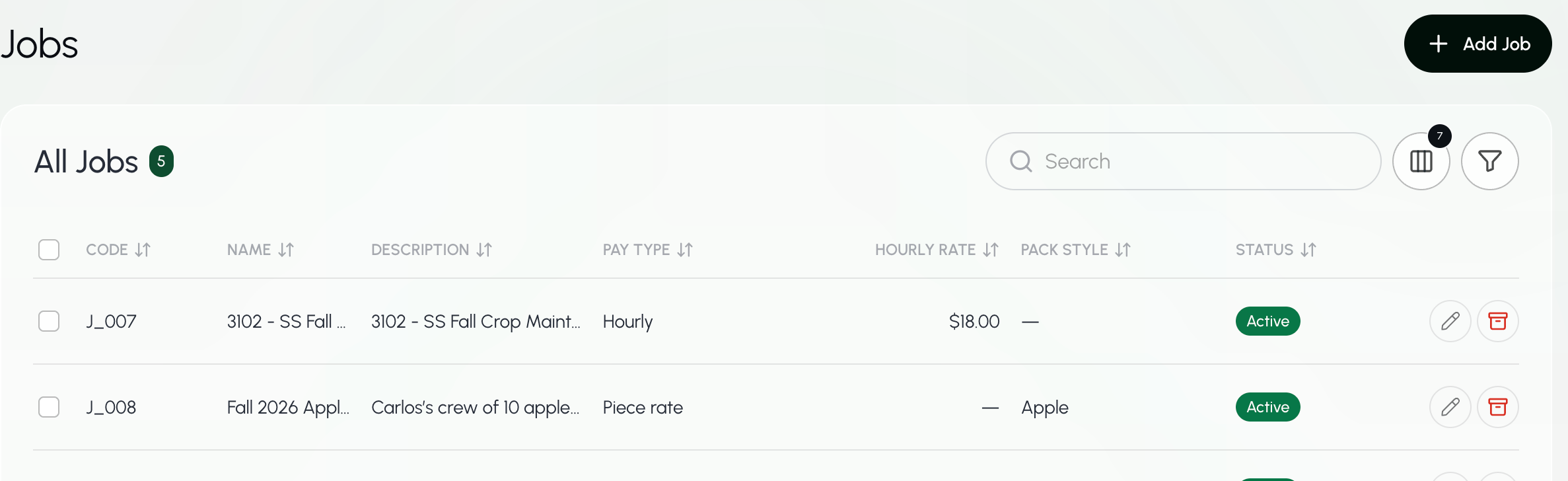
View all jobs in an organization
- Go to the Jobs page under Workforce.
Find a job
- Go to the Jobs page under Workforce.
- Enter the job name or ID.
The Search bar at the top of every page searches across Farmio. To search only for growers, use the Search box on the Growers page.
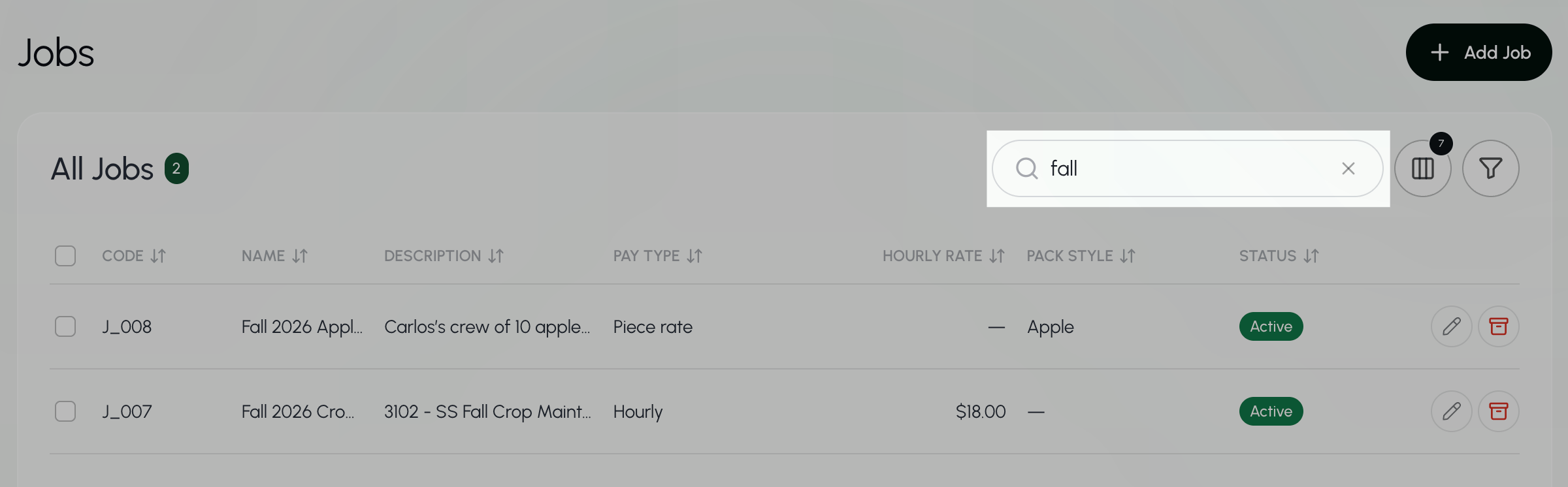
- Select the job you are searching for.
Update job details
- Go to the Jobs page under Workforce.
- Enter the job name or ID.
The Search bar at the top of every page searches across Farmio. To search only for growers, use the Search box on the Growers page.
- Select the job you are searching for.
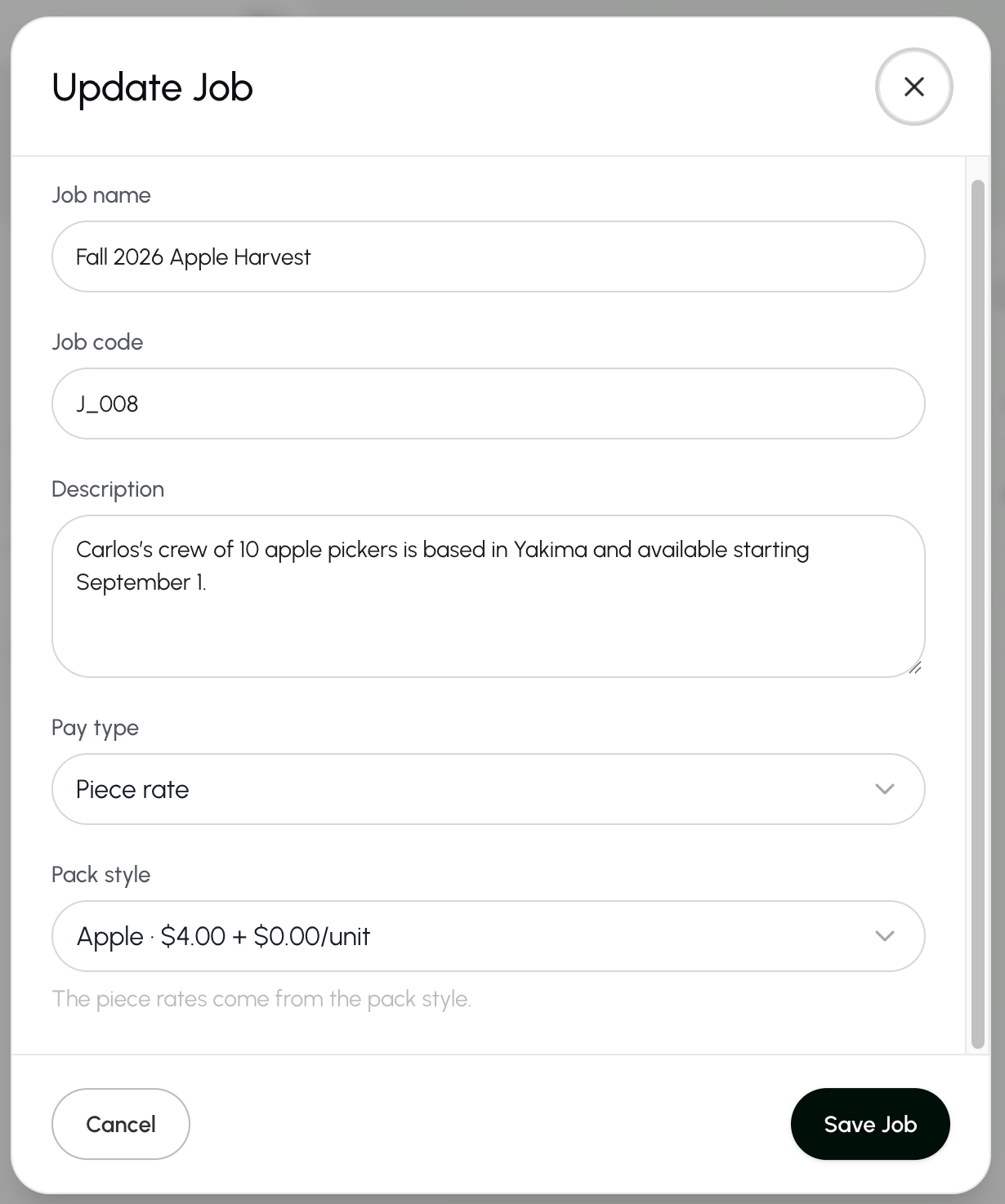
- Update the job name, ID, description, pay type, hourly rate, and/or unit.
- Select Save Job to save your changes.