

Quickstart Guide
Find a timecard
Any time cards scheduled for that day will show on the Home Page.
- Select the Timecard page
 from the bottom menu.

- You can search for a specific time card by selecting a date and/or crew.

The mobile app only shows time cards for the current pay period. You can find a timecard for any pay period in the web version.
Export an employee badge
- Select the Crew page
 from the bottom menu.
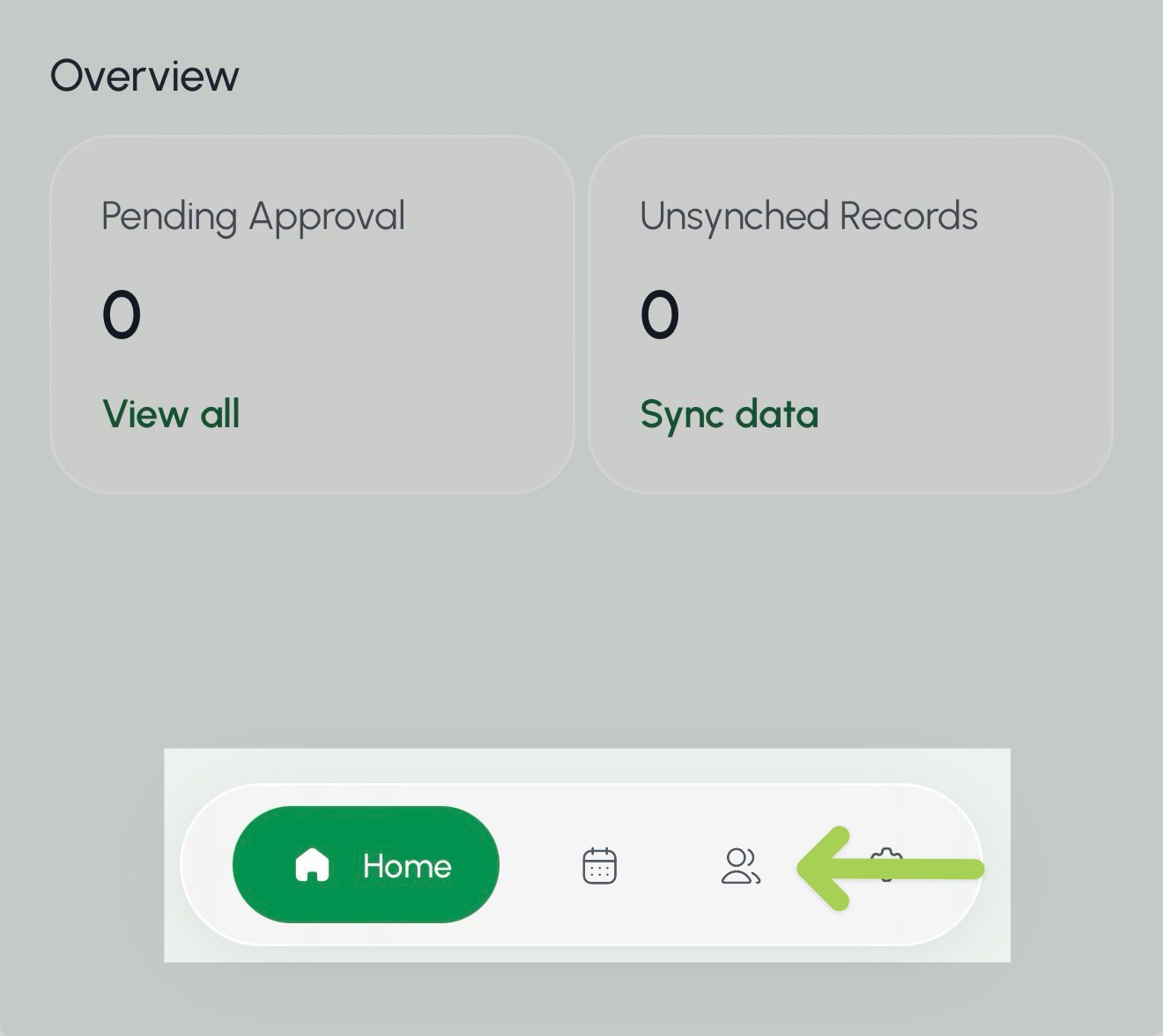
- Select the Search box above the employee list.
- Enter the employee’s first name, last name, or Employee ID.
- Select the employee you want to update.

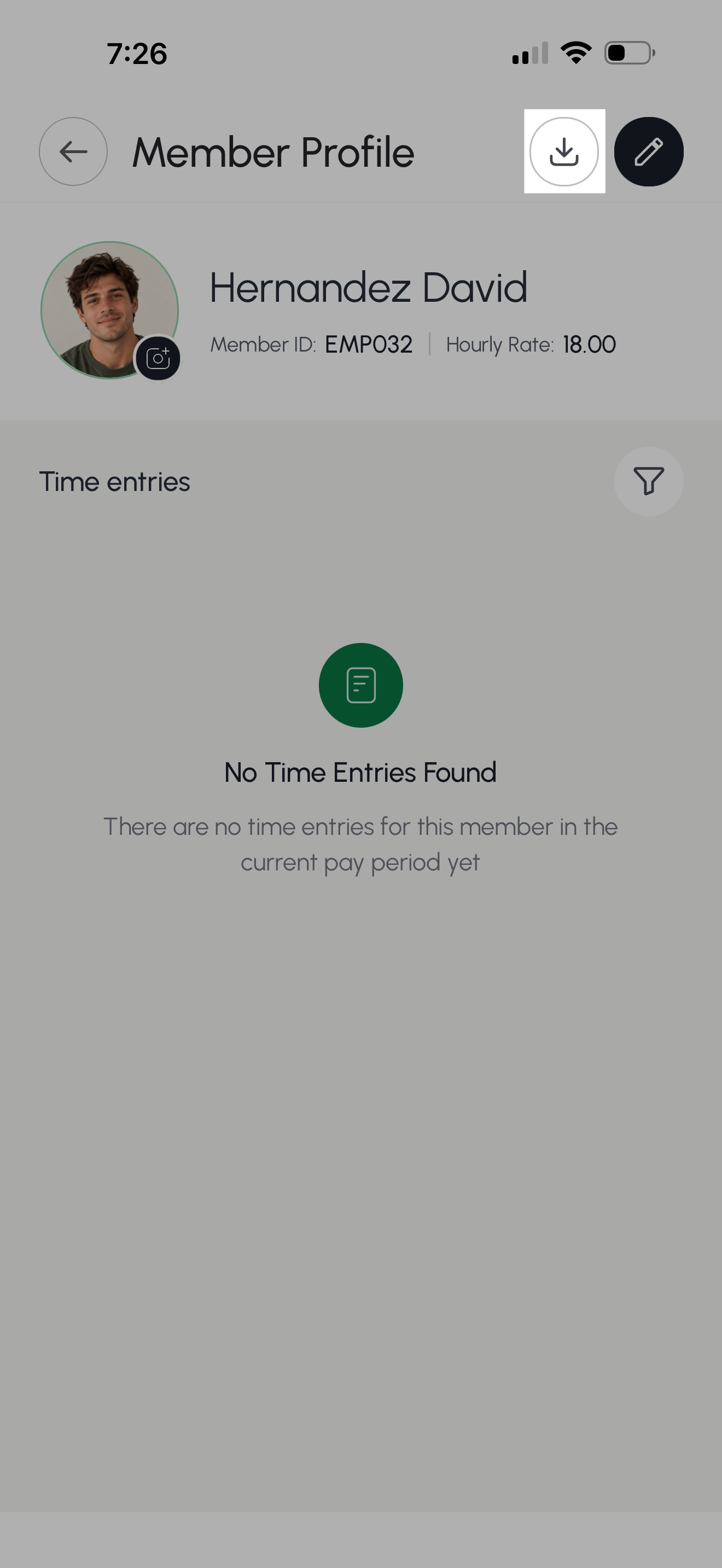
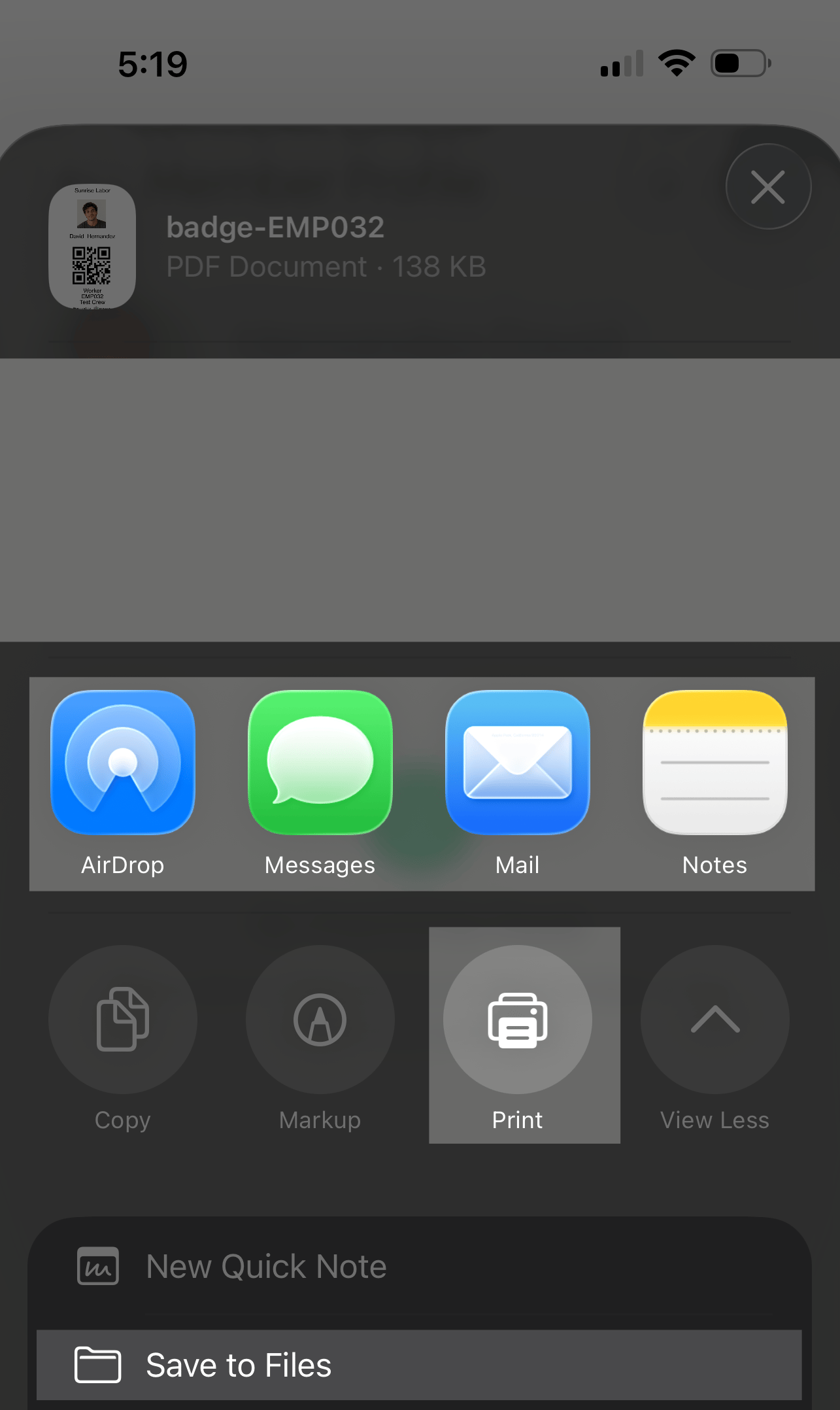
- Select the export button
 in the top right of the page.
Clock employees in
- Select the Timecard page from the bottom menu.
- Find and select the timecard you want to clock employees in for.

- Under Timecard tasks, select Scan now in the Clock In Members section.

- Select Scan per group or Scan per individual.
- Scan per group: assign members to a group for the current time card.
- Scan per individual: scan in employees without creating groups for the current time card.

- Scan the QR codes on each employee’s badge.
- The employee names will show up under Selected Members as they are successfully scanned.
- Select Clock In Members.

Record employee breaks
- Select the Timecard page from the bottom menu.
- Find and select the timecard you want to record a break for.
- Select Morning Break, Lunch Beak, or Afternoon Break to open the timecard task.
- Select Scan now for the break you want to record.

- Select Scan per group or Scan per individual.
- Scan per group: assign members to a group for the current time card.
- Scan per individual: scan in employees without creating groups for the current time card.
- Scan the QR codes on each employee’s badge.
- The employee names will show up under Selected Members as they are successfully scanned.
- Select Clock In Members.
- A confirmation screen appears, showing that the break has started.

- When the employee breaks are over, select Scan now for the break you want to end.
- Select the Scan button
 at the bottom right of the page.
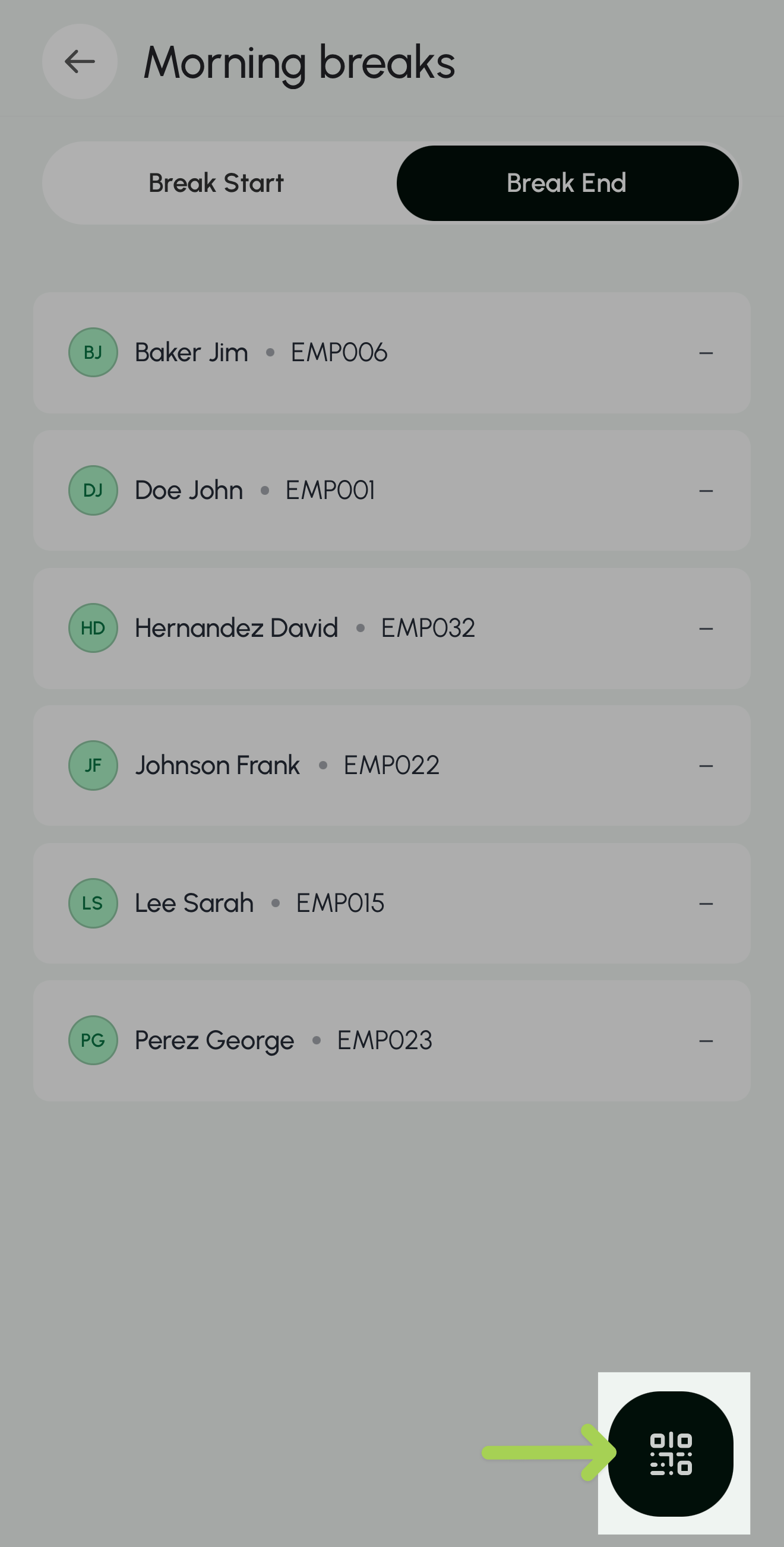
- Select Scan per group or Scan per individual.
- Scan the QR codes on each employee’s badge.
- The employee names will show up under Selected Members as they are successfully scanned.
- Select Clock In Members.
- A confirmation screen appears, showing that the break has ended.
- You can skip any breaks that do not apply to the workday.

Clock employees out
- Select the Timecard page from the bottom menu.
- Find and select the timecard you want to clock employees out for.
- Select Clock Out Members to open the timecard task.
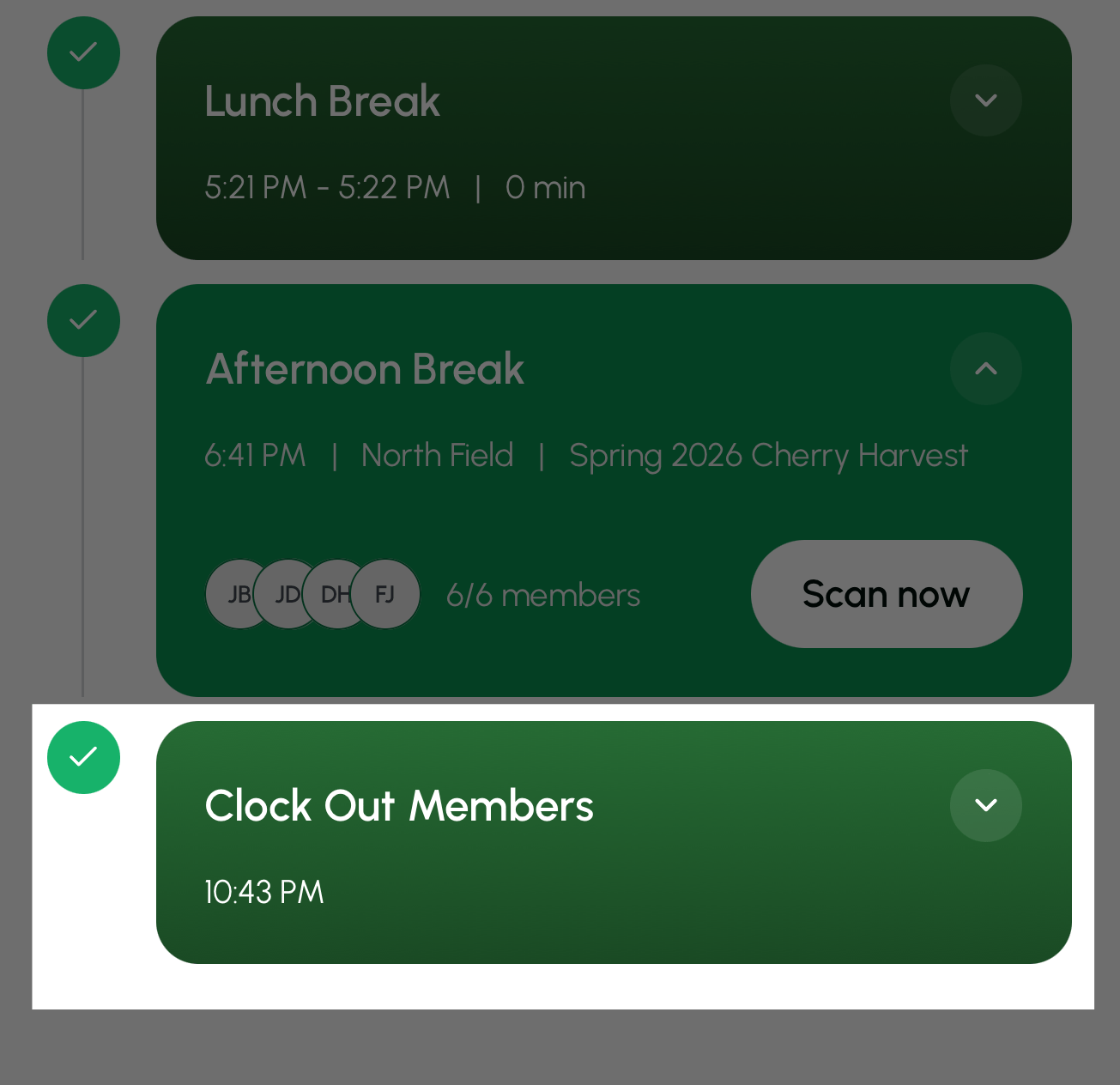
- Select Scan now.
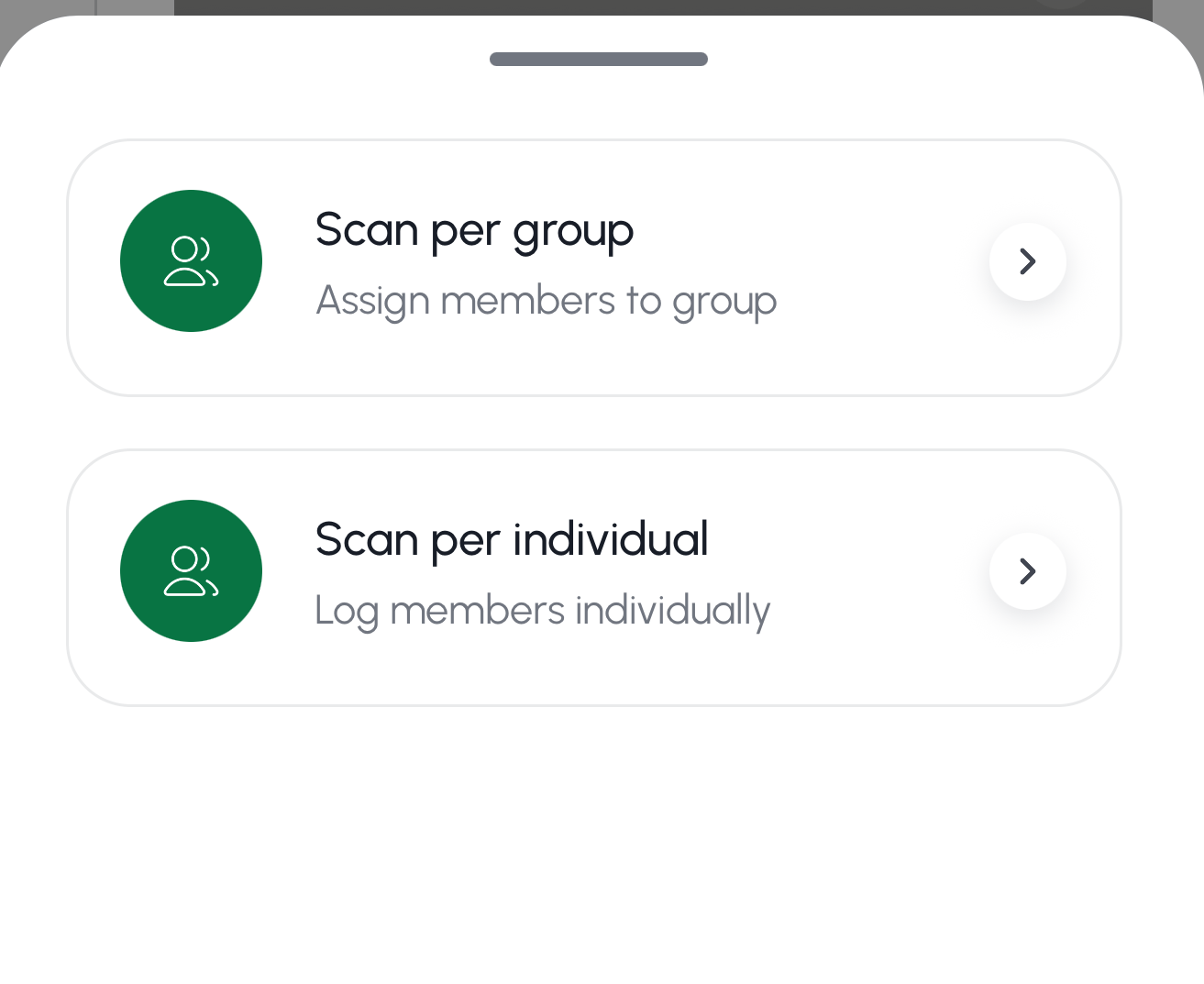
- Select Scan per group or Scan per individual.
- Scan per group: assign members to a group for the current time card.
- Scan per individual: scan in employees without creating groups for the current time card.
- Scan the QR codes on each employee’s badge.
- The employee names will show up under Selected Members as they are successfully scanned.
- Select Clock Out Members.

- Confirm your changes by selecting Confirm & Submit.
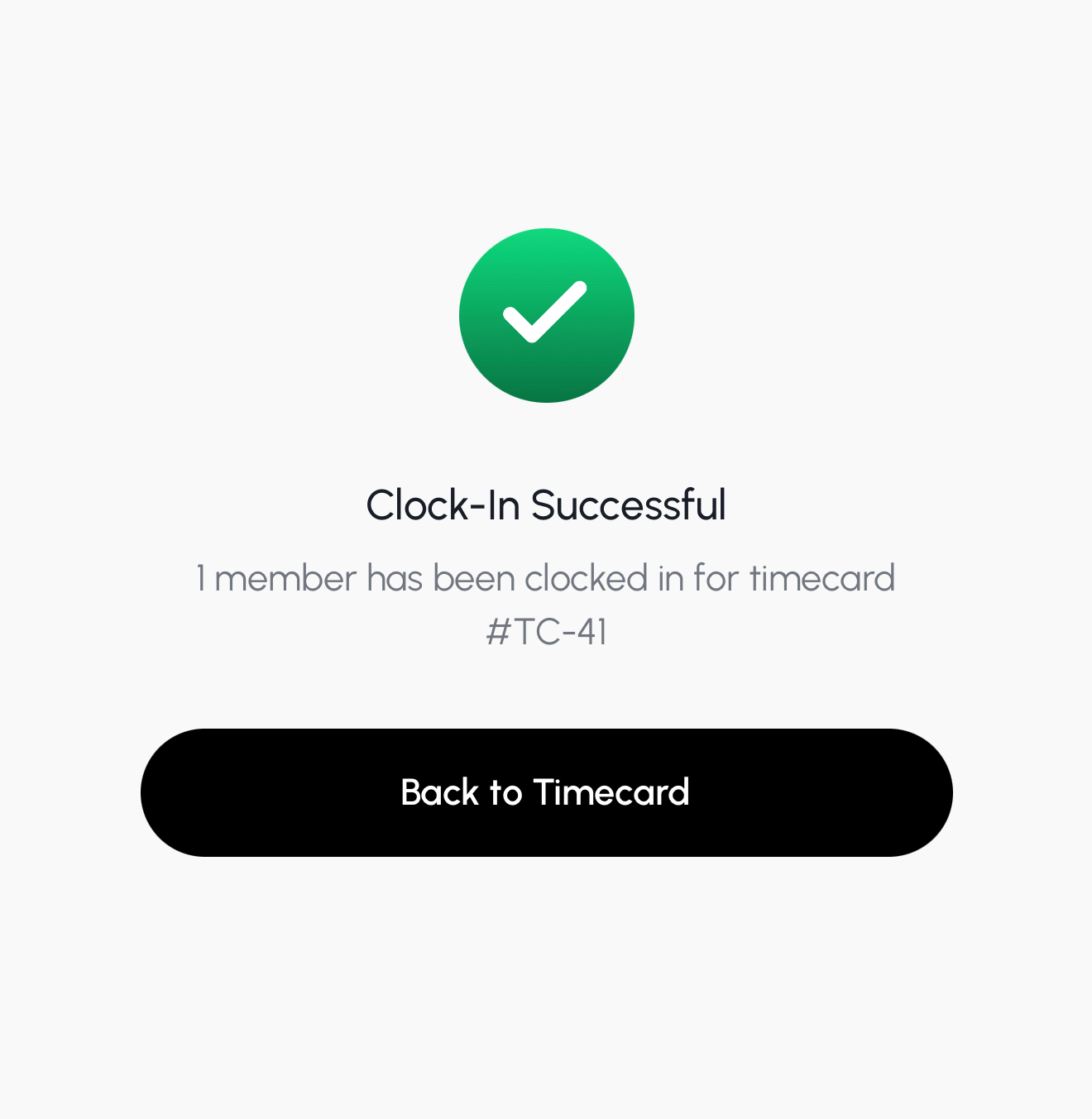
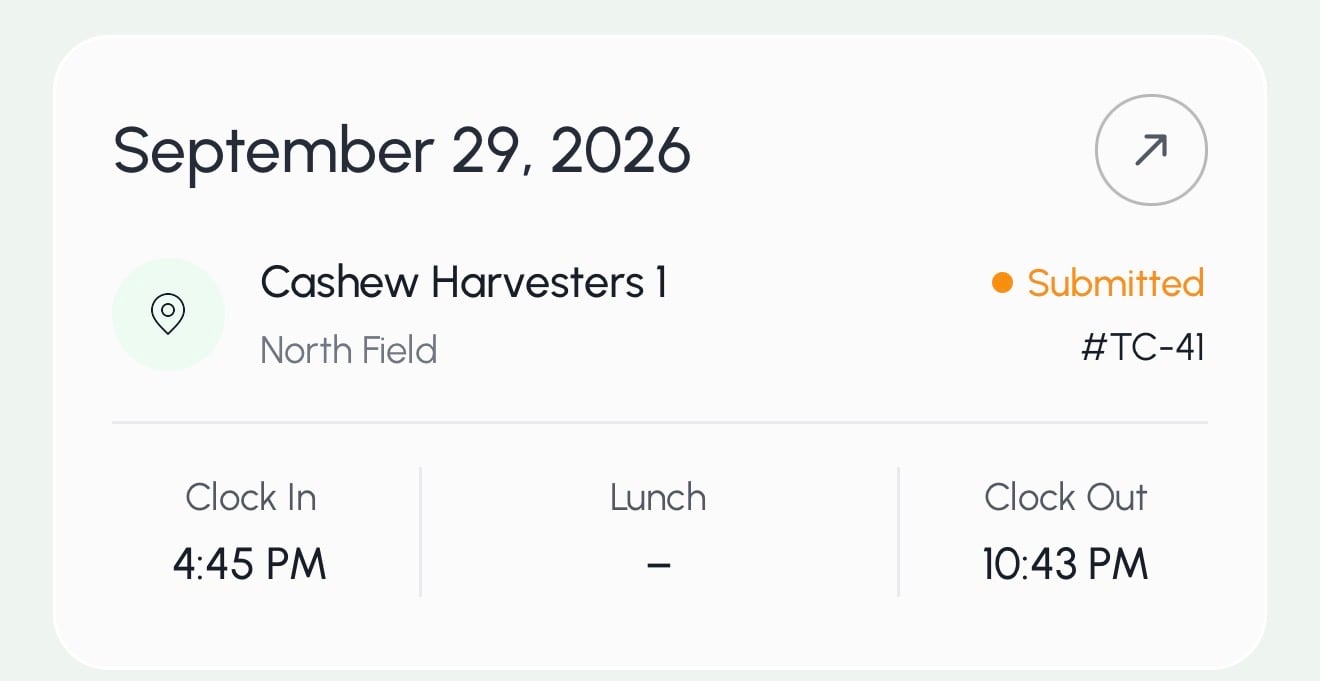
- A confirmation screen appears, showing the number of employees successfully clocked out and the timecard number.
Employees & Crews
Add one employee
- Select the Crew page from the bottom menu.
- Select the + button in the top right of the page.
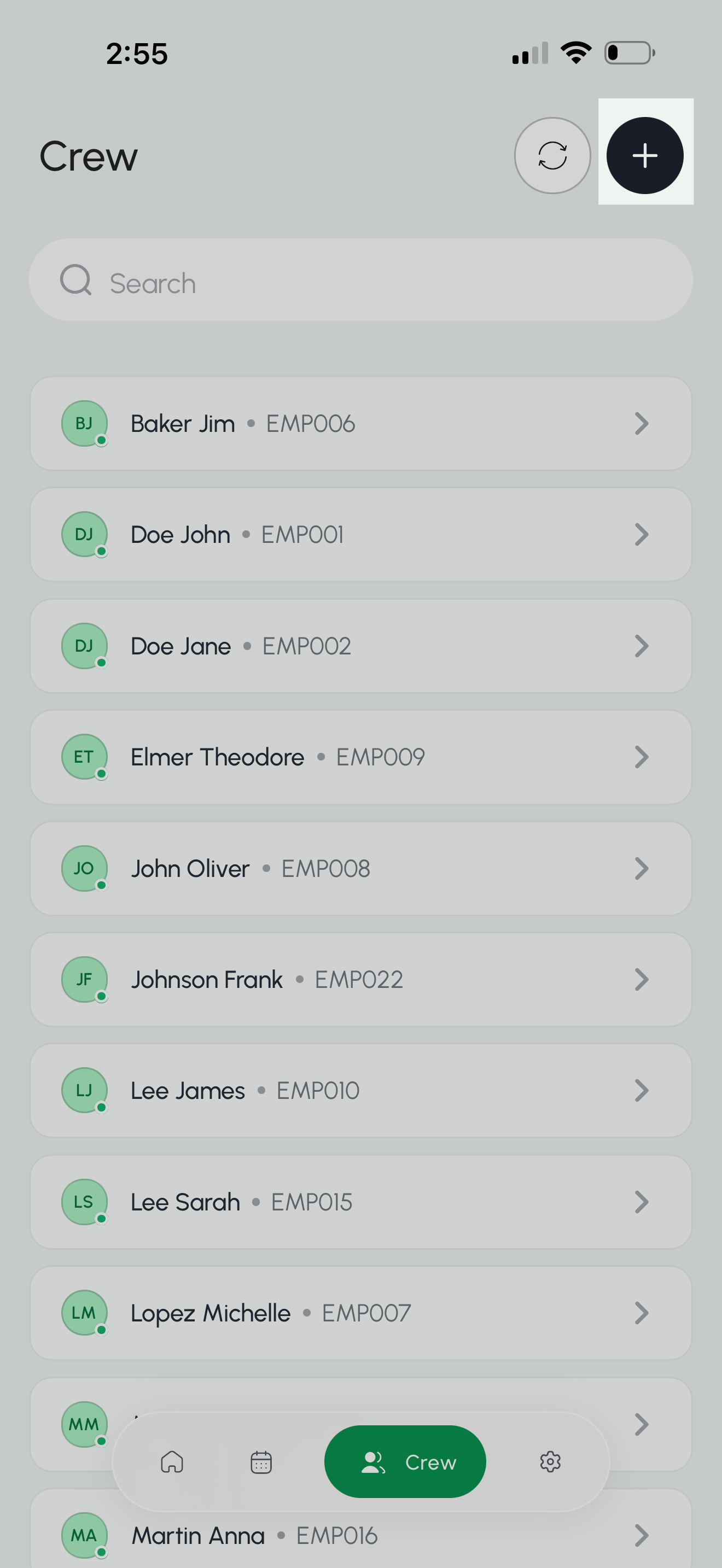
- Enter the employee’s first name, last name, and employee ID.*
- Select Create Member to save your new employee.

Update employee details
- Select the Crew page from the bottom menu.
- Select the Search box above the employee list.
- Enter the employee’s first name, last name, or Employee ID.
- Select the employee you want to update.
- Select the edit button
 on the employee’s profile.
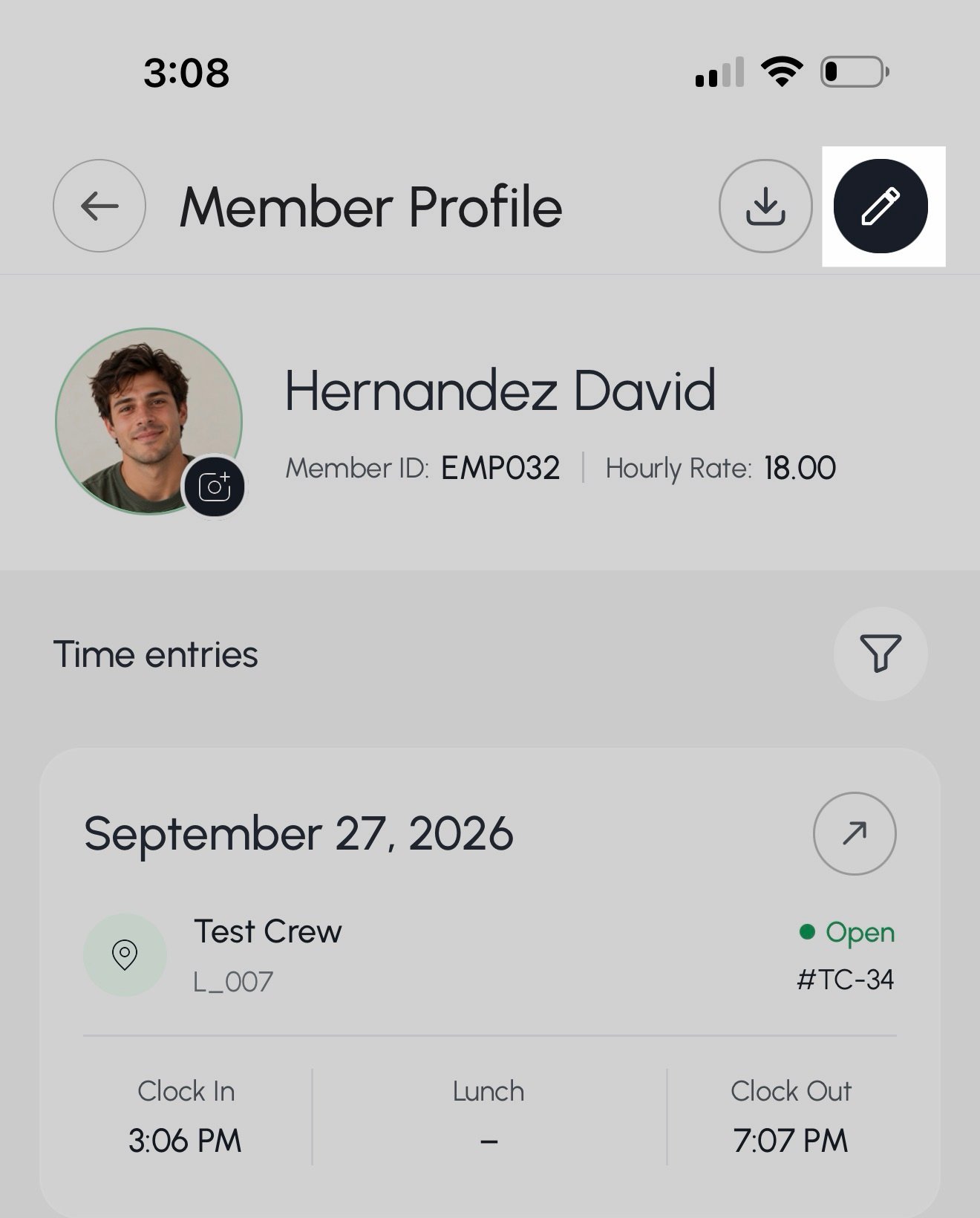
- Update the employee’s first name, last name, employee ID, custom rate, member status, or profile picture.
- Select Update Profile to save your changes.

Export an employee badge
- Select the Crew page from the bottom menu.
- Select the Search box above the employee list.
- Enter the employee’s first name, last name, or Employee ID.
- Select the employee you want to update.
- Select the export button in the top right of the page.
Find an employee’s current hourly rate
Select the Crew page from the bottom menu.
- Select the Search box above the employee list.
- Enter the employee’s first name, last name, or Employee ID.
- Select the employee you want to update.
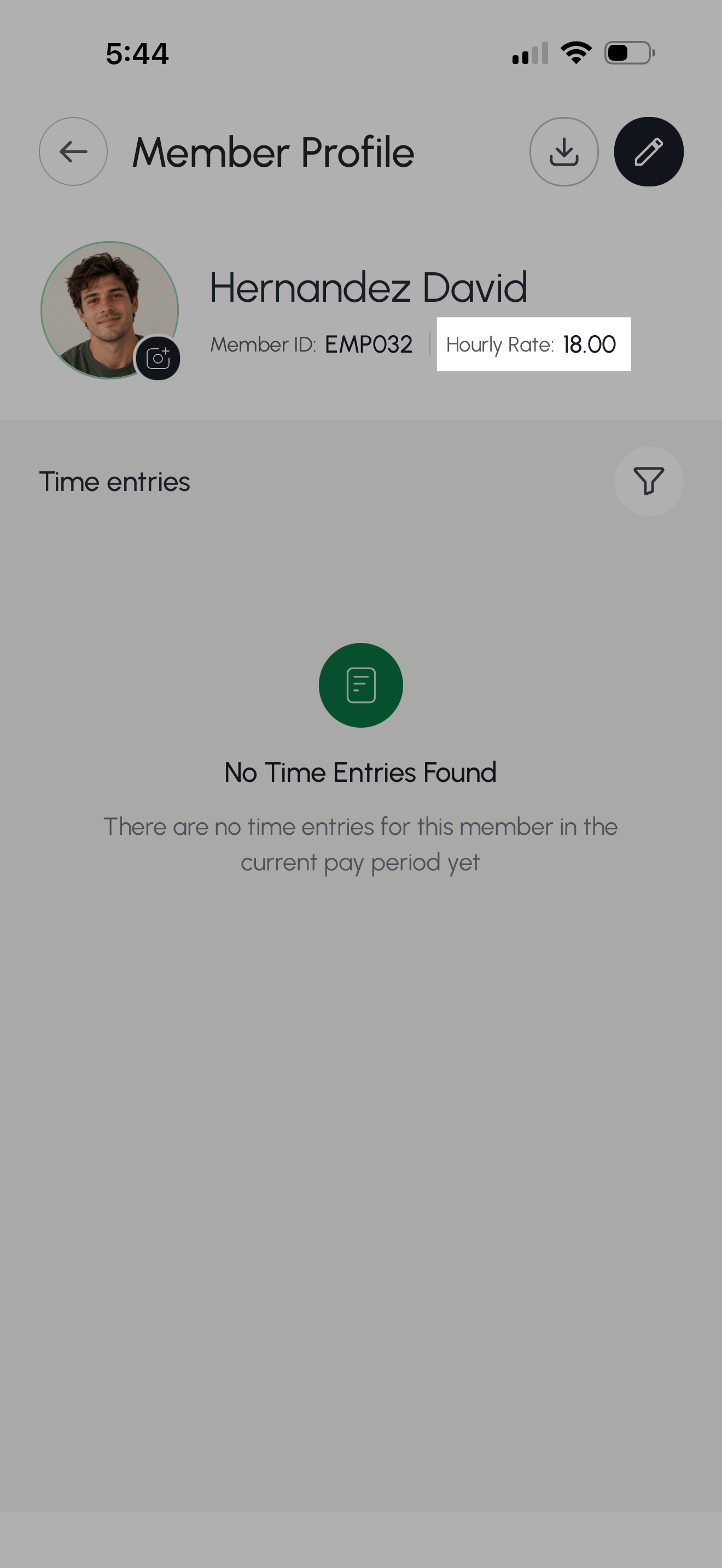
View all employee roles
[Add documentation here.]View all crews
- Select the Crew page from the bottom menu.
- Select the All Crews dropdown list.

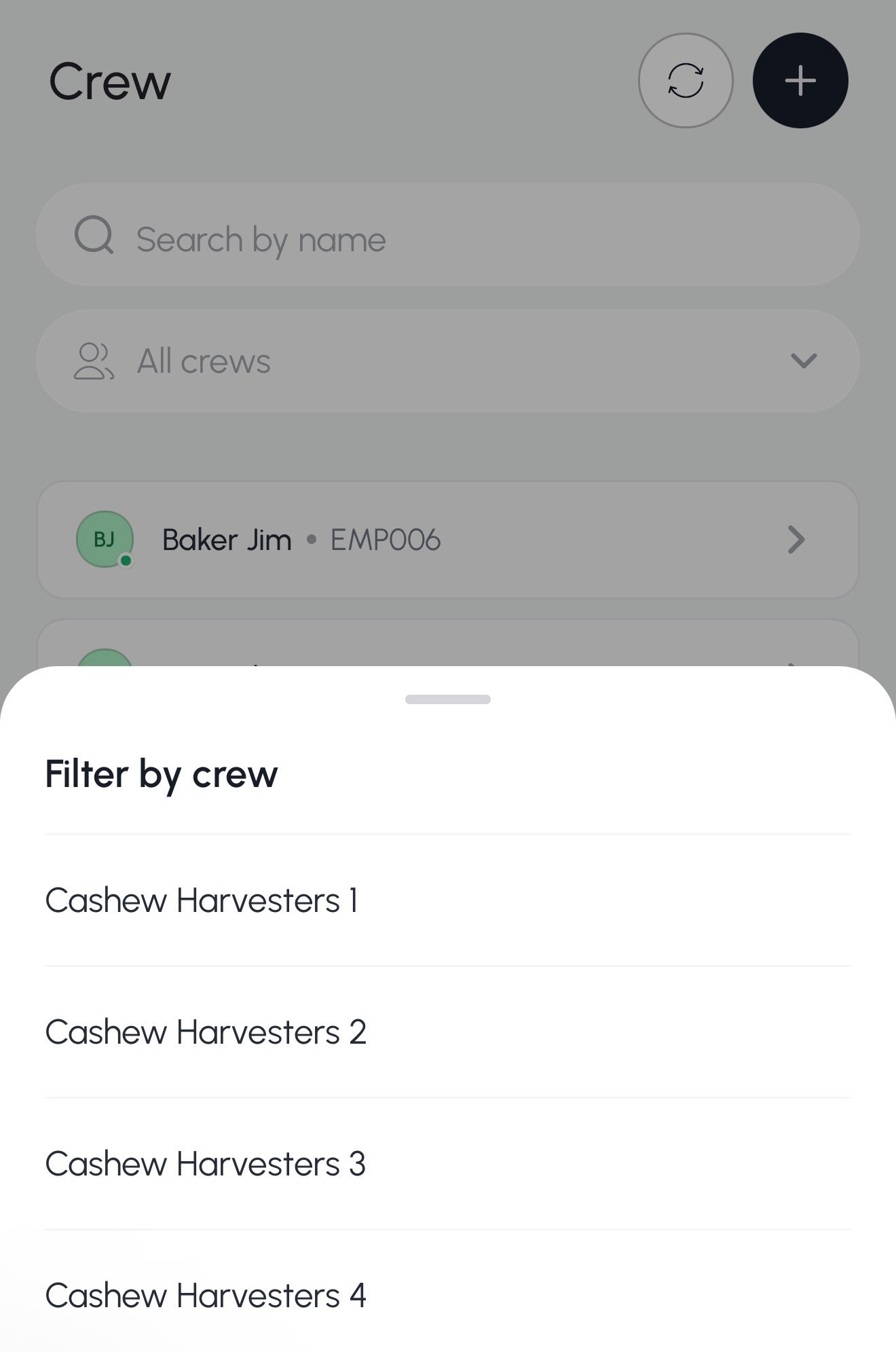
Ranches & Locations
View all ranches by grower
- On the Home Page, select Create time card.

- Select the Grower from the dropdown menu.

- Select the Ranch dropdown menu to see all ranches for that grower.

View locations by ranch
- On the Home Page, select Create time card.
- Select the Grower from the dropdown menu.
- Select the Ranch from the dropdown menu.
- Select the Location dropdown menu to see all locations for that ranch.

Pay Periods & Jobs
View organization pay periods
- On the Home Page, select View all under Pending Approval.

- Select the Period at the top of the page.


View all active jobs for an organization
On the Home Page, select Create time card.- Select the Grower from the dropdown menu.
- Select the Ranch from the dropdown menu.
- Select the Location from the dropdown menu.
- Select the Job dropdown menu to see all active jobs in the organization.

Creating & Viewing Time Cards
Create a new time card for today
On the Home Page, select Create time card. from the bottom menu and select the add + button.

- Select the crew, grower, ranch, location, and job.
- Select Create Timecard to saver your new timecard.

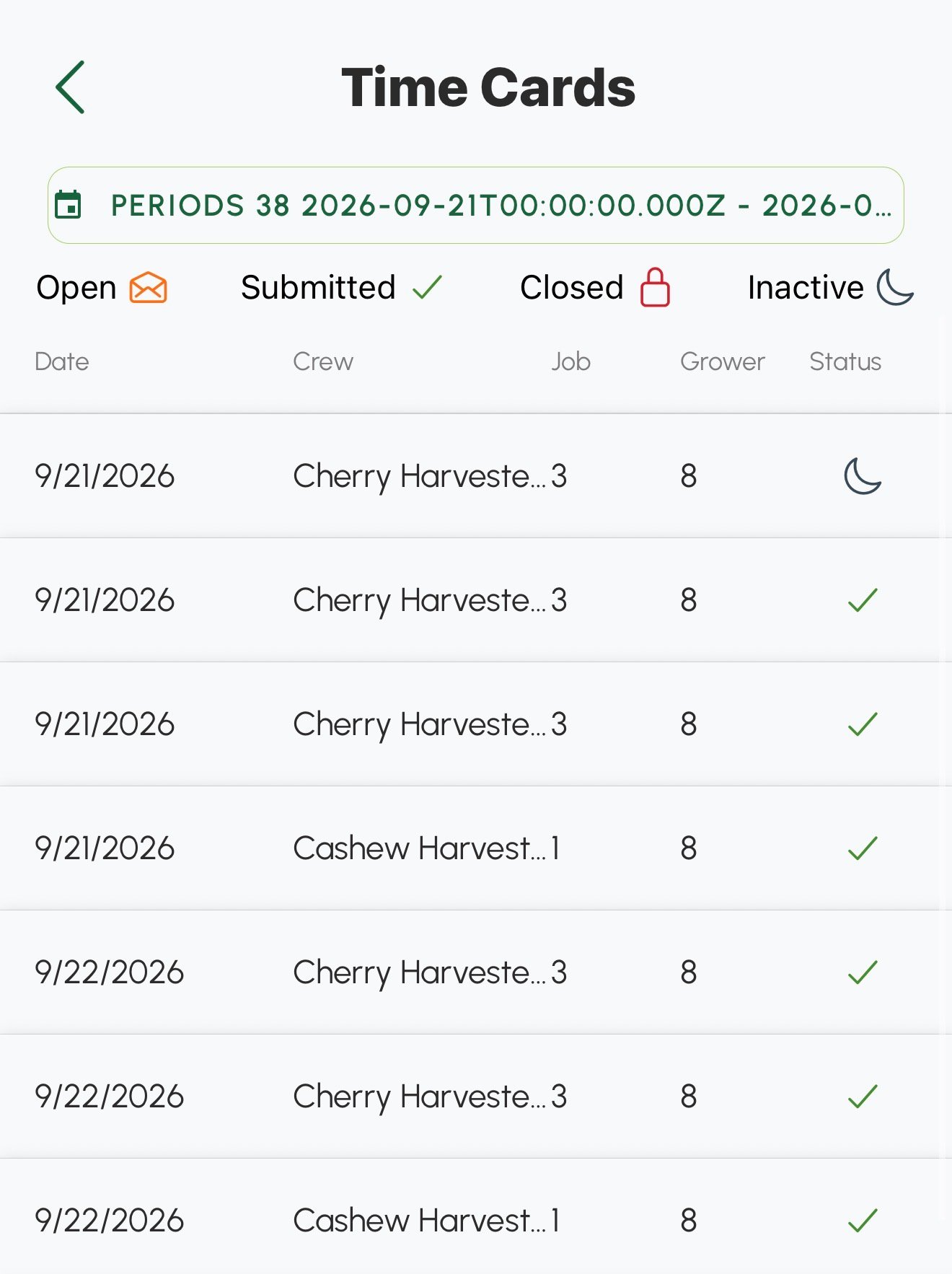
View all timecards for an organization in a pay period
- On the Home Page, select View all under Pending Approval.
- Select the Period at the top of the page.
- On the Home Page, select View all under Pending Approval.
- Select the Period at the top of the page.
- Select the pay period you want to view.
- This is the list of all of the time cards within this pay period.
Find a time card
Any time cards scheduled for that day will show on the Home Page.- Select the Timecard page from the bottom menu.
- You can search for a specific time card by selecting a date and/or crew.
The mobile app only shows time cards for the current pay period. You can find a timecard for any pay period in the web version.
Editing & Managing Active Time Cards
Clock employees in
- Select the Timecard page from the bottom menu.
- Find and select the timecard you want to clock employees in for.
- Under Timecard tasks, select Scan now in the Clock In Members section.
- Select Scan per group or Scan per individual.
- Scan per group: assign members to a group for the current time card.
- Scan per individual: scan in employees without creating groups for the current time card.
- Scan the QR codes on each employee’s badge.
- The employee names will show up under Selected Members as they are successfully scanned.
- Select Clock In Members.
Record employee breaks
- Select the Timecard page from the bottom menu.
- Find and select the timecard you want to record a break for.
- Select Morning Break, Lunch Beak, or Afternoon Break to open the timecard task.
- Select Scan now for the break you want to record.
- Select Scan per group or Scan per individual.
- Scan per group: assign members to a group for the current time card.
- Scan per individual: scan in employees without creating groups for the current time card.
- Scan the QR codes on each employee’s badge.
- The employee names will show up under Selected Members as they are successfully scanned.
- Select Clock In Members.
- A confirmation screen appears, showing that the break has started.
- When the employee breaks are over, select Scan now for the break you want to end.
- Select the Scan button at the bottom right of the page.
- Select Scan per group or Scan per individual.
- Scan the QR codes on each employee’s badge.
- The employee names will show up under Selected Members as they are successfully scanned.
- Select Clock In Members.
- A confirmation screen appears, showing that the break has ended.
- You can skip any breaks that do not apply to the workday.
Clock employees out
- Select the Timecard page from the bottom menu.
- Find and select the timecard you want to clock employees out for.
- Select Clock Out Members to open the timecard task.
- Select Scan now.
- Select Scan per group or Scan per individual.
- Scan per group: assign members to a group for the current time card.
- Scan per individual: scan in employees without creating groups for the current time card.
- Scan the QR codes on each employee’s badge.
- The employee names will show up under Selected Members as they are successfully scanned.
- Select Clock Out Members.
- Confirm your changes by selecting Confirm & Submit.
- A confirmation screen appears, showing the number of employees successfully clocked out and the timecard number.
View all employees in an active time card
- Select the Timecard page from the bottom menu.
- Find and select the timecard you want to view all employees for.
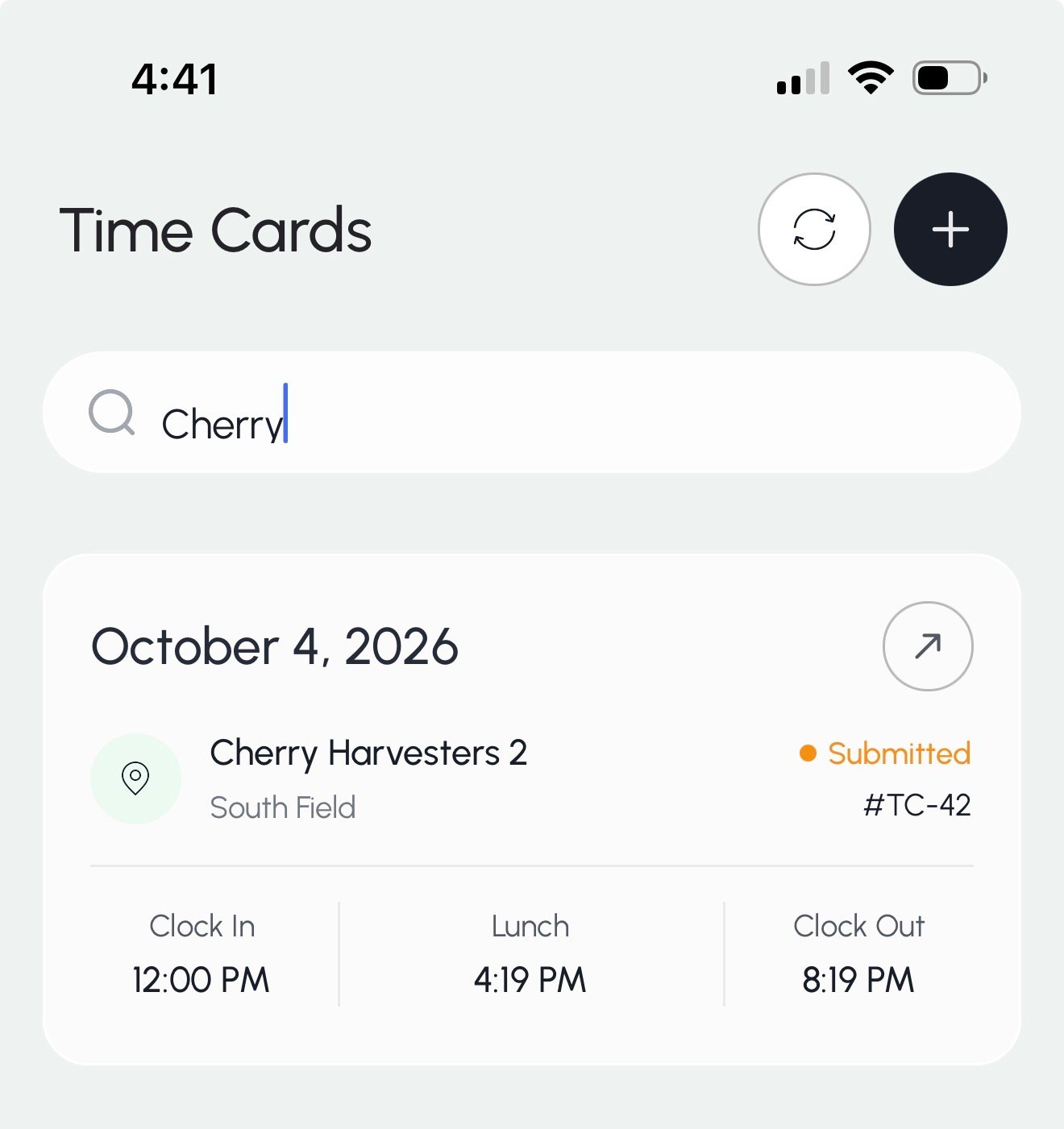
- Select the employees button at the top right of the timecard page.
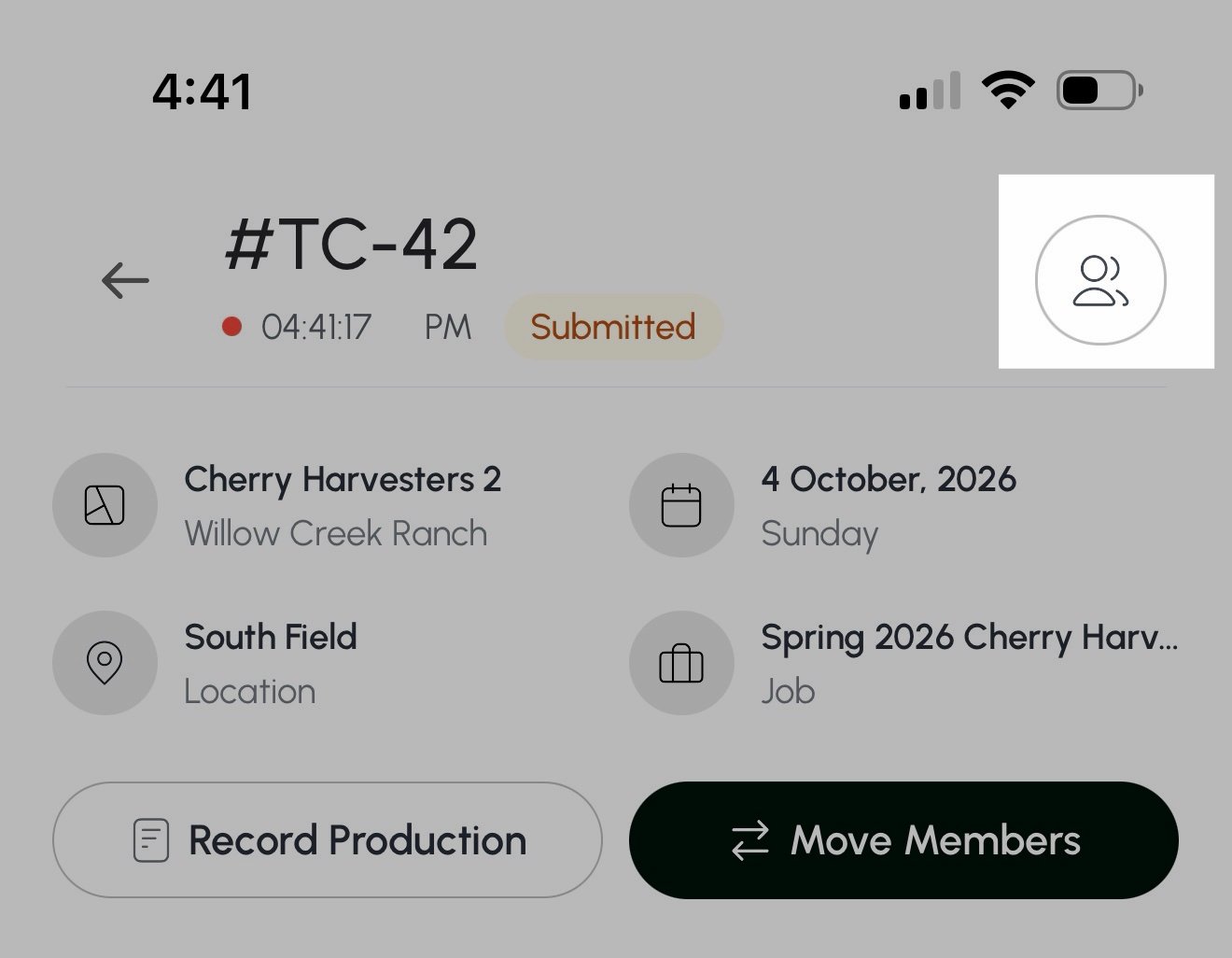
- All employees on the timecard are listed under Members.

Add a new clocking event to a time card (create a time card register)
- Select the Timecard page from the bottom menu.
- Find and select the timecard you want to move employees for.
- The Move Members button will not work until the employee’s lunch break has started.

- Once the employee’s lunch break starts, you can select Move Members.

- Select the ranch, location, and job that you want to move the employee to.
- Select Proceed.
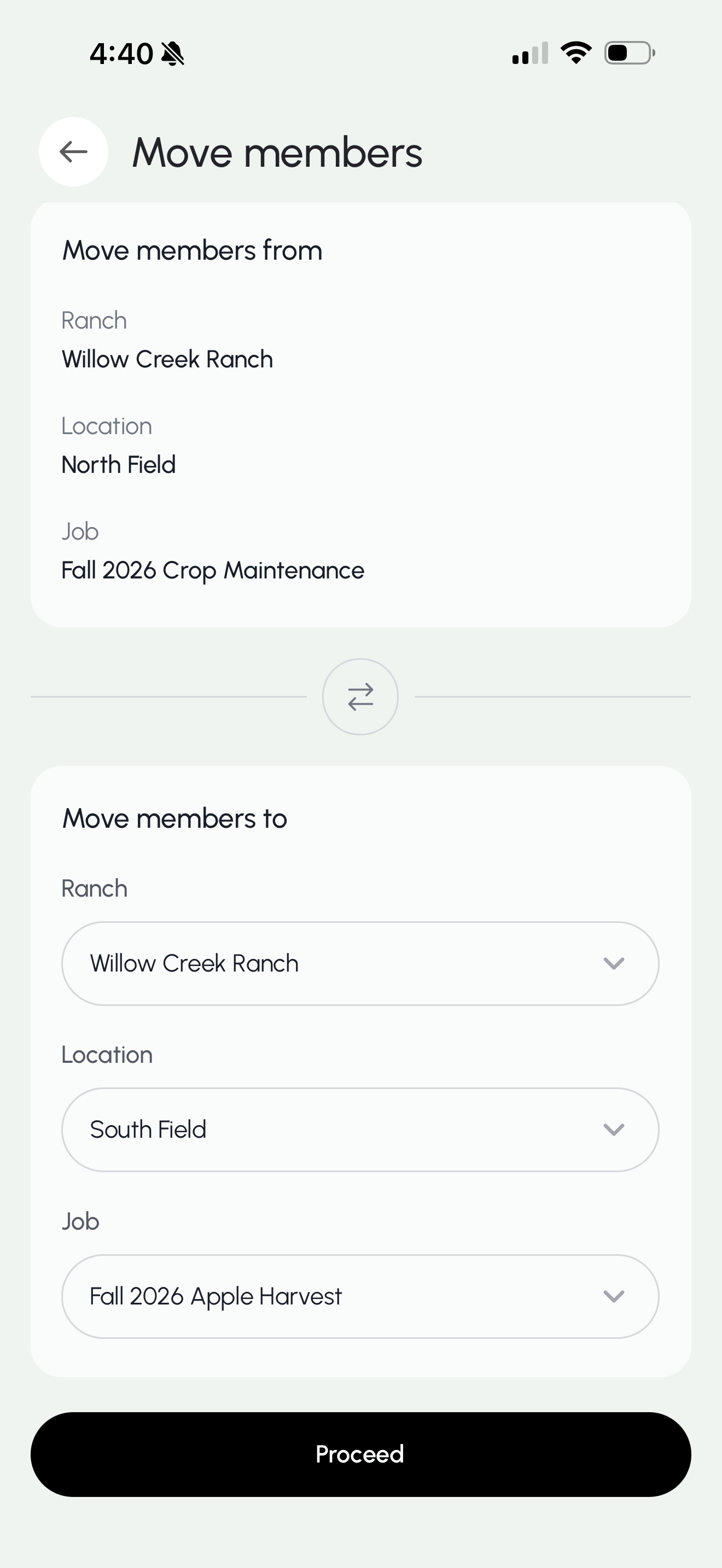
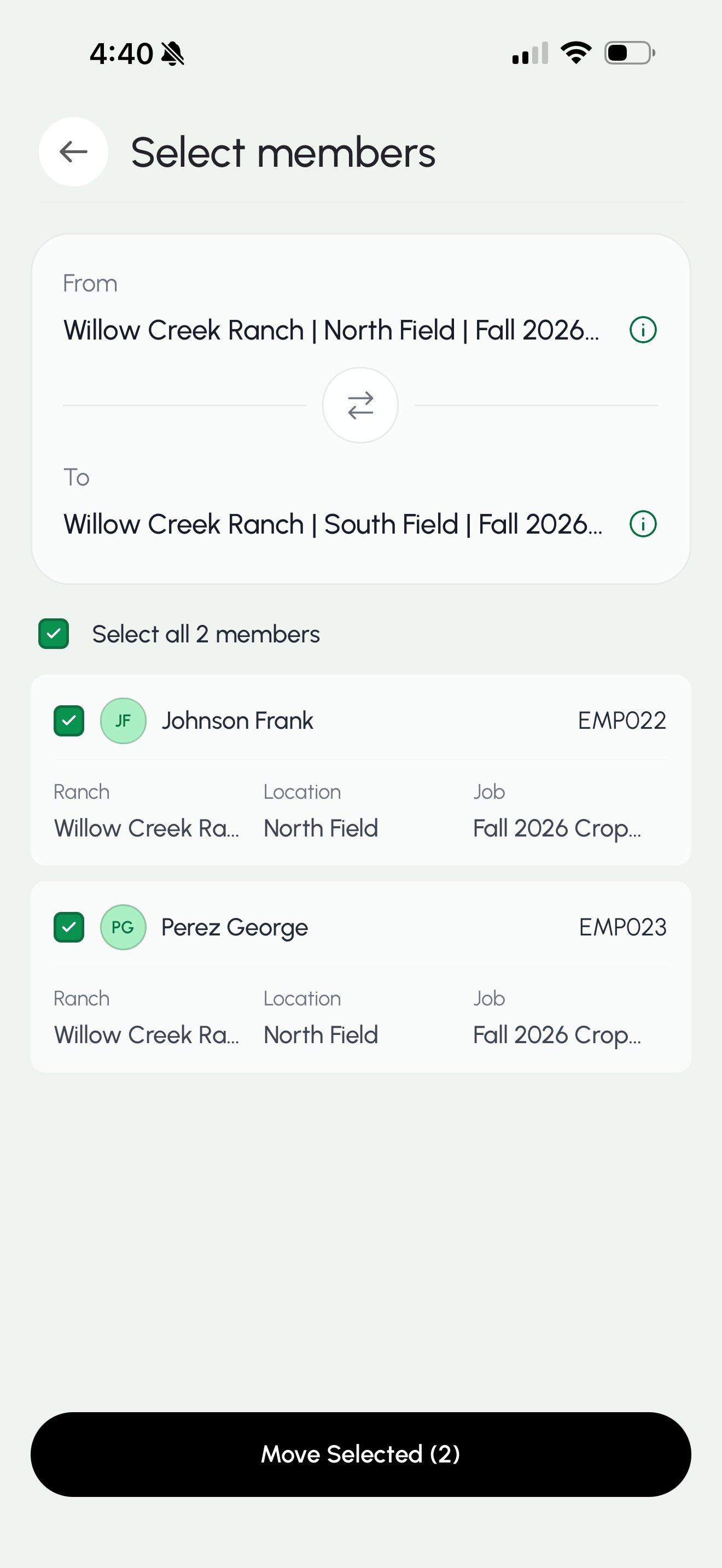
- Select the employee(s) you would like to move.
- Select Move Selected.
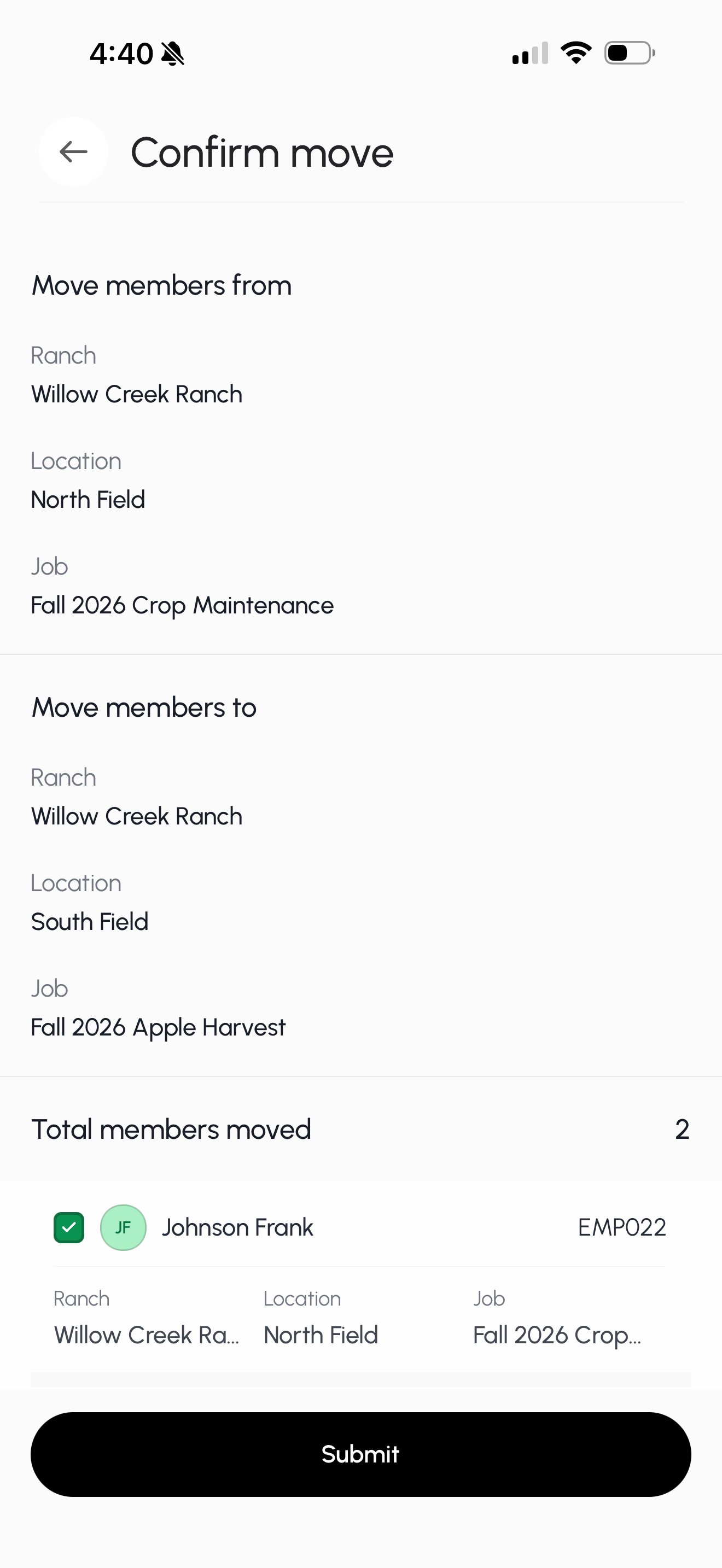
- Confirm the move by selecting Submit.


Editing & Managing Completed Time Cards
View all employees in a completed time card
- On the Home Page, select View all under Pending Approval.
- Select the Period at the top of the page.
- Select the time card you want to view.
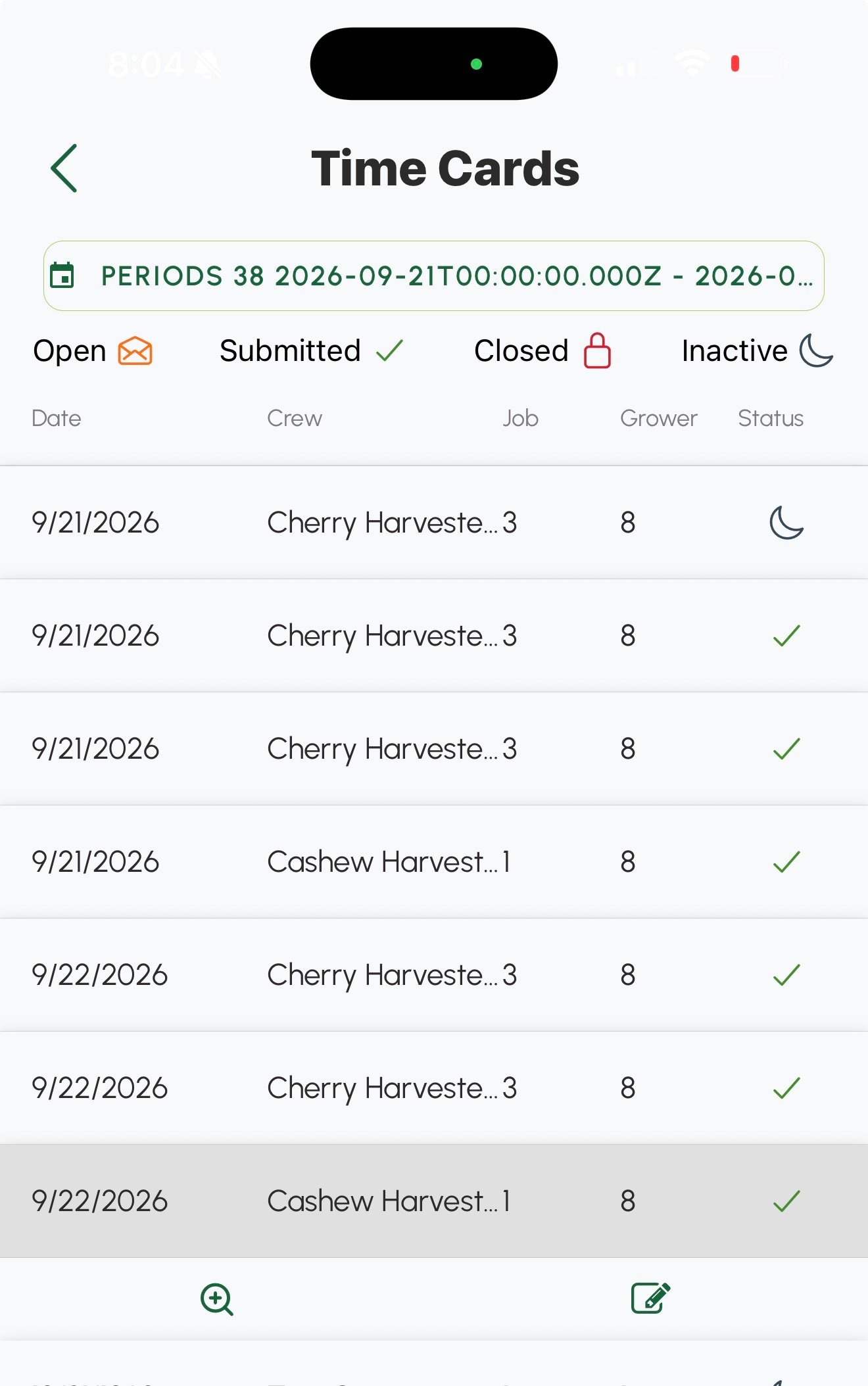
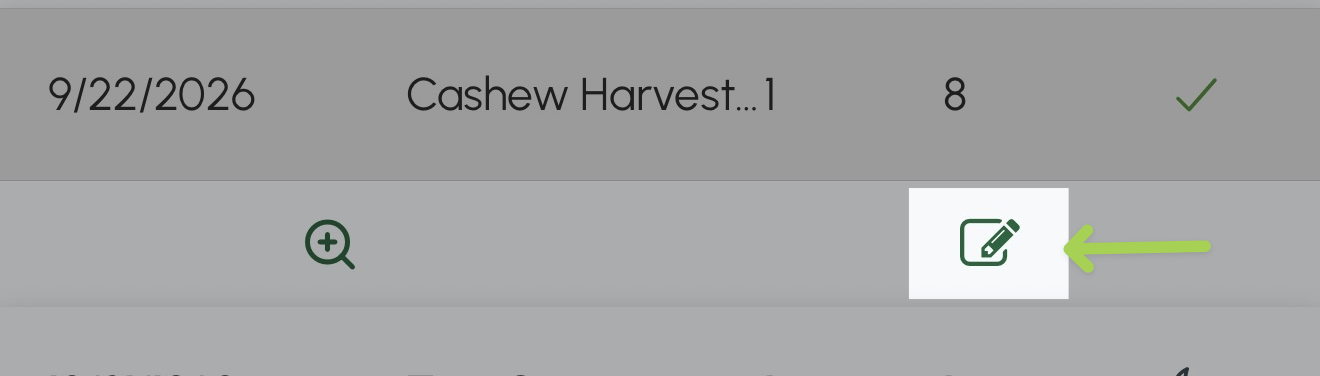
- Select the edit button.
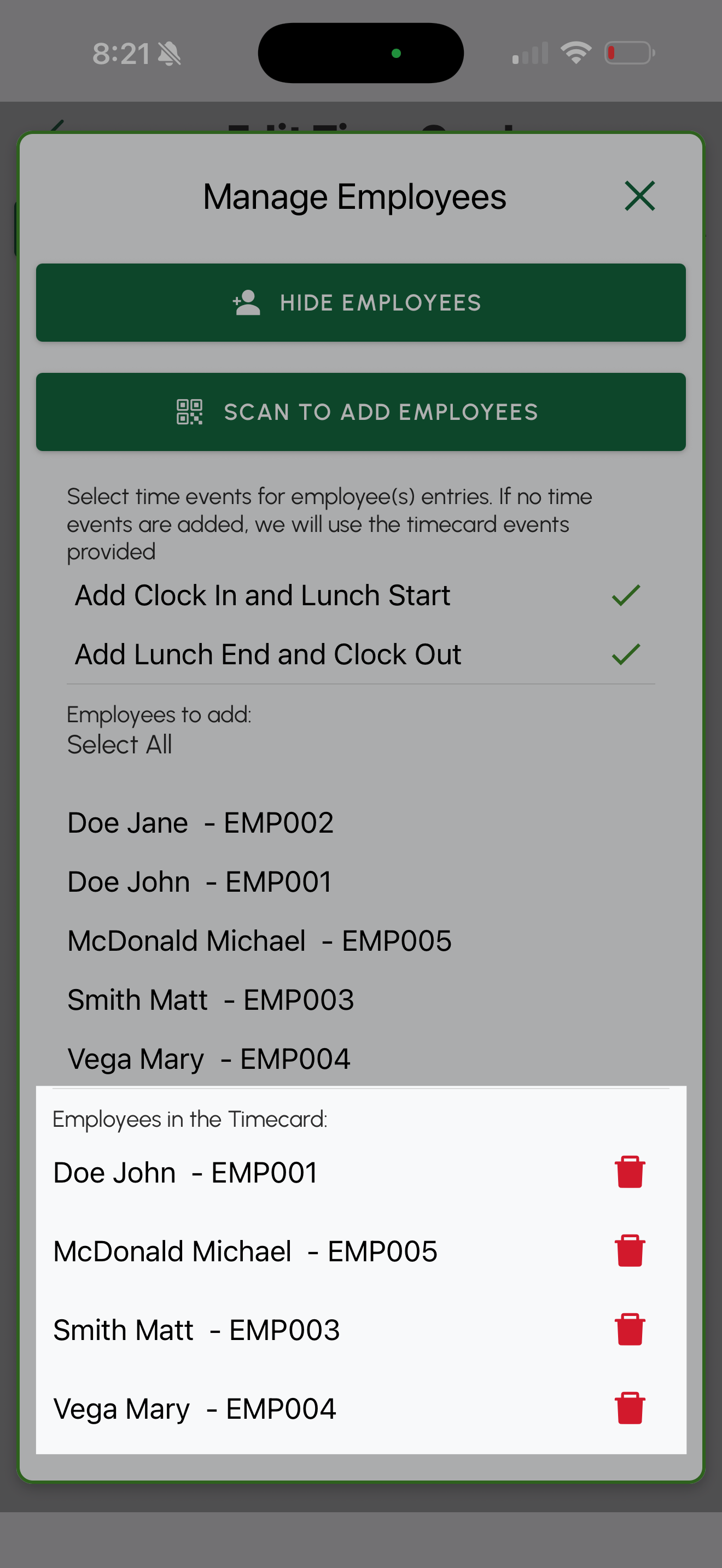
- Select Manage employees.

- All employees currently on the timecard are listed under Employees in the Timecard.
Add employees to a completed time card
- On the Home Page, select View all under Pending Approval.
- Select the Period at the top of the page.
- Select the time card you want to edit.
- Select the edit button.
- Select Manage employees.
- Select Scan to add employees.
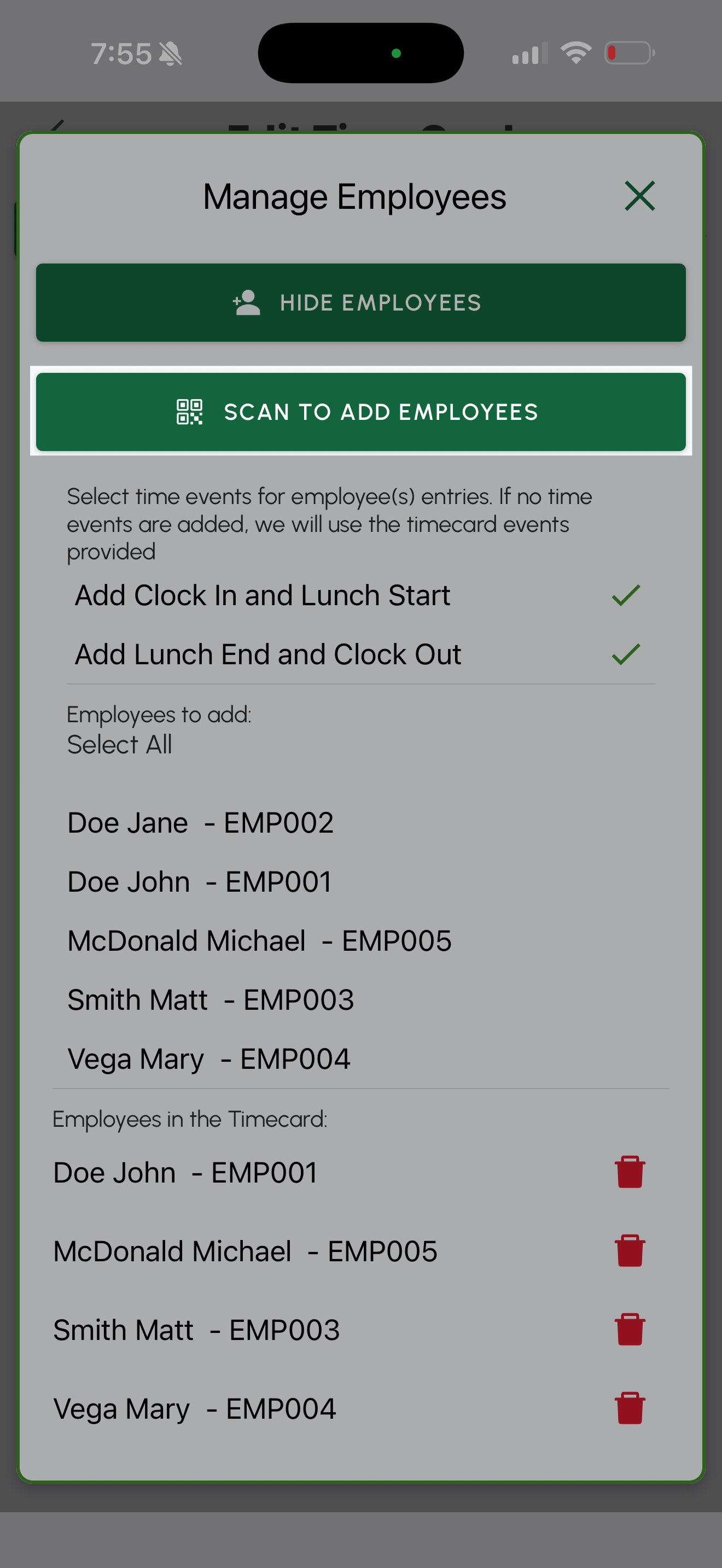
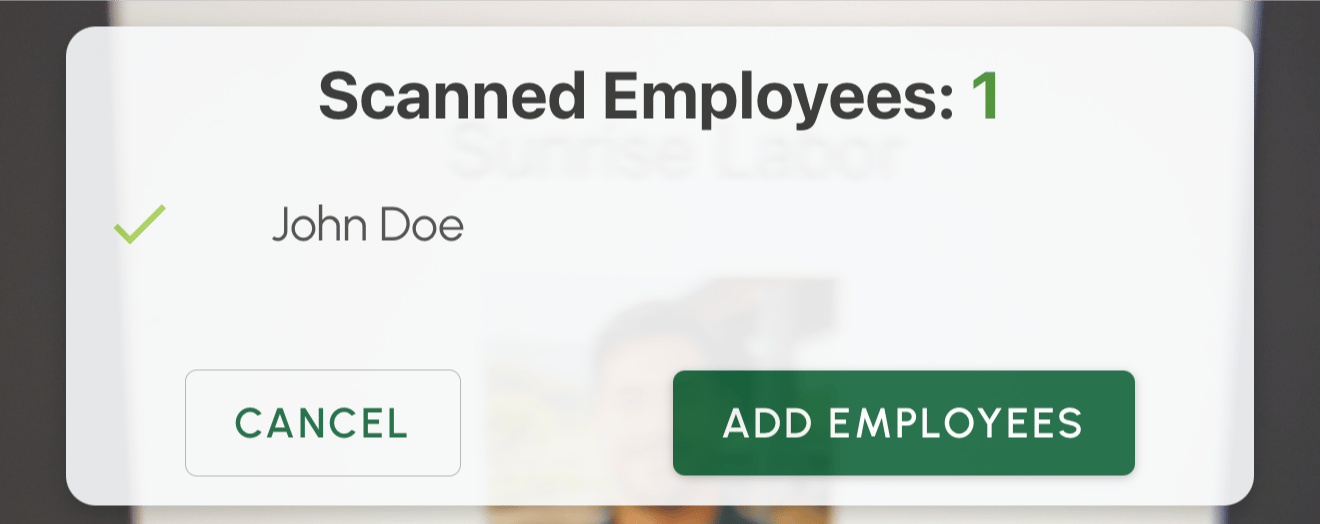
- Scan the employee’s badge to add the employee to the timecard.
Remove employees from a completed time card
- On the Home Page, select View all under Pending Approval.
- Select the Period at the top of the page.
- Select the time card you want to edit.
- Select the edit button.
- Select Manage employees.
- Select the delete button next to the employee that you want to remove.
- Confirm your deletion to remove the employee.

View eligible employees for a completed time card
- On the Home Page, select View all under Pending Approval.
- Select the Period at the top of the page.
- Select the time card you want to view.
- Select the edit button.
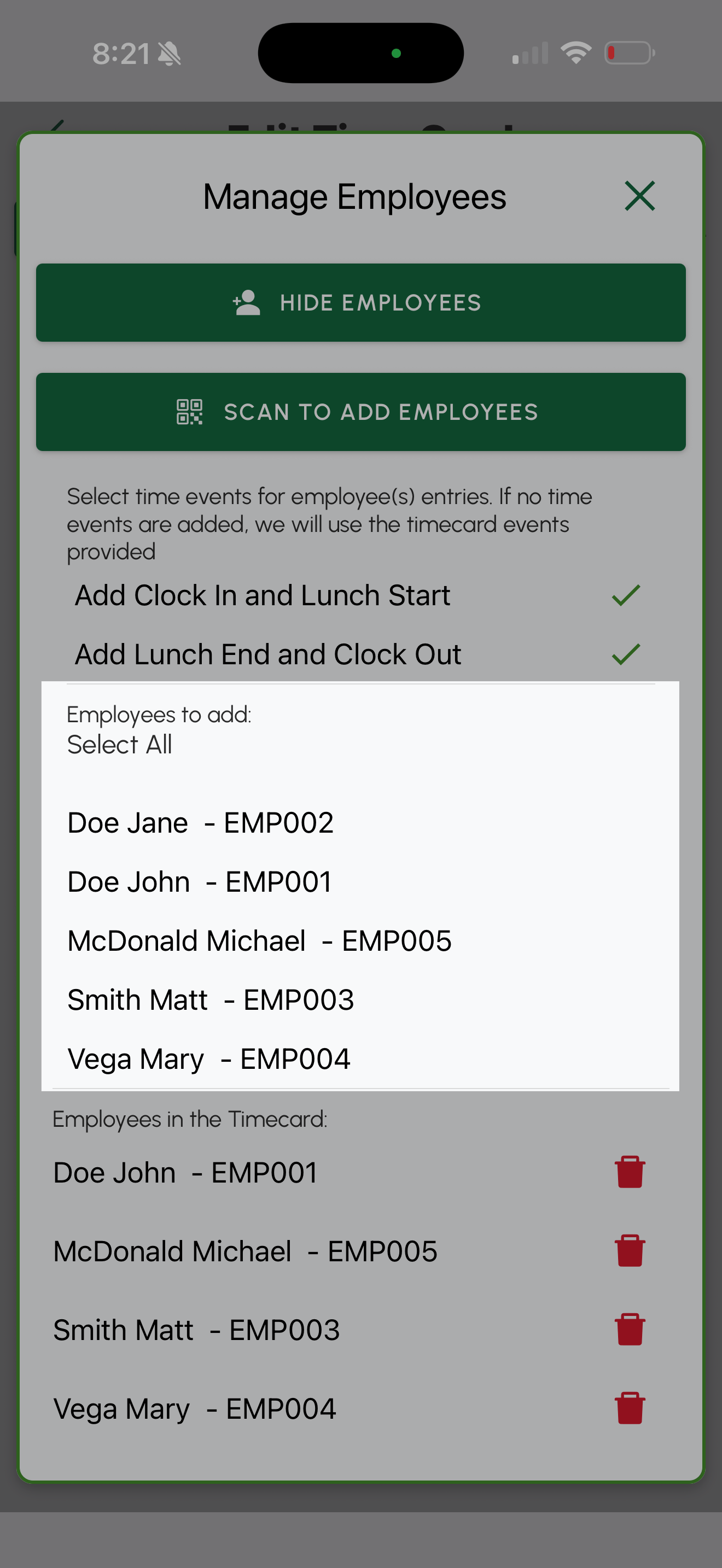
- Select Manage employees.
- All employees that can be added the timecard are listed under Employees to add.
Update time card status
- Select the Timecard page from the bottom menu.
- Find and select the timecard you want to move employees for.
Managing Time Card Status & Breaks
Add break to a completed time card
- On the Home Page, select View all under Pending Approval.
- Select the Period at the top of the page.
- Select the time card you want to view.
- Select the edit button.
- Select Add Breaks.

- Select the Break Start and Break End.


View breaks in a completed time card
- On the Home Page, select View all under Pending Approval.
- Select the Period at the top of the page.
- Select the time card you want to view.
- Select the edit button.
Delete break from a completed time card
- On the Home Page, select View all under Pending Approval.
- Select the Period at the top of the page.
- Select the time card you want to view.
- Select the edit button.
- Select the delete icon next to the break you want to delete.

- Select Delete to confirm this action.

