
I. Employees
Add an employee
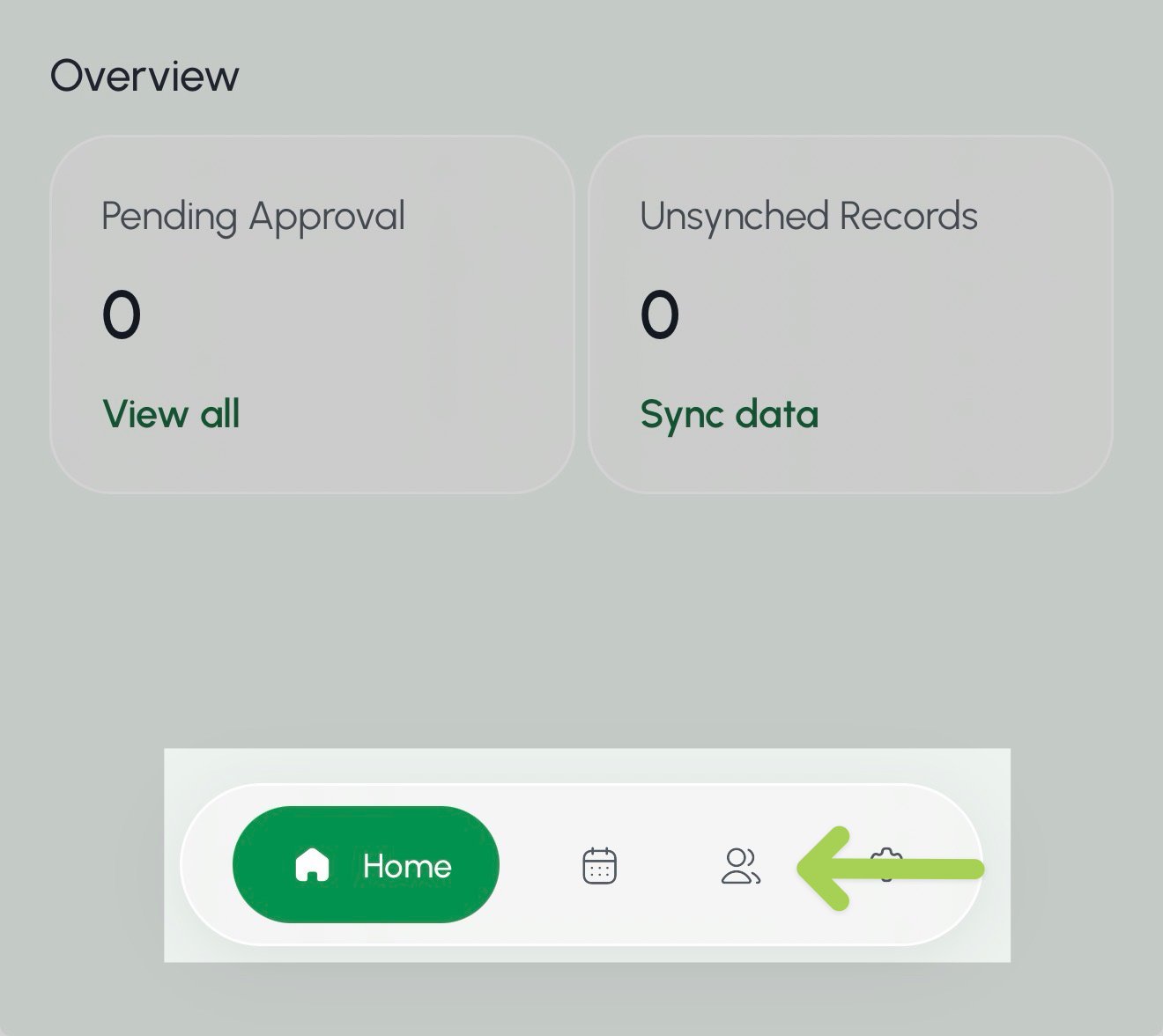
- Select the Crew page from the bottom menu.
- Select the Crew page
 from the bottom menu.
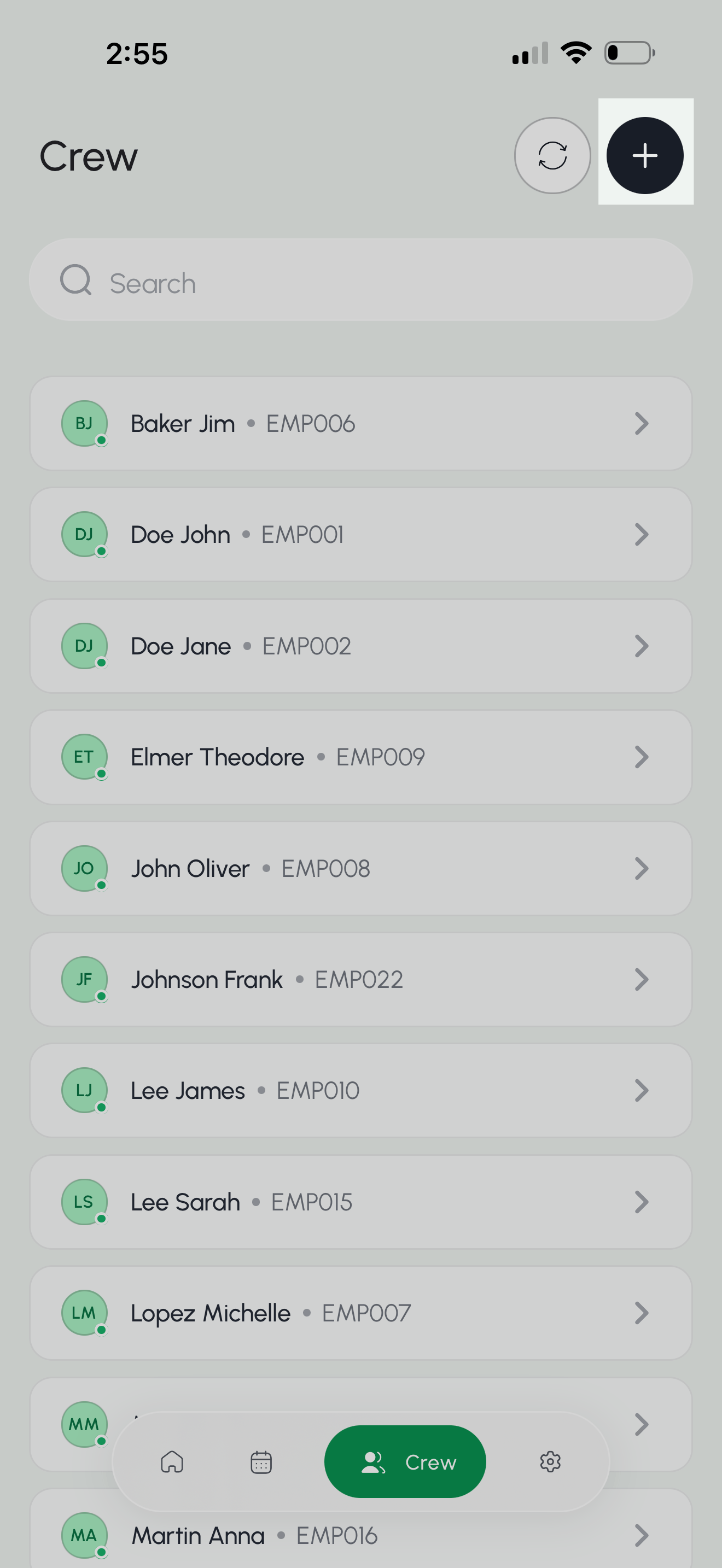
- Select the + button in the top right of the page.
- Enter the employee’s first name, last name, and employee ID.*
- Select Create Member to save your new employee.

Update employee details
- Select the Crew page from the bottom menu.
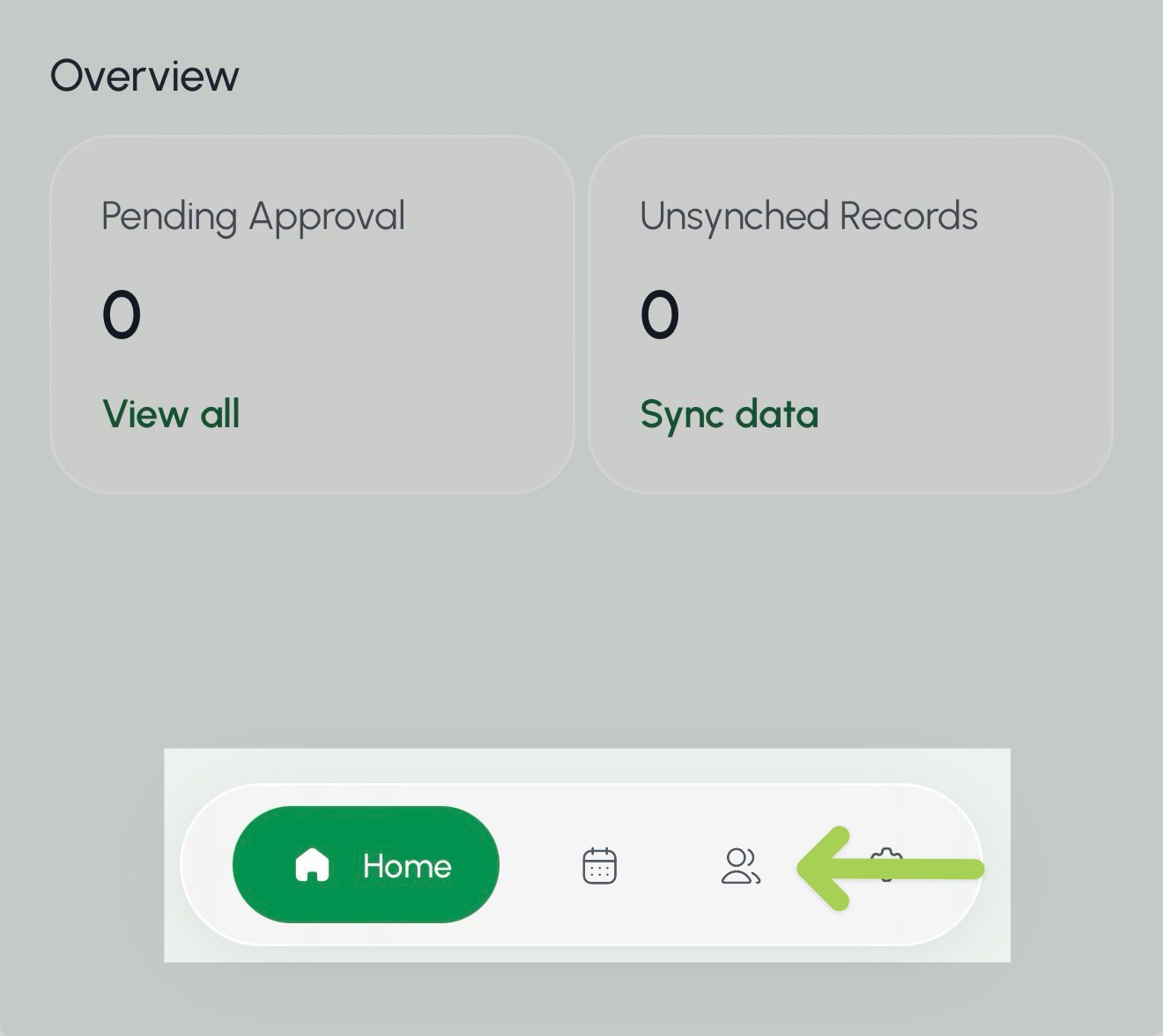
- Select the Search box above the employee list.
- Enter the employee’s first name, last name, or Employee ID.
- Select the employee you want to update.

- Select the edit button
 on the employee’s profile.
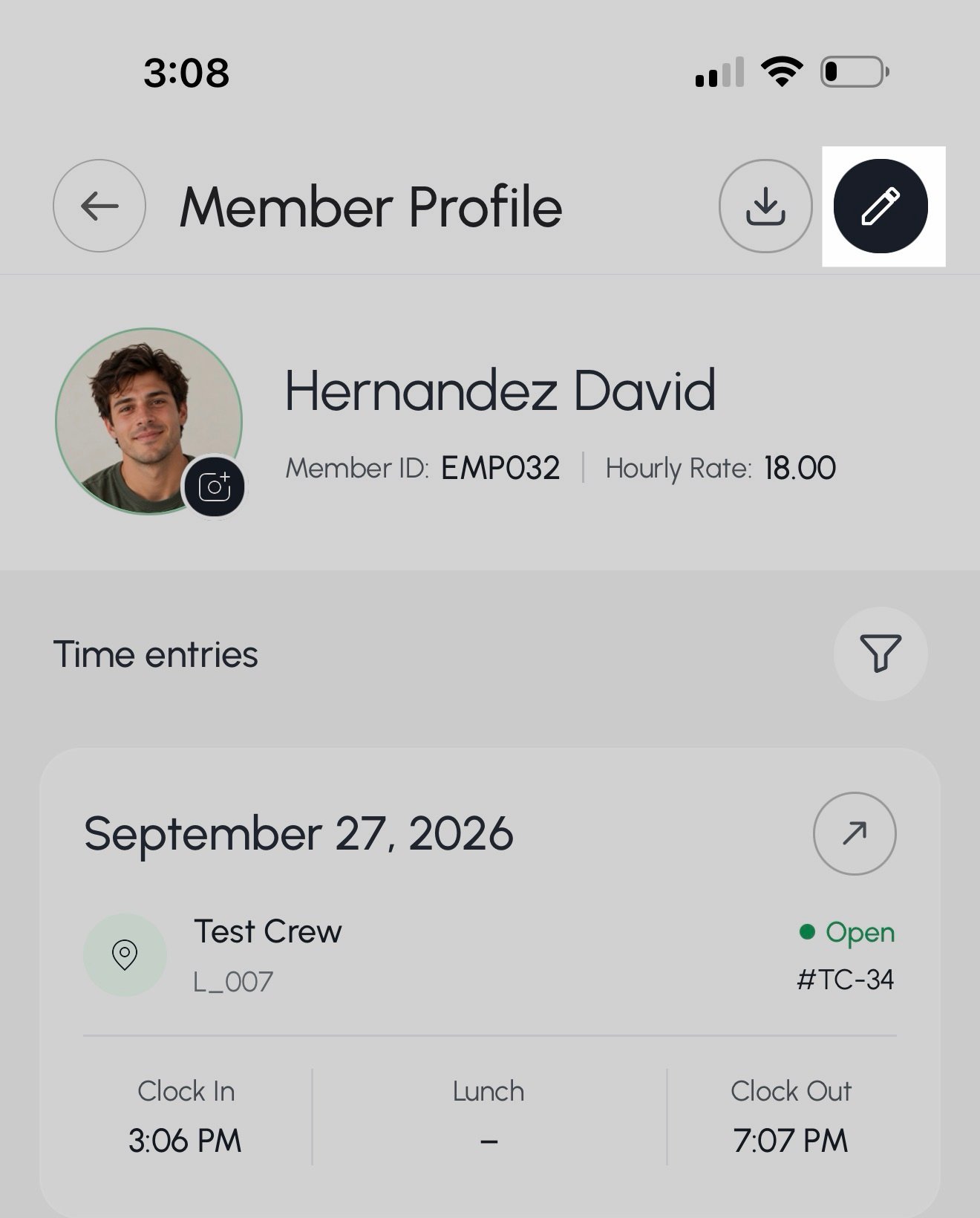
- Update the employee’s first name, last name, employee ID, custom rate, member status, or profile picture.
- Select Update Profile to save your changes.

Export Employee Badge
- Select the Crew page from the bottom menu.
- Select the Search box above the employee list.
- Enter the employee’s first name, last name, or Employee ID.
- Select the employee you want to update.
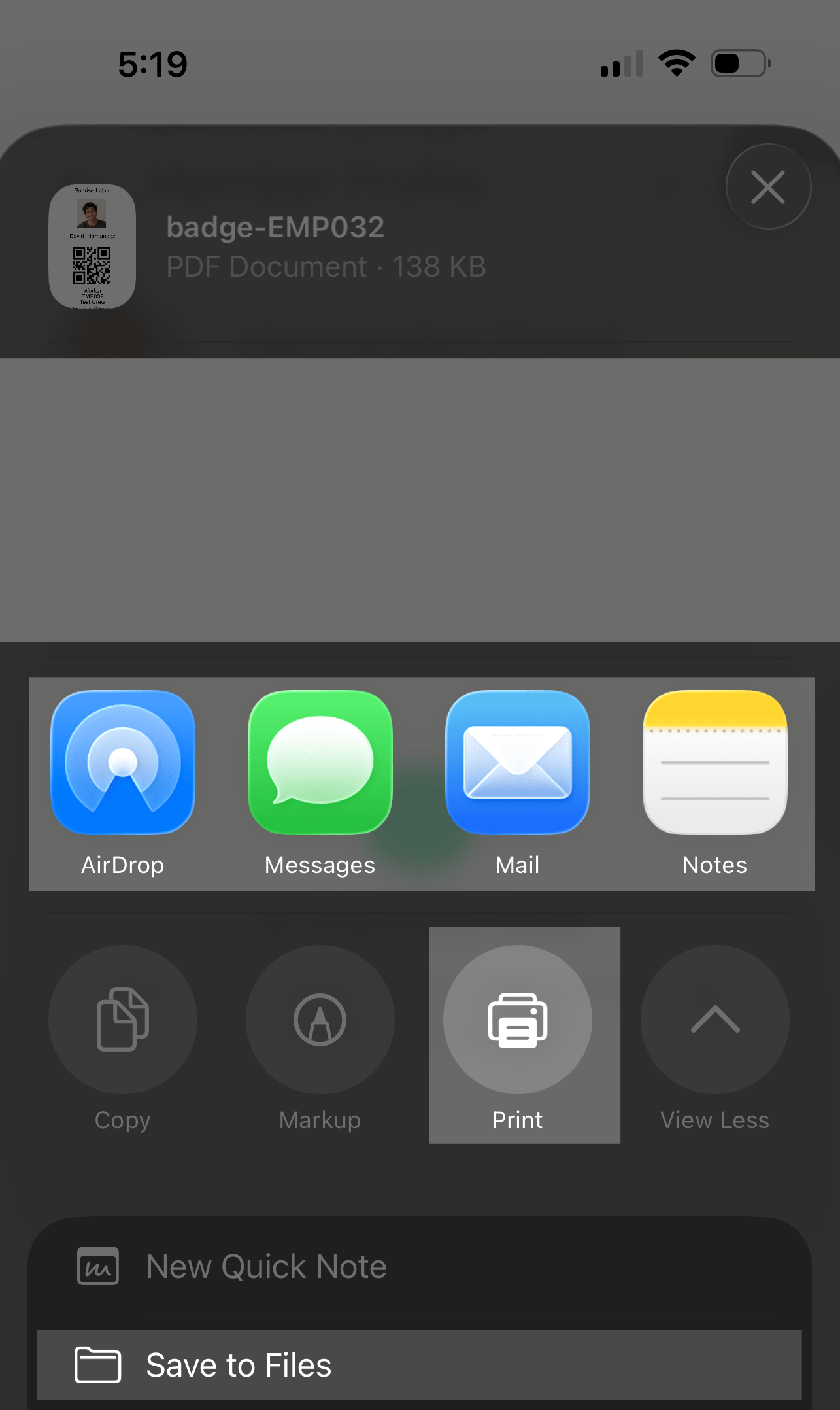
- Select the export button
 in the top right of the page.

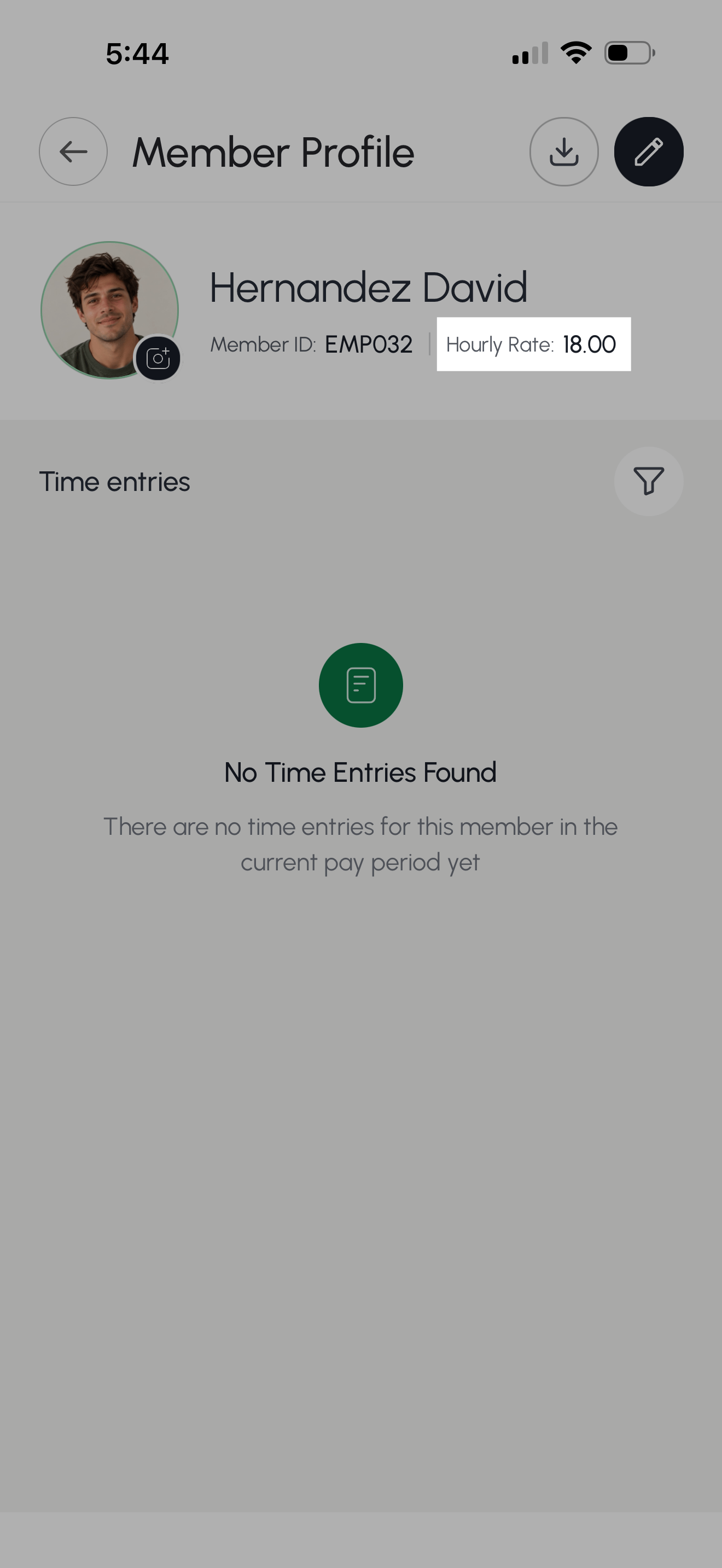
View an employee’s hourly rate
- Select the Crew page from the bottom menu.
- Select the Search box above the employee list.
- Enter the employee’s first name, last name, or Employee ID.
- Select the employee you want to update.